
Free download (68 MB) Previous versions
- Version
- 5.3.0
- Developer
- iTubeGo
- Languages
- English
- License type
- K'ed by TNT team
| macOS range | macOS 10.12 or later |
|---|---|
| Chip | Intel 64-bit |
| Download | 68 MB |
| Previous versions | 2 on file |
Screenshots
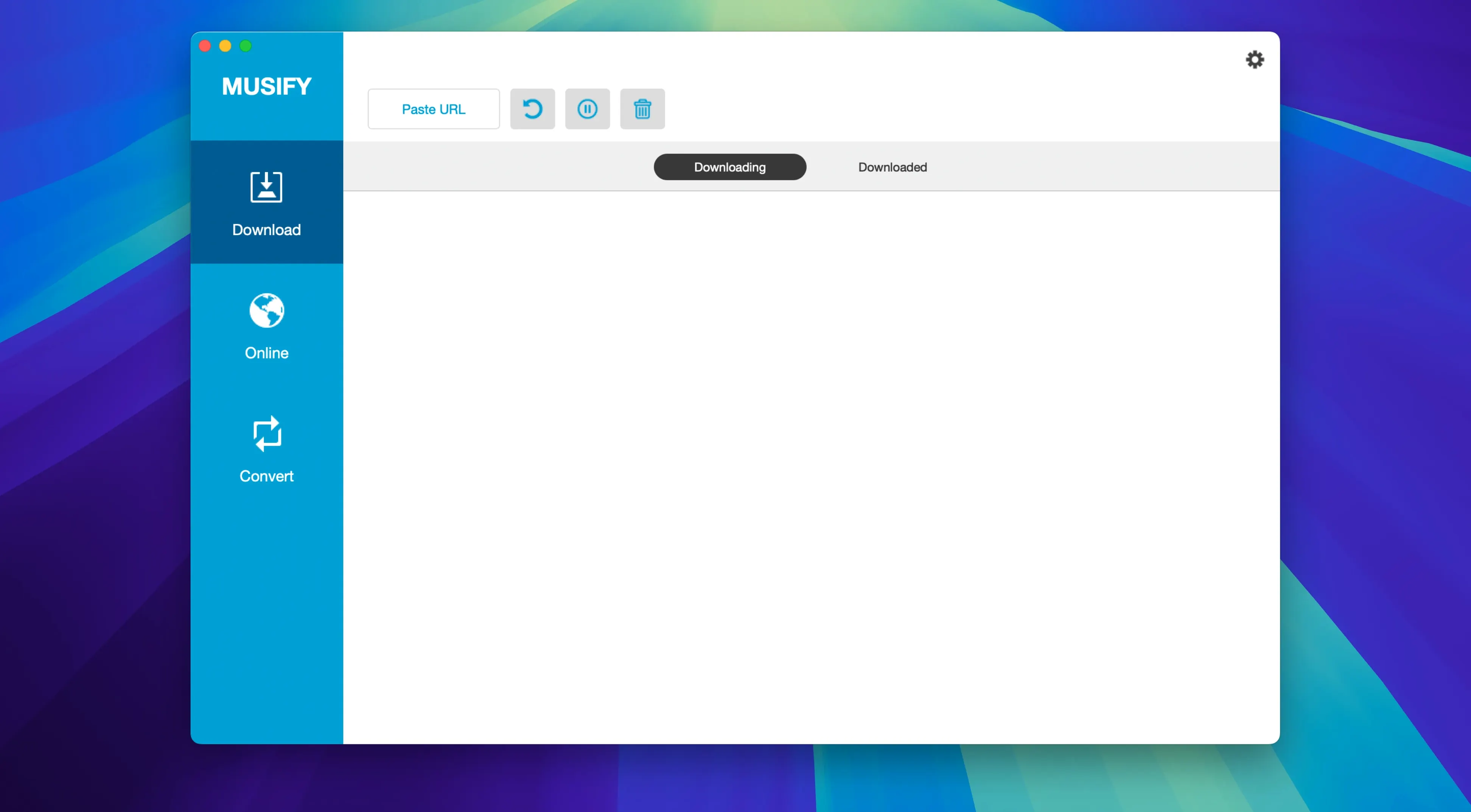
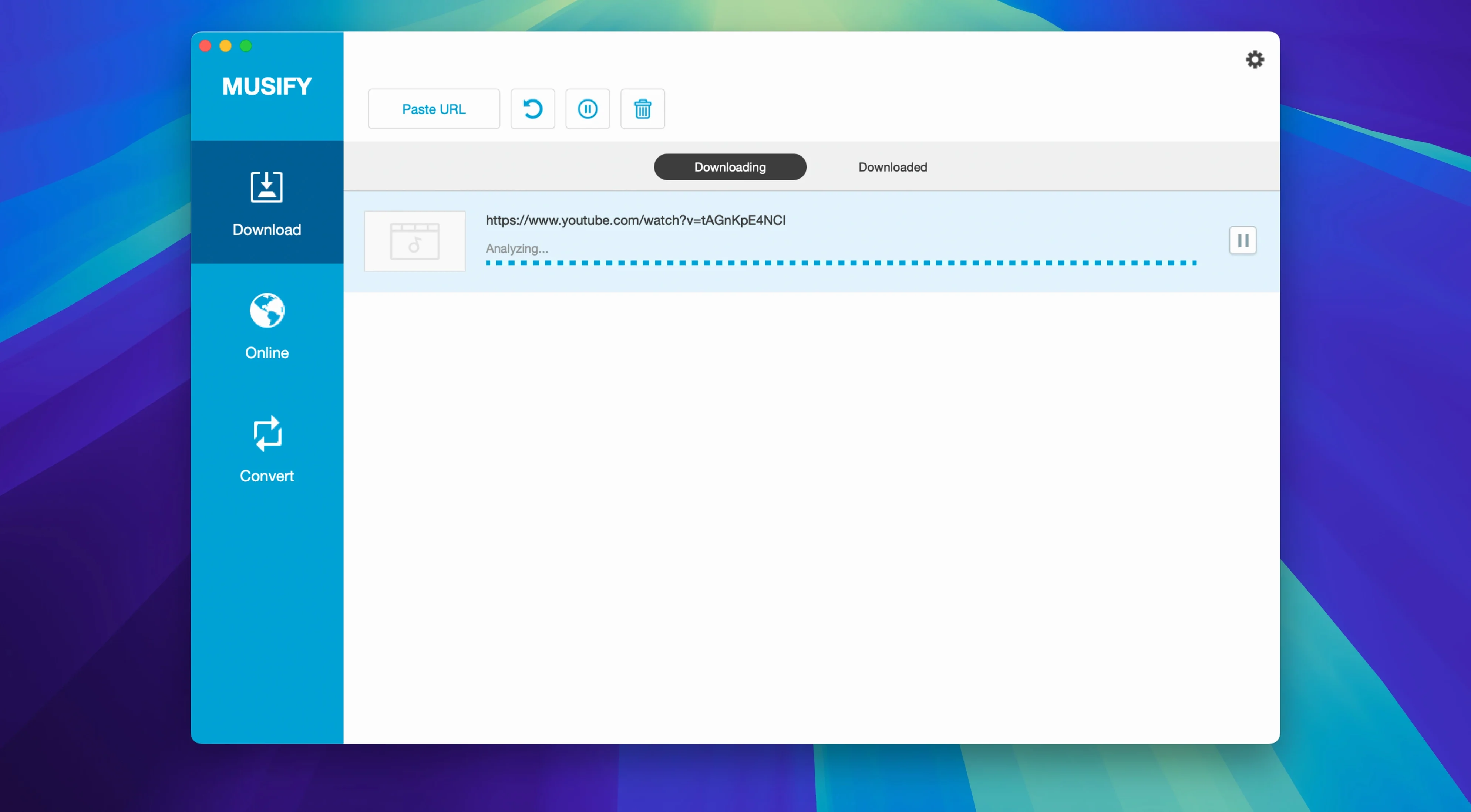
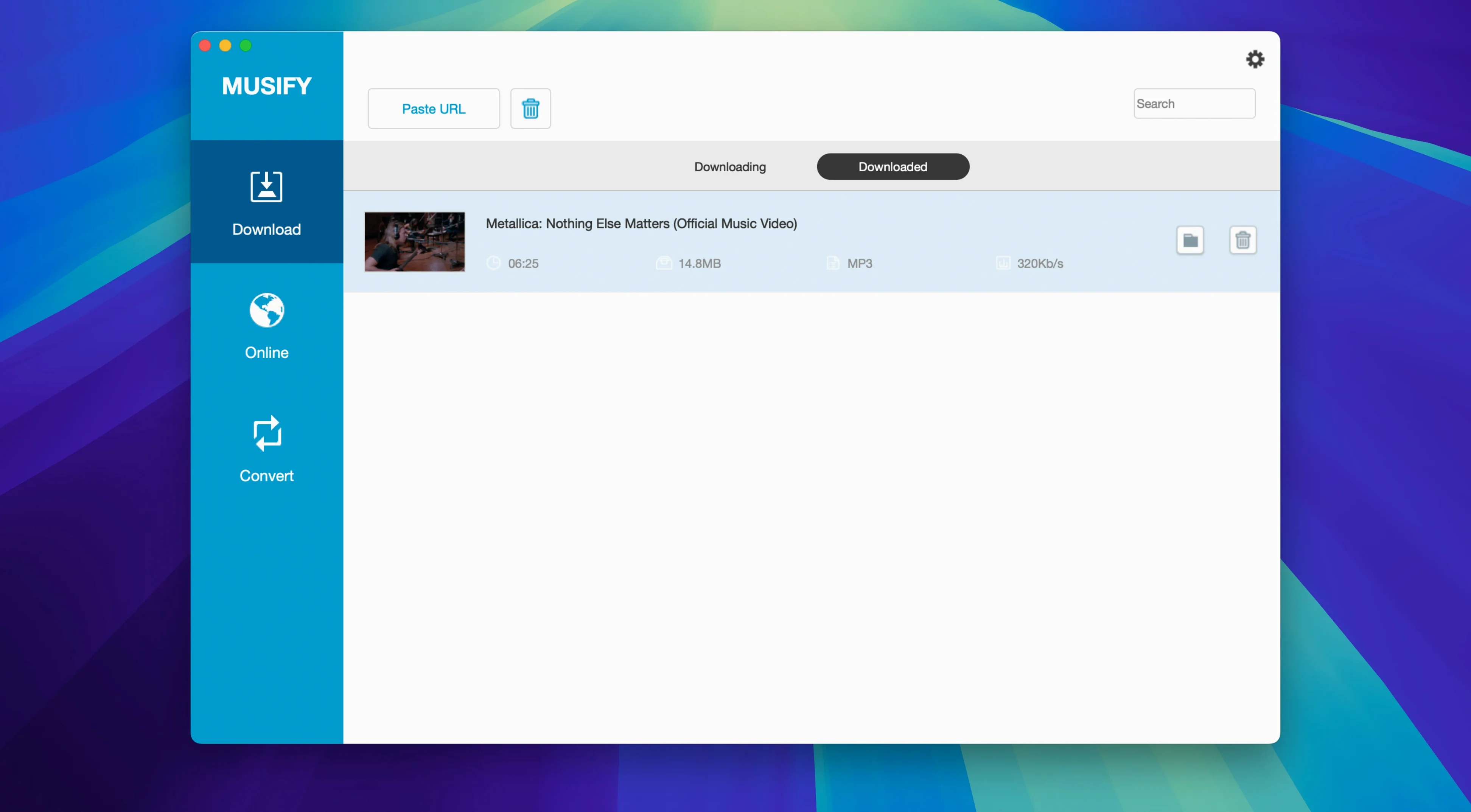
Click a screenshot to see it wider.
IT folks and media hoarders who keep a music library on a Mac and want a single tool for pulling audio and shifting formats will get the most out of Musify. Version 5.3.0 keeps the core workflow intact: grab audio content, convert it, and move it where it needs to go.
Outputs MP3, M4A, WAV & Direct iOS/Android Transfer
| Item | Detail |
|---|---|
| Version | 5.3.0 |
| Developer | iTubeGo |
| Category | Utilities |
| macOS | 10.12 and later |
| Architecture | Intel |
| Language | English |
The conversion side handles MP3, M4A, and WAV output, so you can standardize files for a device or an archive. It also transfers music directly to iOS and Android devices, which cuts out the sync step. No change notes came with this release, so expect the same behavior as before with whatever fixes shipped under the hood.
Set Default Format and Output Folder First
Musify starts with a general-purpose configuration. A few adjustments make it work better for everyday use.
- Output format and folder. Set the default conversion format to the one you use most — MP3 for broad compatibility, M4A for smaller files, or WAV for lossless archiving. Pick a destination folder that's easy to reach, like a dedicated Music folder or a subfolder inside your media drive.
- Metadata preservation toggles. Musify keeps metadata by default, but verify it in the settings if you rely on tags for sorting. If you batch convert, consistent metadata saves you hours of manual cleanup later.
- Playlist download mode. If you regularly grab full playlists, check whether the app is set to download all tracks or just a preview. The playlist feature from YouTube, Spotify, SoundCloud, and Bandcamp works best when you confirm the download scope first.
- Transfer profile. Before connecting an iOS or Android device, set the transfer profile to match the device's supported audio formats. This avoids a failed sync or a re-conversion step.
Audio-Focused vs. Video-Focused Rivals
Downie Excels at Video; Musify Natively Handles Audio
Downie handles video downloads from many sites but focuses on video output. Musify is built around audio: it converts to MP3, M4A, and WAV natively, and it pulls from music-specific services like Spotify, SoundCloud, and Bandcamp. Downie is better for grabbing video files; Musify is better for building a clean audio library.
4K Video Downloader
4K Video Downloader downloads from YouTube and a handful of other sites, and it can extract audio. Musify goes further with support for over 1000 sites and direct playlist downloads from major music platforms. For someone who manages offline music collections from multiple sources, Musify saves the extra tab-switching.
MediaHuman YouTube to MP3 Converter
That tool does one thing — convert YouTube videos to MP3 — and does it well. Musify covers that same workflow but adds playlist downloads, metadata handling, and device transfers. If your needs ever expand beyond YouTube, Musify grows with you without requiring a second app.
Test One Track Before Committing to a Playlist
- Test with a single file first. Before committing to a large playlist or batch conversion, run one track through the process. Check the output format, metadata, and file size. This catches any settings mismatches early.
- Organize playlists before downloading. Musify's playlist download feature works best when the source playlist is clean. Remove dead links or duplicates on the streaming service side before you pull the list into the app.
- Standardize your naming convention. Decide on a file naming pattern — Artist - Title or Title - Artist — and stick with it. Consistency here makes searching through a growing library much faster.
- Run a small batch conversion. Convert a handful of files to MP3, M4A, and WAV to confirm each format behaves as expected. If you plan to archive in WAV and use MP3 for portable devices, verify both workflows work before you invest time in a large batch.
- Sync once to test the transfer. Connect your iOS or Android device and move a few tracks over. This confirms the device is recognized and the format is compatible before you queue a full library sync.
- macOS 10.12 or later
- Intel architecture
- English interface
Questions I get about this line
Yes, Musify supports downloading and converting YouTube content to MP3 format on Mac.
The listed compatibility is Intel architecture, so it runs on Intel Macs with macOS 10.12 or later.
The install order
- Mount the disk image and run Open Gatekeeper friendly.
- Press Enter in Terminal to bypass Gatekeeper.
- Drag the app to the Applications folder.
- Launch Musify after the copy finishes.