Free download (6 MB) Previous versions
- Version
- 8.1.3
- Developer
- Ram Patra
- Languages
- Russian, English, German, Spanish, French
- License type
- Not required
| macOS range | macOS 13 or later |
|---|---|
| Chip | Apple Silicon, Intel 64-bit |
| Download | 6 MB |
| Previous versions | 1 on file |
Screenshots
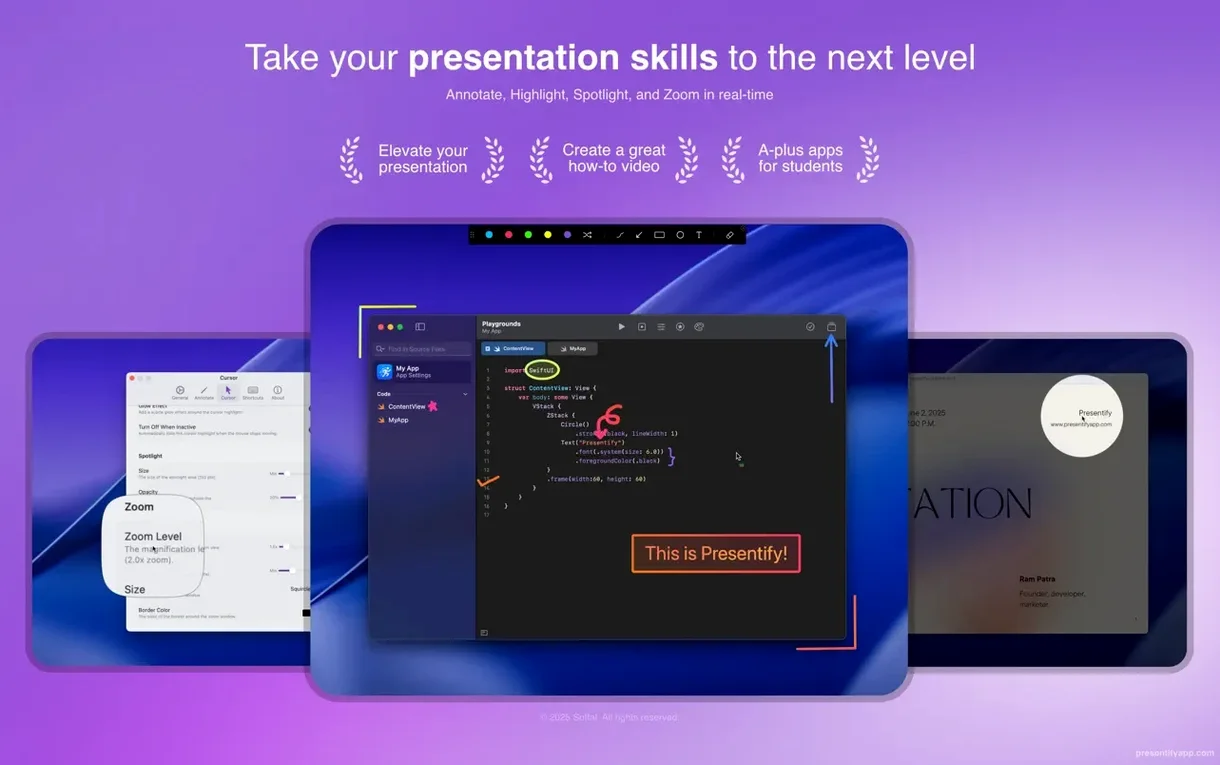
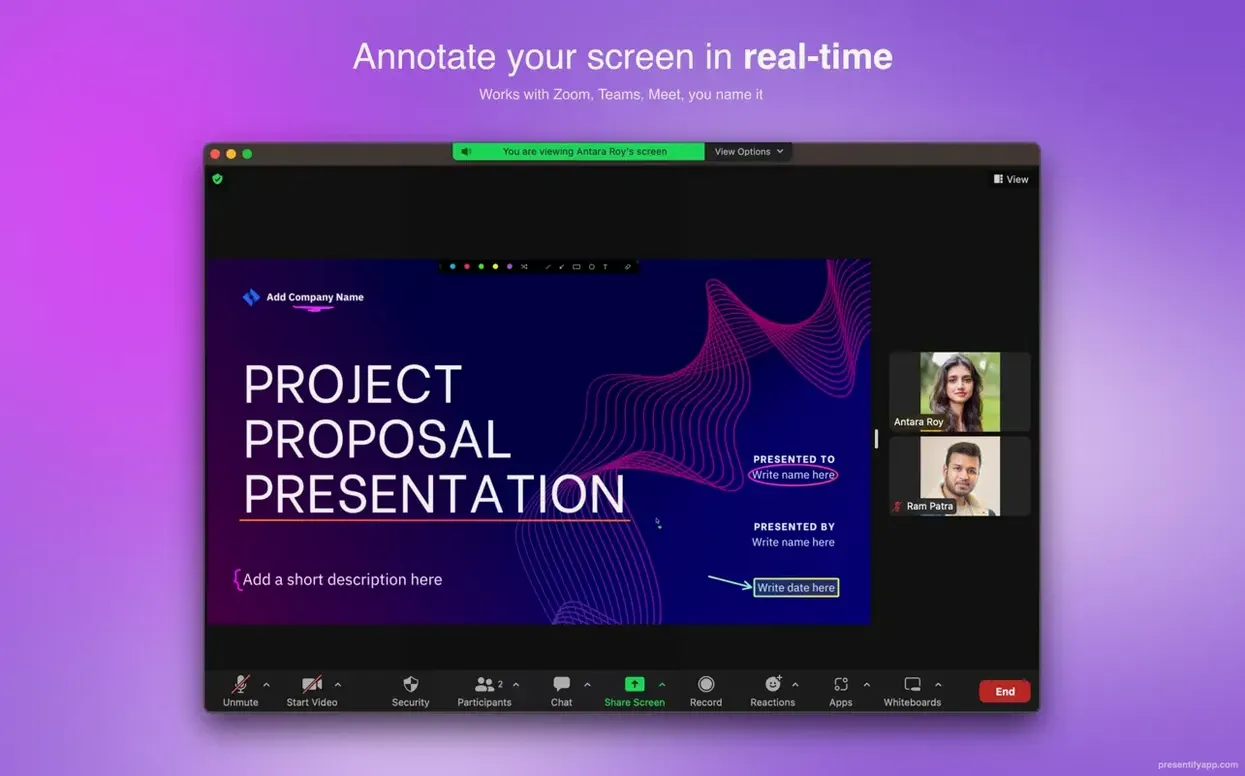
Scroll the row, it snaps to each screenshot. Click one to see it wider.
Presentify 8.1.3 runs on any Mac with macOS 13 Ventura or later, on both Intel and Apple Silicon. It's a menu bar utility for annotating your screen during presentations or online classes, with tools that go beyond basic drawing.
Highlight Text Without Covering It
- Highlighting text without covering it — a clean way to point at specific lines.
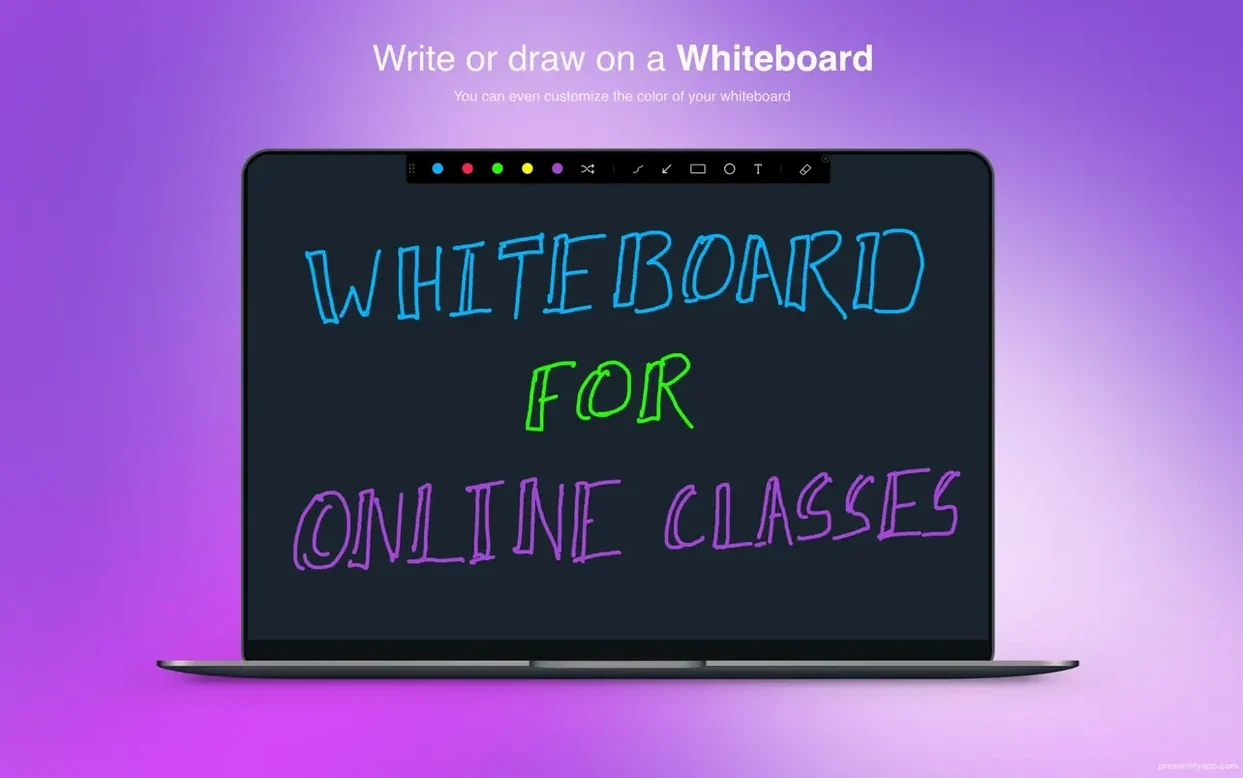
- Using random gradient colors for drawing, which keeps visuals lively.
- Working with Keynote, Zoom, Google Meet, and Skype.
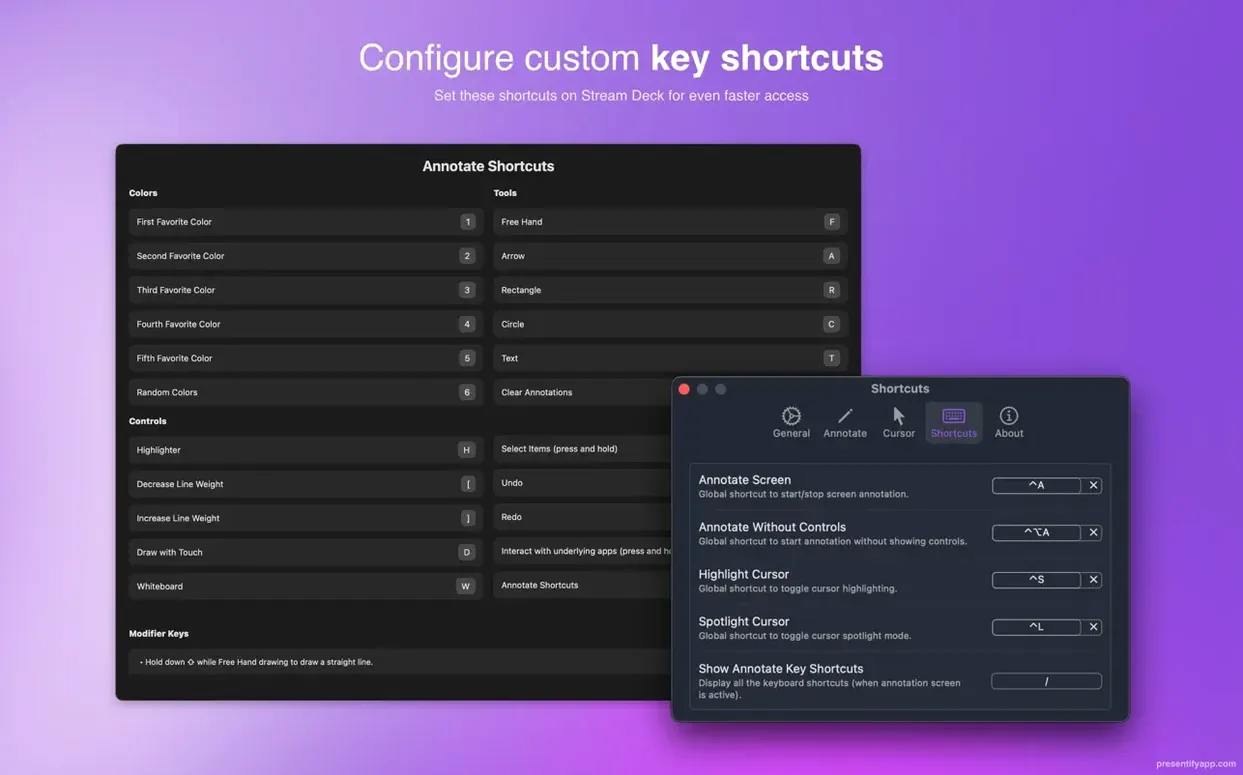
- Holding Fn in default mode to interact with basic apps while annotating.
Requires macOS 13 or Later
- Requires macOS 13 or later.
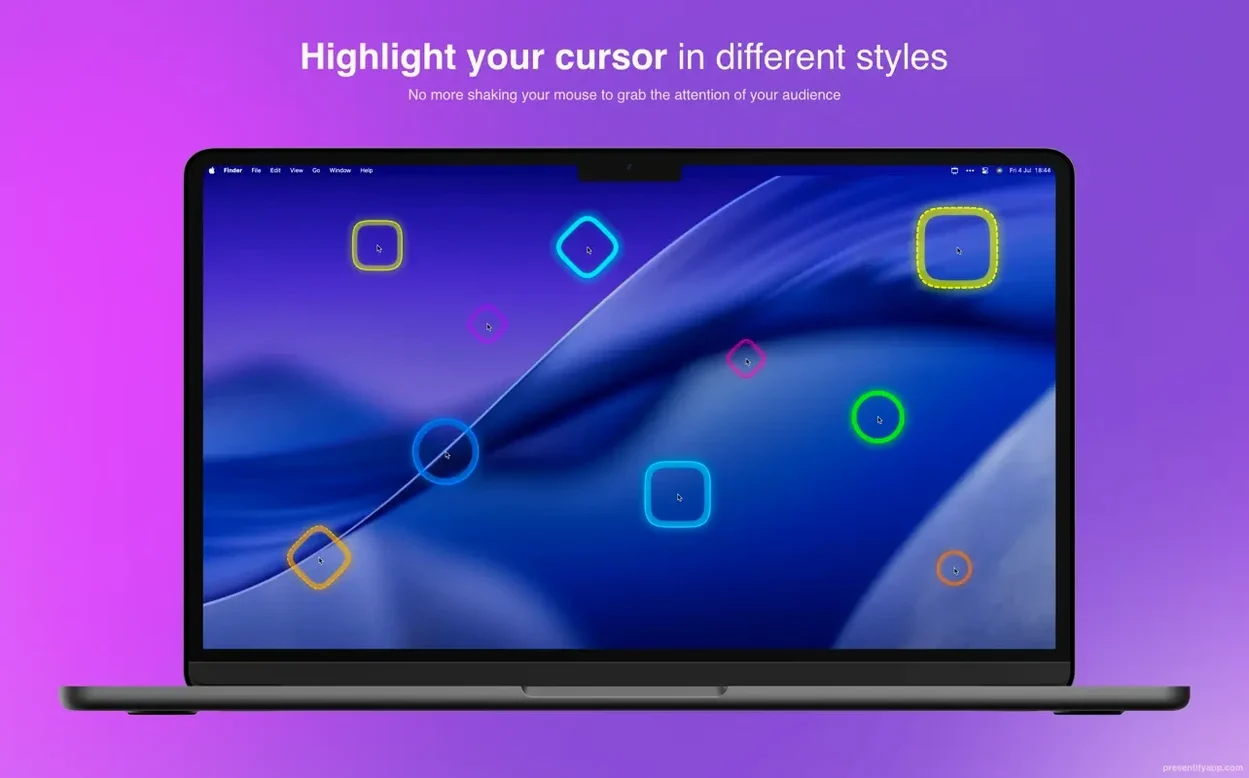
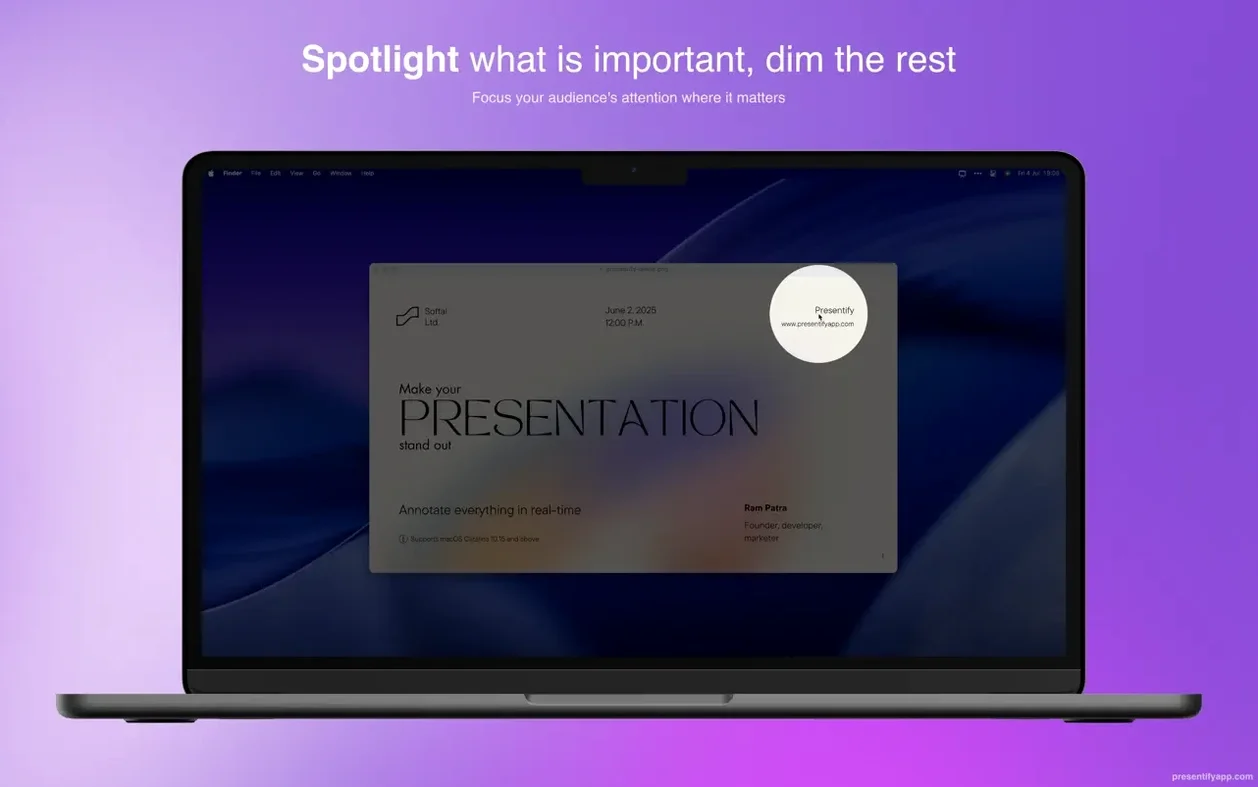
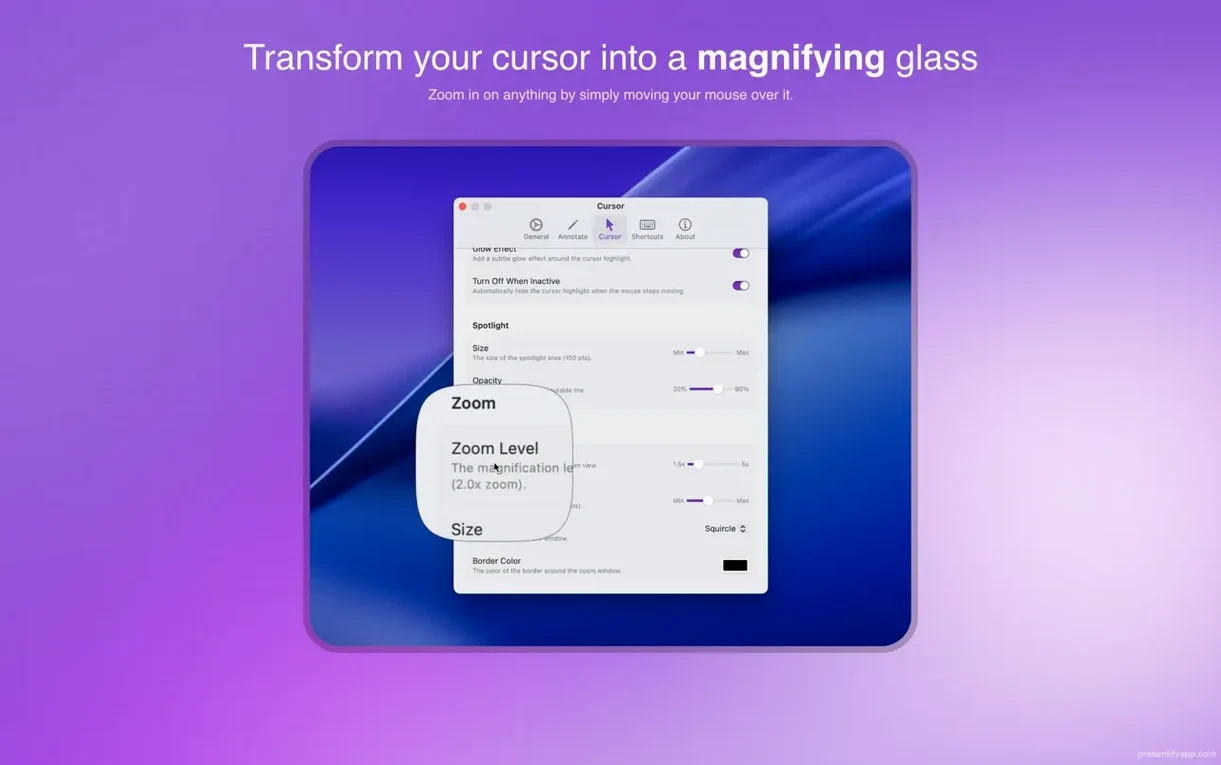
- Cursor highlighting, spotlight effects, and zoom tools are included.
- Interface languages: Russian, English, German, Spanish, French.
Skipping the Fn Key in Live Demos
New users often skip the Fn key interaction. Default mode locks mouse clicks for annotation. Holding Fn lets you click through to the app behind — common in live demos. Another: forgetting to erase automatically. The app supports auto-erasing, but it's not on by default. Set it before a presentation so annotations clear between slides. Beginners also ignore the spotlight effect for focused areas, drawing over everything instead. And many don't test with a graphics tablet beforehand. Presentify works with XP-Pen and Wacom, but the pressure curve needs tweaking in System Settings.
Comparisons
- OBS Studio: OBS is a full streaming and recording suite. It has annotation via browser sources or plugins, but none are as instant as Presentify. OBS is overkill for just marking up a screen in a live meeting. Presentify stays in the menu bar, OBS takes up a window.
- Zoom native annotation: Zoom's built-in annotation works only inside its own screen share. It can't annotate Keynote slides in full-screen mode or PDFs opened outside Zoom. Presentify layers on top of everything — full-screen apps, video players, code editors.
- ScreenBrush: ScreenBrush is similar but older and less updated. Presentify 8.1.3 added random gradient colors and better cursor highlighting. ScreenBrush lacks zoom and spotlight tools out of the box.
Fixed Crash on Display Switch During Annotation
Nothing huge for daily use. The 8.1.3 build fixed a crash when switching between displays during an active annotation session. It also improved the auto-erase timer accuracy — annotations now clear at the exact interval set, not a few seconds off. The cursor highlight shape options expanded slightly. And the app now remembers the last used spotlight size between launches. If you presentify for mac free download and run the latest build, these polish fixes save you from restarting mid-demo. Presentify for mac stays reliable for online instructors who jump between slides and apps.
Common Setup Oversight
New users often skip granting Accessibility permissions fully. Presentify needs it for mouse and keyboard events. If the cursor highlight or spotlight doesn't respond, check System Settings > Privacy & Security > Accessibility and make sure Presentify is listed and toggled on. Removing and re-adding it sometimes clears a stuck permission state.
Forgetting to Switch Modes
Default annotation mode works for most tasks. But if you need to type into a text field or click a button behind the annotation layer, hold Fn. Beginners forget this and quit the app instead. A better habit: use Fn as a toggle, not a momentary hold. It keeps the workflow smoother.
Auto-Erase Timing
The auto-erase feature clears annotations after a set interval. Beginners set it too short or leave it off. For a slide-by-slide presentation, set it to match your slide advance rate. For code walkthroughs, turn it off and erase manually with the eraser tool. The timer is adjustable in the menu bar preferences.
Graphics Tablet Setup
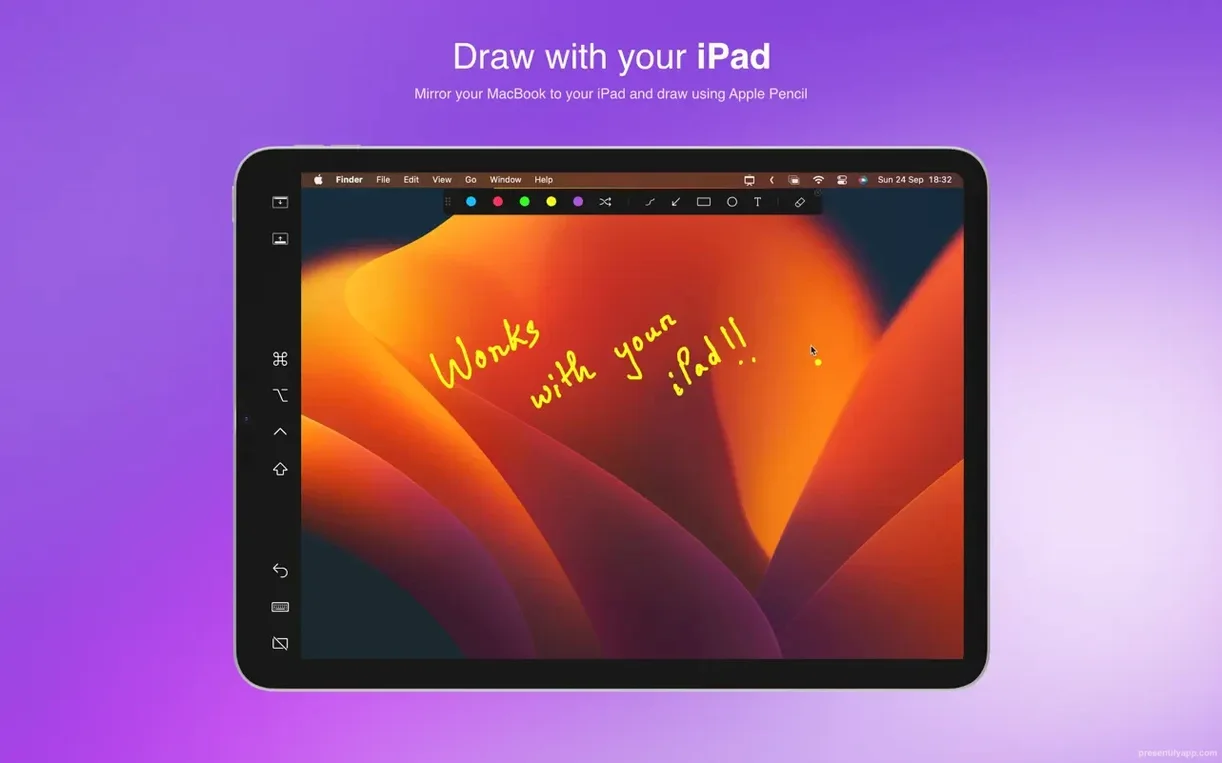
Presentify works with XP-Pen and Wacom tablets. But the default pressure sensitivity often feels too light or too heavy. Open the tablet's own settings app and adjust the pressure curve before starting a session. Test with a straight line and a curve to confirm it matches your natural stroke. Skipping this step leads to jagged annotations during live demos.
Full-Screen Mode Quirks
Presentify works in full-screen mode, but switching between full-screen spaces while annotating can sometimes lag the annotation layer. A quick workaround: exit full-screen, annotate, then re-enter. The 8.1.3 fix for display switching helps, but full-screen space transitions still need care.
- macOS 13 Ventura or later
- Intel or Apple Silicon
Questions I get about this line
Yes, Presentify works with Keynote, so you can annotate slides during presentations.
Yes, holding Fn in default mode lets you interact with basic apps without stopping annotation.
The install order
- Open the downloaded disk image.
- Drag the app to the Applications folder.
- After copying finishes, open it from Launchpad.
- On first launch, quit the app in Activity Monitor and open it again.