Free download (318 MB) Previous versions
- Version
- 20.1.7 (9559)
- Developer
- Micromat Inc.
- Languages
- English
- License type
- Included
| macOS range | macOS 10.13 or later |
|---|---|
| Chip | Apple Silicon, Intel 64-bit |
| Download | 318 MB |
| Previous versions | 3 on file |
Screenshots
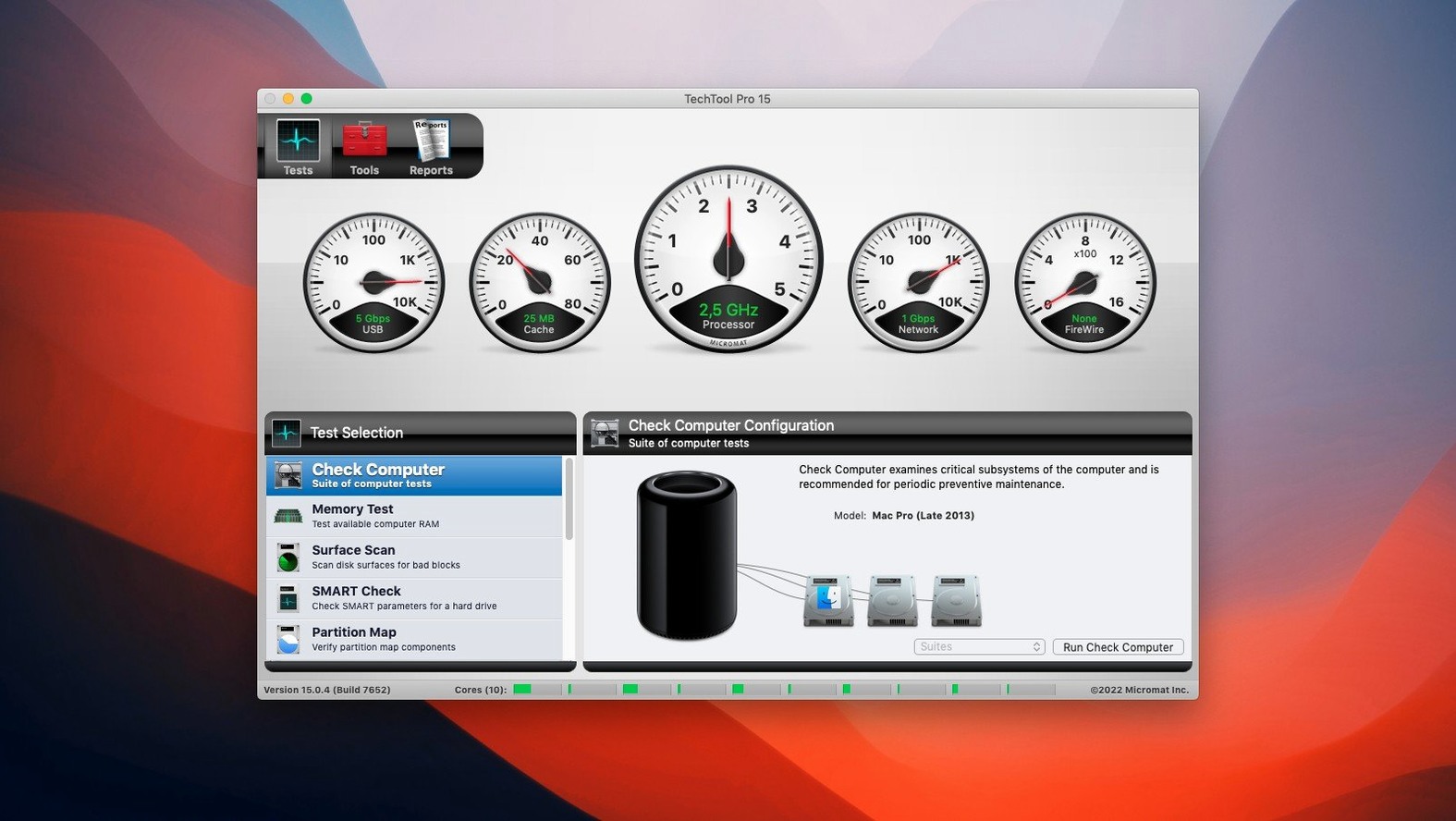
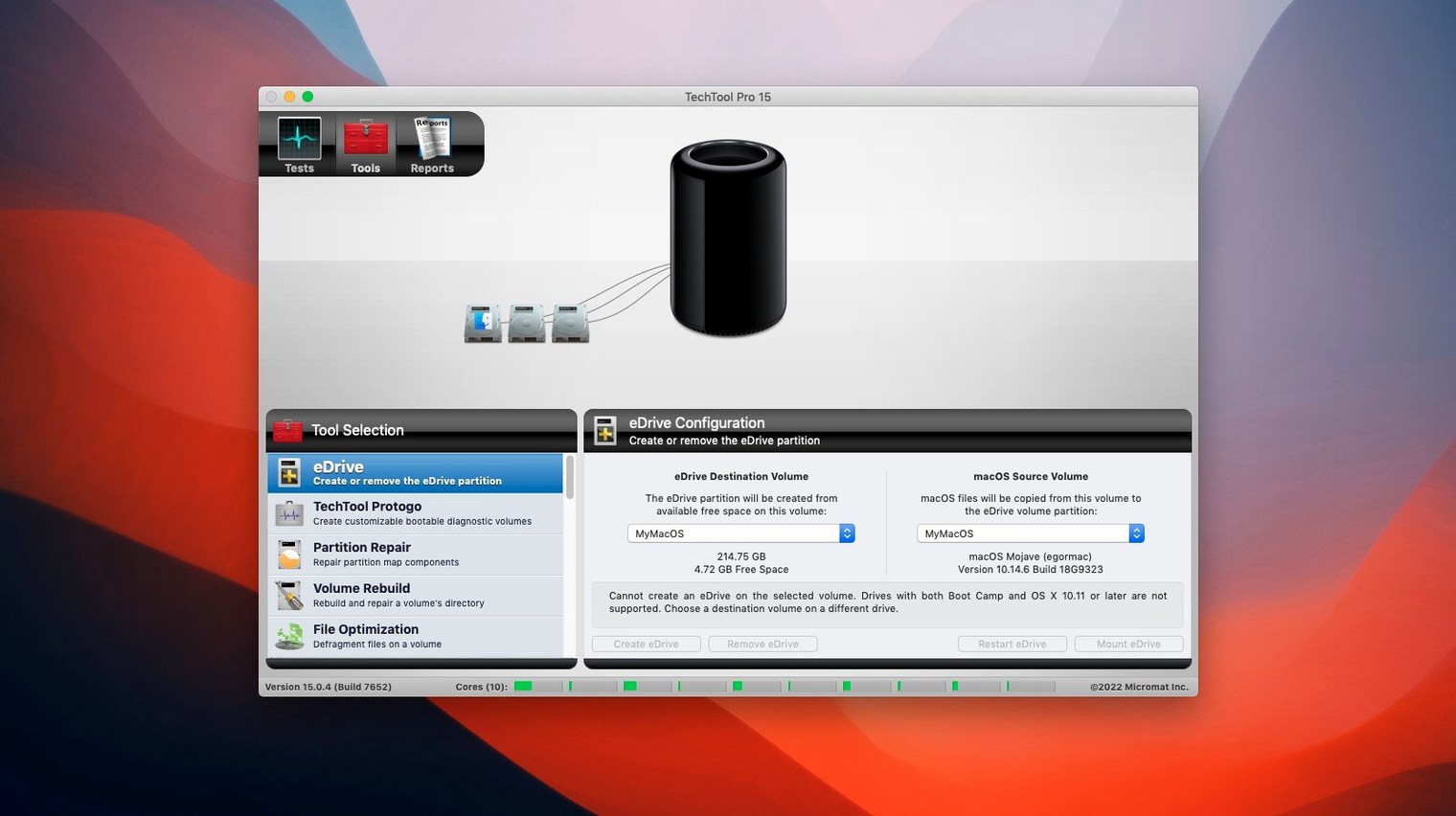
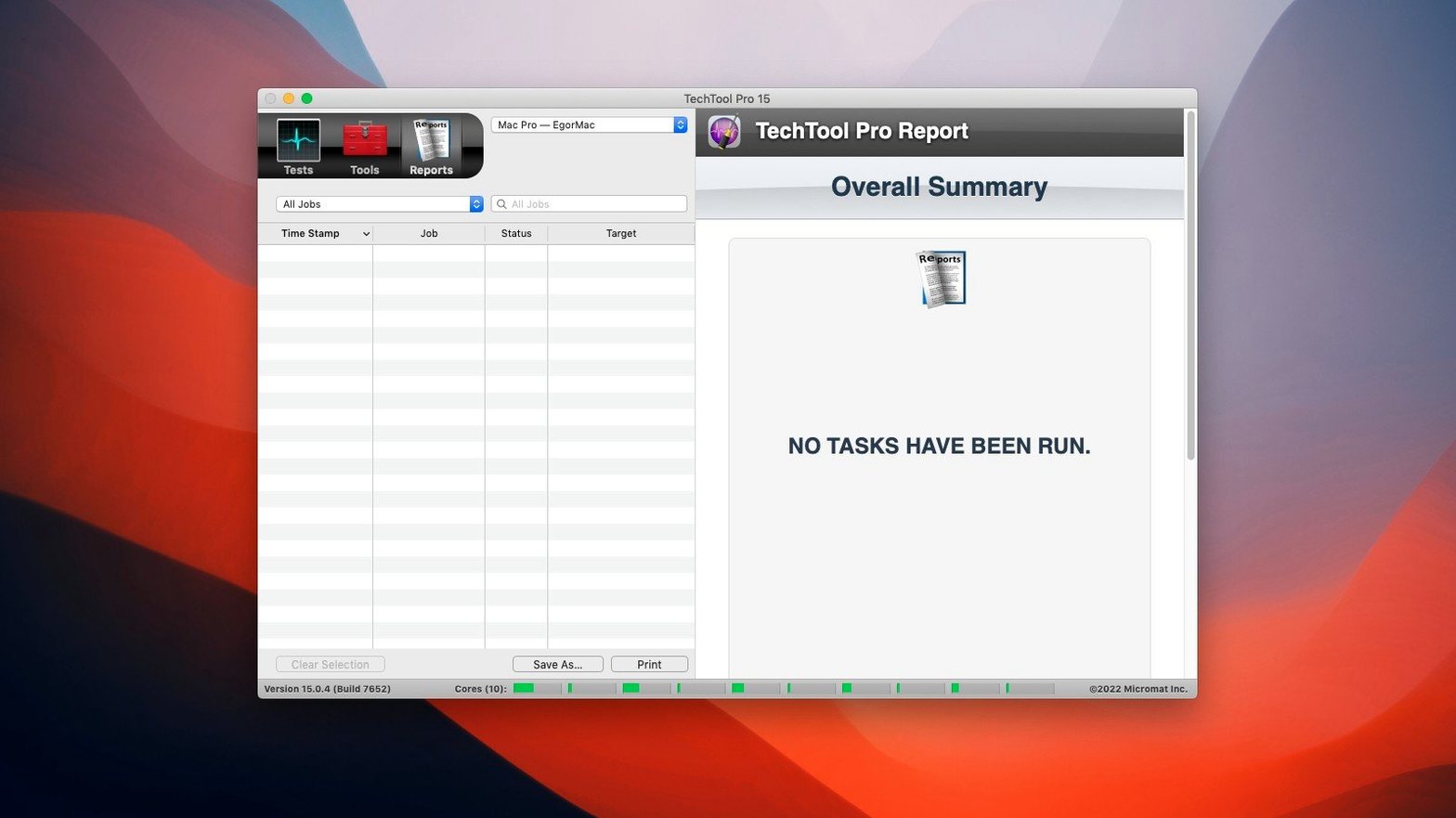
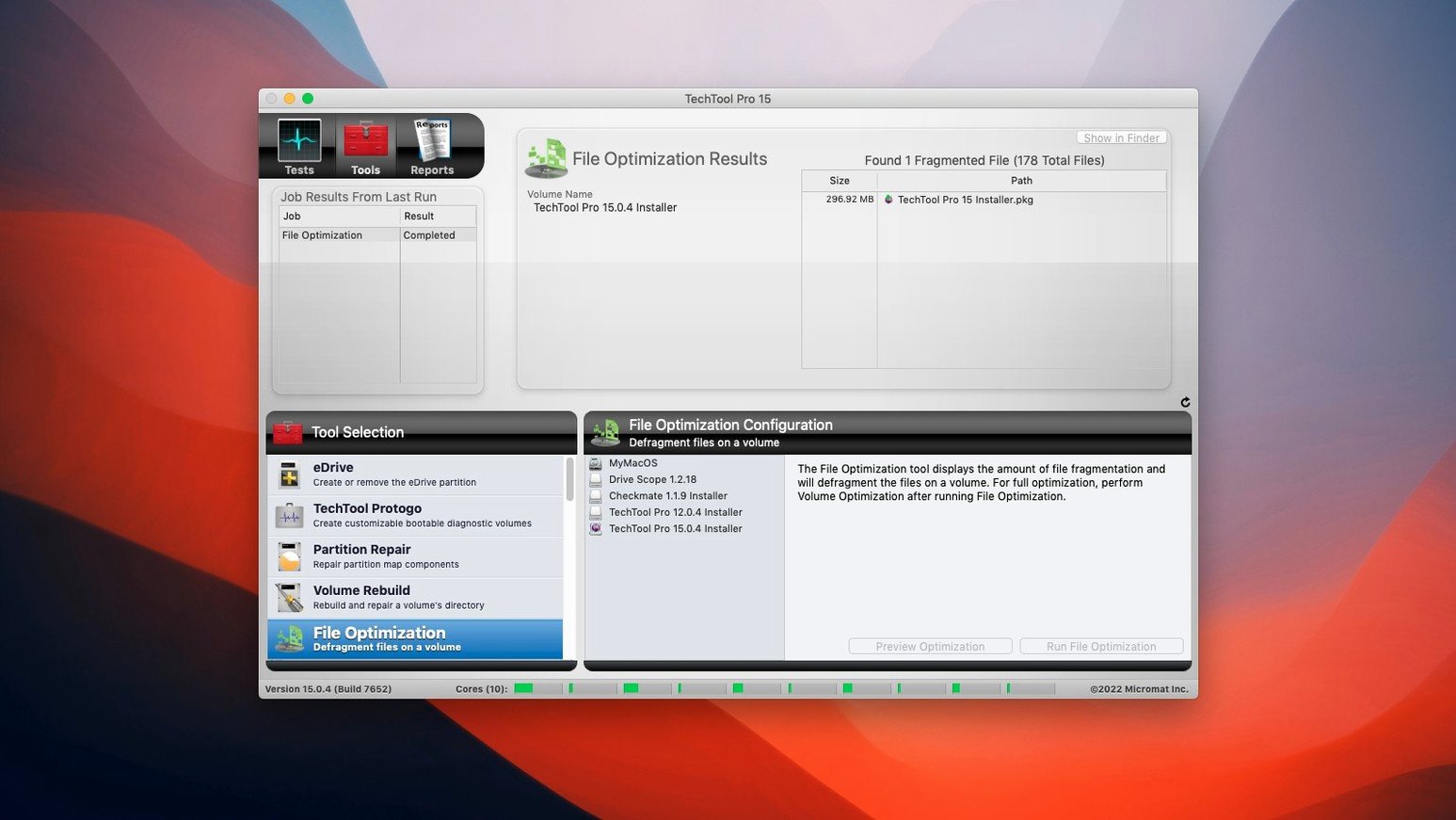
Scroll the row, it snaps to each screenshot. Click one to see it wider.
If you already use Disk Utility for basic repairs, TechTool Pro takes that further. It is a full system diagnosis, repair, and maintenance suite for macOS. This version runs on both Intel and Apple Silicon Macs, as long as you are on macOS 10.13 High Sierra or newer.
What does TechTool Pro do?
It combines system testing and maintenance tools in one interface. You can run SMART tests on hard drives to spot state changes or an approaching failure, restore file access permissions on a partition, and clone volumes. Techtool Protection is built in, letting you create an emergency boot partition on the active system volume without needing a DVD. Protogo is also integrated, so you can create custom test drives.
Can it monitor your system?
Yes. Techtool Protection includes settings for automatic background functions. TechTool Monitor can watch your device configuration for security management on a local network, and version 20.1.7 fixed a crash that could occur when the monitor launched.
Can it replace Disk Utility?
People often ask whether Techtool Pro can replace Disk Utility completely. Not exactly. Disk Utility handles basic volume operations with Apple's own low-level tools. Techtool Pro adds deeper diagnostics, like SMART monitoring, bad block detection, and file recovery. If you only need to repartition a drive, Disk Utility works fine. If you want to know why a drive is slowing down or if failure is imminent, Techtool Pro gives you that data.
Another question is whether it runs on external drives. It can scan and repair external volumes, but the emergency boot partition and Protogo features work on the system volume. You can also create a bootable Protogo drive on a USB stick for diagnosing machines that won't boot.
Does it interfere with other monitoring software? Generally no. Techtool Protection runs its own background checks for disk space, file integrity, and SMART status. If you already have a hardware monitor active, you might see duplicate warnings. That is not a conflict, just redundant notifications. You can turn off the background monitoring in Techtool Protection settings if you prefer another tool for that job.
SMART data and trend graphs
Techtool Pro works alongside macOS tools rather than replacing them. It can read the same SMART data that smartctl would show in Terminal, but it presents it in a clearer interface with trend graphs. For volume repair, it can fix issues that fsck or Disk Utility might miss, such as damaged directory structures on SSDs or permissions problems after a failed update.
The emergency boot partition integrates with the standard macOS boot manager. When you create it from Techtool Pro, it adds an entry to the EFI system partition, so you see it in the startup menu after a restart. This works on both Intel and Apple Silicon Macs as long as the system volume is APFS or HFS+.
File recovery uses macOS's own file system libraries to scan for deleted files, but it can recover data from volumes that macOS cannot mount normally. That is where Techtool Pro's volume cloning comes in handy: clone the failing drive first, then run recovery on the clone to avoid further wear on the original hardware.
Activation not taking: fix
The most frequent issue people hit is the activation not taking. If the SN.txt file does not work, check that you mounted the disk image correctly and copied the file to the desktop before running the installer. The activation file is case-sensitive, so do not retype it. Paste it directly.
Another snag: the emergency boot partition does not show up after creation. On some Macs, you need to hold the Option key during boot (Intel) or the power button (Apple Silicon) to see the boot manager. If it still does not appear, the system volume may be too full. Free up at least 2 GB and try again.
Volume cloning can fail if the source drive has severe physical damage. Techtool Pro will report a verification error. In that scenario, use the bad block detection first to map the damaged areas, then run a file-level clone that skips those sectors. The cloned volume will be incomplete but usable for data recovery.
If Techtool Monitor crashes at launch, that was a known bug in earlier builds. Version 20.1.7 fixed it. Make sure you are running build 9559. If the crash persists, check that no other app has locked the hardware sensors. Restarting the Mac usually clears the lock.
Mount the disk image, run the standard installer, then use the SN.txt file for activation. The interface is in English.
- macOS 10.13 High Sierra or later
- Intel or Apple Silicon
- English interface
The install order
- Mount the downloaded disk image.
- Run the standard installation process.
- Use SN.txt for activation.