Free download (86 MB) Previous versions
- Version
- 6.6 (2025030101)
- Developer
- Digiarty Software
- Languages
- English, German, Spanish, Italian, Chinese (Traditional), Chinese (Simplified), Korean, French, Japanese
- License type
- K'ed by TNT team
| macOS range | OS X 10.10 or later |
|---|---|
| Chip | Intel 64-bit |
| Download | 86 MB |
| Previous versions | 1 on file |
Screenshots
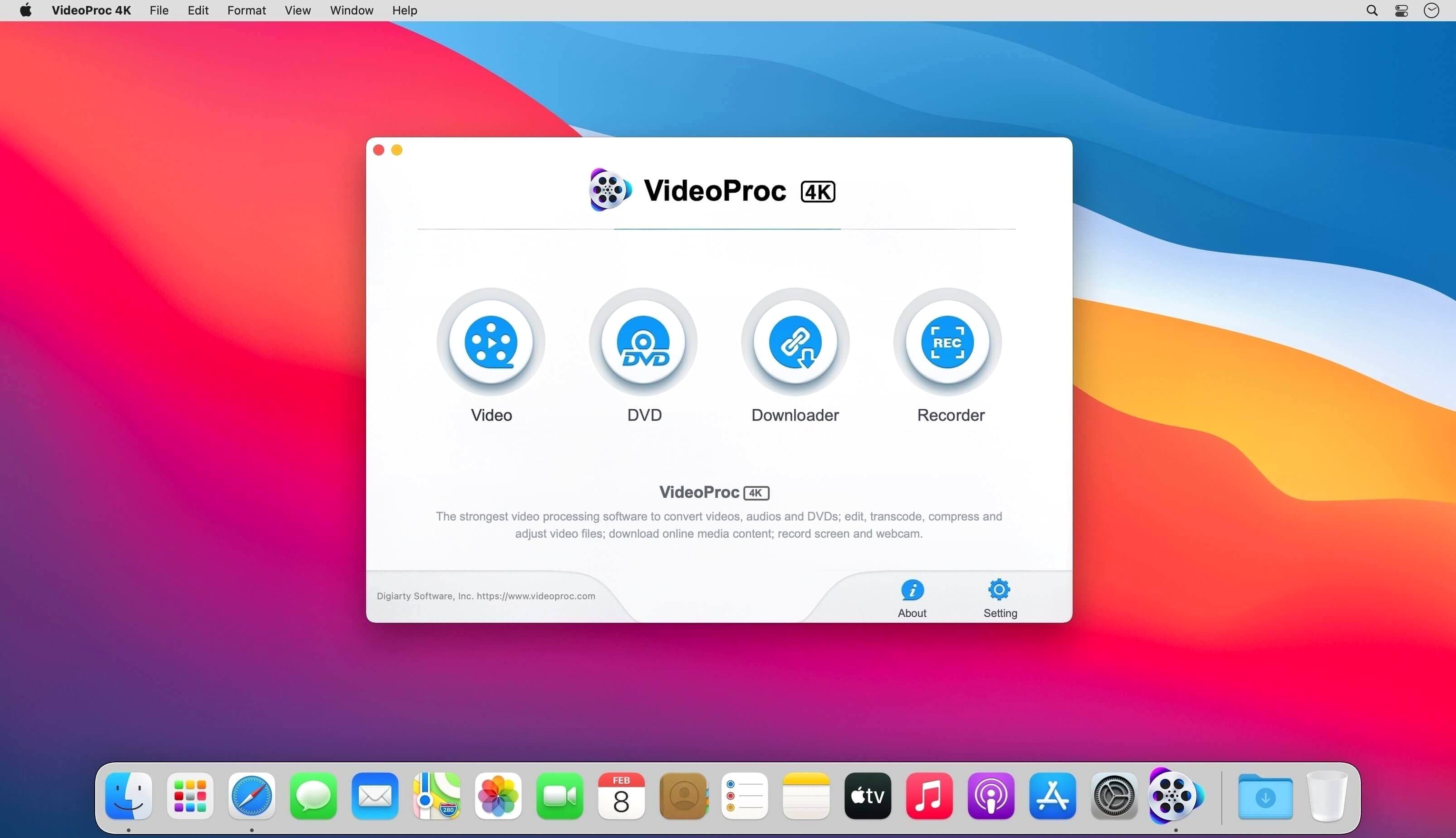
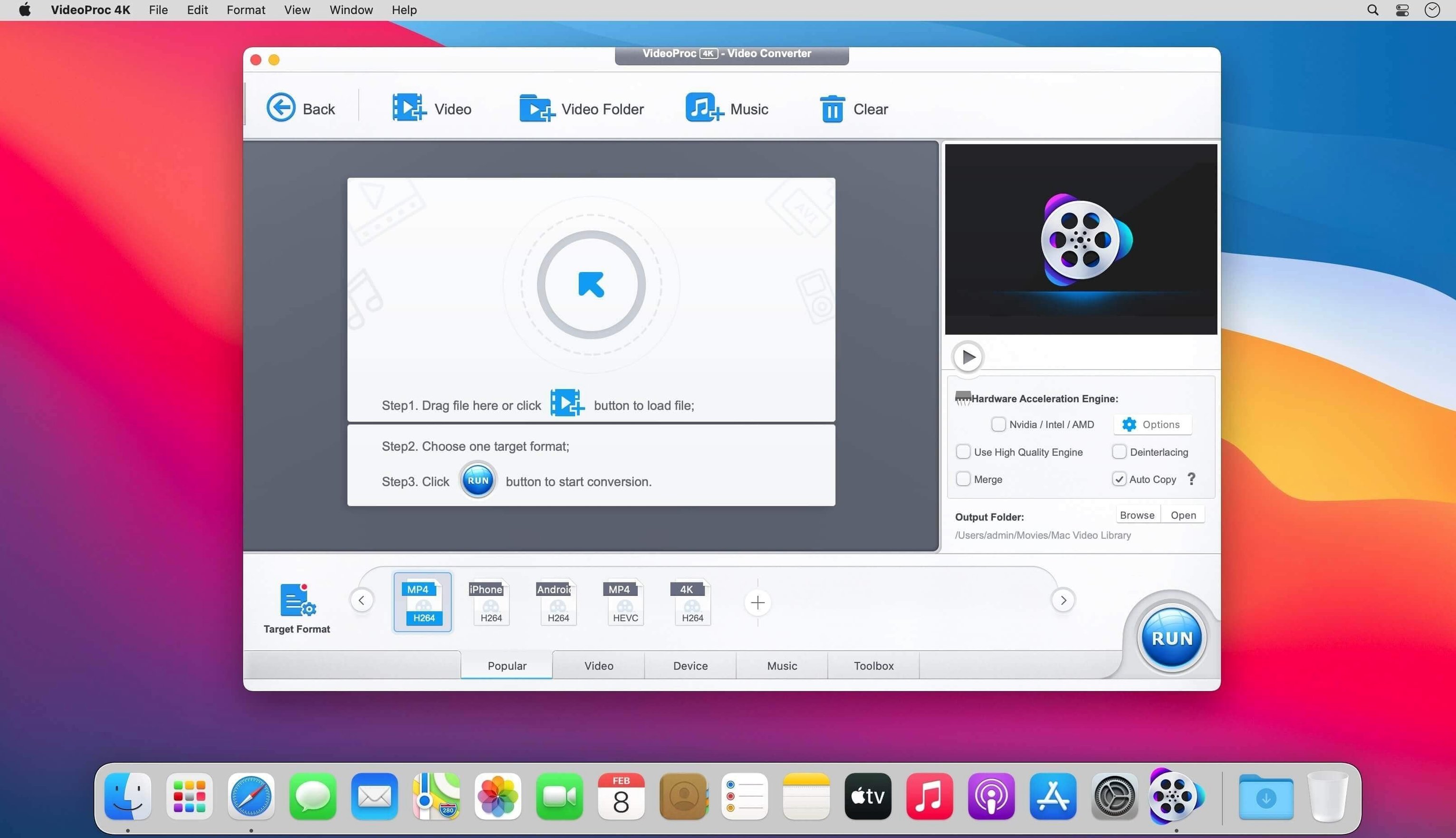
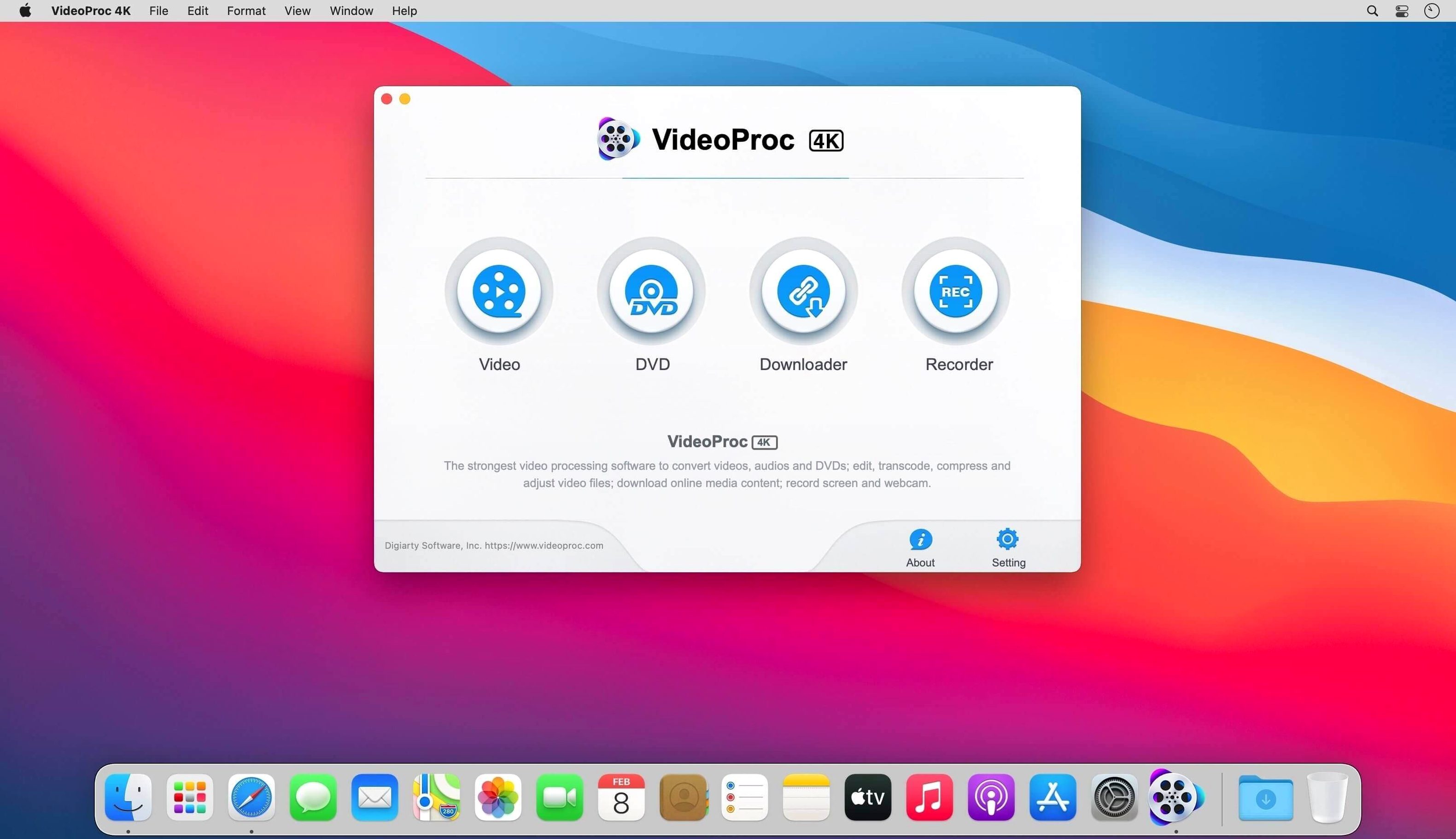
Scroll the row, it snaps to each screenshot. Click one to see it wider.
Start with VideoProc Converter's GPU acceleration, and you'll see why it earns a spot in any Mac utility folder. This all-in-one tool trims, edits, converts, and compresses video from iPhones, Android devices, cameras, drones, and GoPro units. The 64-bit Intel build runs on macOS 10.10 or later, with native support for M1, M2, M3, and M4 chips. For AI tasks like Super Resolution and Frame Interpolation, you'll need macOS 10.15 or newer.
| Detail | Info |
|---|---|
| Developer | Digiarty Software |
| Version | 6.6 (2025030101) |
| Architecture | Intel x86, Apple Silicon native |
| Languages | English, German, Spanish, Italian, Traditional Chinese, Simplified Chinese, Korean, French, Japanese |
How VideoProc Converter Stacks Up
Comparing VideoProc Converter with other Mac video tools comes down to what you need. HandBrake offers similar codec support and has a strong reputation, but it lacks the GPU acceleration that VideoProc Converter uses to move through files faster, especially with 4K footage. HandBrake also does not include downloading from online sources or the AI features that VideoProc Converter adds for upscaling.
Shana is another choice for Mac users who want a clean interface and fast conversions. Shana handles common codecs well, but it stops short of the editing tools and batch processing that VideoProc Converter includes. If you regularly work with camera or drone files, the all-in-one approach saves you from running a separate tool for each task.
For users who need both conversion and simple editing in one place, VideoProc Converter fills the gap between a dedicated encoder like HandBrake and a full editor like DaVinci Resolve. It does not replace a professional NLE, but it handles the routine jobs without forcing you to open a heavy application.
Workflow: Preparing Drone Footage for a Client
Here is a typical way to use VideoProc Converter when you need to deliver processed footage from a drone shoot. The goal is to convert a batch of 4K clips to a format the client can edit quickly.
- Insert the SD card from the drone and copy the files to a project folder on your Mac.
- Launch VideoProc Converter and drag the entire folder into the window. The app recognizes the file types and loads them into a batch queue.
- Select all clips in the queue and choose an output format. For most clients, H.264 in an MP4 container works well because it balances quality with file size.
- Open the editing tools to trim any dead space from the beginning or end of each clip. You can also rotate, crop, or apply a simple color filter if the footage needs a uniform look.
- Enable GPU acceleration in the settings. The app uses your Mac's hardware to speed up the conversion. Click the "Run" button to start the batch process.
- Wait for the conversion to finish. The progress bar shows each clip's status, and you can leave the computer to work through the queue.
- Check the output files in the destination folder. Play a few seconds of each clip to confirm the quality and that the timecodes match your trims.
This workflow works the same for GoPro or iPhone footage. The key is using the batch queue and the hardware acceleration together to avoid converting each file one by one.
Output settings that cause device stutter
New users often jump into conversions without checking the output settings. The result is a file that looks fine on your Mac but stutters on the client's device. Always confirm the target codec and resolution before you hit run.
Another common mistake is ignoring the AI features because they seem like extras. Video Super Resolution and Frame Interpolation can rescue shaky or low-res clips from a drone or older camera. If you are on macOS 10.15 or later, these tools are worth trying on a single clip first to see the improvement.
Beginners also forget to check the file size before starting a batch. If you are converting a dozen 4K clips to a high-bitrate format, the output can fill your drive quickly. Set a reasonable bitrate or choose a compressed format like H.265 to keep the project manageable.
Finally, do not skip the trim step. Leaving extra footage at the start and end of each clip wastes space and makes the client review longer. A quick trim in the editor takes seconds and keeps the delivery clean.
This is a practical pick for anyone juggling footage from multiple devices or needing quick conversions without a steep learning curve.
- macOS 10.10 or later
- Intel x86 processor (Apple Silicon supported natively)
Questions I get about this line
Yes, the Mac version is optimized for Apple Silicon and runs natively on M1, M2, M3, and M4 chips.
AI capabilities like Video Super Resolution require macOS 10.15 or later.
The install order
- Mount the disk image and run Open Gatekeeper friendly.
- Press Enter in Terminal to bypass Gatekeeper.
- Drag the app to the Applications folder.
- Open the app from Applications.