Free download (396 MB) Previous versions
- Version
- 3.15.2
- Developer
- Amico Apps LLC
- Languages
- Russian, English, Spanish, Chinese (Traditional), French
- License type
- Included
| macOS range | macOS 12 or later |
|---|---|
| Chip | Apple Silicon, Intel 64-bit |
| Download | 396 MB |
| Previous versions | 2 on file |
Screenshots
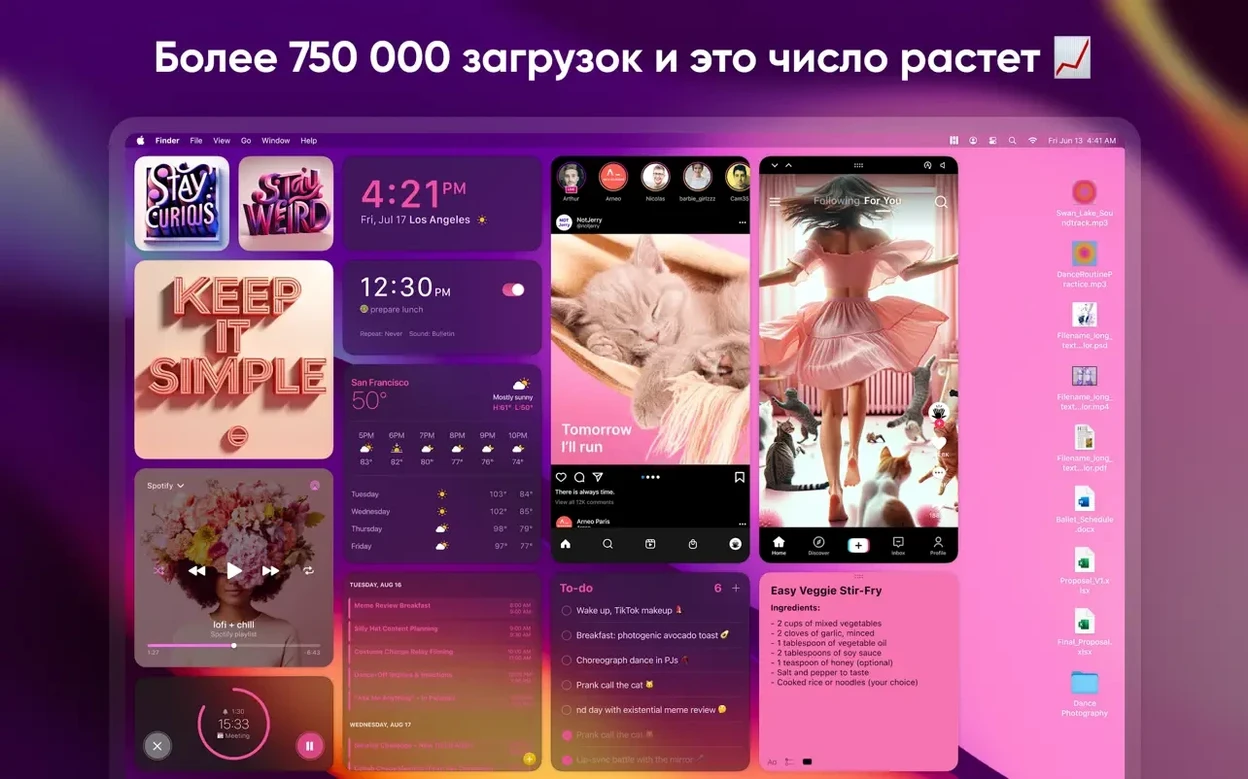
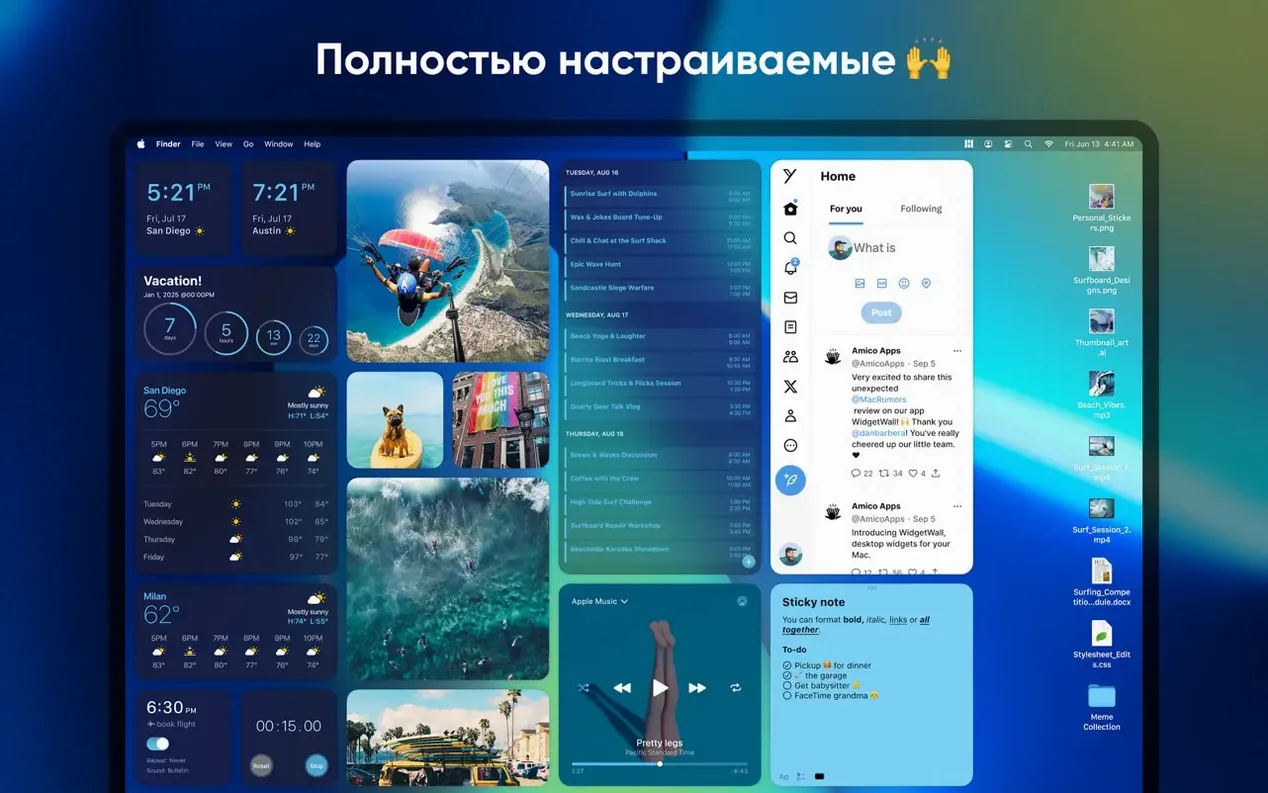
Scroll the row, it snaps to each screenshot. Click one to see it wider.
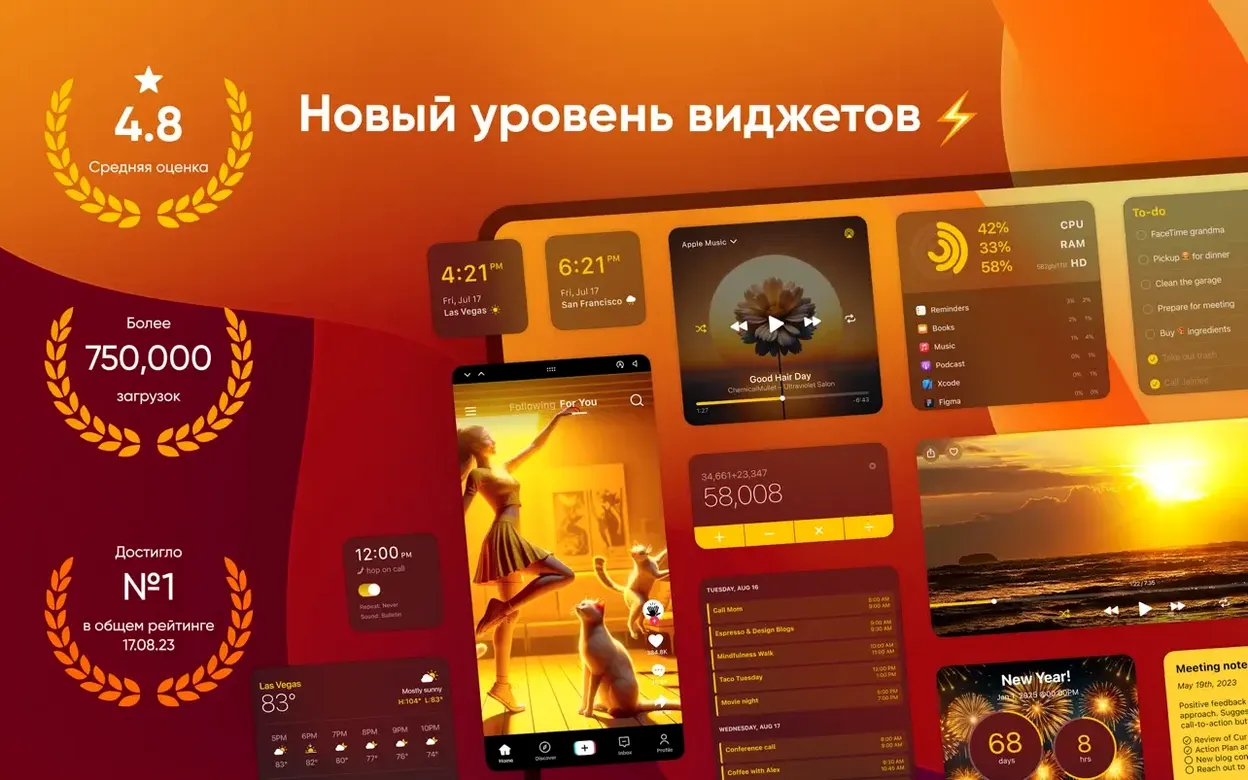
Open WidgetWall and the Confetti widget is already on your desktop, firing little bursts of color. That is the point: widgets that show up and do something.
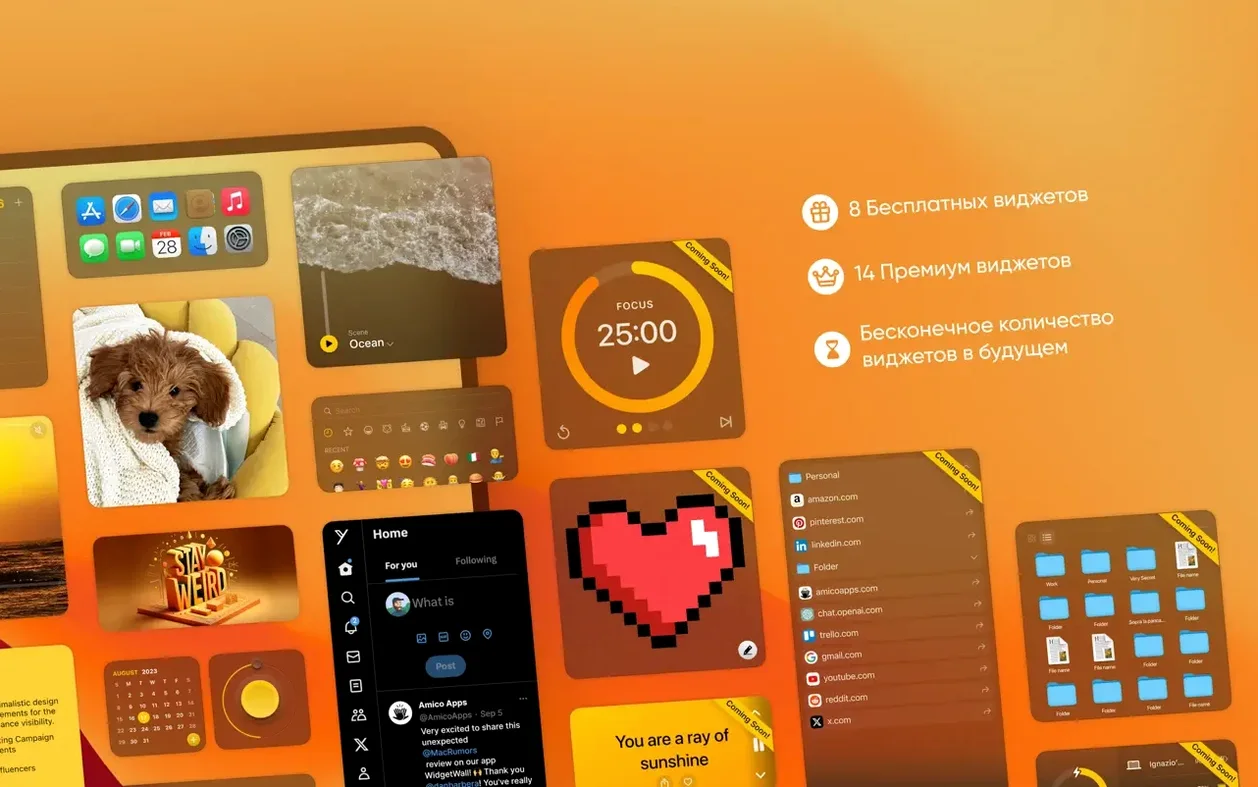
Widget sizes — each widget comes in small, medium, and large, so you fit the desktop, not the other way around.
Auto-install after setup — a handful of useful widgets appear immediately, no hunting through menus.
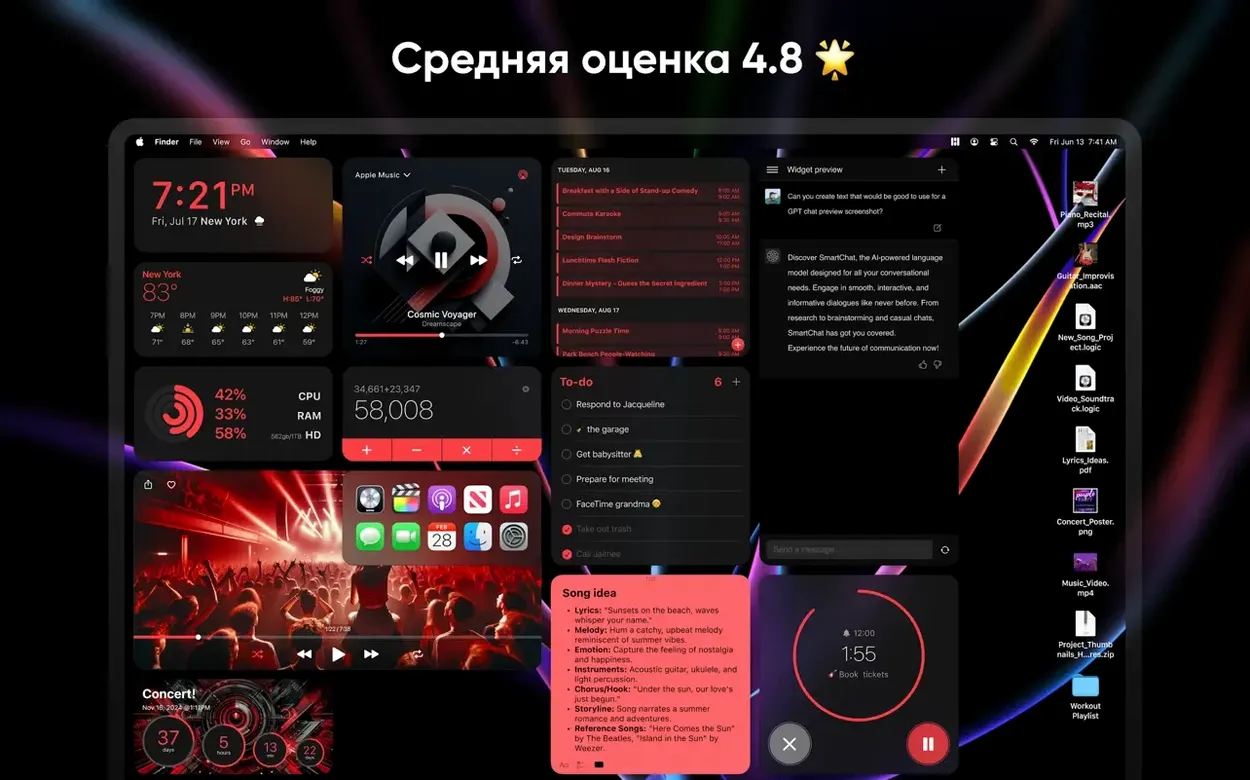
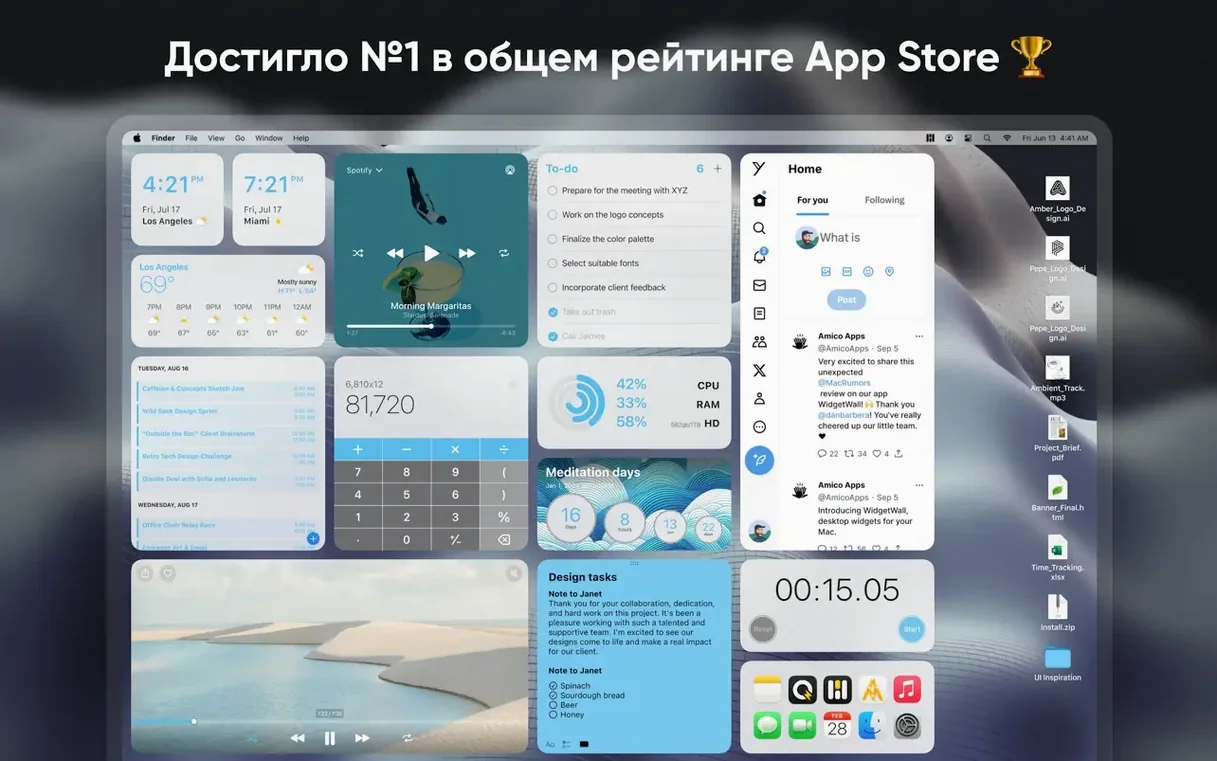
Utility lineup — Clock, Calculator, Stopwatch, Timer, Pomodoro, Countdown, Countup, Alarm, White Noise, Weather, Stats, Music, Calendar, Reminders, Notes, and more.
Quick access — App Shortcuts, Emoji Browser, Photos, Video, and TikTok widgets put frequent actions one click away.
Languages — English, Russian, Spanish, Traditional Chinese, and French.
Your first session with WidgetWall
You mount the disk image, drag WidgetWall into Applications, and open it from Launchpad. The app finishes its first-run setup and within a few seconds the Confetti widget is dropping color on the right side of your screen. A Clock widget sits in the upper-left corner. A Weather widget pulls your approximate location and shows the current conditions and a five-day forecast.
You want to see what else is available. The widget library lists everything: Calendar, Music, Notes, Reminders, and the utility timers you will actually use during the workday. You click the Timer widget and it appears on the desktop in its default medium size. You resize it to small and it shrinks to a compact readout that sits above your browser window. It counts up without any extra clicks.
Midday you switch to the Pomodoro Timer. You set a 25-minute focus cycle. When the timer finishes the app plays a short alert sound. You start a five-minute break timer, then another focus cycle. The White Noise widget runs in the background, playing rain sounds through your speakers. The whole setup takes about two minutes to arrange and then you do not think about it again until the timer goes off.
At the end of the day you open the Photos widget and point it at a folder of vacation shots. The widget cycles through the images every ten seconds, a small slideshow on the lower-left corner of the screen. You close WidgetWall from the system tray and the widgets vanish. The next morning you launch the app again and all the widgets reappear in the same positions and sizes you left them.
Tighter Setup Process in 3.15.2
Version 3.15.2 does not reinvent the widget lineup. It focuses on the app's core behavior: the widgets you already use work the same way, but the setup process feels tighter. The automatic widget placement after a fresh install now lands in positions that do not overlap on a standard 1920x1080 display. Users who update from an earlier version will not see their existing layout shift. The app also loads the widget list faster when you open the library panel for the first time after launch. The Weather widget refreshes data on a more consistent schedule compared to earlier builds. No new widgets arrived in this version. The changelog is about polish, not new features.
Low-Refresh Widgets Keep Mac Speed
Will WidgetWall slow down my Mac?
WidgetWall runs as a background process and draws lightweight overlay widgets. The widgets update at a low refresh rate — a clock ticks once per second, a weather widget checks the internet every few minutes. It does not index files, scan drives, or run background compilations. Most users will not notice any performance impact on a Mac with 8 GB of RAM or more. On older Intel machines with 4 GB of RAM you may want to limit active widgets to fewer than ten at once.
Do the widgets stay on top of full-screen windows?
They stay on the desktop layer. When you open a full-screen application or a maximized window the widgets sit behind it. They are visible on the desktop and when you use the desktop as your primary workspace. They do not overlay video players or full-screen games.
Can I move widgets around freely?
Yes. Click and drag any widget to a new position. Widgets snap to a loose grid by default but you can hold the Command key while dragging to place them pixel-freely. The positions are saved when you close WidgetWall. Next launch restores them.
Does WidgetWall work on an Apple Silicon Mac?
Yes. The package includes native support for ARM (Apple Silicon) and Intel 64-bit architectures. It runs without emulation on M1, M2, and M3 Macs. The setup process is identical on both platforms.
Will my existing widgets update automatically?
The app itself does not auto-update from the version included in this package. The widgets inside the app update their data — weather, clock, timer — on their own schedule. To get a newer version of WidgetWall itself you download the latest build from the site.
- macOS 12 or later
- Intel or Apple Silicon
The install order
- Mount the downloaded disk image.
- Drag the app to the Applications folder alias.
- Once the copy finishes, open the app from Launchpad.