Free download (2.3 GB) Previous versions
- Version
- 2027
- Developer
- Autodesk
- Languages
- English
- License type
- K'ed by QiuChenly Crack Team
| macOS range | macOS 12 or later |
|---|---|
| Chip | Apple Silicon, Intel 64-bit |
| Download | 2.3 GB |
| Previous versions | 8 on file |
Screenshots
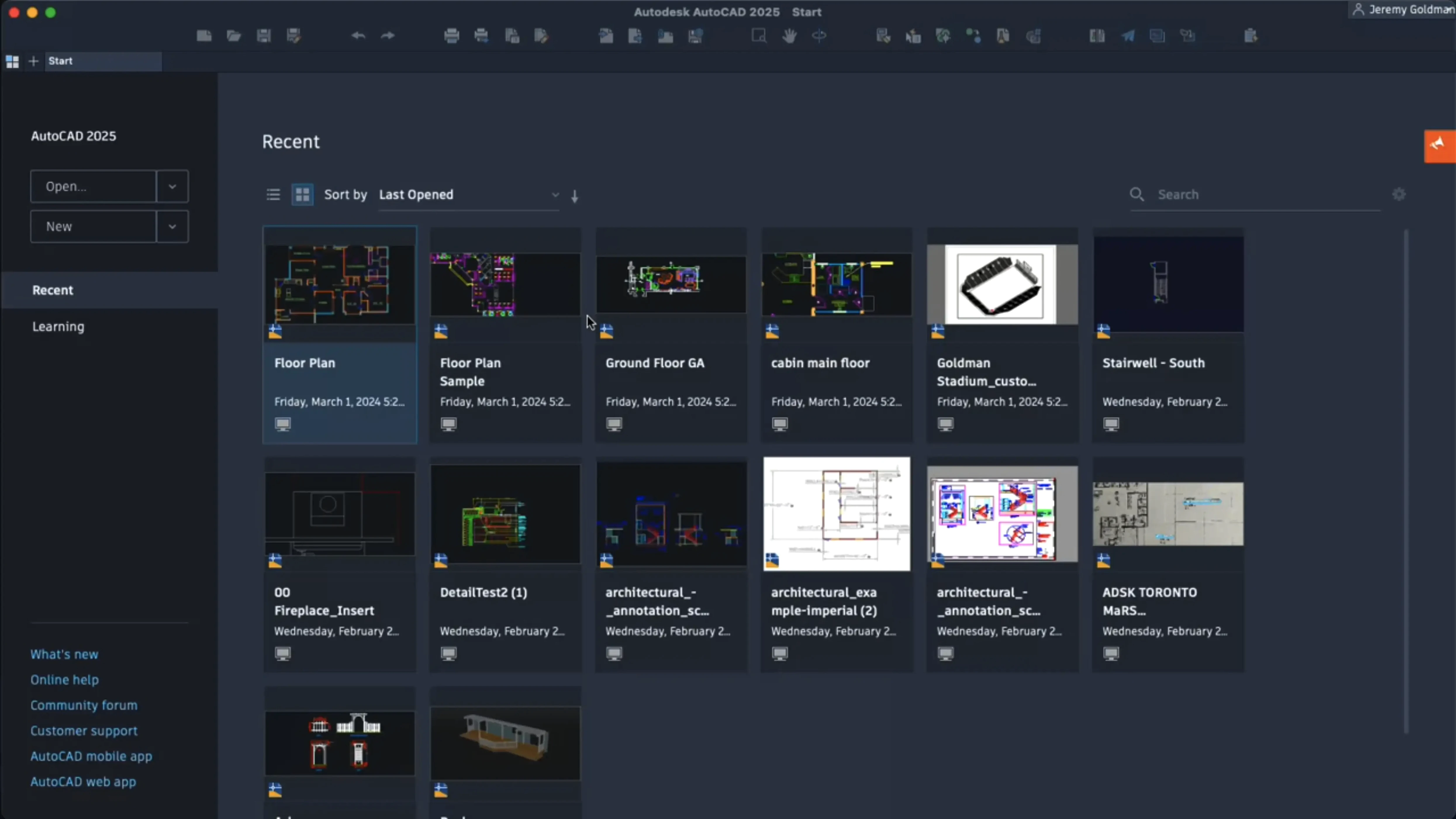
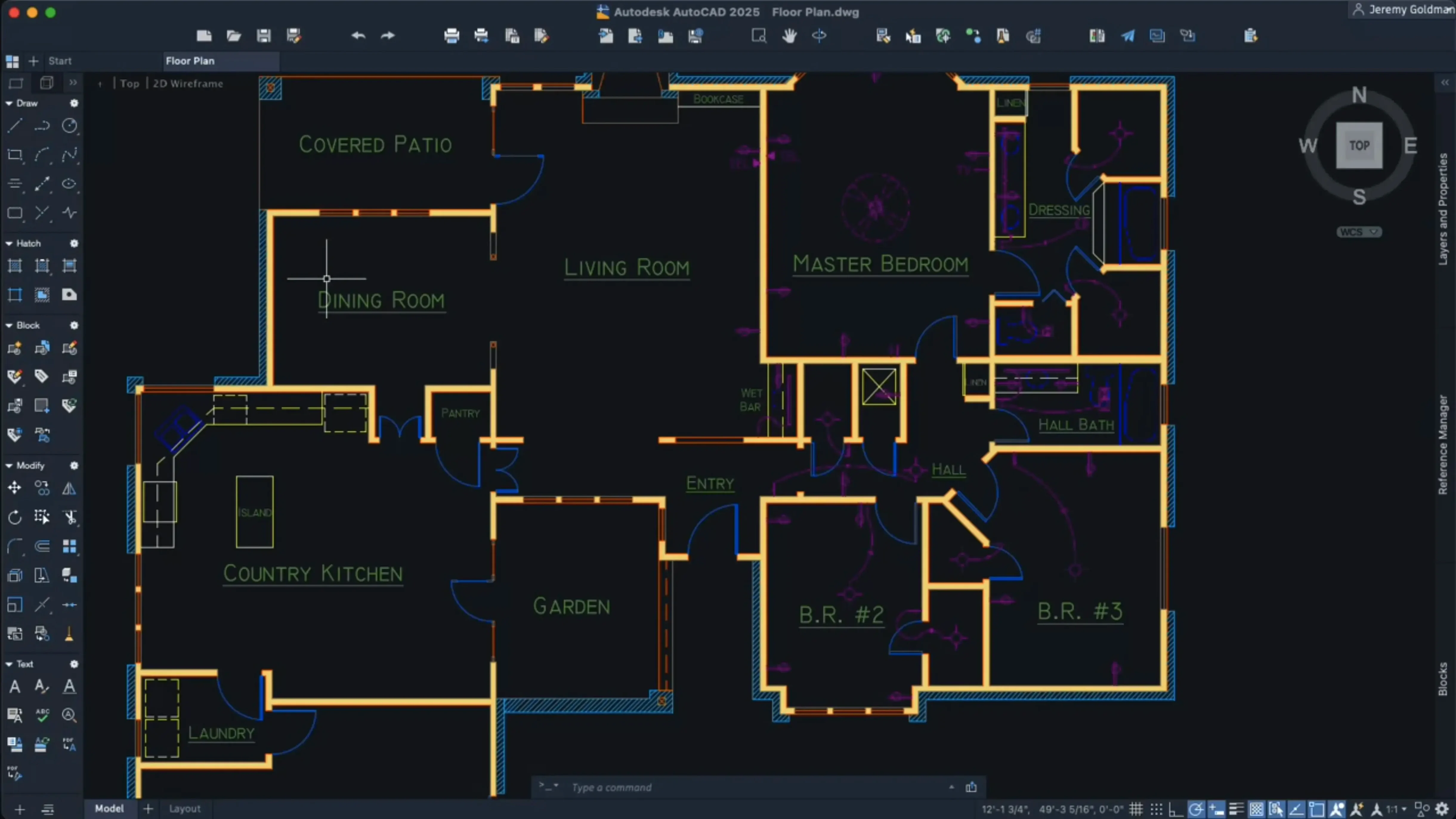
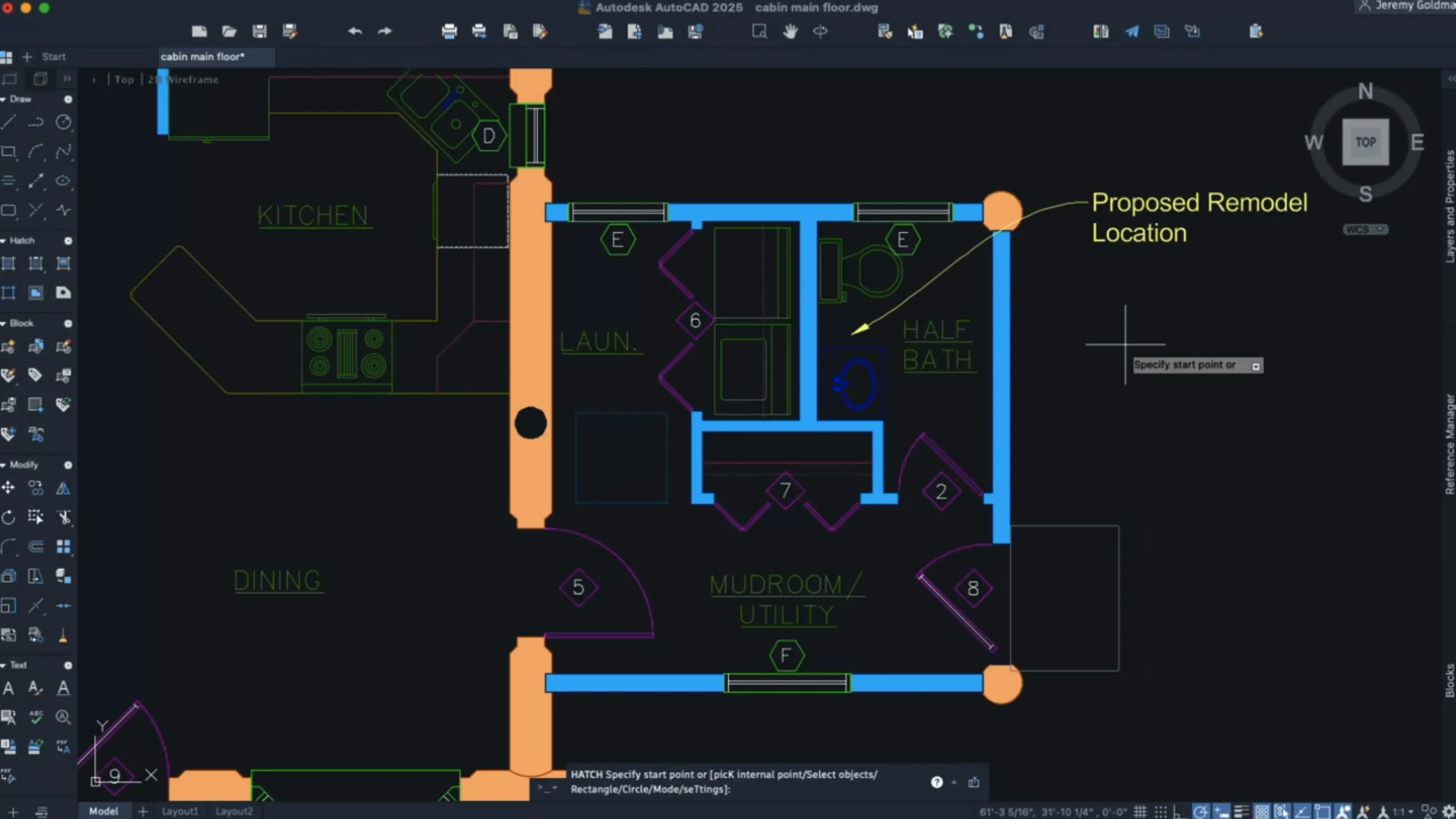
Scroll the row, it snaps to each screenshot. Click one to see it wider.
The Block Conversion tool is the first thing I show anyone new to AutoCAD 2027 on a Mac. It uses Autodesk AI to scan a drawing for objects that can be converted into blocks, and it saves you from manually selecting and grouping repetitive geometry. Run it once and you'll see how much time it frees up for actual drafting.
Second, open Geometry Cleanup. It scans your drawing for common geometry errors and fixes them. It's not a magic bullet—you still review the changes—but it catches overlapping lines and gaps before they become plot problems.
If you're coming from the Windows side, the Mac version uses the same DWG format, so files move back and forth without conversion. The 2027 release runs natively on Apple silicon and uses Metal as its only graphics engine, which makes 3D navigation noticeably smoother. Shortcut menus are also customizable now, so you can tailor right-click actions to your own workflow.
Skipping Geometry Cleanup Before Block Conversion
The biggest mistake I see is skipping Geometry Cleanup before running the Block Conversion tool. If your drawing has overlapping lines or tiny gaps, the AI scan will flag those objects as potential blocks when they're really just geometry errors. Run Geometry Cleanup first, then let the AI do its scan. The results are much cleaner.
Another one: leaving OpenGL selected. AutoCAD 2027 for Mac does not support OpenGL anymore. If you have an older workspace profile that still points to OpenGL, you'll get display glitches or the app may not render correctly. Go straight to Metal—it's the only graphics engine now, so there's no reason to fight it.
New users also ignore palette migration. When you switch workspaces, palettes migrate by default. That sounds helpful, but it can clutter your layout with panels you don't need. Check your palette positions after a workspace change and close what you don't use.
And don't forget the offline Help documentation. The 2027 package includes both online and offline Help. If you work in a basement clinic or a job site without internet, point your Help to the offline copy before you need it. Saves a support call later.
Custom Crosshair Colors for Model Space vs. Layouts
The crosshair color can be customized for layouts. If you work in model space and layout tabs, having different crosshair colors for each helps you know which context you're in without checking the tab label. Change it in Preferences and leave it.
Dynamic grip menus now support shortcut keys in localized versions. If you're working in a non-English AutoCAD, the grip menu shortcuts still work—they just map to the translated commands. That's a small thing but it keeps macros and muscle memory consistent across language installs.
Layout tab switching is faster in 2027. I noticed this when jumping between multiple sheets in a set. It's not a headline feature, but if you work with 10+ layout tabs daily, the improvement adds up.
The hatching options now let you create shaded shapes and hatch along a specific contour without having an existing boundary. That means you can hatch directly inside an open curve or polyline without drawing a closed boundary first. Saves a step in detailing work.
Large Coordinate Scene Optimization Keeps Pan and Zoom Responsive
Large coordinate scene optimization is the change I notice most. In complex drawings with massive coordinate ranges, the CPU or GPU load drops because the software skips processing objects far outside the visible area. Pan and zoom stay responsive where older versions would stutter.
3D navigation performance improved across the board. Combined with the Metal-only graphics pipeline, orbiting and zooming in 3D views feels consistent even on older Intel Macs. If you do any 3D modeling or walkthroughs, this alone justifies the update.
The Block Conversion tool's AI scan is the workflow changer. It automatically identifies objects that may be worth converting into blocks. You still approve each conversion, but the detection is good enough that you'll catch blocks you never thought to create. For large floor plans or ductwork layouts, it cuts block creation time by a lot.
Shortcut menu customization is finally here. Right-click anywhere and build your own context menu. It's not a huge change, but for anyone who uses AutoCAD for hours, trimming the right-click list to only the commands you use is a real quality-of-life improvement.
One setup note: SIP must be disabled before installing. The package includes instructions for that step. If you skip it, the activation won't work and you'll get a crash on launch. Do it before you run the installer, not after.
Start with those two tools, then explore the block creation options like scaling and rotation. That's enough to get you productive in the first session.
- Autodesk AI scans drawings for objects that can be converted into blocks.
- Geometry Cleanup finds and fixes common geometry errors.
- OpenGL is no longer supported; Metal is the sole graphics engine.
- macOS 12 or later
- Apple silicon or 64-bit Intel processor
- English interface language
The install order
- Install the package and follow the activation instructions included in it.
- Disable SIP (System Integrity Protection) before installation.