
Free download (107 MB) Previous versions
- Version
- 6.0.5
- Developer
- Digitalanarchy
- Languages
- English
- License type
- Included
| Chip | Apple Silicon, Intel 64-bit |
|---|---|
| Download | 107 MB |
| Previous versions | 2 on file |
Screenshots
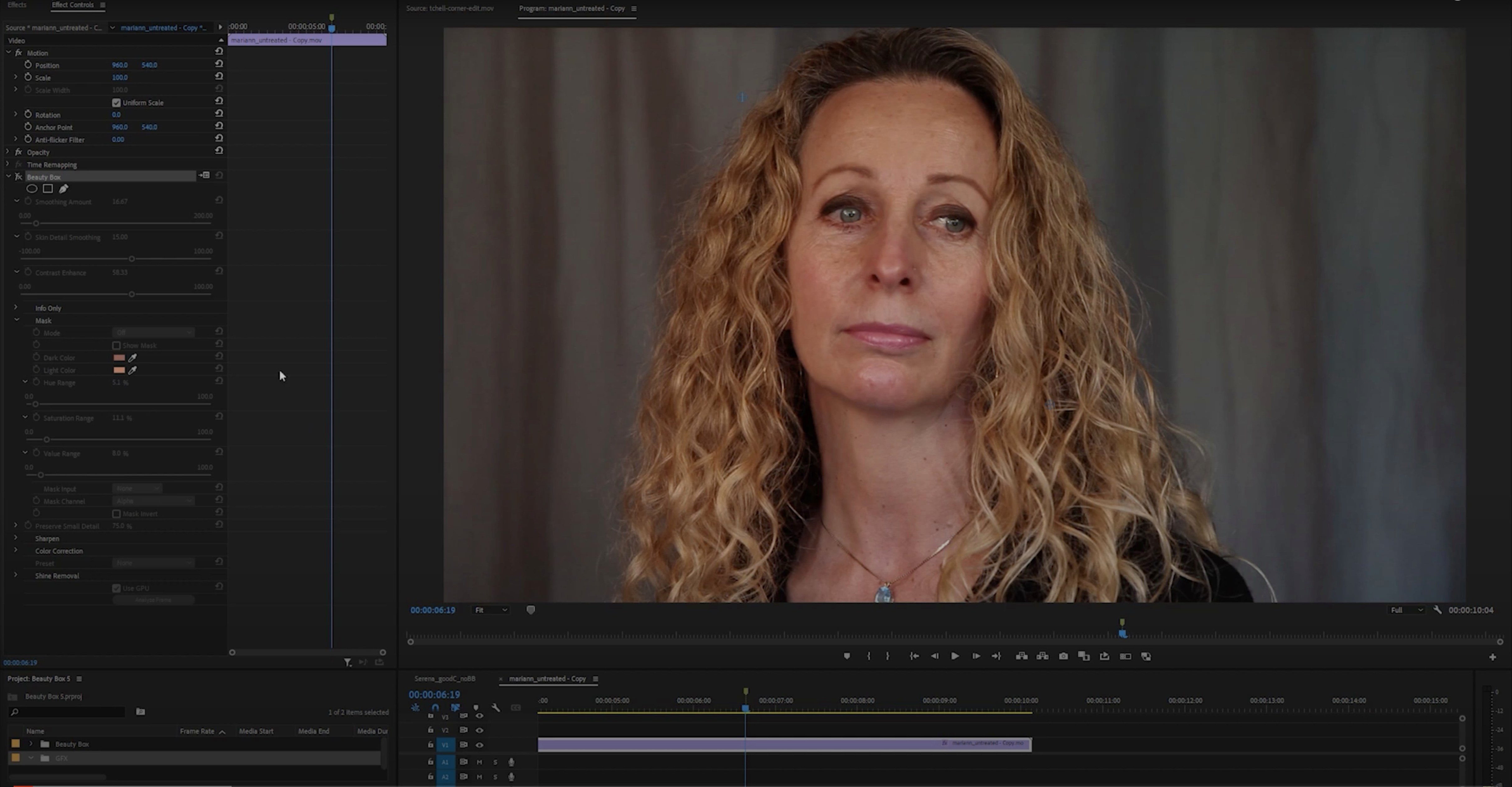
Beauty Box Photo runs on both Intel and Apple Silicon Macs, so it works on any recent Mac that can run Photoshop. It is an Adobe-only plug-in, which means it slots into Photoshop rather than standing alone. The retouching is automatic: it smooths skin while keeping facial details like eyes and brows sharp. Real-time rendering with CUDA and OpenGL keeps the preview responsive as you adjust the effect. The interface is in English.
- Compatible with Intel and Apple Silicon Macs
- Adobe-only build for Photoshop
- Automatic skin smoothing with detail preservation
- Real-time preview using CUDA and OpenGL
- Single disk-image installer
If you do regular portrait work in Photoshop, Beauty Box Photo cuts down the manual frequency-separation work. It is a straightforward tool for a specific job.
Open Photoshop, apply default skin-smoothing
Open Photoshop with a portrait shot loaded. Go to the Filters menu and select Digital Anarchy > Beauty Box Photo. The plug-in window opens over your image. The default settings apply a moderate skin-smoothing pass.
First, check the preview. The plug-in renders the effect in real time. Click and drag on the preview to inspect different areas. Look at the forehead and cheeks for skin texture; look at the eyes and brows to confirm they are still sharp. Adjust the Strength slider until the skin looks natural. Too much and the face goes waxy; too little and you still see small blemishes.
Once the result looks right, click OK. The plug-in applies the effect to the active layer. If you want to keep the original layer untouched, duplicate it before running the filter. That way you can paint back details with a layer mask if needed.
A single photo takes about thirty seconds from opening the plug-in to applying the filter. Batch work takes longer because you process each shot individually in Photoshop.
Avoid plastic skin by dialing back Strength
- Over-smoothing the whole face. The plug-in works on the entire image area. If you run it on a face that already has heavy foundation or strong studio light, the skin can look plastic. Dial the Strength back or use a layer mask to restrict the effect.
- Not checking the eyes. The plug-in preserves detail, but at high strength settings the eye area can soften slightly.
- Applying it to the background. The plug-in does not know what is skin and what is background. If part of the background matches skin tones, it will smooth that too. Paint a rough selection around the face first, or apply a mask afterward.
- Skipping the preview. The real-time preview is there for a reason. Click around the image to spot problem areas before committing.
Real-World Scenario: A Portrait Photographer
A portrait photographer shoots headshots for a corporate client. They have forty subjects, each with one final retouched image. Manual frequency separation takes three to five minutes per headshot. With Beauty Box Photo, each headshot takes about forty seconds. The photographer opens each image, runs the plug-in with a standard Strength setting, checks the eyes, then moves on. Total time for forty headshots drops from three hours to under an hour. The client gets consistent skin texture across the entire set, and the photographer keeps the lunch break.
That kind of time saving matters when the deadline is tight and the client expects the same look on every face.
- macOS: not specified
- Architecture: Intel and Apple Silicon
- Host: Adobe Photoshop
Questions I get about this line
Yes, it supports both Intel and Apple Silicon architectures, so it runs natively on M1 and M2 Macs.
No, it is a Photoshop plug-in and requires Adobe Photoshop to run.
The install order
- Open the downloaded disk image.
- Run the standard installation process.