
- Version
- 3.1.0
- Developer
- HitPaw
- Languages
- Russian, English, German, Arabic, Indonesian, Spanish, Italian, Chinese (Traditional), Chinese (Simplified), Korean, Dutch, Portuguese, Thai, Turkish, French, Hindi, Japanese
- License type
- K'ed by TNT team
| macOS range | macOS 10.15 or later |
|---|---|
| Chip | Intel 64-bit |
| Download | 824 MB |
Screenshots
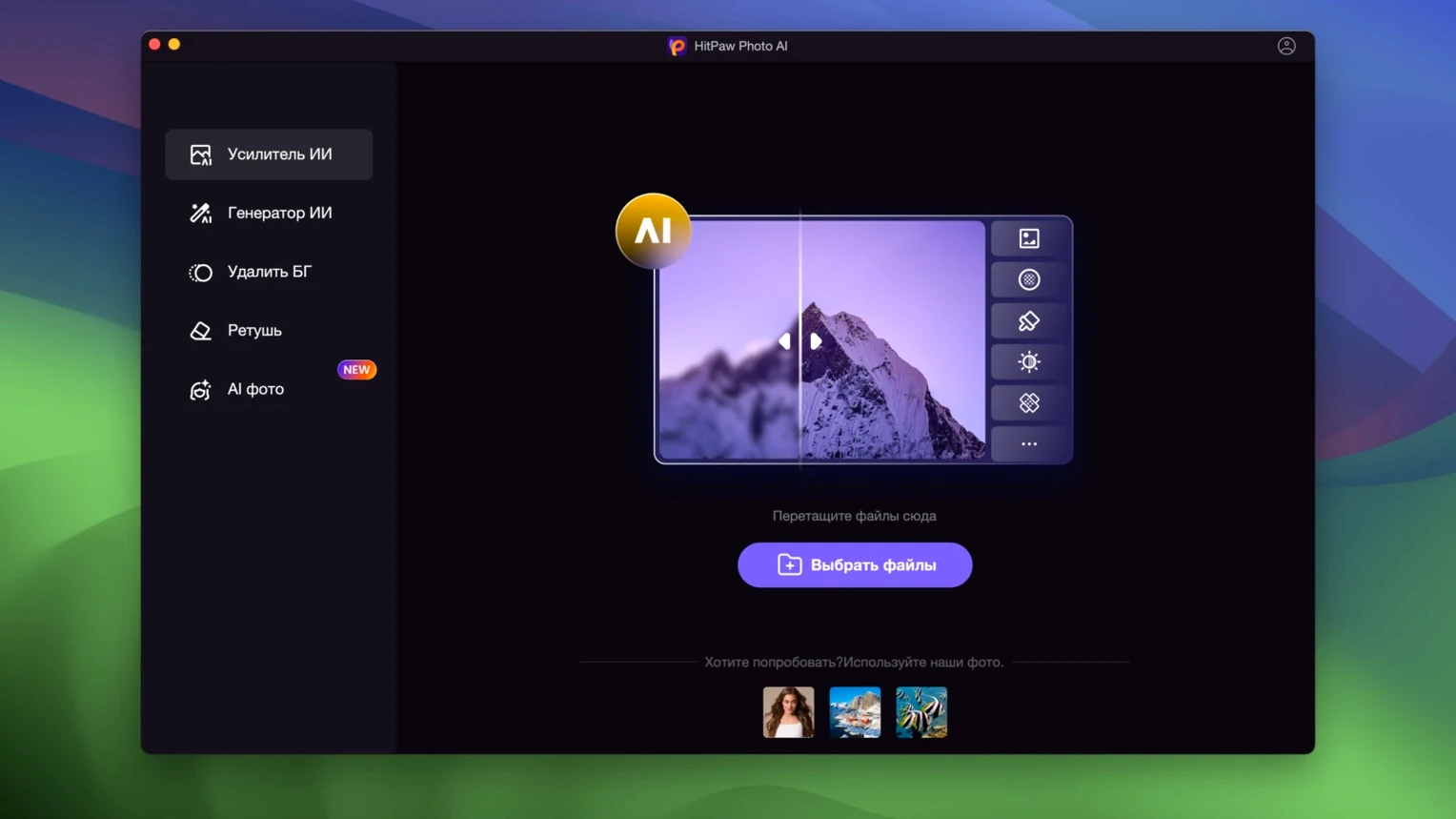
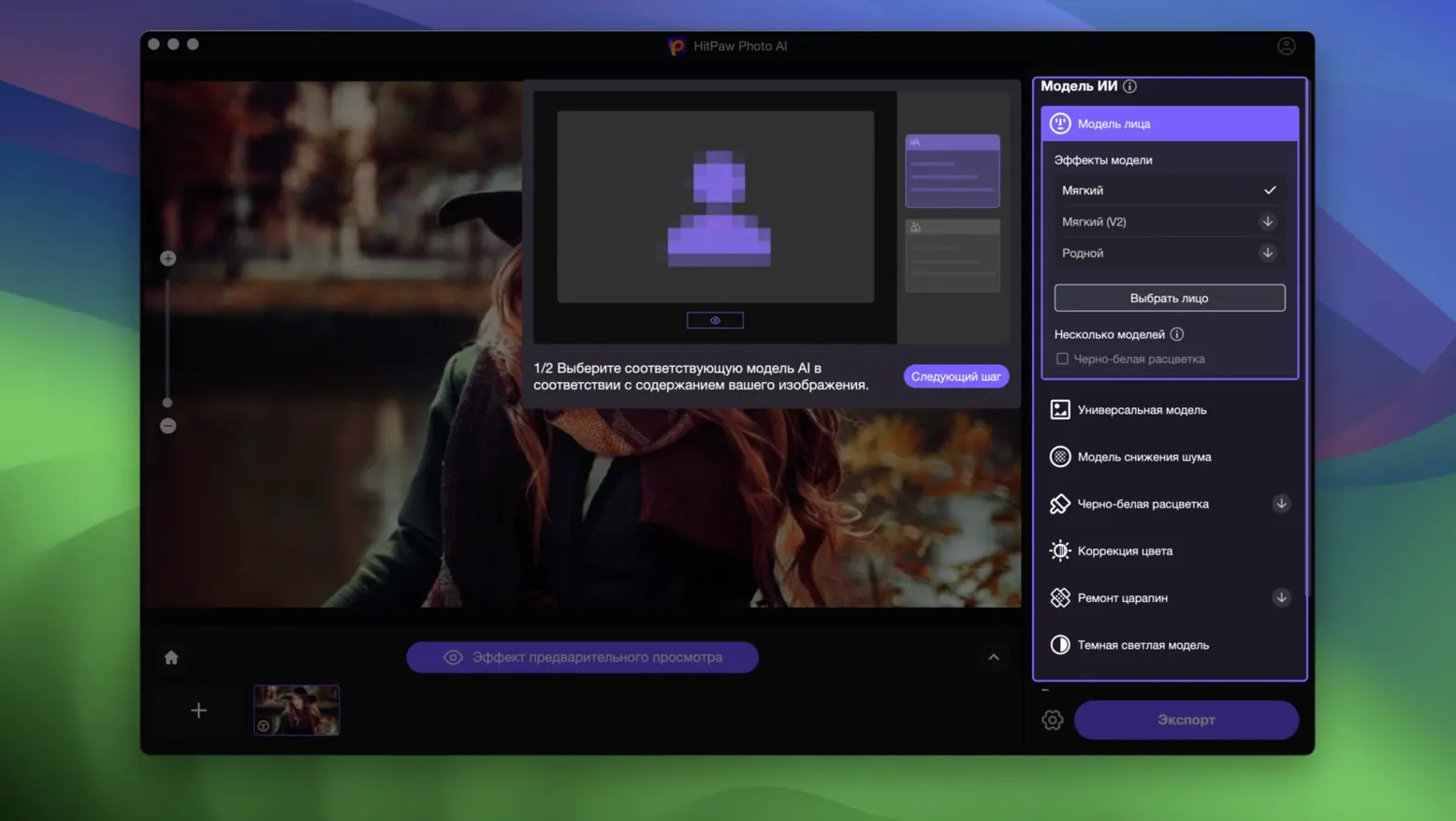
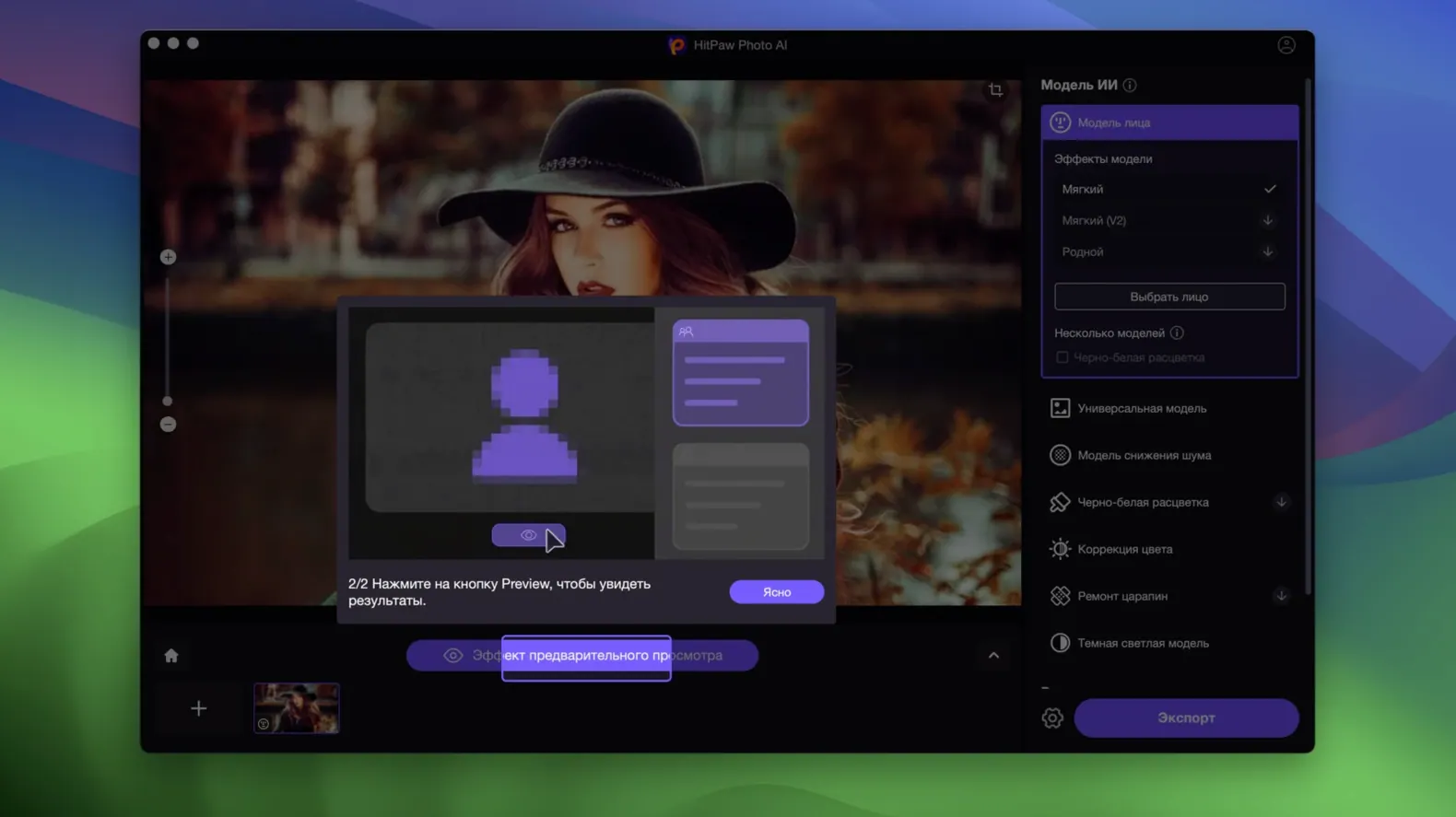
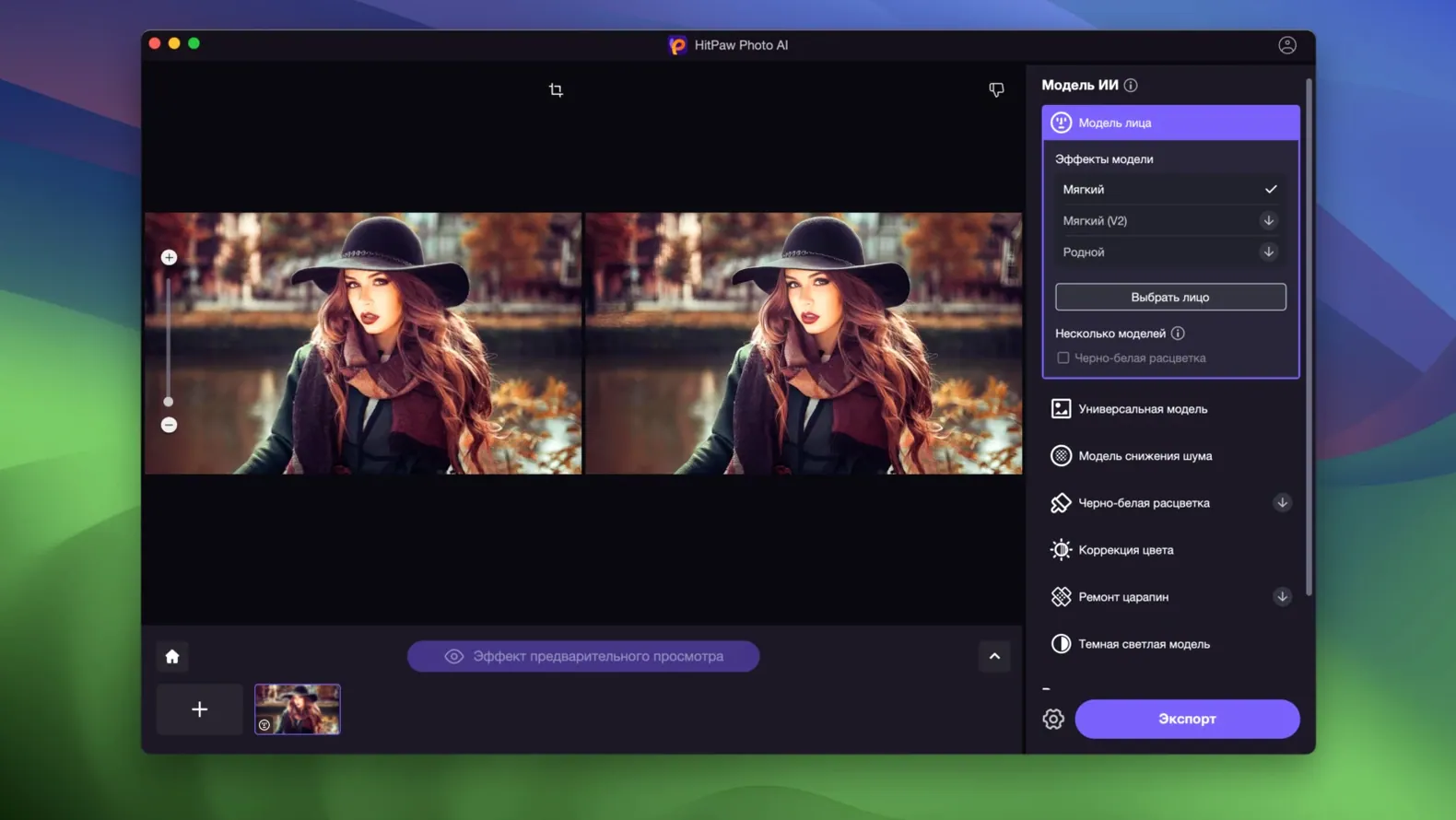
Click a screenshot to see it wider.
The Face Enhancement model alone is worth a look — it clears up blurry portraits without turning everyone into a wax figure. But before you grab the hitpaw photo ai macos download, check the compatibility box.
macOS 10.15 or later required, Intel Macs only
You need macOS 10.15 or later, and an Intel Mac. Apple Silicon users can still run it through Rosetta, but there’s no native ARM build listed.
What does it actually do?
It upscales images without quality loss, de-pixelates, removes noise, and restores old photos — including colorizing black-and-white shots. One model handles old photo restoration, another sharpens blurred images.
Test four AI models on familiar photos first
Start with a few test photos you already know well — a landscape, a portrait, a grainy low-light shot. Run each through the four AI models one at a time so you see what each model is good at. The general model works best on landscapes and buildings. The face model handles blemishes and wrinkles on its own. Do not expect one click to fix everything on every image.
Save your originals in a separate folder. The app writes over the processed file if you hit save without renaming, and there is no undo stack. Get into the habit of exporting to a new name or a different folder until you are sure about the result.
Find some old family scans — faded, scratched, low-res. The old photo restoration model can colorize black-and-white shots and bring back detail. Results vary depending on the source, but it is the fastest way to see what the app can do that standard editors cannot.
Avoid over-sharpening clear images
- Over-sharpening everything. The upscaling and sharpening models are aggressive. Running them on already-clear images makes edges look harsh and artificial. Use them only on photos that actually need it.
- Ignoring the wrong model choice. Throwing a low-light noise shot at the face model will not clean it up. Each AI model targets a specific problem. Match the photo type to the model name.
- Using the app as a raw editor. HitPaw Photo AI is an enhancer, not a full photo suite. Do basic exposure and color corrections elsewhere before you bring the photo here.
- Skipping the language pick. The installer defaults to English. If you need another of the 17 supported languages, change it early. Switching later requires a reinstall or digging into preferences.
Version 3.1.0 fixes TIFF stalls and side-angle faces
The latest build keeps the same four-model workflow but tightens the file handling. Opening large TIFF files is more reliable now — the app no longer stalls on images above 20 megapixels. The face model handles side-angle portraits better than earlier builds, so you get fewer warped results on three-quarter views.
Export times are more consistent across all four models on Intel Macs. The old photo restoration model now colorizes black-and-white shots with fewer mismatched tones in high-contrast areas like skies or neon signs. No new models or interface changes — just the kind of polish that makes daily work less frustrating.
The interface covers 17 languages, from English and German to Japanese and Arabic, so locale won’t be a barrier.
- macOS 10.15 or later
- Intel Mac
Questions I get about this line
The listed requirement is Intel, but Apple Silicon Macs can run it via Rosetta 2 emulation.
Yes, one of its AI models is designed for restoring old photos and colorizing black-and-white images.
The install order
- Mount the disk image and run Open Gatekeeper friendly.
- Press Enter in the Terminal window to bypass Gatekeeper.
- Drag the app into the Applications folder.
- Launch the app once the copy finishes.