
Free download (487 MB) Previous versions
- Version
- 2.6.0
- Developer
- HitPaw
- Languages
- Russian, English, German, Arabic, Indonesian, Spanish, Italian, Chinese (Traditional), Chinese (Simplified), Korean, Dutch, Portuguese, Turkish, French, Hindi, Japanese
- License type
- K'ed by TNT team
| macOS range | macOS 10.15 or later |
|---|---|
| Chip | Intel 64-bit |
| Download | 487 MB |
| Previous versions | 2 on file |
Screenshots
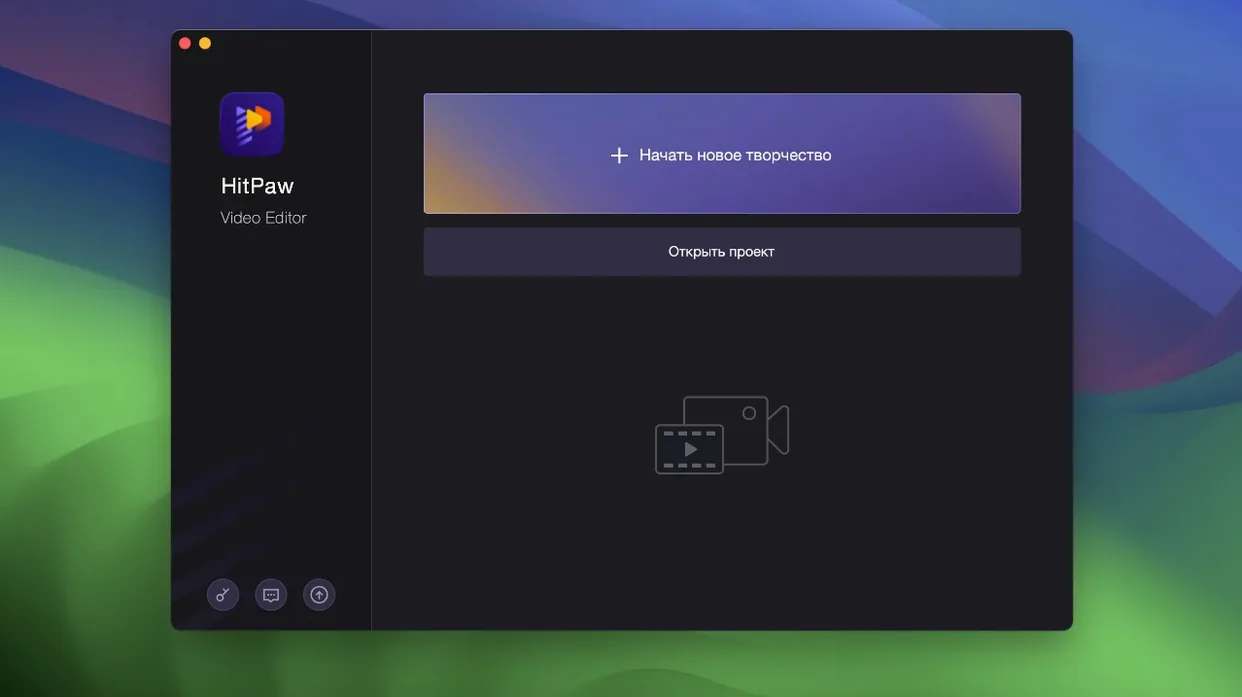
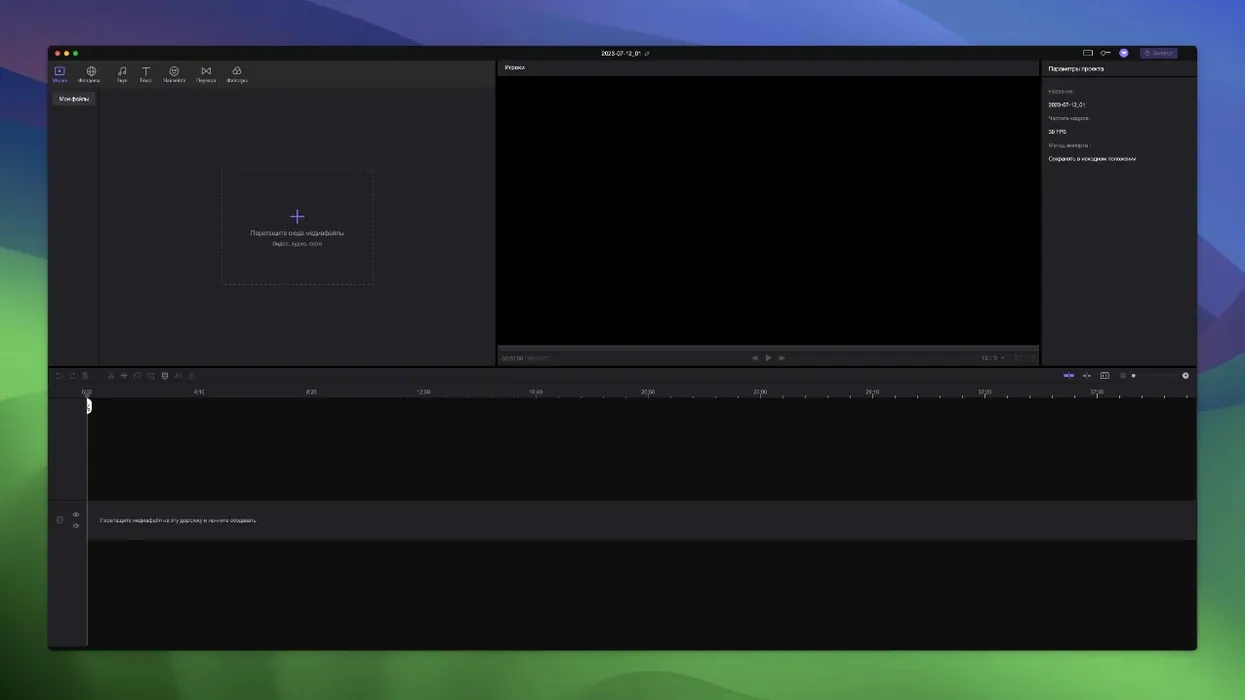
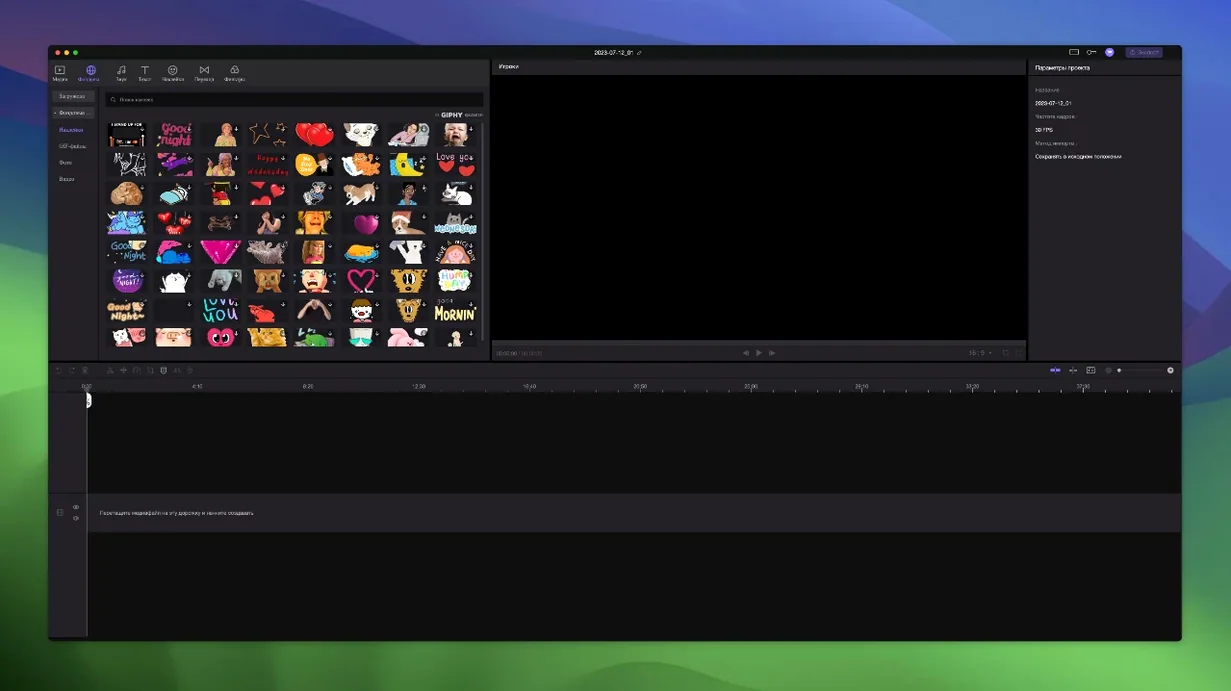
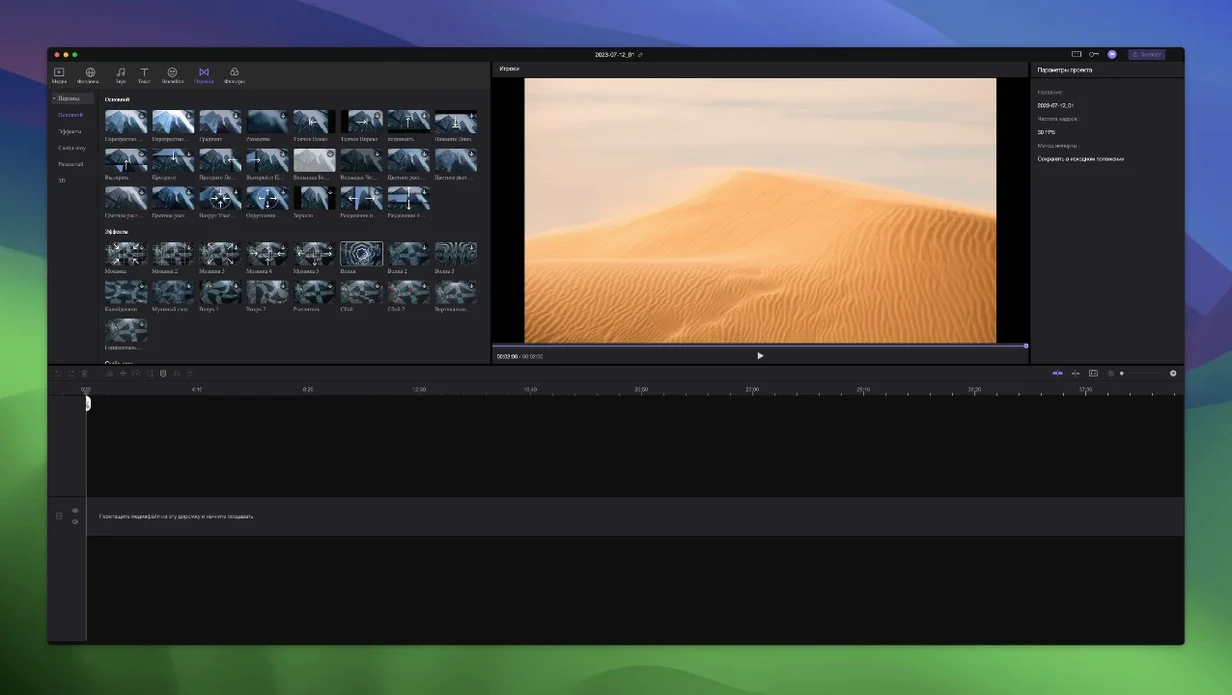
Scroll the row, it snaps to each screenshot. Click one to see it wider.
You have a pile of clips and no time to learn a full NLE. HitPaw Edimakor for macOS covers the basics — cutting, trimming, transitions — and adds AI tools that speed up the boring parts. It is built for creators who want results without a steep learning curve.
The timeline is precise, so you can drop a cut exactly where you need it. Titles, filters, and audio controls are right there, no digging through menus. When you need something smarter, the AI side handles tasks like background removal and caption generation in a few clicks.
Version 2.6.0 is a 64-bit Intel build, which means it runs on most Macs from the last decade. It needs macOS 10.15 Catalina or later, and the developer lists support up to macOS 26. That covers a wide range of hardware, so you are not locked out if your machine is a few years old.
HitPaw Edimakor does not replace Resolve or Premiere for heavy work. It is the editor you open when you want the video done tonight, not next week.
Working Session: Short-Form Edit
I had a five-minute interview clip and needed a thirty-second cut for socials. I imported the file by dragging it onto the timeline. Edimakor created a new track automatically.
The first job was trimming. I hovered near the start of the clip, saw the timecode update as I scrubbed, and pressed the split shortcut to cut. The head end went into a second track, still attached to the main clip — when I dragged the main video later, the trimmed section followed. That automatic attachment saved me from hunting down orphaned pieces.
I added a transition between two remaining segments. The transition library is basic: crossfade, wipe, a few others. I picked a fade, dragged it onto the cut point, and it snapped into place.
For the AI part, I selected the clip and ran the background removal tool. It took the talking head out of the office background and dropped in a plain gradient. No masking, no keyframes. I typed a line of captions, chose a style, and the generator placed them on the timeline.
Export was one click — MP4 at 1080p. The whole session was maybe fifteen minutes.
Between Simple Tools and Professional Suites
HitPaw Edimakor sits between simple tools and professional suites. Here is how it stacks up against two other options you might consider.
Edimakor vs. Apple iMovie
iMovie ships with every Mac, which is its main advantage. It handles basic cuts and titles, but its timeline is limited to a few tracks. Edimakor gives you unlimited tracks and the magnetic attachment behavior — move the main video and everything tied to it moves too. iMovie lacks AI features like auto-captioning or one-click background removal. If you need more than two or three overlapping layers, Edimakor is the better fit.
Edimakor vs. DaVinci Resolve (Free)
Resolve is a full post-production studio. Its color grading, audio post, and node-based effects are unmatched. But it demands a lot from your hardware and your attention span. Edimakor is lighter on system resources, starts up faster, and does not require a tutorial to find the cut tool. If your work is short-form social content or simple talking-head videos, Edimakor saves time. For cinema-grade color or complex compositing, Resolve is the right tool.
Edimakor vs. Shotcut (Open Source)
Shotcut is free and cross-platform. Its timeline is functional but a little rough around the edges — snapping and track management are not as polished. Edimakor's automatic track attachment and AI tools give it an edge for speed. Shotcut is a good fallback if budget is zero and you want something open. Edimakor is better when you want the edit done fast with fewer clicks.
Switch Language Before Starting a Project
- Language — The default may be English, but Edimakor ships with sixteen languages including German, French, Spanish, and Japanese. Switch from the Preferences panel before you start a project so menu labels stay consistent.
- Export preset — The default export might not match your target platform. Set your preferred resolution and format (MP4 is safe for most uses) in the export dialog before you render. It saves one extra click per project.
- Timeline snap behavior — Check whether snapping is on by default in the view settings. If you prefer free positioning over snapping to cuts, turn it off early.
- Autosave interval — If you tend to work in long sessions, set the autosave to a shorter interval. Edimakor does not have a long history of crash reports, but autosave is cheap insurance.
- macOS 10.15 Catalina or later
- Intel x86 64-bit architecture
Questions I get about this line
The current version is Intel x86 64-bit, so it runs on Apple Silicon through Rosetta 2. It requires macOS 10.15 or above.
The install order
- Mount the disk image and run Open Gatekeeper friendly.
- Press Enter in Terminal to bypass Gatekeeper.
- Drag the app to the Applications folder.