- Version
- 4.7.0
- Developer
- HitPaw
- Languages
- Russian, English, German, Arabic, Indonesian, Spanish, Italian, Chinese (Traditional), Chinese (Simplified), Korean, Dutch, Portuguese, Turkish, French, Hindi, Japanese
- License type
- K'ed by TNT team
| macOS range | macOS 10.15 or later |
|---|---|
| Chip | Intel 64-bit |
| Download | 525 MB |
Screenshots
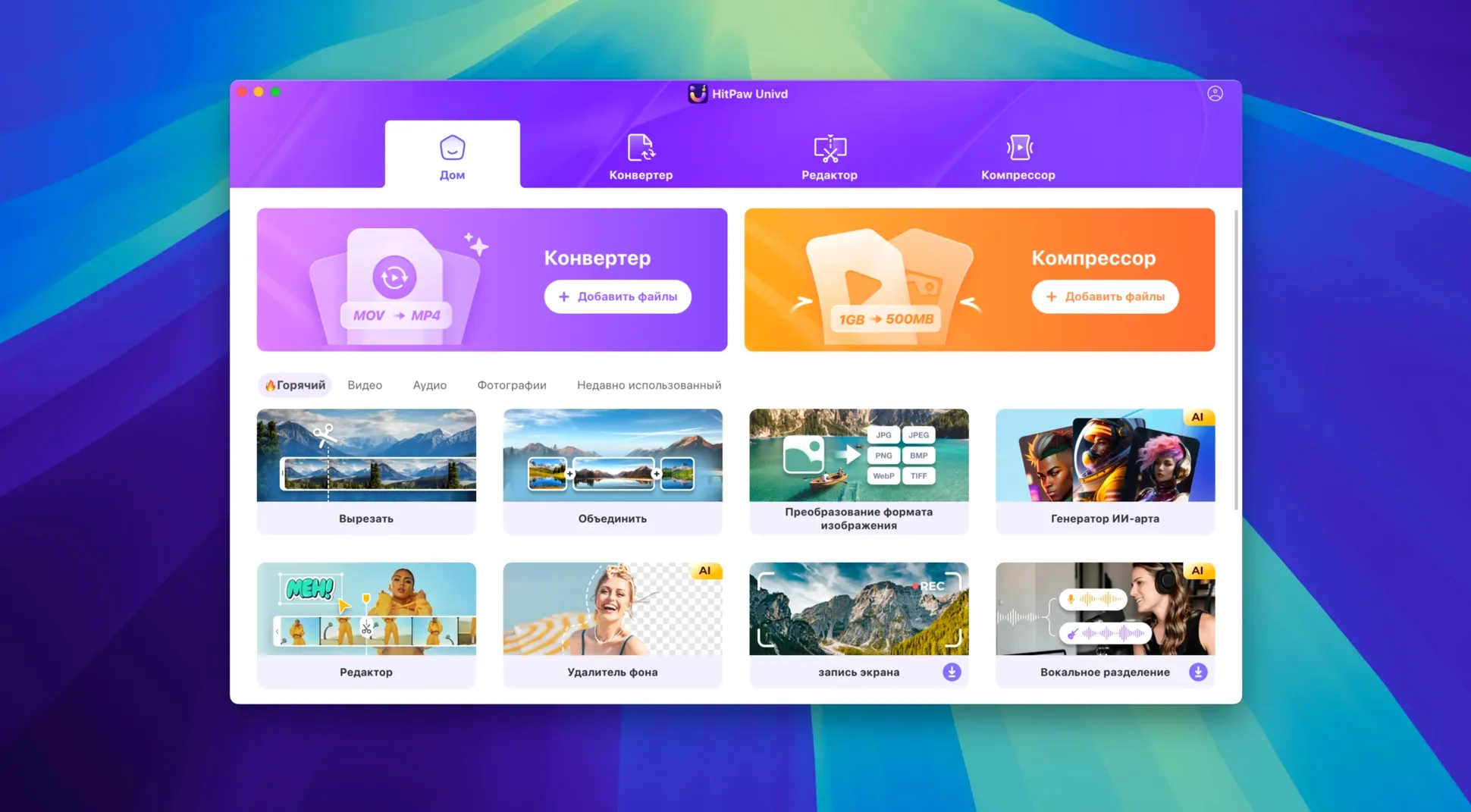
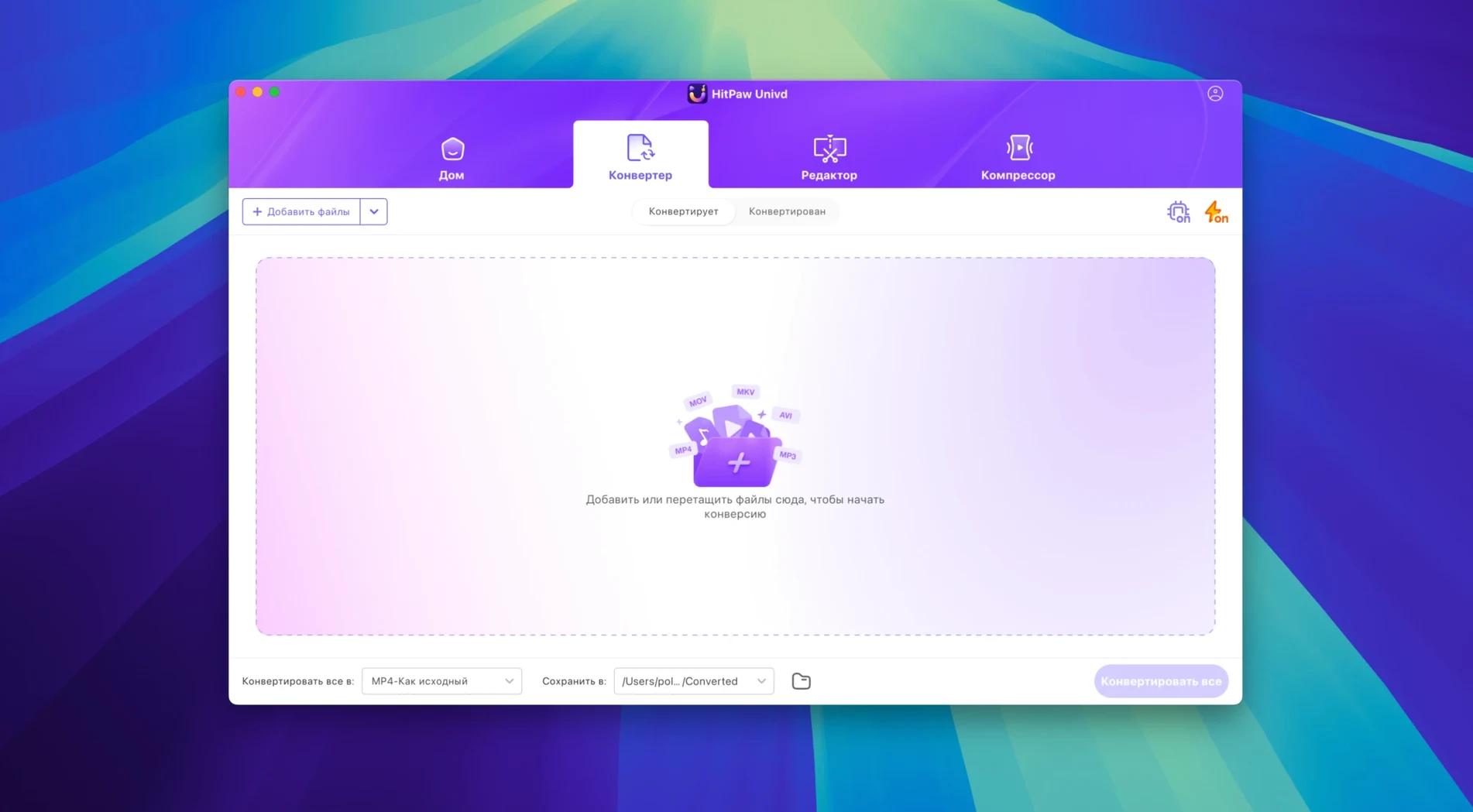
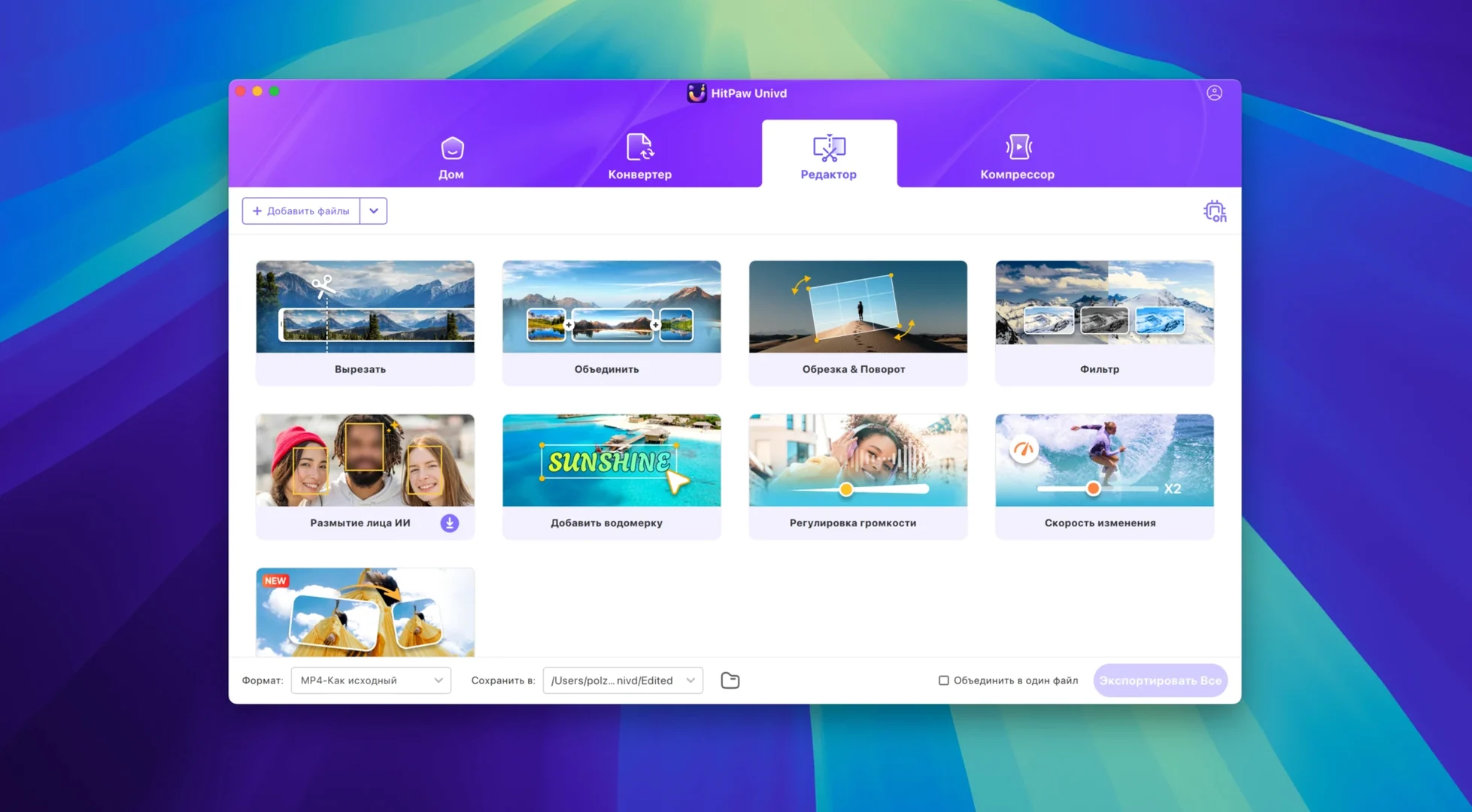
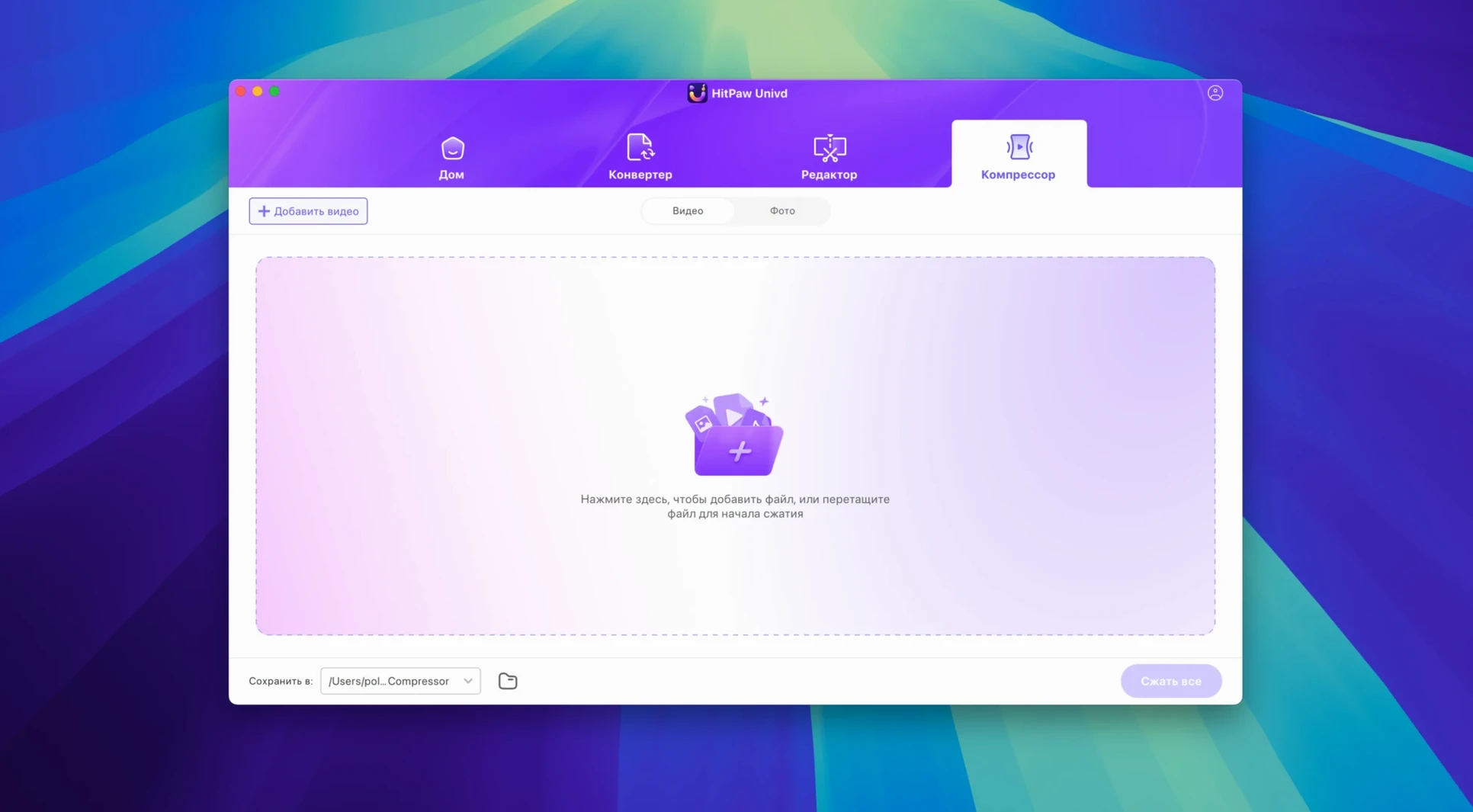
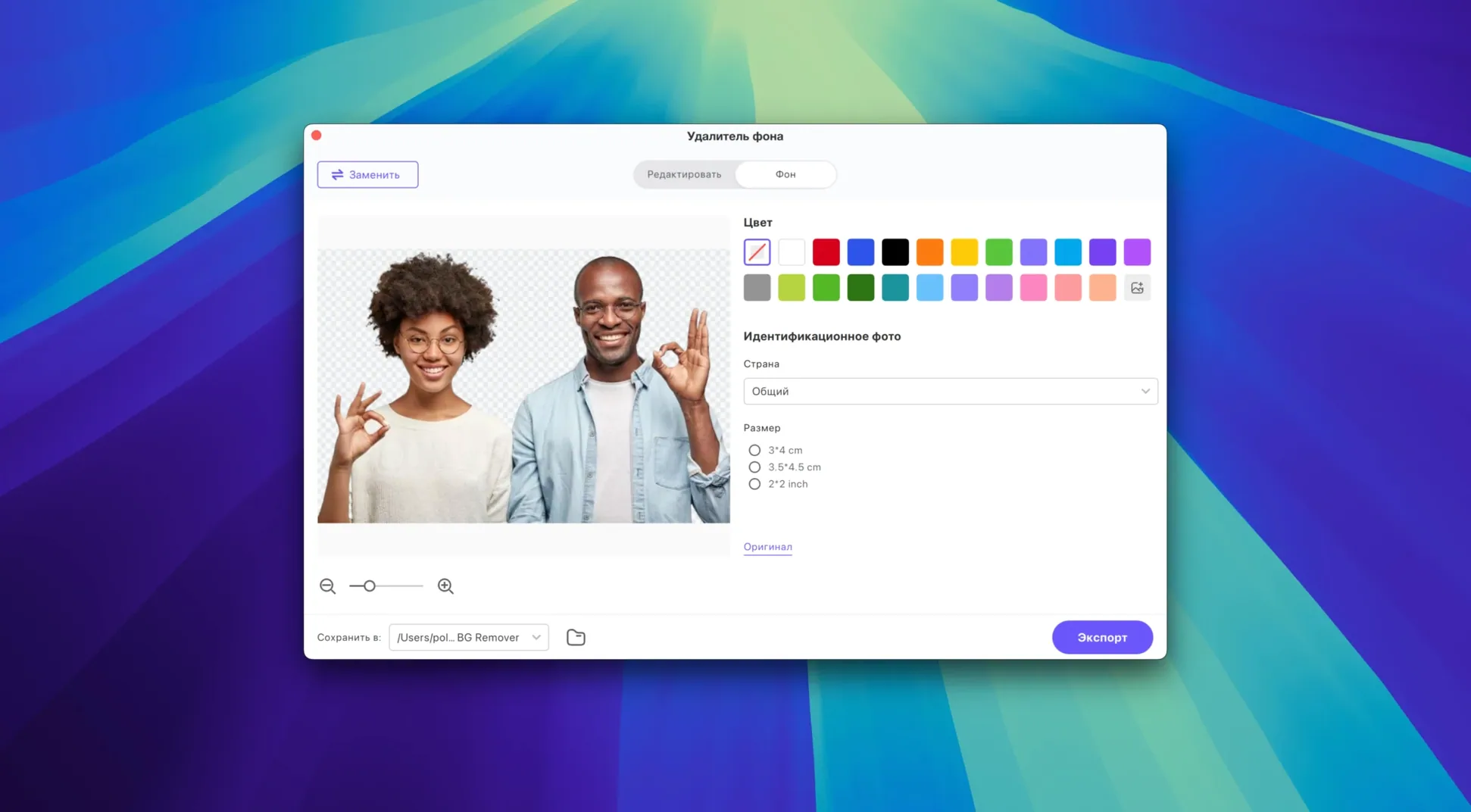
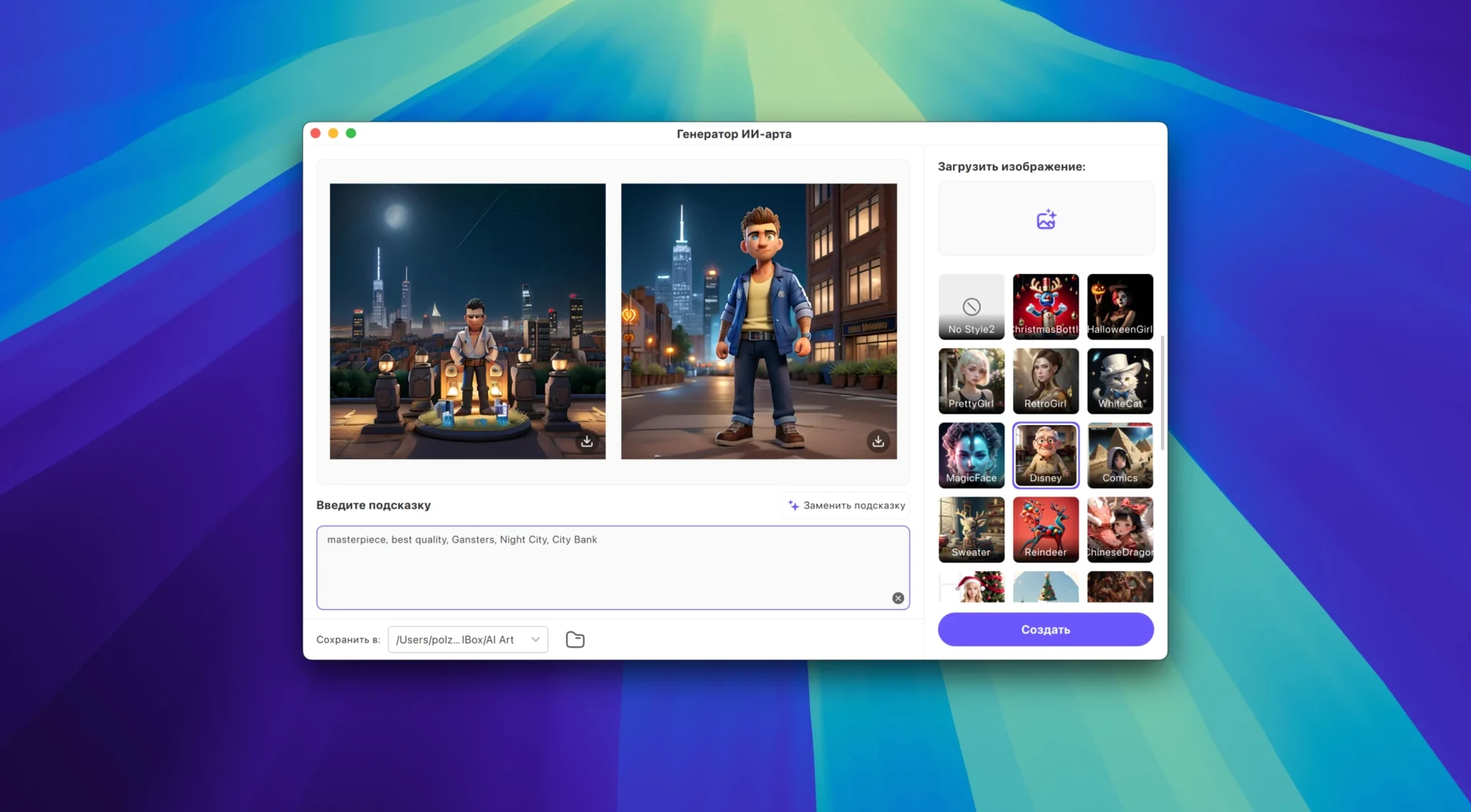
Click a screenshot to see it wider.
HitPaw Univd is a Mac video converter, downloader, and editor with AI features, now at version 4.7.0.
Compatibility — Runs on macOS 10.15 or later, Intel 64-bit only. No Apple Silicon build listed, so Rosetta may be needed on M-series Macs.
Converter — Converts video and audio into 1,000+ formats, including MP4, MOV, AVI, VOB, and MKV. Supports VP9, ProRes, and Opus codecs.
Downloader — Pulls video, films, and music from 10,000+ sites, including YouTube, Bilibili, Facebook, and Instagram.
Editor — Basic editing and enhancement tools built in.
Common Mistakes Beginners Make
First, skipping the format check. HitPaw Univd supports a big list of source files, but a few things trip people up. You will not convert a DRM-protected file from Apple Music or Spotify, for example. The app works on the files you have, not the ones you rent.
Second, assuming the downloader works on every site. The list is 10,000+ sites, but that does not mean every video on YouTube or Instagram is yours to grab. Some accounts restrict downloads. HitPaw Univd will tell you if the source is blocked — it does not work around login walls or paywalled content.
Third, ignoring the editor step. Beginners convert first, then try to edit. The editor is there before conversion. Cut or trim the source, then convert. Doing it the other way wastes time.
Fourth, forgetting the output folder. HitPaw Univd saves converted files to a default location. Check your system preferences or the app settings first. Searching for a finished file after a long conversion is a chore.
What to Expect on Your Mac
Requirements are clear: macOS 10.15 or later, Intel 64-bit architecture. If you are on an Apple Silicon Mac, the app runs under Rosetta. No native ARM build is listed.
The 4.7.0 UI is new. That is the main visual change. Menus and layout will look different from older versions.
Language support covers 17 languages, from English to Japanese, so the interface should be readable for most users.
Disk space and memory are not specified by the developer. A typical video converter uses a few hundred MB on disk plus space for temporary files during conversion. Keep 10-20 GB free if you work with long videos.
A Typical Working Session
Wednesday afternoon. A dentist asks for an MP4 clip of a post-op instruction video she filmed on her iPhone. The raw file is MOV, and she wants it smaller and in MP4 format.
I launch HitPaw Univd. The new UI opens clean — no clutter. I click the Converter section and drop the MOV file into the window. The format list is long, but I type MP4 in the search box and pick the H.264 preset. That keeps it compatible with Windows PCs in the clinic.
I trim off the first ten seconds where she fumbled the tripod. I can preview the cut right there, no need to re-encode first. Once the start and end points look right, I confirm the crop.
Back in the converter, I hit the start button. The app works through the file. When it finishes, the output sits in the default folder at a fraction of the size. I copy it to a USB stick for the dentist.
Later that same afternoon, someone in the front office asks for a music track from a YouTube playlist. The downloader tab lists a YouTube source. Paste the link, pick MP3 as output, and the app pulls it down. No extra tools needed.
One session, two tasks. Converter and downloader both in one app. That is the typical flow for a day in a small IT shop.
The 4.7.0 update brings a new UI and a refreshed product model.
- New UI.
- New product model and user experience.
- macOS 10.15 or later
- Intel 64-bit
The install order
- Mount the disk image and run Open Gatekeeper friendly.
- Press Enter in Terminal to bypass Gatekeeper.
- Drag the app into the Applications folder.