Free download (62 MB) Previous versions
- Version
- 10.15.46 [MAS]
- Developer
- Phase Five Systems
- Languages
- English
- License type
- K'ed by TNT team
| macOS range | macOS 11 or later |
|---|---|
| Chip | Apple Silicon, Intel 64-bit |
| Download | 62 MB |
| Previous versions | 2 on file |
Screenshots
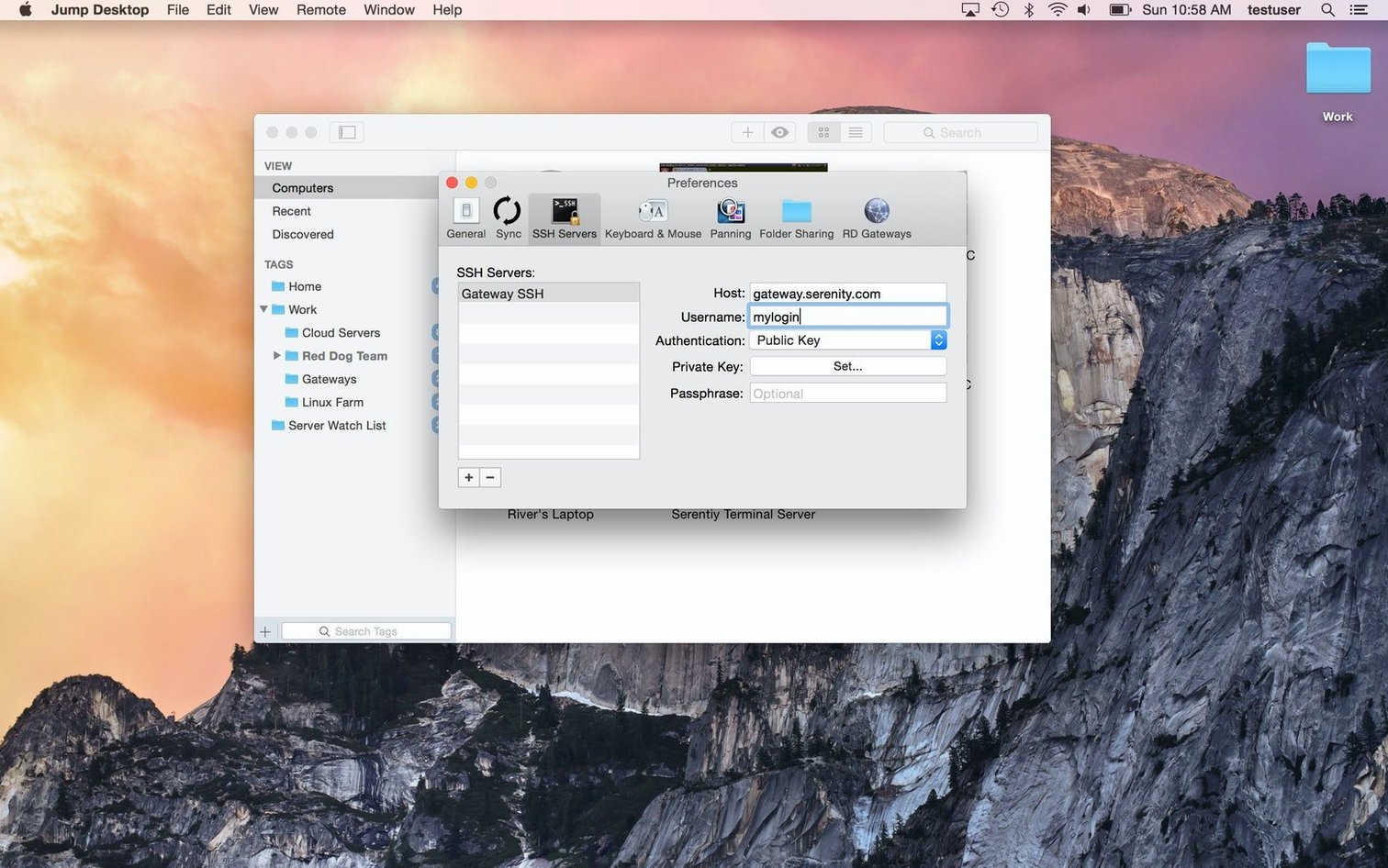
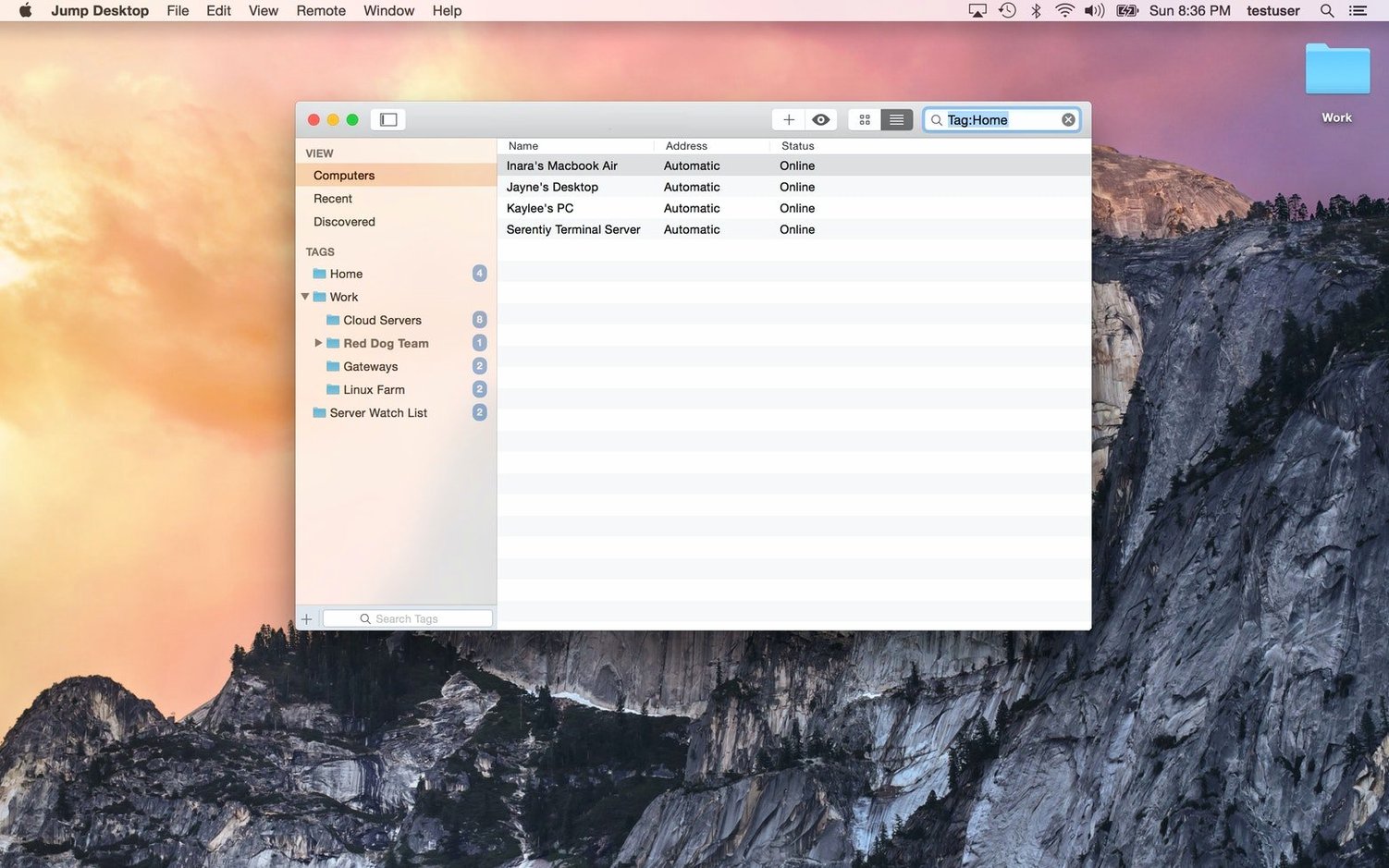
Scroll the row, it snaps to each screenshot. Click one to see it wider.
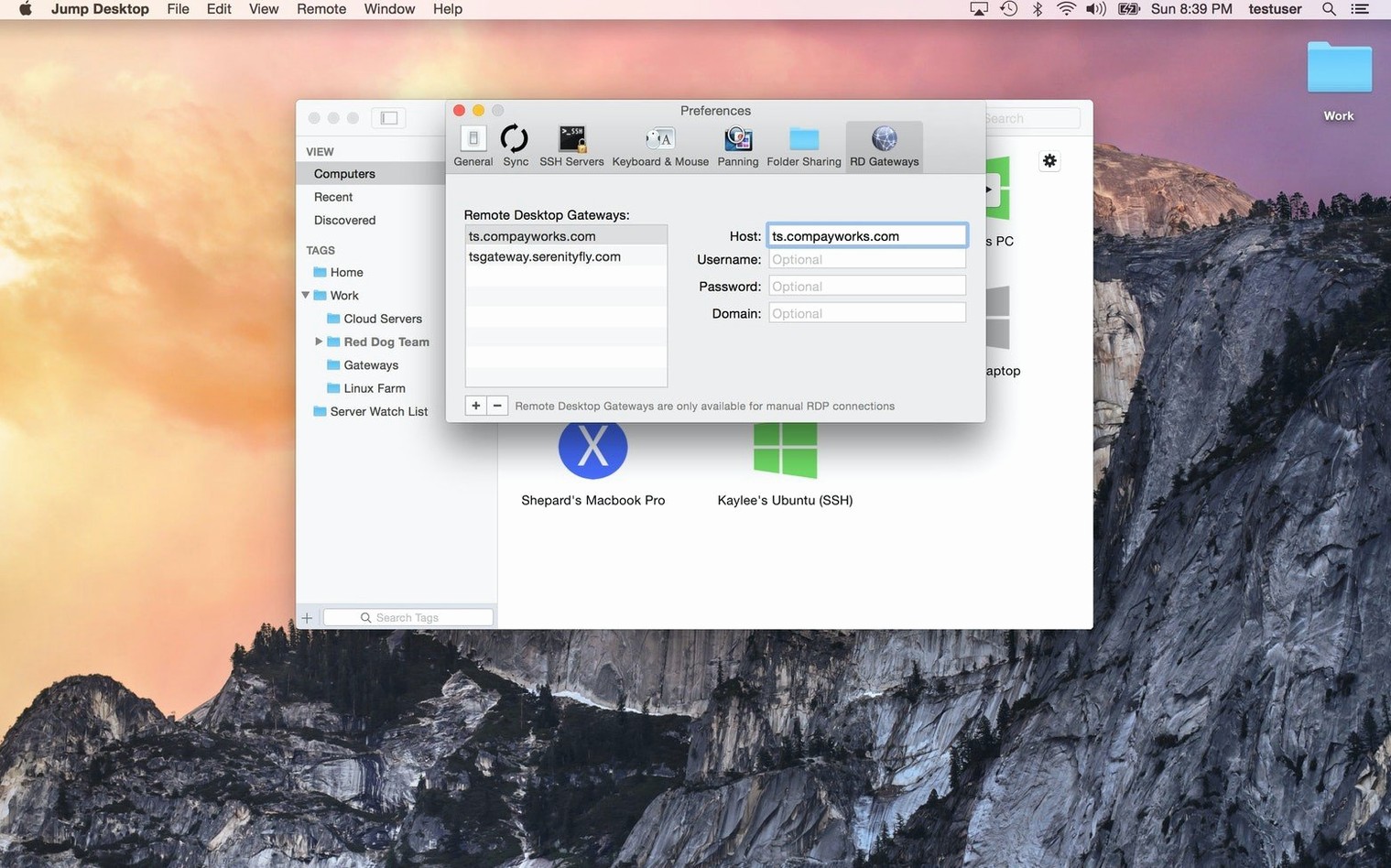
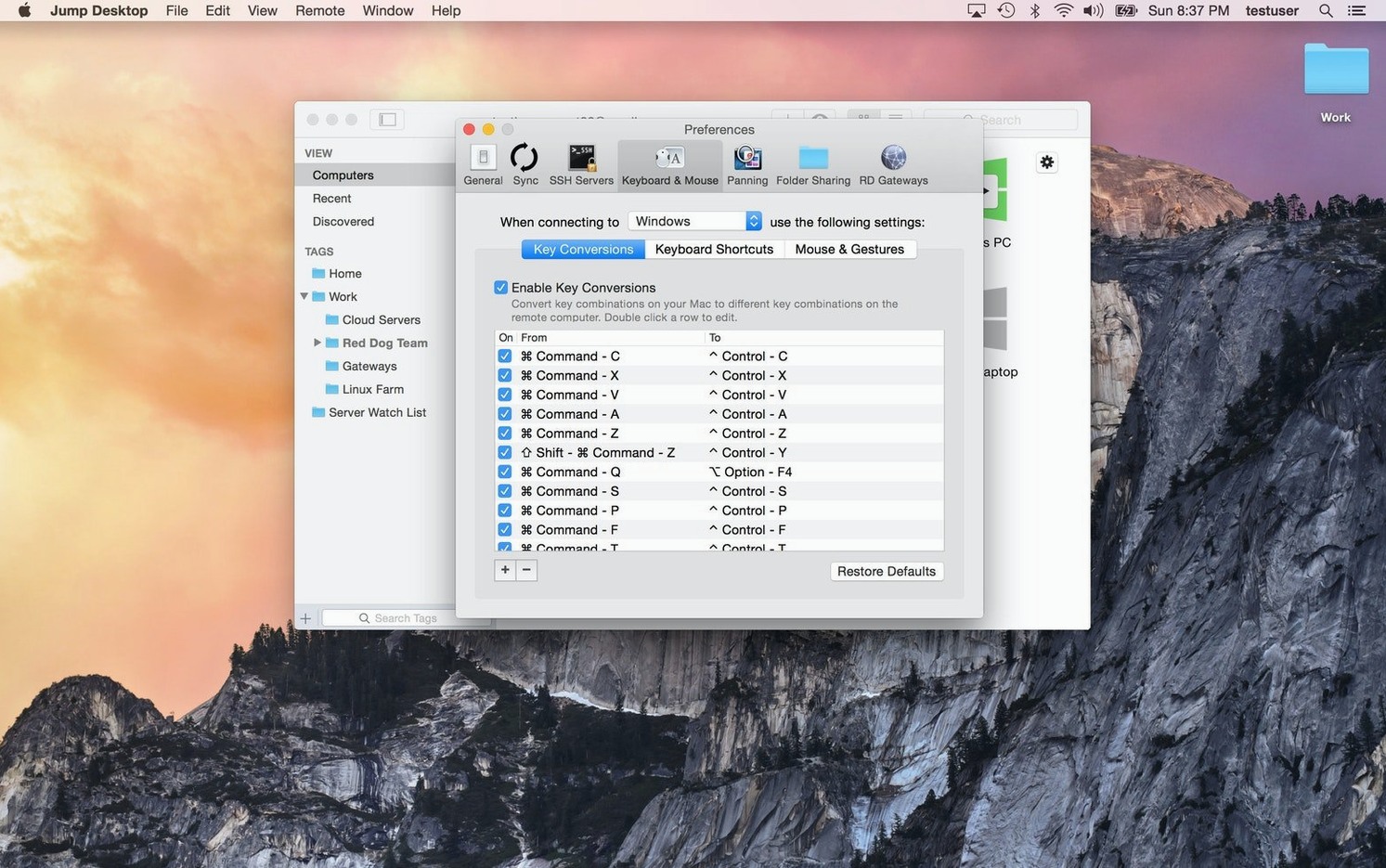
Jump Desktop's best feature is how it handles keyboard remapping between Mac and Windows layouts. You can switch from a Windows machine to a Mac without losing muscle memory. The app connects to Mac, PC, and VNC servers, so it's a solid choice for mixed environments.
Remote Access for Home or Work PCs and Macs
- Accessing a home or work Mac or PC remotely
- Acting as a VNC client for Linux or other VNC hosts
- Remapping keyboard shortcuts to match your muscle memory
- Real-time viewing and control of remote desktops
Requires Jump Desktop Connect on the Target
- You'll need Jump Desktop Connect installed on the target computer for remote access.
- Sign in with a Google account or any email to complete setup.
Workflow: Set up remote access to a headless Mac
This covers connecting to a Mac that has no monitor attached. You will need Jump Desktop on your local machine and Jump Desktop Connect on the target Mac.
- Install Jump Desktop Connect on the target Mac. Launch it and sign in with a Google account or any email address.
- On your local Mac, open Jump Desktop. Sign in with the same account.
- Jump Desktop should auto-discover the target. If not, add a new connection manually. Select the host type as Mac (VNC).
- Enter the target Mac's IP address or hostname. Leave the port at the default unless you changed it in Jump Desktop Connect.
- Test the connection. If the target Mac is headless, you may need to enable screen sharing permissions in macOS System Settings on the target before you disconnect its display.
- Once connected, you can copy files by dragging them between the Jump Desktop window and your local desktop.
For headless operation, the target Mac must stay powered on and connected to the network. Jump Desktop Connect runs as a background service, so you do not need a user logged in on the target.
Fix Keyboard Shortcuts for Mac and Windows
- Keyboard remapping. If you switch between Mac and Windows hosts, go into Preferences and turn on the Mac-to-Windows or Windows-to-Mac keyboard map. This makes shortcuts like Ctrl+C and Cmd+C behave as expected on the remote machine.
- Quality vs. speed. On a slower network, lower the color depth and disable wallpaper rendering in the connection properties. This keeps the session responsive.
- Clipboard sharing. Enable clipboard sync in the connection settings if you plan to copy text or small files between machines. It is off by default for some connection types.
- Auto-resize. Turn on auto-resize under Display settings. The remote desktop scales to fit your window, which helps when moving between a laptop screen and an external monitor.
Forgetting to Install Jump Desktop Connect First
- Skipping the host app. Jump Desktop is a client only. Without Jump Desktop Connect installed and running on the target, you cannot initiate a connection. New users often try to connect directly to a Mac with only the built-in VNC or RDP enabled and wonder why it fails.
- Using the wrong account. The local and remote copies must be signed into the same account. Mixing different Google accounts or emails creates a "host not found" situation.
- Forgetting about macOS permissions. macOS 11 and later require explicit permission for remote access. If a connection drops or the screen stays black, check System Settings > Sharing > Remote Access and confirm that "Allow remote access" is on.
- Ignoring network security. Public or guest Wi-Fi can interfere with VNC and RDP traffic. If you are off your home or office network, use a VPN or make sure Jump Desktop Connect's relay feature is enabled. Without it, the connection may time out.
- Not closing the session properly. Closing the Jump Desktop window without disconnecting leaves the remote session running. On the target machine, the screen stays locked but the apps remain open. Use the Disconnect menu item or Cmd+Q to end the session cleanly.
- macOS 11 or later
- Intel or Apple Silicon
- English interface
Questions I get about this line
Yes, Jump Desktop supports connecting to PCs, Macs, and VNC servers.
Yes, install Jump Desktop Connect on the target computer for remote access.
The install order
- Mount the disk image and launch Open Gatekeeper friendly.
- Press Enter in Terminal to bypass Gatekeeper.
- Drag the app to the Applications folder.
- Open the app when installation is complete.