
Free download (71 MB) Previous versions
- Version
- 2027
- Developer
- Imagenomic
- Languages
- English
- License type
- K'ed by TNT team
| macOS range | macOS 13 or later |
|---|---|
| Chip | Apple Silicon, Intel 64-bit |
| Download | 71 MB |
| Previous versions | 5 on file |
Screenshots
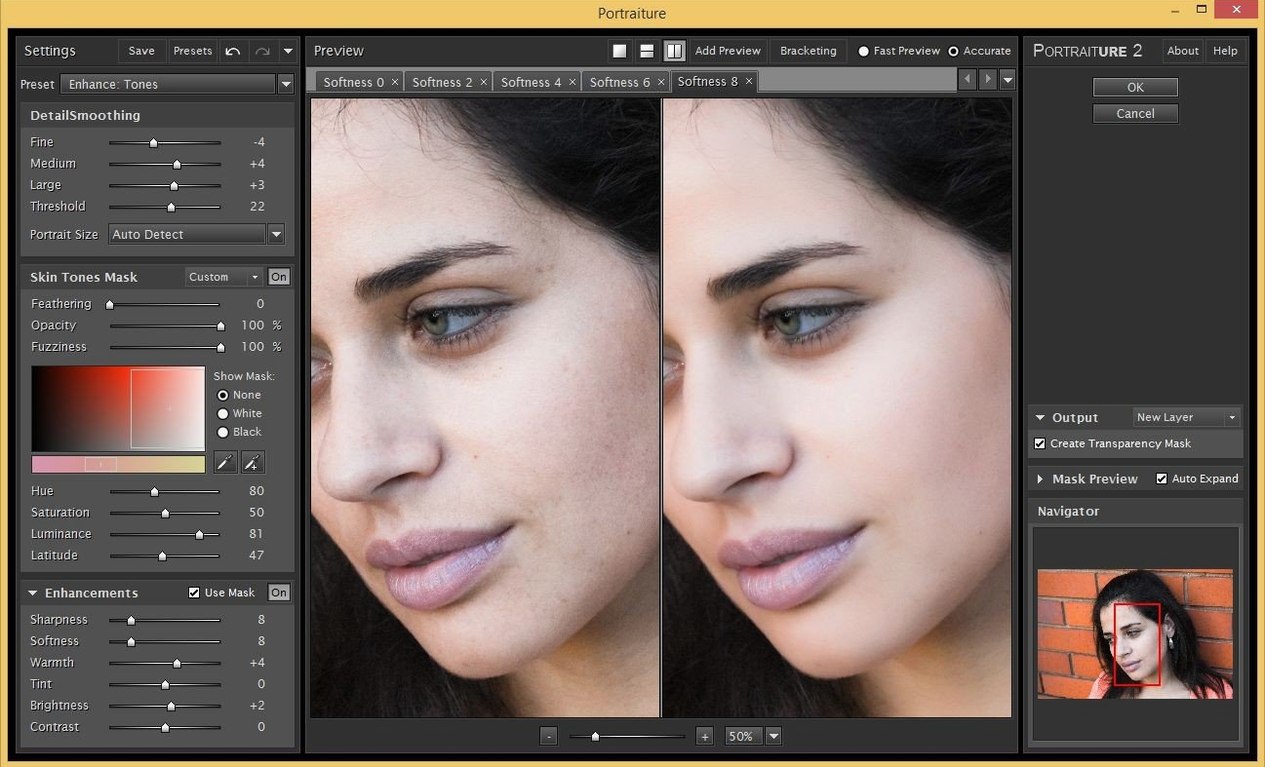
Portrait and wedding photographers spend most of their editing time on skin and noise. Imagenomic for Mac puts the three tools that handle those jobs in one suite: Portraiture for skin smoothing and healing, Noiseware for noise reduction, and Realgrain for film-like grain. Each plugin works inside Photoshop, Lightroom Classic, and Affinity.
In a typical session, you run Noiseware first to clean up high-ISO shots, then Portraiture on faces to even out tone and soften blemishes. Realgrain comes last when you want a consistent film look across a set. The suite keeps those steps in one place, so you are not juggling separate installs.
Skin Tools Stand Apart from Film and AI Plugins
There are other noise and skin tools for Mac. Alien Skin Exposure handles film looks and texture but treats skin work as a secondary feature. The skin smoothing in Topaz Studio is capable, yet it sits inside a larger AI image-processing app rather than a dedicated workflow. Imagenomic keeps each task separate. Portraiture is a skin specialist first; Noiseware is a noise specialist; Realgrain is a film-grain specialist. That separation makes sense when you want to control each step without the plugin guessing what you need.
Another comparison is Nik Collection by DxO. Nik has Silver Efex for black-and-white and Viveza for color adjustments, but its noise reduction and skin tools are spread across different components. Imagenomic Professional Plugin Suite bundles those together inside one installer. No digging through separate download pages or managing multiple license files.
For photographers who work inside Affinity Photo, the Imagenomic suite is one of the few options that opens as a native plugin. Many competing tools only support Photoshop directly. That alone saves time if Affinity is your main editor.
Clearing Breakouts in a Senior Portrait Workflow
I open a senior portrait session — about 40 raw files from a Canon R6. First pass through Lightroom Classic: crop, white balance, exposure. The real work starts in Photoshop.
I pick a headshot. The subject had a light breakout on his chin and some red patches on his cheeks. I open Portraiture from the Photoshop Filters menu. The plugin shows a preview with default smoothing. I dial back the strength to 50 percent, spot-heal two visible pimples with the local touch-up brush inside Portraiture, and let the overall mask handle the rest. The skin stays textured — not plastic.
Next shot: a group of three in a park. ISO 1600 because the shoot ran late. Noiseware opens, and I select the default profile for luminance noise. The preview shows the brick wall behind them losing most of its grain. I bump the color noise slider up slightly to kill a magenta cast in the shadows. Done.
Last image of the set: a black-and-white graduation portrait. Realgrain is up. I pick a medium-grain film preset, increase contrast, and add a subtle sepia tone from the color-toning panel. Export it. The whole suite was open for maybe five minutes total.
Workflow: Batch Processing a Wedding Set
This is how I handle a full wedding gallery with the Imagenomic suite.
- First pass in Lightroom Classic. Import all images, apply a basic preset, adjust exposure globally. Export the keepers as TIFF or PSD — typically 600 files.
- Noiseware batch in Photoshop. Open one image, run Noiseware, save settings as a preset. Create a Photoshop action that applies Noiseware with that preset. Batch-run the action on the entire folder via File > Automate > Batch. That knocks out noise on all files in one go.
- Portraiture on close-ups. Not every image needs skin work. For bridal and groom portraits, I open each face shot individually, run Portraiture, and adjust the mask per face. I save a preset for "bride skin" and one for "groom skin" to keep consistency across the set.
- Realgrain as a finishing step. For the formal reception images, I apply Realgrain with a light film preset and a subtle warm tone. I save this as another Photoshop action, run it on the selected subfolder of reception shots.
- Export and deliver. Back in Lightroom, I sync the edited TIFFs or save them as JPEGs. The whole gallery is finished in about two hours of actual plugin work.
The Imagenomic suite does not replace a full color-grading tool. It replaces the repetitive steps that eat up the most time in portrait and wedding editing. That is its value.
All three plugins share an English interface and run on both Intel and Apple Silicon Macs. macOS 13 or later is required.
- macOS 13 or later
- Intel or Apple Silicon
- Interface in English
Questions I get about this line
The Photo Suite works as plugins for Adobe Photoshop, Lightroom Classic, and Affinity.
Noiseware is also available as a standalone module, but Portraiture and Realgrain are plugin-only.
Portraiture handles skin retouching, Noiseware reduces noise, and Realgrain adds photographic grain.
The install order
- Mount the disk image and run Open Gatekeeper friendly.
- Press Enter in Terminal to bypass Gatekeeper.
- Drag the app to the Applications folder.
- Launch the app when installation is complete.