Free download (615 MB) Previous versions
- Version
- 5.1.0
- Developer
- Belight Software
- Languages
- Russian, English, German, Spanish, Italian, Chinese (Simplified), Ukrainian, French, Japanese
- License type
- K'ed by TNT team
| macOS range | macOS 12 or later |
|---|---|
| Chip | Apple Silicon, Intel 64-bit |
| Download | 615 MB |
| Previous versions | 2 on file |
Screenshots
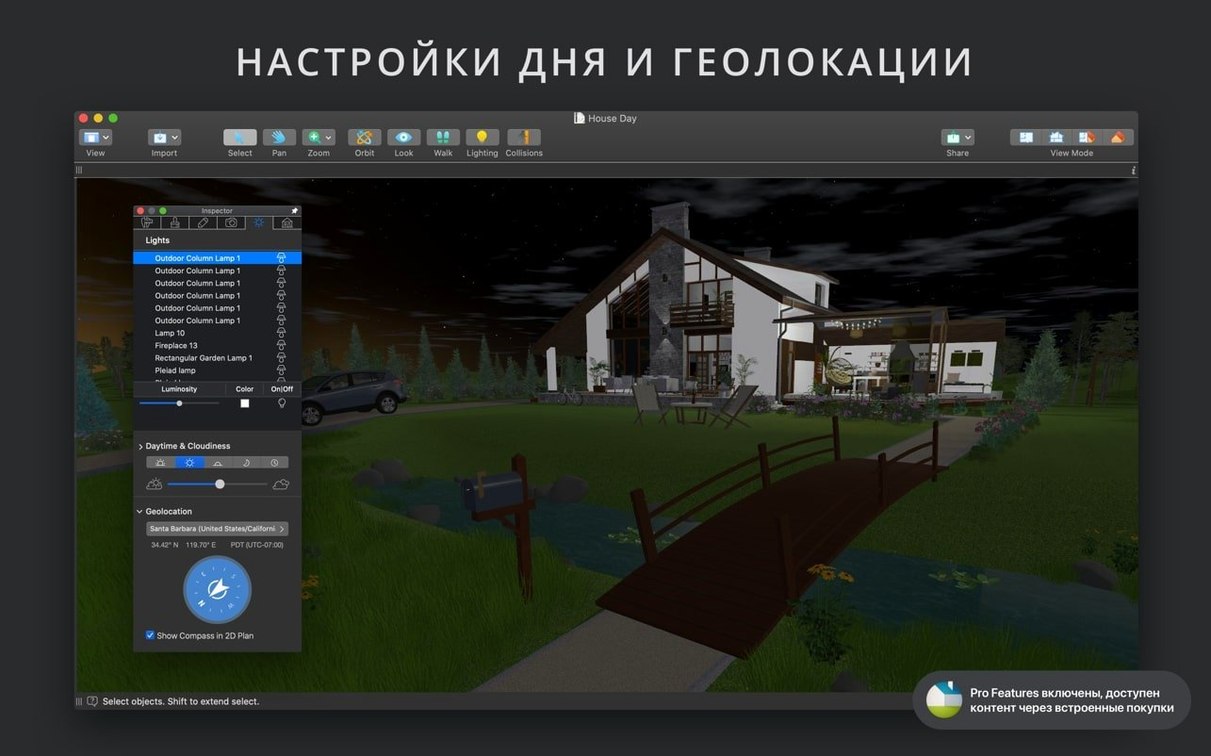
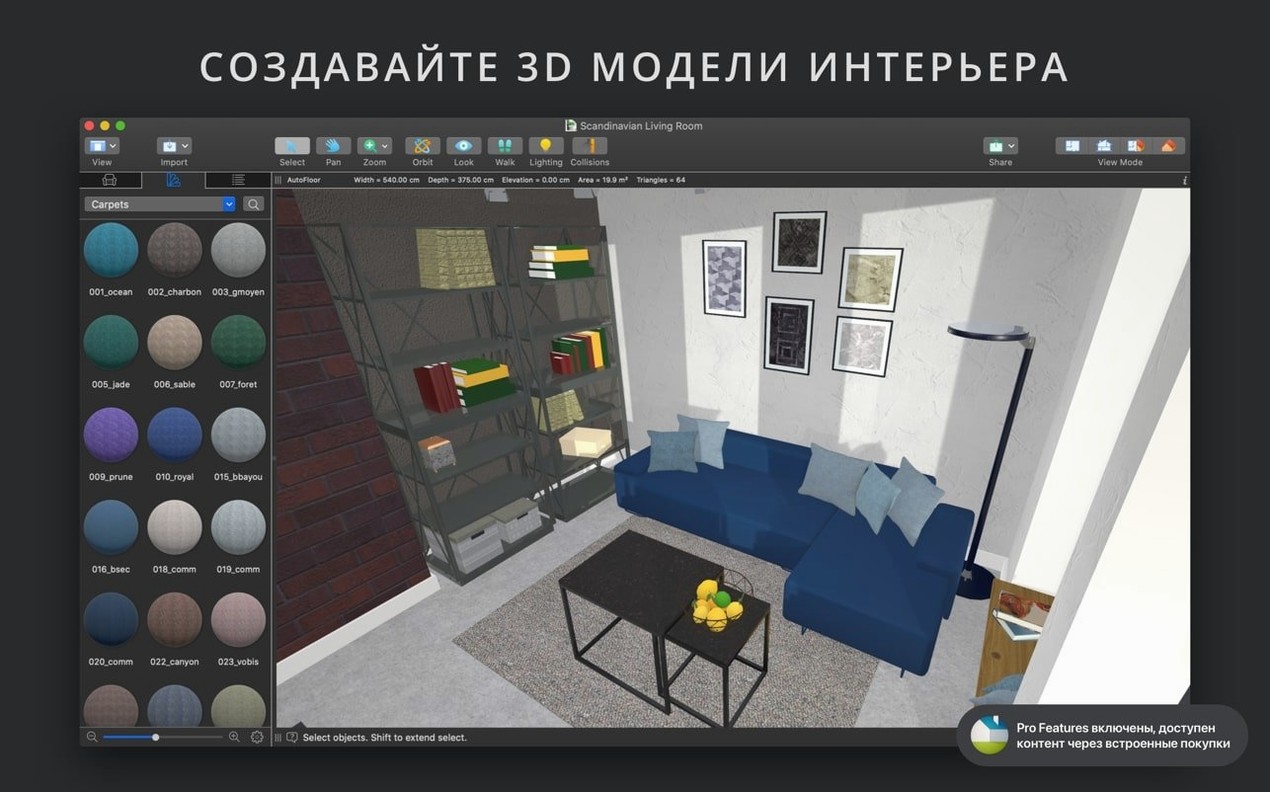
Scroll the row, it snaps to each screenshot. Click one to see it wider.
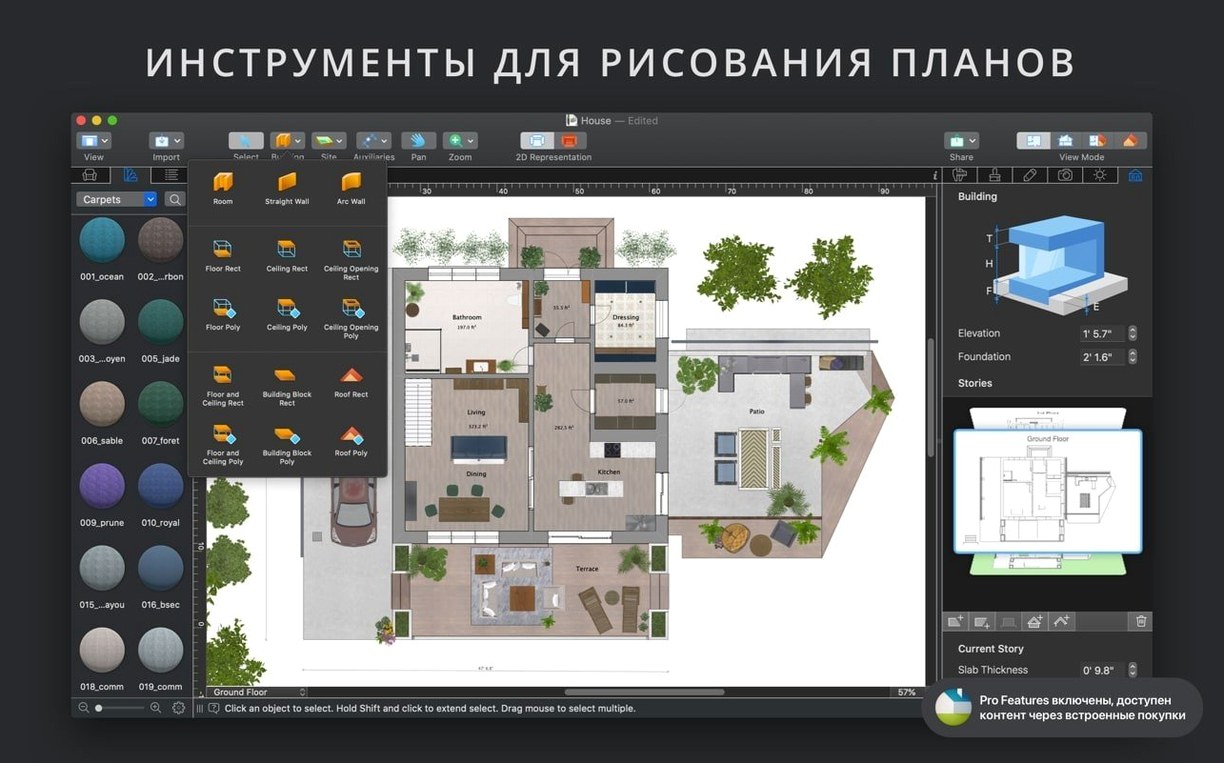
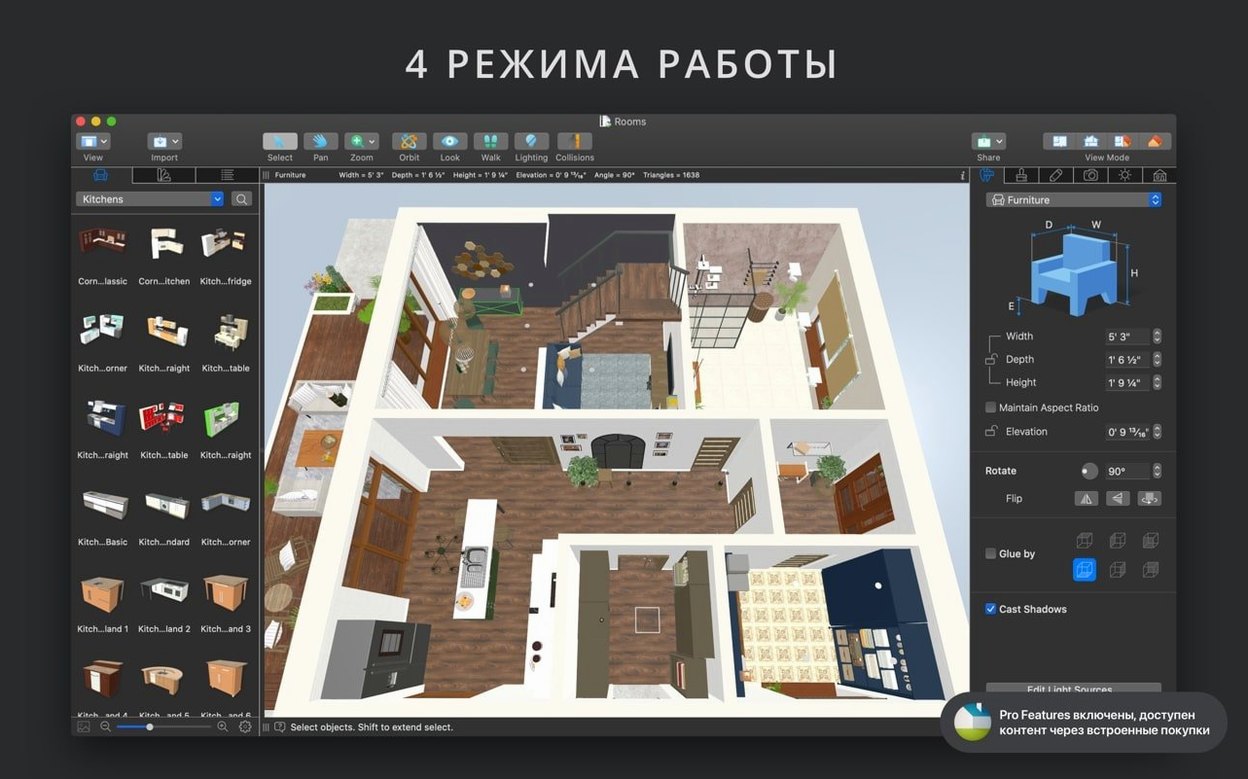
You have a 2D floor plan done and need to turn it into a 3D walkthrough video for a client. Live Home 3D Pro on Mac handles the full pipeline: draw in 2D, see the 3D model update in real time, adjust the camera field of view and projection type, then export a walkthrough video in Ultra HD. The Pro edition adds the tools an experienced user will reach for repeatedly.
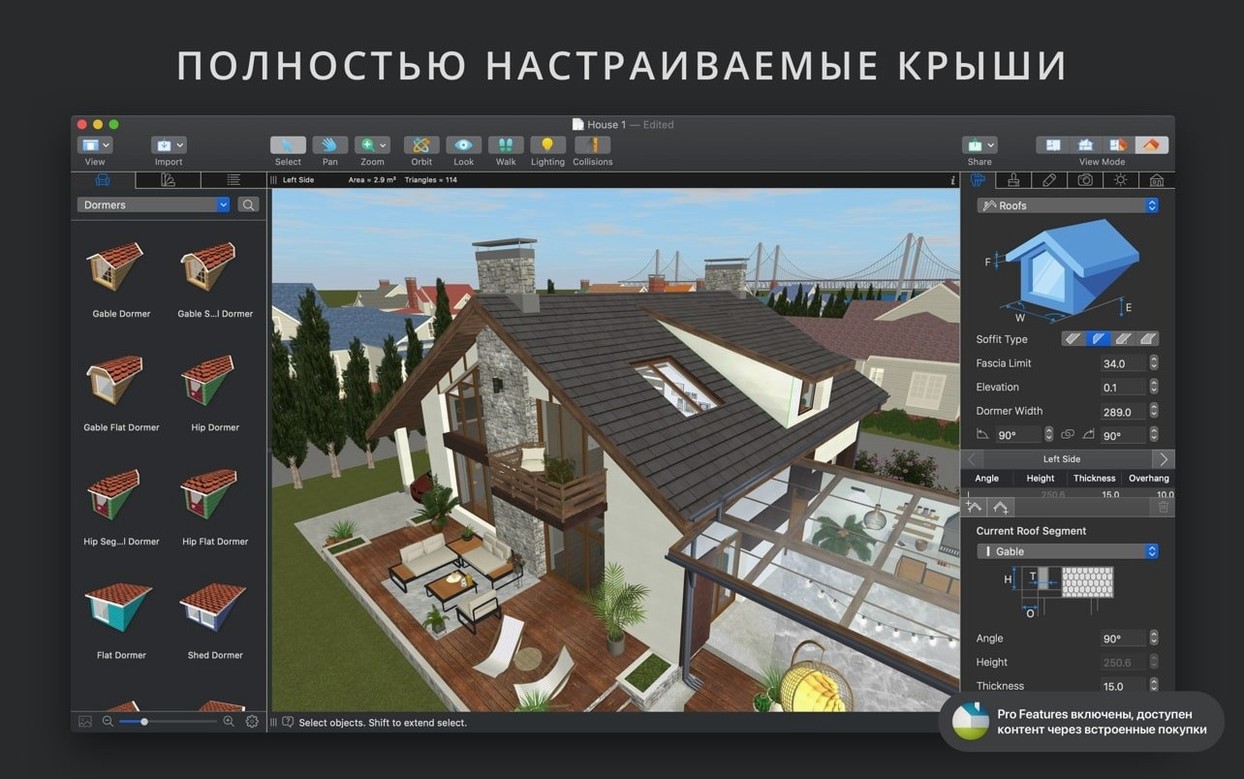
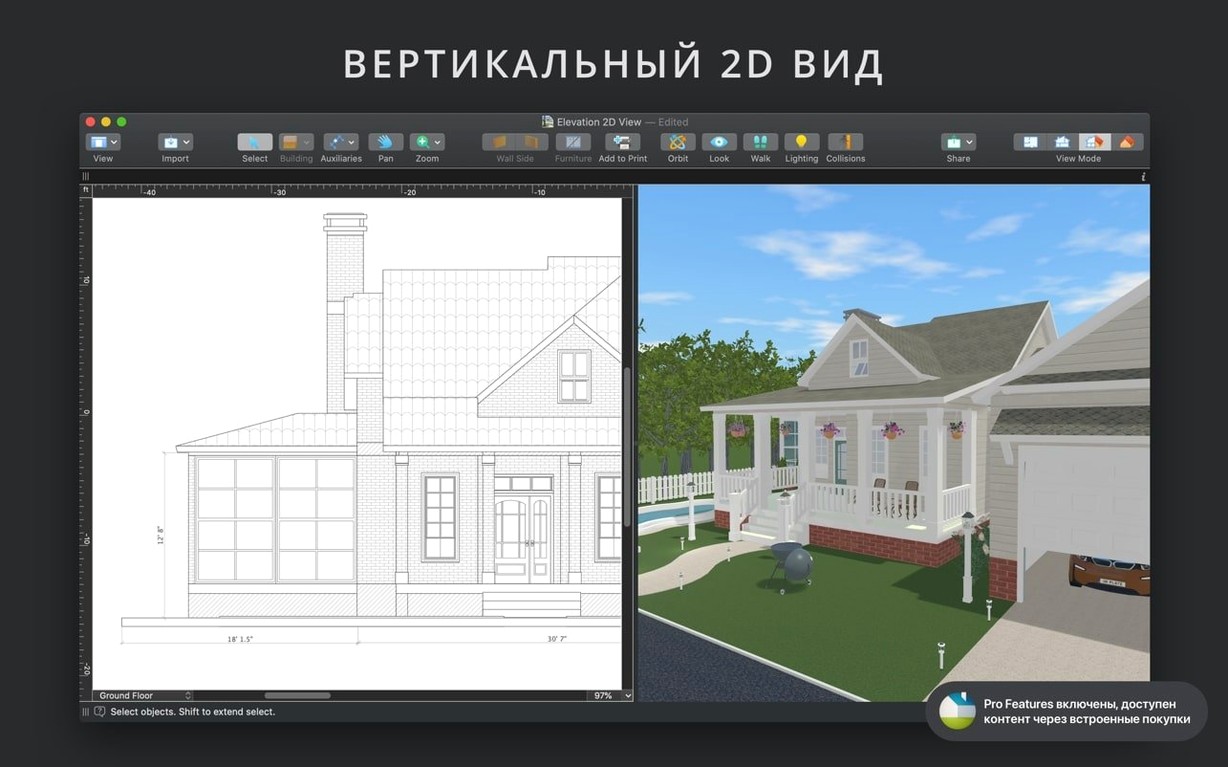
- Set up the structure. Use the Custom Roof tool to define roof geometry that matches the house plans. The Elevation View lets you check floor-to-floor consistency across unlimited floors.
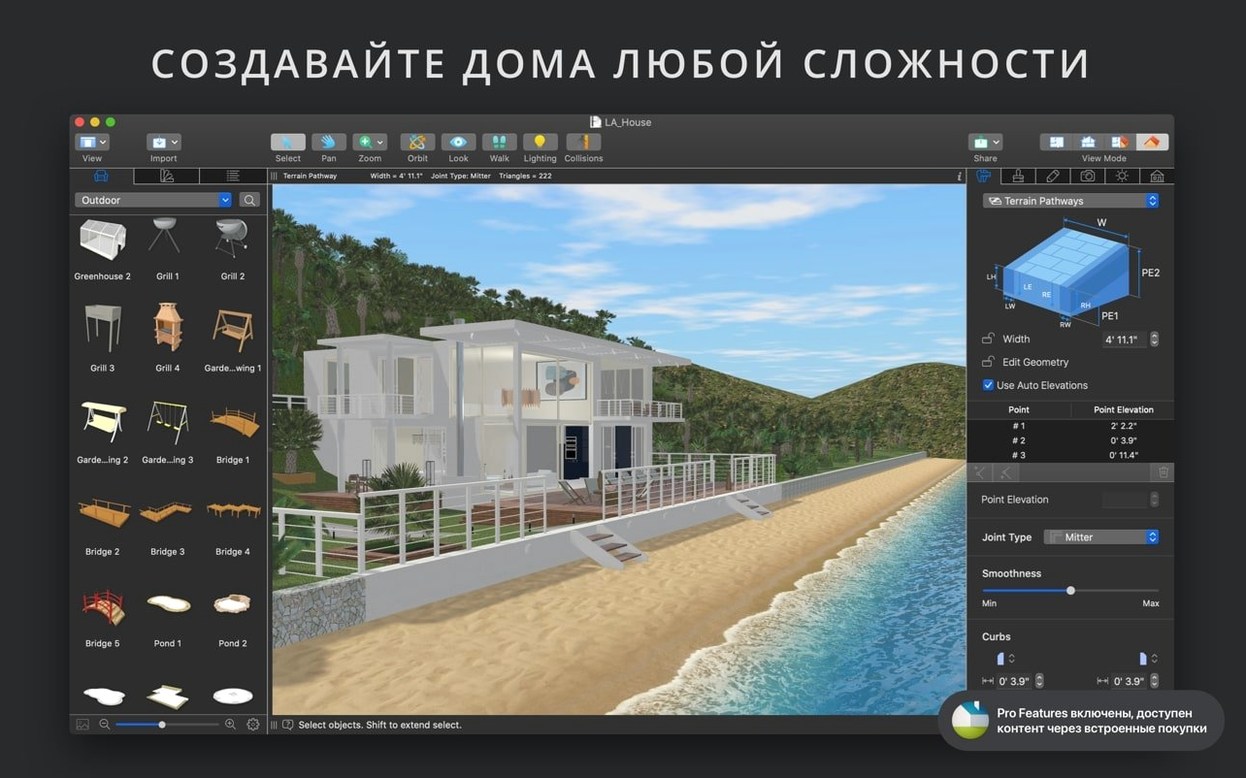
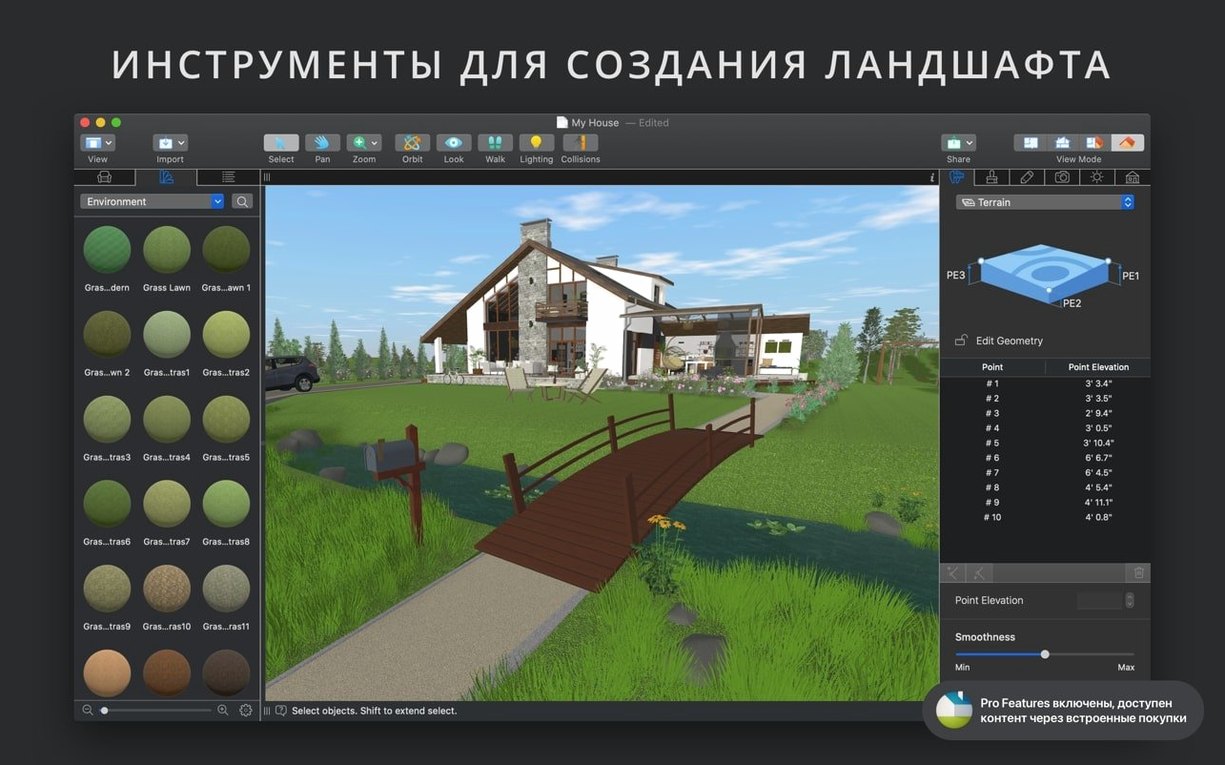
- Refine the site. The advanced terrain editor handles cuts, fills, and slopes. Place the house on the terrain, then adjust the ground contours around it.
- Build materials and lighting. Open the Material Editor to create custom surface finishes from the library of 2,100+ materials. Use the Light Source Editor to add lights to imported objects — ceiling fixtures, lamps, recessed spots — and control their color and intensity.
- Optimize for editing. Turn on level-of-detail control to simplify 3D models while you work. Precise placement with guides and snapping keeps everything aligned.
- Export the deliverable. Render the scene as a still image (JPEG, TIFF, PNG, BMP) or as a realistic walkthrough video in Ultra HD resolution.
The workflow is linear: draw in 2D, adjust in 3D, refine with Pro tools, export the final asset. The gallery of house and room projects gives you a starting point for common layouts, but the Pro tools are what let you finish a production-grade design.
Ultra HD Export for Client Walkthroughs
Live Home 3D Pro is built for people who do design work regularly and need control over details that consumer-level apps skip. Interior designers who present walkthrough videos to clients will use the Ultra HD export and the camera system heavily. Architects and home planners working with multi-story houses and complex roof lines need the unlimited floors and Custom Roof tool. Landscape designers who want to grade terrain and place a house on a sloped lot will use the advanced terrain editor more than the casual user ever would.
Anyone who imports models from Trimble 3D Warehouse or SketchUp files and needs to add custom light sources to them will find the Light Source Editor essential. Hobbyists who do one or two projects a year can get by with the standard Live Home 3D. Live Home 3D Pro saves time for the person who needs these tools every week.
Room-by-Room Floor Plan vs. SketchUp
SketchUp (free or paid tiers). SketchUp is strong for freeform 3D modeling from scratch. It does not have the same room-by-room 2D-floor-plan workflow that Live Home 3D Pro uses. You draw geometry directly in 3D rather than laying out walls in a plan view. Live Home 3D Pro includes the material and lighting editors inside the app; SketchUp relies on extensions to get the same capability. Both support import and export of common 3D formats, but Live Home 3D Pro ships with the lighting simulation and roof assistant built in.
HomeByMe. HomeByMe is a web-based tool with a rendering engine that works in a browser. It does not run as a native Mac app and has no offline capability. Live Home 3D Pro runs entirely on your Mac, does not require an internet connection to render, and gives you direct file export and import options. HomeByMe targets the renovation and furniture-planning user. Live Home 3D Pro targets the user who wants to control terrain, roofing, and lighting as part of the same project.
Chief Architect (Mac via emulation or VM). Chief Architect is a Windows-native application; running it on a Mac requires Boot Camp or a VM. Live Home 3D Pro is a native macOS application with full Apple Silicon support. Chief Architect has a steeper learning curve and a higher emphasis on construction documentation. Live Home 3D Pro keeps the same drawing-to-rendering pipeline inside one native app that runs on any modern Mac.
Skipping Elevation View and Roof Tutorials
Skipping the built-in tutorials. The app includes video tutorials and a help assistant. Jumping straight into the drawing without watching the tutorial for the Elevation View or the Custom Roof tool leads to time wasted redoing work. Both features work differently than the equivalents in other home design apps.
Ignoring the level-of-detail control. Beginners keep the 3D view at full detail during the whole editing session. The program slows down, and the user thinks the app is sluggish. Level-of-detail control simplifies the 3D model while you edit. Turn it on early and switch to full detail only when you are ready to render or walk through.
Placing lights before assigning materials. New users add light sources to a room before they have chosen wall, floor, and ceiling materials. The lighting simulation depends on material reflectivity. A dark material absorbs light; a glossy one reflects it. Set materials first in the Material Editor, then position light sources. The scene will look wrong if you do them in reverse order.
Forgetting to check measurement units. The app supports inches, feet, meters, and other units. Beginners draw a floor plan in feet, then export it and find the dimensions are in a different unit. Set the unit before you draw the first wall. The automatic dimension lines will follow that unit choice.
- Fixed the problem with sharing standalone Pro app licensing.
- macOS 12 or later
- Intel or Apple Silicon
Questions I get about this line
Live Home 3D Pro exports 3D images as JPEG, TIFF, PNG, and BMP.
Yes. It runs on both Intel and Apple Silicon Macs, requiring macOS 12 or later.
The app supports Russian, English, German, Spanish, Italian, Simplified Chinese, Ukrainian, French, and Japanese.
The install order
- Mount the disk image and launch Open Gatekeeper friendly.
- Press Enter in Terminal to bypass Gatekeeper.
- Drag the app to the Applications folder.
- Open the app when installation is complete.