- Version
- 9.9.8
- Developer
- 健斌 黄
- Languages
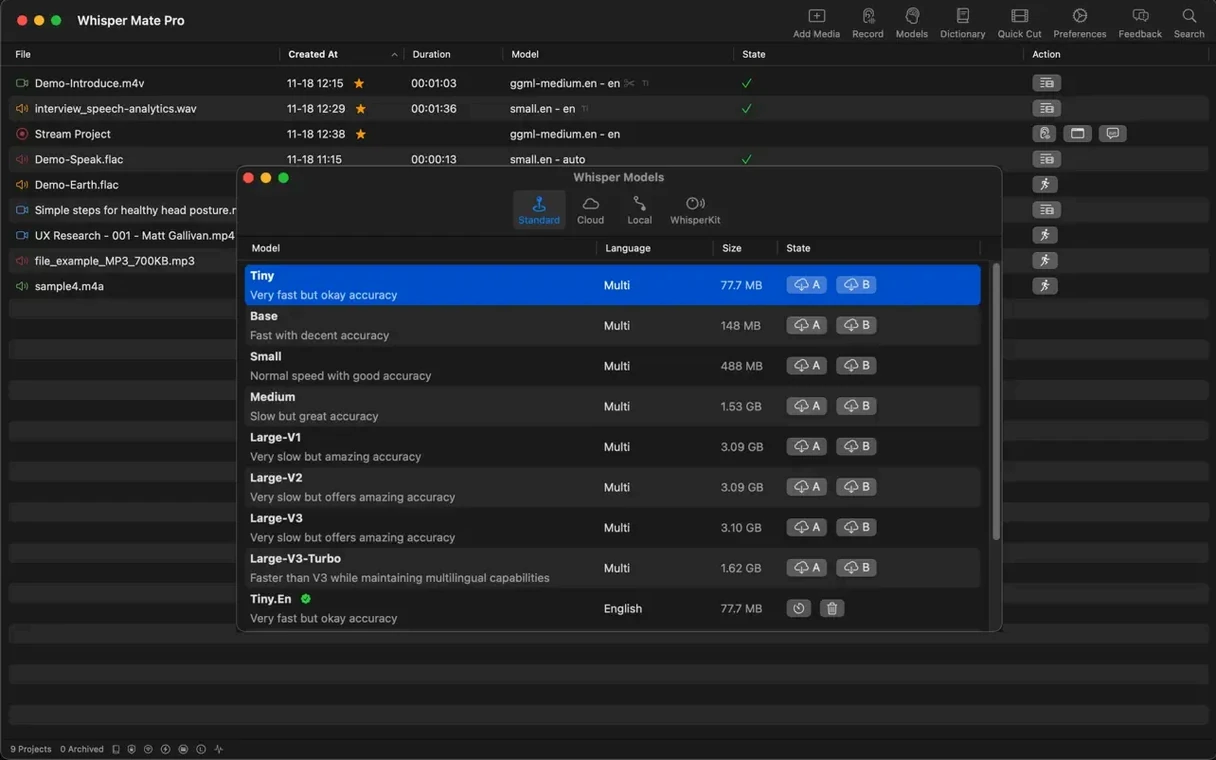
- English, German, Vietnamese, Indonesian, Spanish, Italian, Chinese (Traditional), Chinese (Simplified), Korean, Norwegian, Polish, Portuguese, Thai, Turkish, Ukrainian, Finnish, French, Swedish, Japanese
- License type
- Not required
| macOS range | macOS 12 or later |
|---|---|
| Chip | Apple Silicon, Intel 64-bit |
| Download | 176 MB |
Screenshots
Click a screenshot to see it wider.
Whisper Mate 9.9.8 displays a live processor usage percentage during Whisper processing — a detail that matters when you're running long transcriptions on an older Intel Mac or juggling other tasks. That visibility lets you decide whether to pause or let it run.
Multilingual transcription and subtitle exports
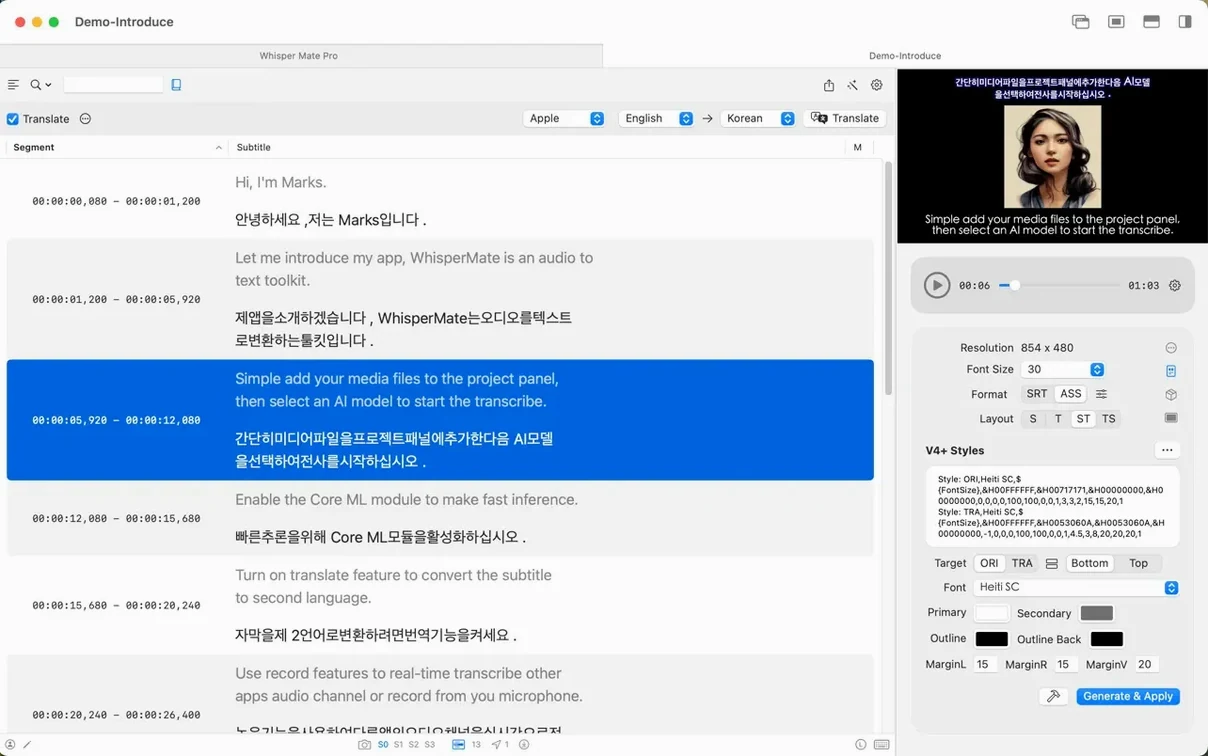
- Multilingual transcription with a custom favorite language for quick switching.
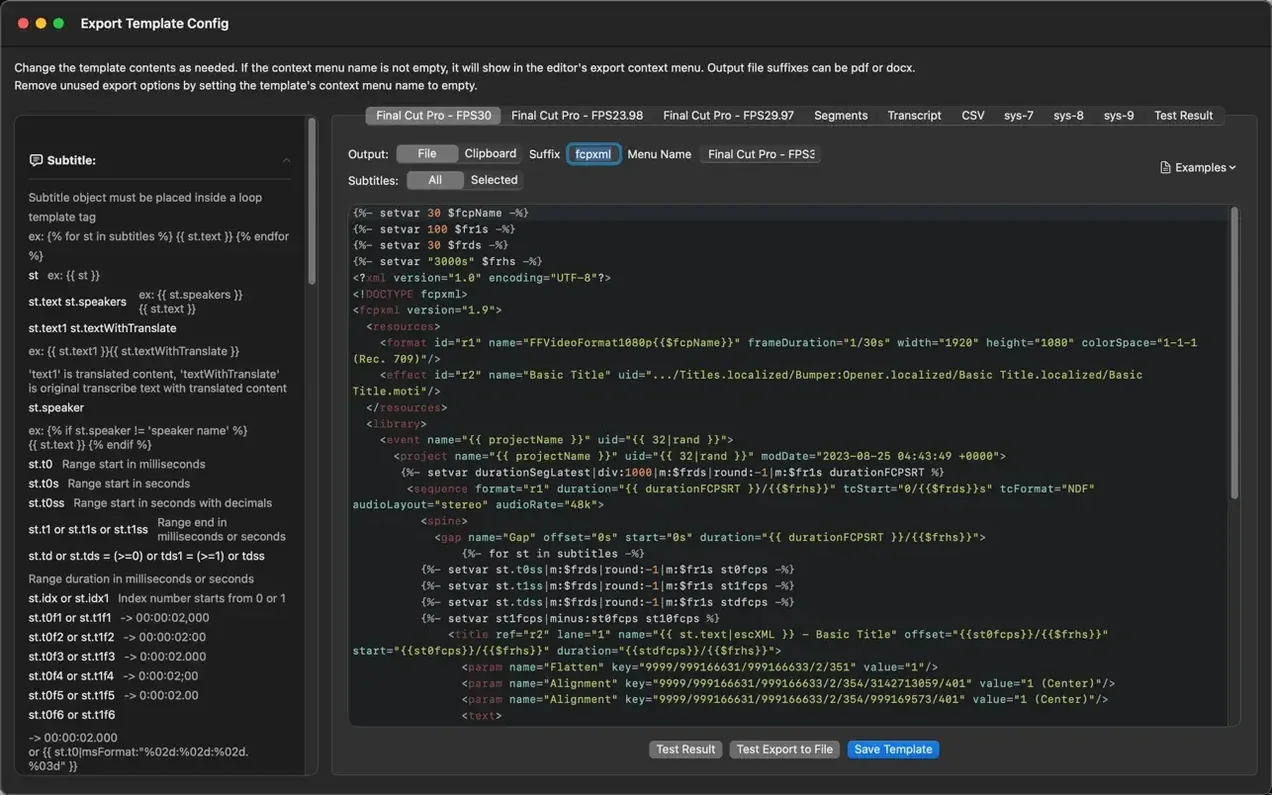
- Subtitle exports in SRT, VTT, CSV, JSON, and SEGMENT formats.
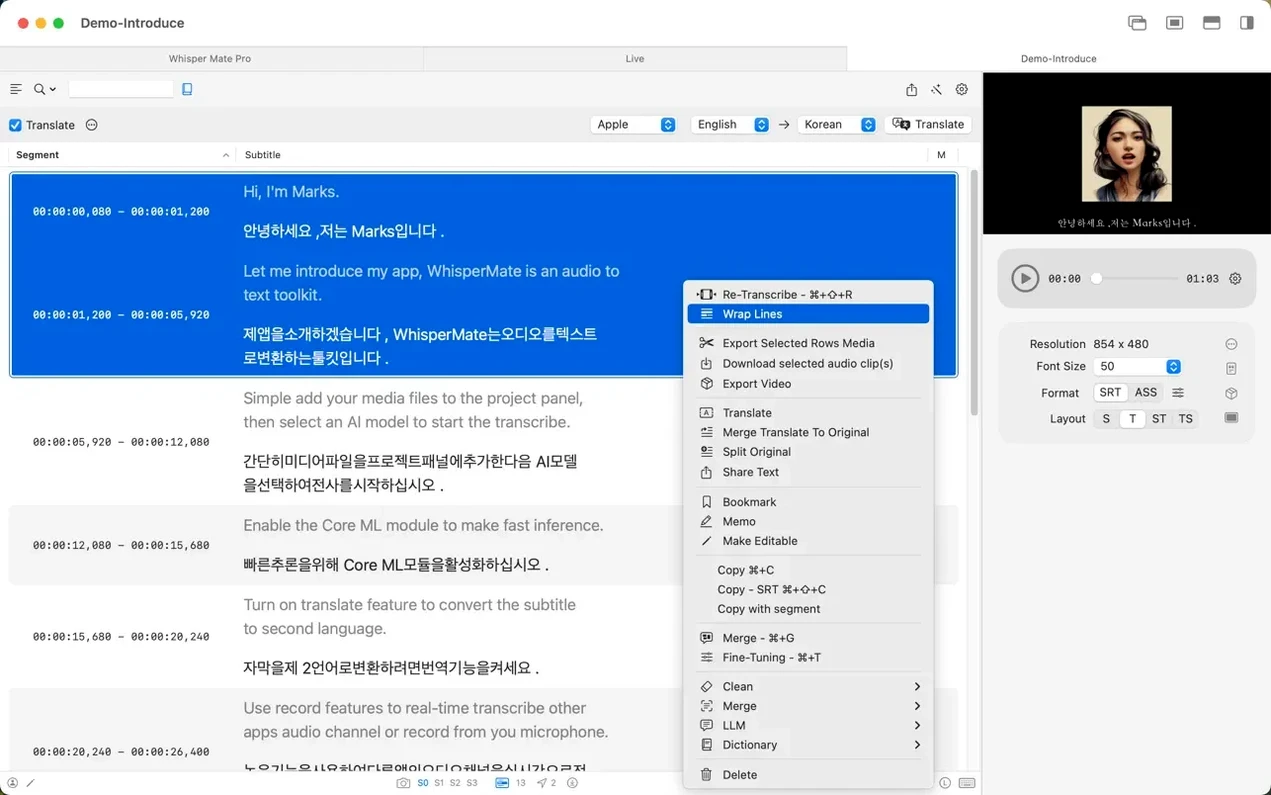
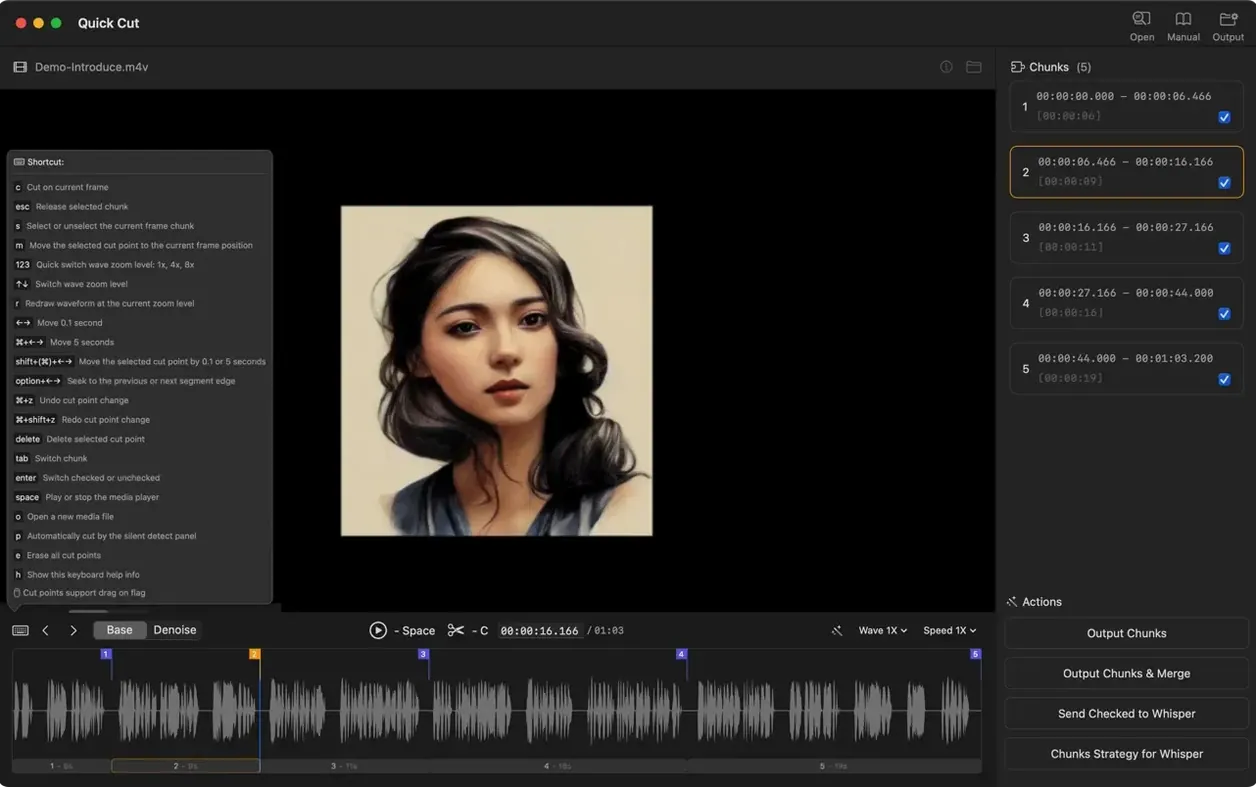
- Subtitle merging to combine multiple segments into one line.
- Burn hard subtitles into the source video with configurable styles.
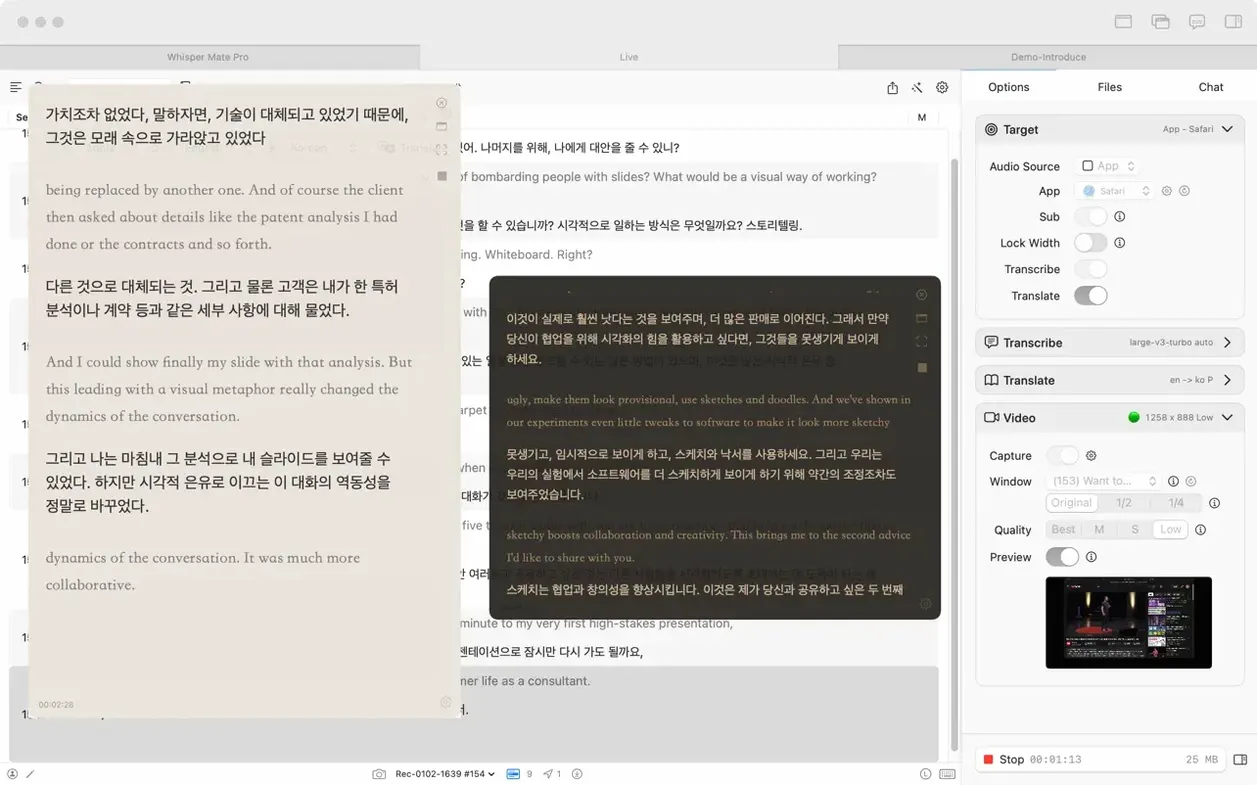
- Capture and translate audio from Zoom, Skype, Teams, and other apps.
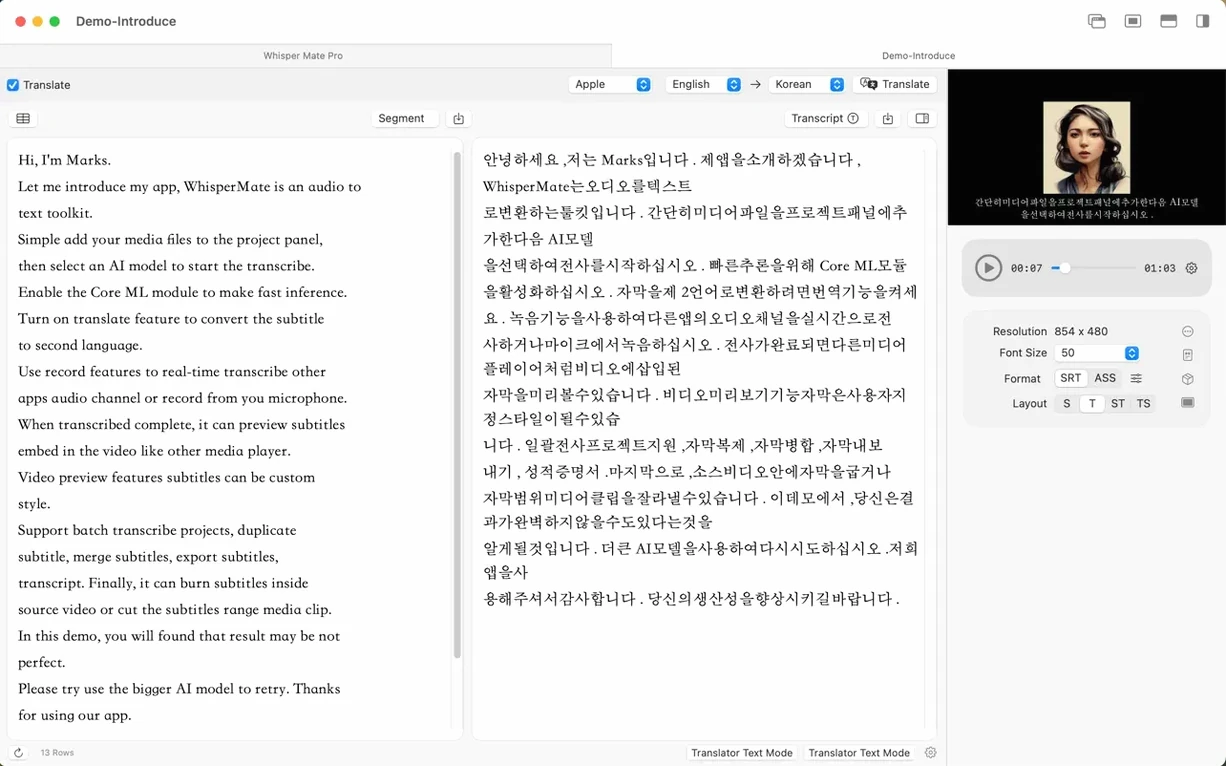
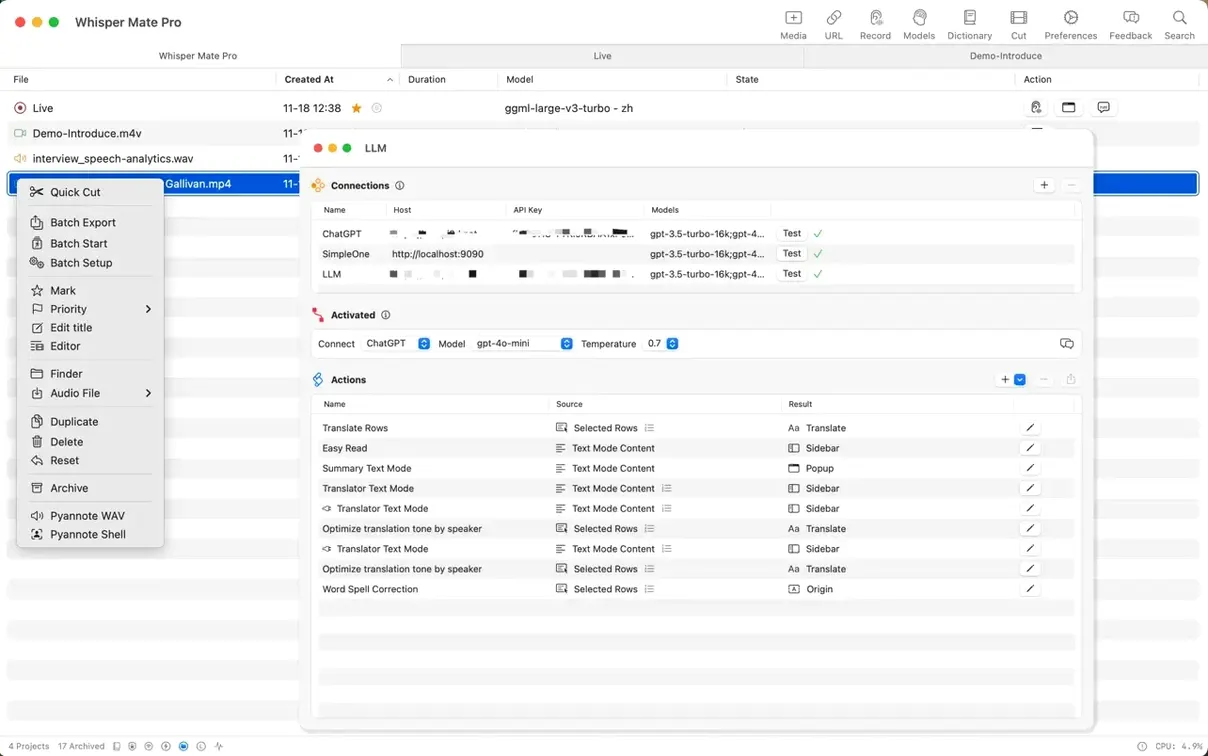
- Translation via Google Translate, DeepL, or macOS 26's built-in engine.
- Preview audio or video while the playback range syncs in the editor — useful for fine-timing subtitles.
Working with searchable text
Text input for searchable transcription means you can locate a specific phrase in a long recording without scrubbing through the timeline. Drag and drop a file to start, and the app takes care of the rest. For a local transcription tool, that combination of depth and control is what keeps Whisper Mate on my list.
Two-hour podcast drops onto Whisper Mate
I drop a two-hour podcast recording onto the Whisper Mate window. The app begins the transcription locally, and the processor percentage appears in the status area. I leave it running while I answer emails. When it finishes, the subtitle editor shows each segment with timing and speaker assignment already applied — I can click any line to hear the corresponding audio range.
For a segment where the speaker switched languages, I select the line and use the translation function to get the text in my preferred language. The built-in editor lets me merge several short segments into one continuous line so the final subtitle file reads naturally. When I'm satisfied, I export the project as SRT.
Long file on Intel Mac resumes from stop
The app runs transcription entirely on the machine, so a long file on an older Intel Mac can take time. The app won't lose progress; it resumes from where it stopped.
Audio capture from apps like Zoom requires macOS 13.0 or later and screen recording permission. If the capture feature doesn't activate, go to System Preferences and grant permission under Privacy & Security. The app needs that access to pull the audio stream.
If the built-in translation engine on macOS 26 doesn't return expected results, switch to DeepL or Google Translate in the settings. Each translation service handles phrasing differently, so try another if the first attempt feels off.
Typical session: interview recording to finished subtitles
I start a session by launching Whisper Mate and checking the app has microphone access when I need live capture. For a recorded interview, I drag the MP4 file onto the app window. The transcription starts immediately, and I keep an eye on the processor percentage to gauge progress. While it runs, I open the project archive menu and create a new folder to keep related files organized.
Once transcription finishes, I scroll through the segments in the subtitle editor. The speaker assignment feature helps me label each participant. I find a spot where the audio is unclear — I adjust the playback speed to hear it more carefully, then edit the text directly. After that, I duplicate a subtitle line to add a timing adjustment without retyping the content. I export the final project as VTT for the video editor.
Common snags and fixes
- Audio capture won't activate. On macOS 13 or later, screen recording permission must be granted in System Preferences. Open Privacy & Security, find Screen Recording, and enable Whisper Mate. The app needs this to pull audio from Zoom or Teams.
- Transcription stalls on a long file. The app saves progress automatically. If you close and reopen it, the project resumes from the last saved point. No need to start over.
- Subtitle translation seems off. If the macOS 26 built-in engine gives odd phrasing, switch to DeepL or Google Translate in the app's settings. Different services handle context differently, so try another.
- Hard subtitle burn looks wrong. Check the subtitle style settings before exporting. The configurable options let you adjust font, size, and position. A quick test export on a short clip saves time.
- Added subtitle line translation using macOS 26's built-in translation engine.
- Added partial bilingual simultaneous transcription on macOS 26 when using Apple's built-in transcription engine.
- macOS 12 or later
- Apple Silicon or 64-bit Intel Mac
- Screen recording permission required for app-audio capture and translation on macOS 13.0+
Questions I get about this line
Yes, it can capture and translate audio from apps like Zoom, Skype, and Teams, provided you grant screen recording permission on macOS 13.0 or later.
It exports SRT, VTT, CSV, JSON, and SEGMENT formats.
Yes, it supports translation via Google Translate, DeepL, and the macOS 26 built-in translation engine.
The install order
- Open the downloaded disk image.
- Drag the app to the Applications folder shortcut.
- After copying finishes, open the app from Launchpad.