
- Version
- 1.2.4
- Developer
- Wolfey Studios
- Languages
- Russian, English, German, Chinese (Traditional), Chinese (Simplified), French, Japanese
- License type
- Not required
- Released on
- 10.12.2025
- Installed and checked on
- macOS Tahoe, Mac mini 2024 M4
- Audio language
- Music only
| Chip | Apple Silicon, Intel 64-bit |
|---|---|
| Download | 850 MB |
Screenshots
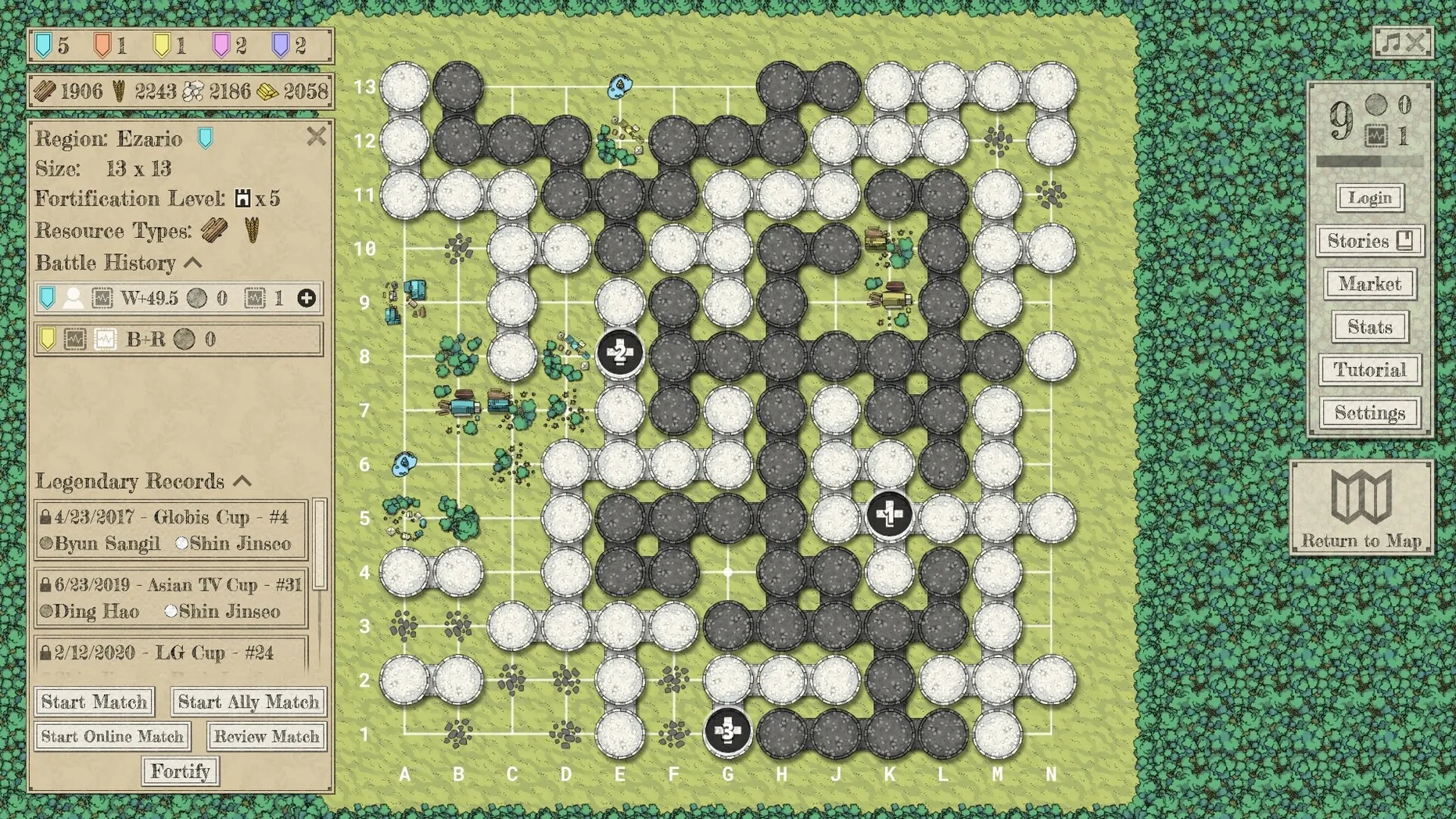
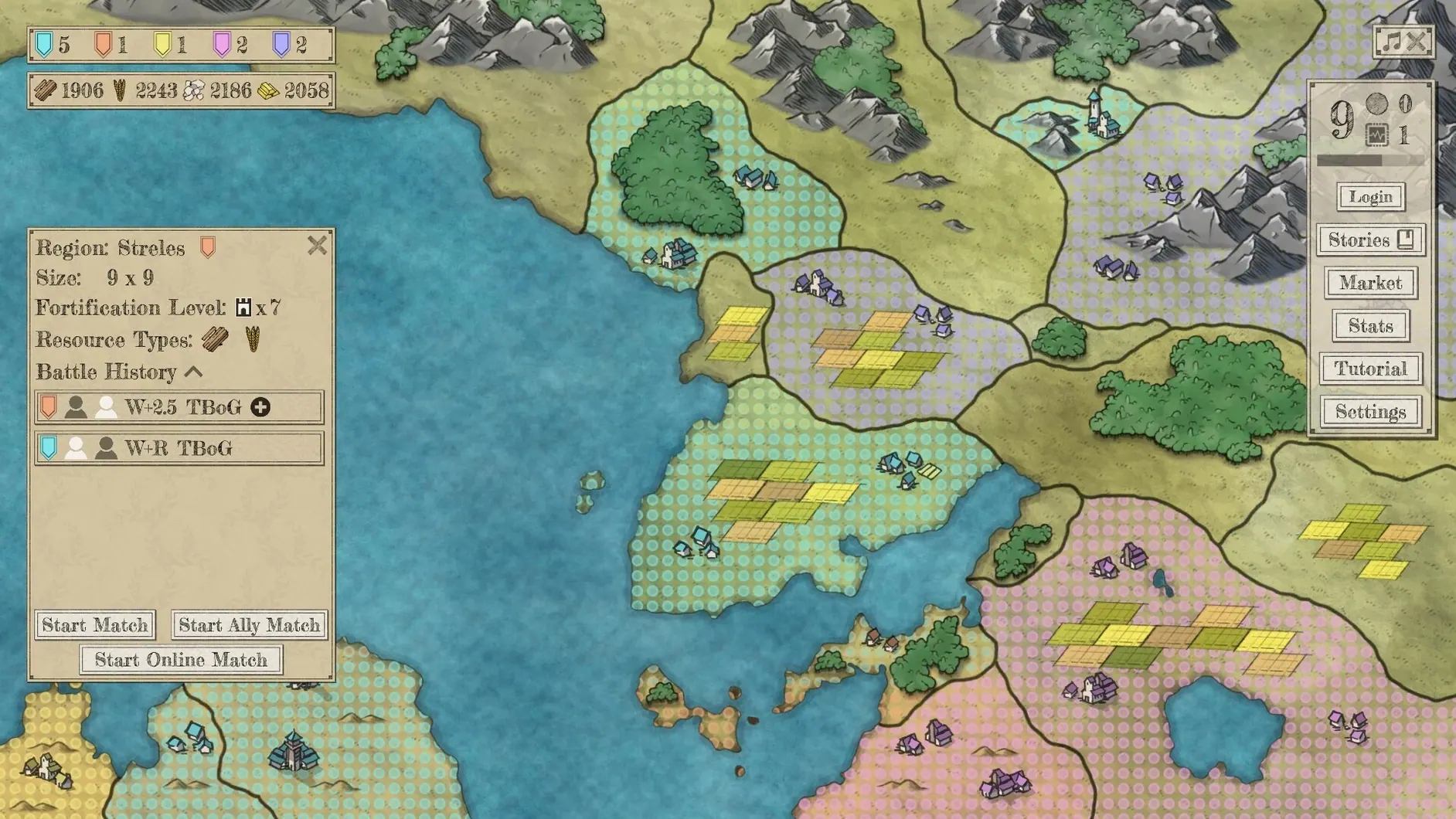
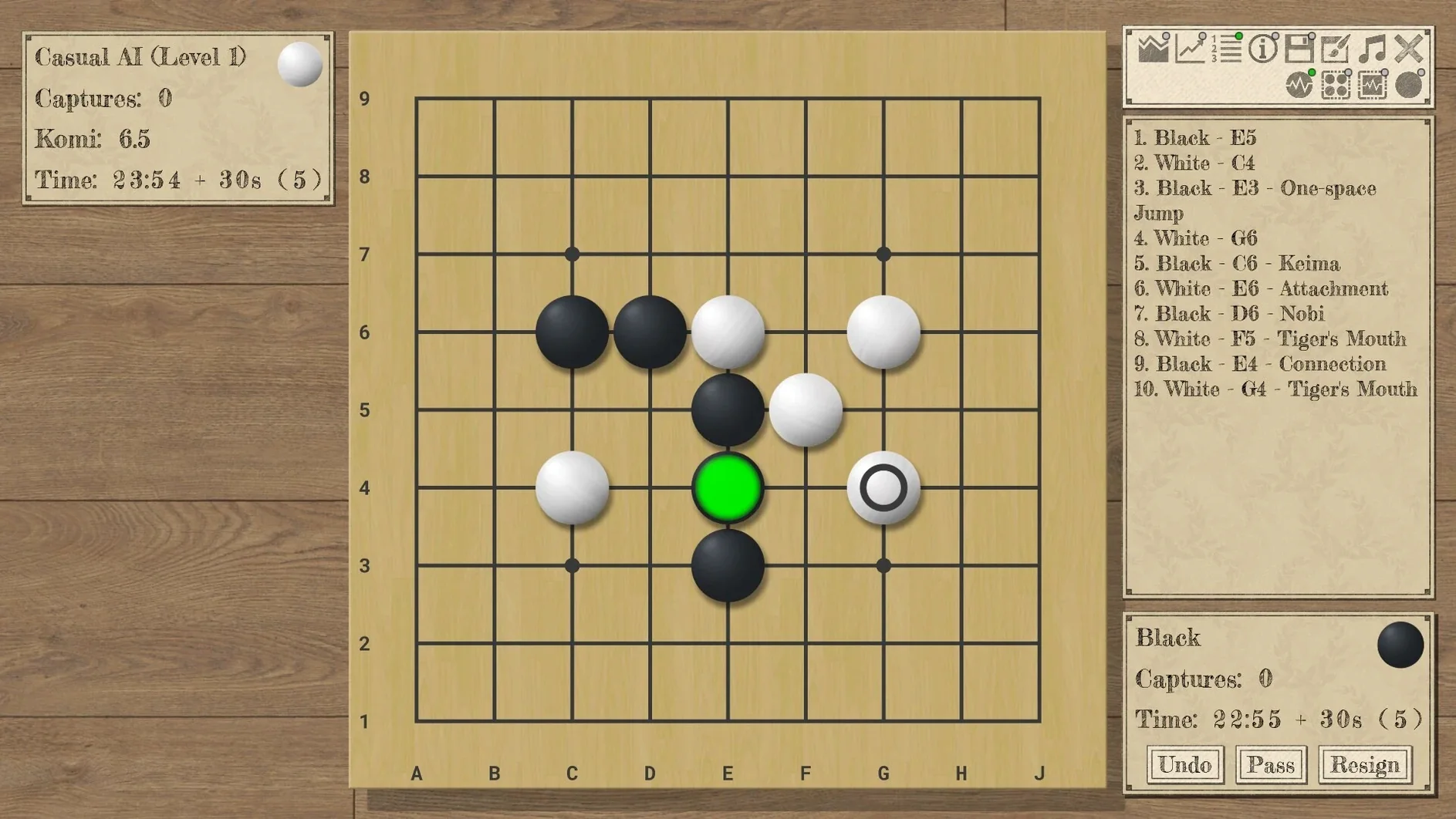
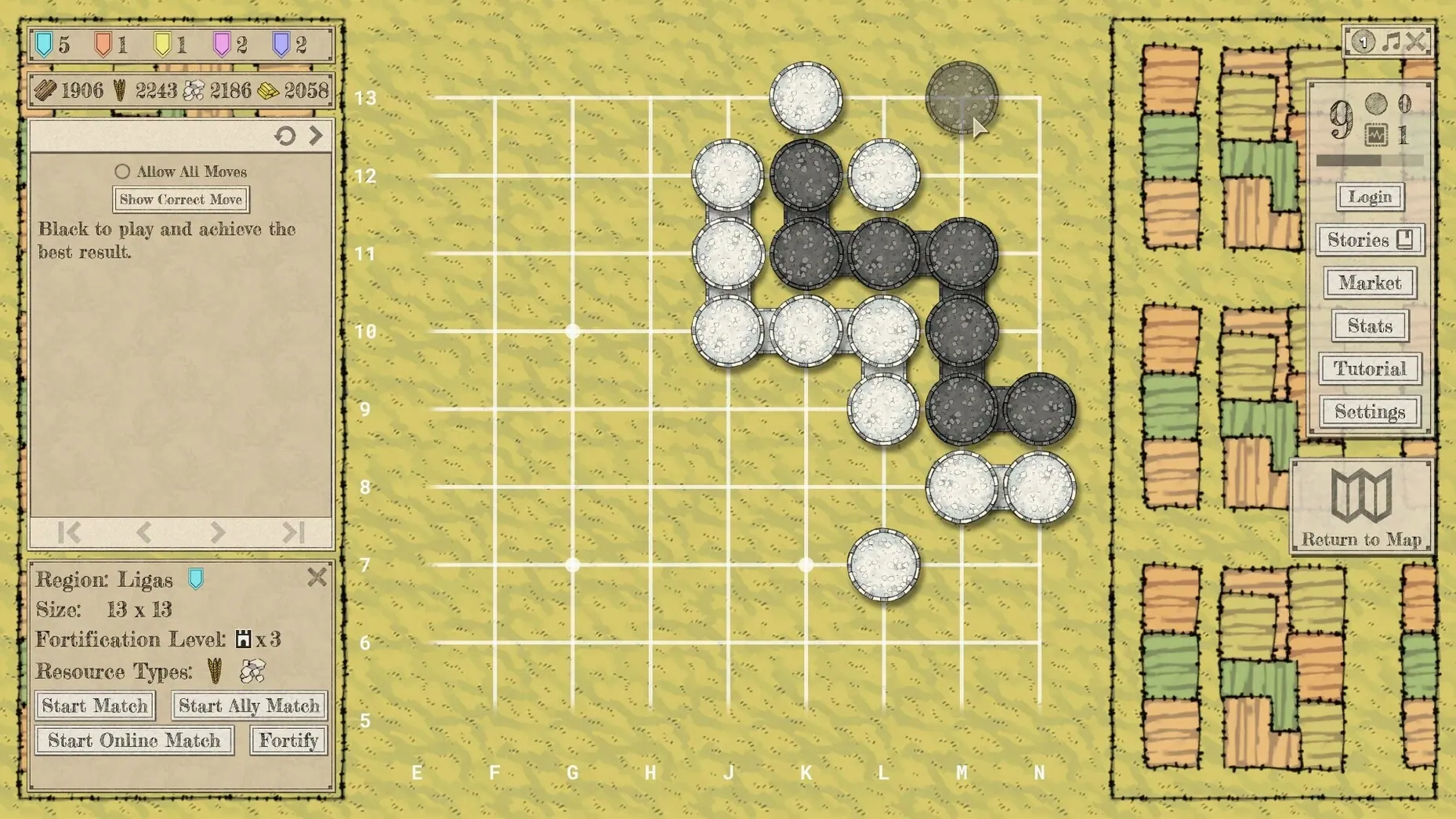
Click a screenshot to see it wider.
Most Go software either teaches you the rules and leaves you to figure out the rest, or assumes you already know the game. The Conquest of Go bridges that gap. It treats learning Go like a strategy game itself, with AI that analyzes your moves as you play.
Who should play it
- New players who want to learn Go without studying a textbook first. The guided mode and candidate moves show you what to think about next.
- Intermediate players who need to understand their mistakes. Move Evaluation paints a color gradient over each move so you see which decisions cost you points.
- Players who prefer offline single-player. The AI adapts to your level, and you can review past matches or solve problems at your own pace.
Who might not enjoy it
If you already play Go at a competitive level and want to test against the strongest possible bots, the built-in AI might feel limited. And if you prefer multiplayer over solo training, you will want a platform with a larger player base.
For Solo Learners and Move Analysts
Go players who like to see why a move worked (or did not) will find the most use here. The Move Evaluation gradient and Candidate Moves cut down the guesswork. That appeals to two groups:
- Solo learners — people who want to improve without a teacher or a live opponent. The campaign mode gives you a reason to keep playing matches, and the problem-solving section fills in gaps between games.
- Strategy-game fans — if you already play chess, shogi, or abstract board games on Mac, this fits the same slot. The nation-versus-nation campaign adds a resource layer that pure Go apps lack.
Side-by-Side Study with Split-Screen
The Conquest of Go works as a dedicated study tool alongside other macOS apps. A few ways to integrate it:
- Run it side by side with a browser (split-screen) for opening online tutorials or SGF files while you test moves in the game.
- Keep it in your Applications folder alongside chess or puzzle apps — it does not need an internet connection once installed, so it works on a laptop during travel or in areas with spotty Wi-Fi.
- The interface language setting (English, Russian, Japanese, and others) means you can practice Go terminology in another language without switching your whole system locale.
Since it uses the standard drag-to-Applications install and runs on both ARM and Intel Macs, it slots into any existing game or education folder without extra steps. No background services, no launcher — it is a straightforward .app that shows up in Launchpad like any other Mac game.
Use It Alongside Replay and Problem Collections
If you keep SGF files or Go problem collections on your Mac, The Conquest of Go works as a second monitor for practicing. Open a pro game record in a lightweight SGF viewer on one side and test variations in the game on the other. The AI feedback on your branch moves shows you where a deviation would have changed the score.
The campaign mode also fits a casual study rhythm. Play one or two moves, switch to a browser to read about a joseki you saw, then return to the board. Because the app does not require a login or background process, you can leave it sitting in a space and pick it up hours later without losing your place.
For Mac Users Who Keep a Minimal Setup
Many strategy-game players on Mac prefer not to install Steam or a separate launcher just for one title. The Conquest of Go runs as a standalone app, so it belongs in the same folder as other drag-and-drop games. It respects macOS window management — Mission Control, split-screen, and Stage Manager all work as expected. The app does not spawn helper processes or menu-bar items, which matters if you keep a clean system tray.
- Version 1.2 added Move Evaluation, which shows a color gradient over the last move based on score change.
- Version 1.2 added Candidate Moves, which highlights AI-evaluated next moves.
- Version 1.2 added Guided Mode.
- macOS (version not specified by developer)
- Intel or Apple Silicon
Questions I get about this line
Yes. It supports both ARM and 64-bit x86 architectures, and was tested on macOS Tahoe on a Mac mini 2024 M4.
The interface supports Russian, English, German, Traditional Chinese, Simplified Chinese, French, and Japanese.
The Steam page lists the release date as December 10, 2025.
The install order
- Mount the downloaded disk image.
- Drag the app to the Applications folder shortcut.
- After copying finishes, launch the app from Launchpad.