
Free download (90 MB) Previous versions
- Version
- 2.5.6
- Developer
- Superace Software Technology
- Languages
- Russian, English, German, Spanish, Italian, Chinese (Traditional), Chinese (Simplified), Korean, Portuguese, French, Japanese
- License type
- Included
| macOS range | macOS 11 or later |
|---|---|
| Chip | Apple Silicon, Intel 64-bit |
| Download | 90 MB |
| Previous versions | 3 on file |
Screenshots
Click a screenshot to see it wider.
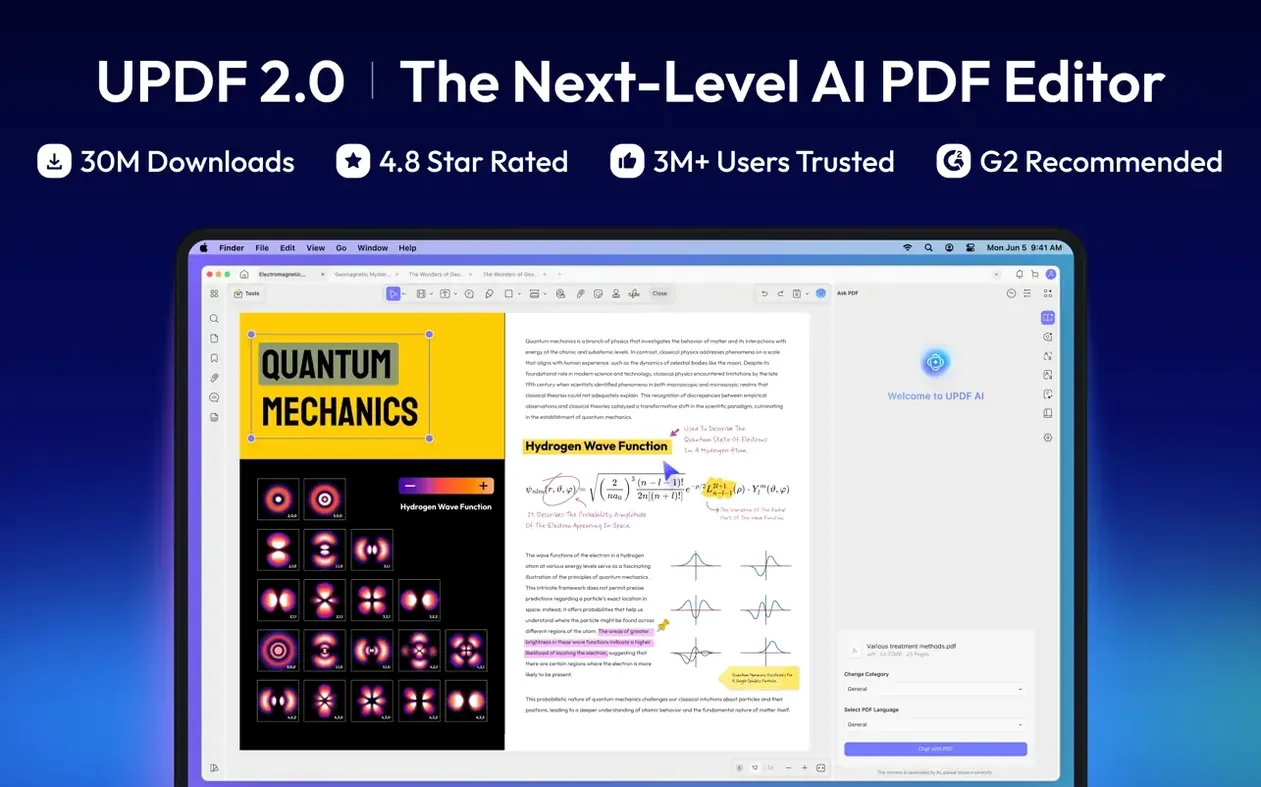
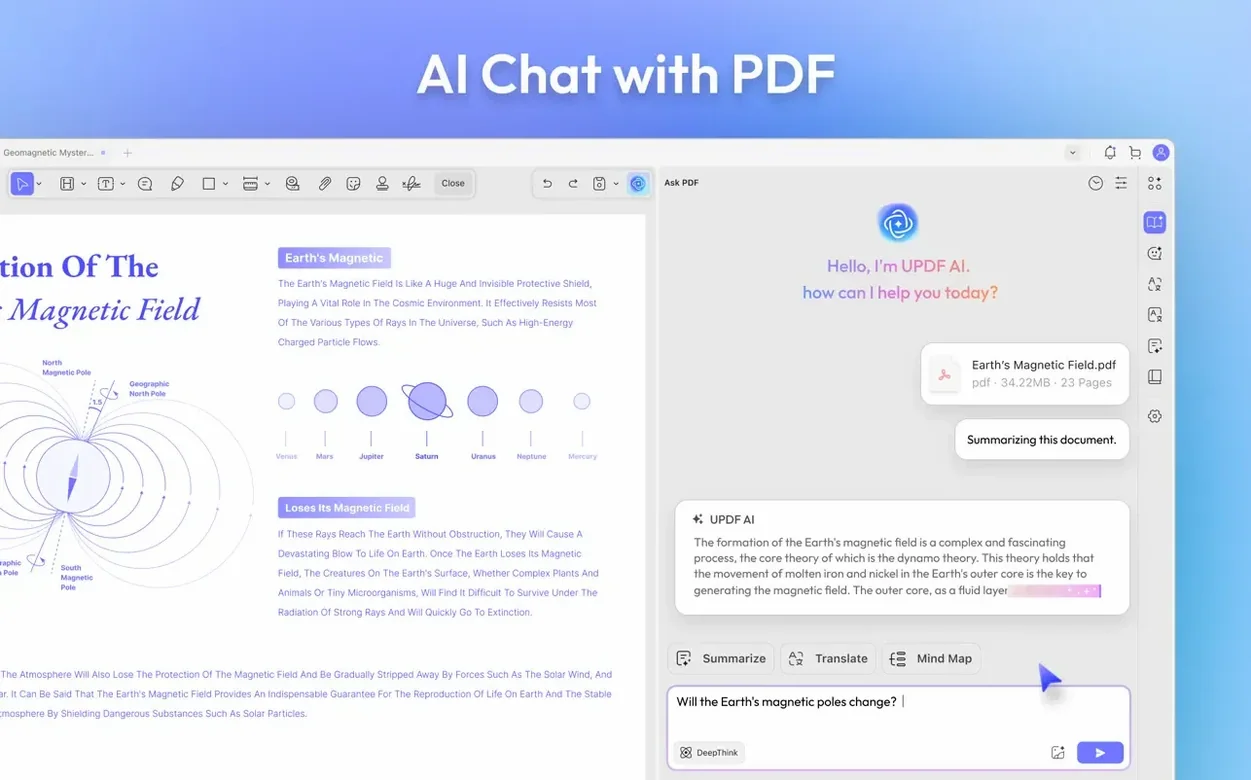
Office workers, students, and IT people who handle PDFs daily use UPDF 2 to get through edits, annotations, and conversions without switching apps. The AI chat feature reads a PDF and answers questions, summarizes sections, or translates text — useful for long reports or foreign-language documents.
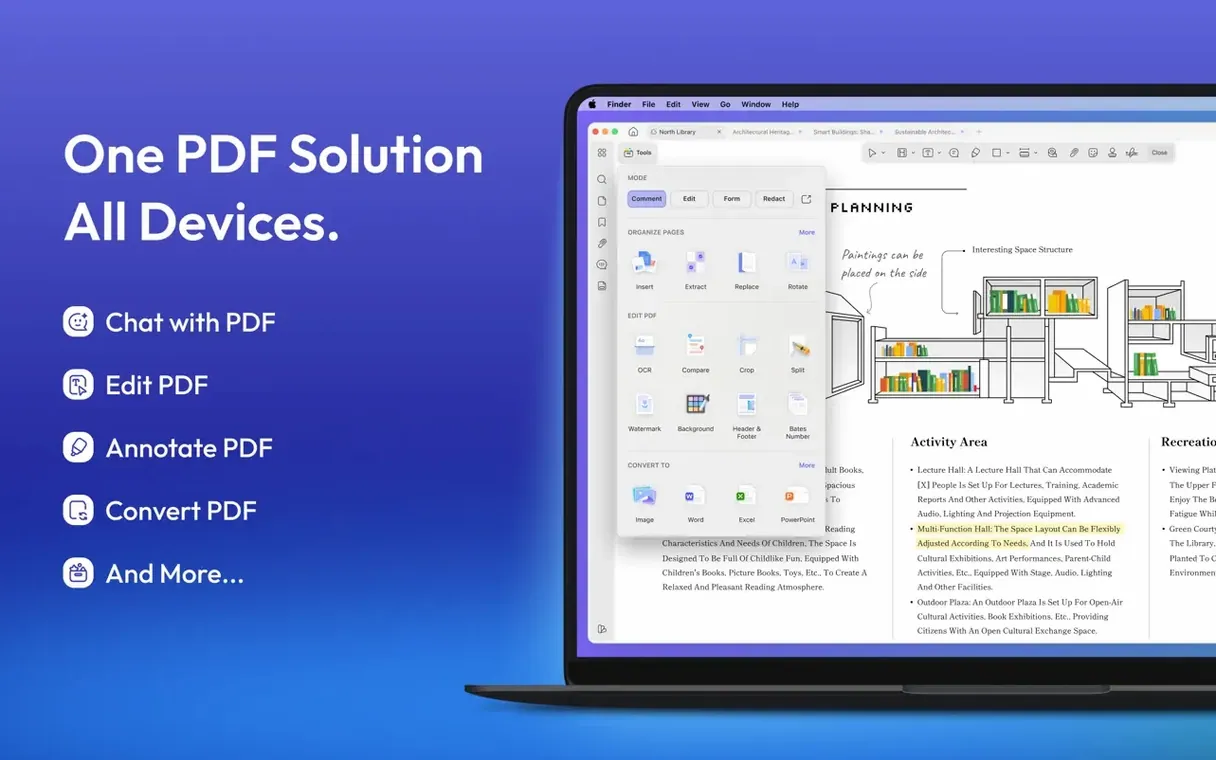
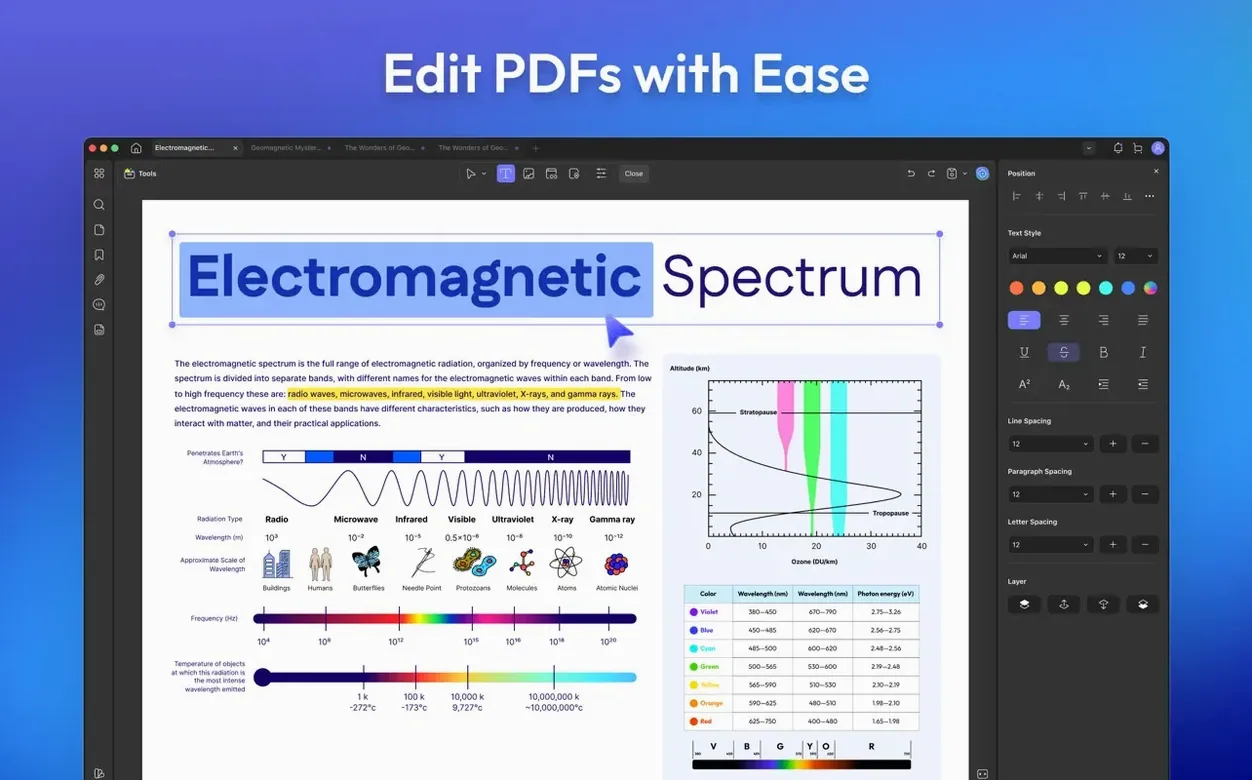
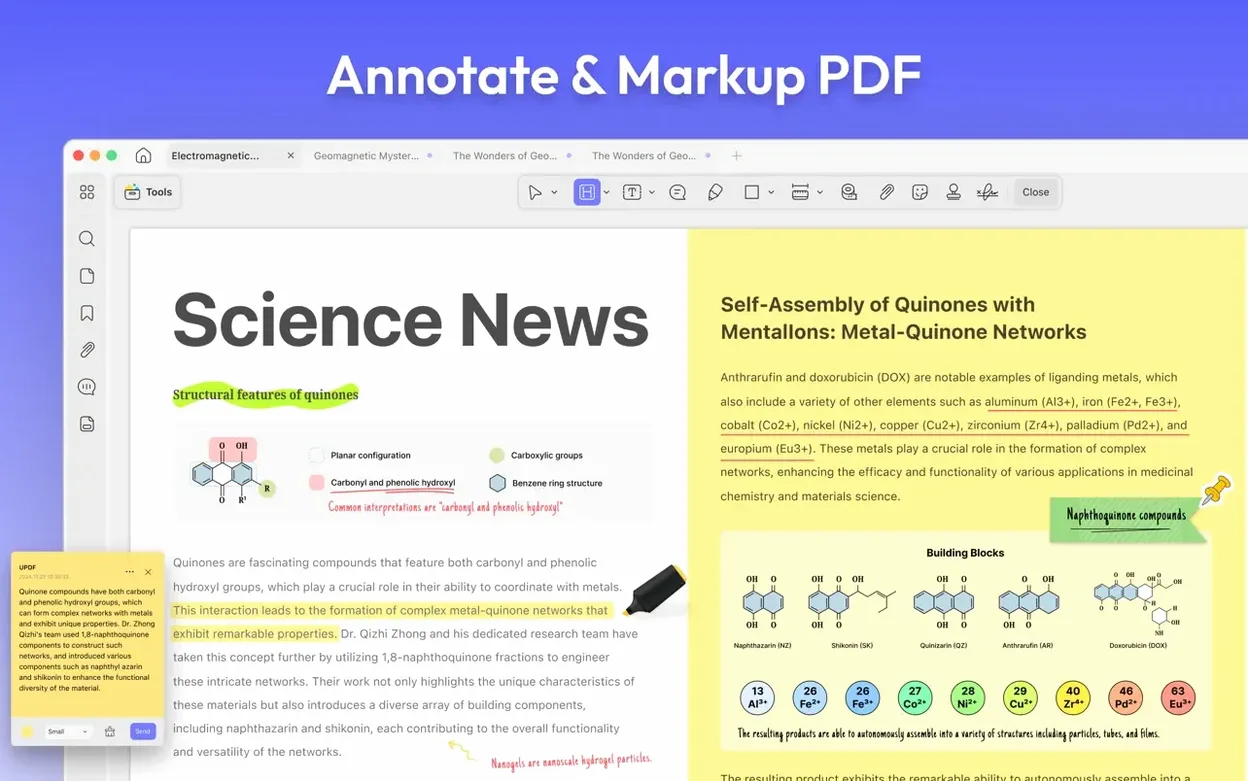
Editing covers text, images, and links. You can resize, crop, rotate, extract, replace, or delete images inside a PDF. Version 2.5.6 adds custom rotation for images and text, plus toggles for PDF/A and digital signature detection. Annotations include highlights, underlines, strike-throughs, wavy underlines, stamps, stickers, signatures, and freehand drawing.
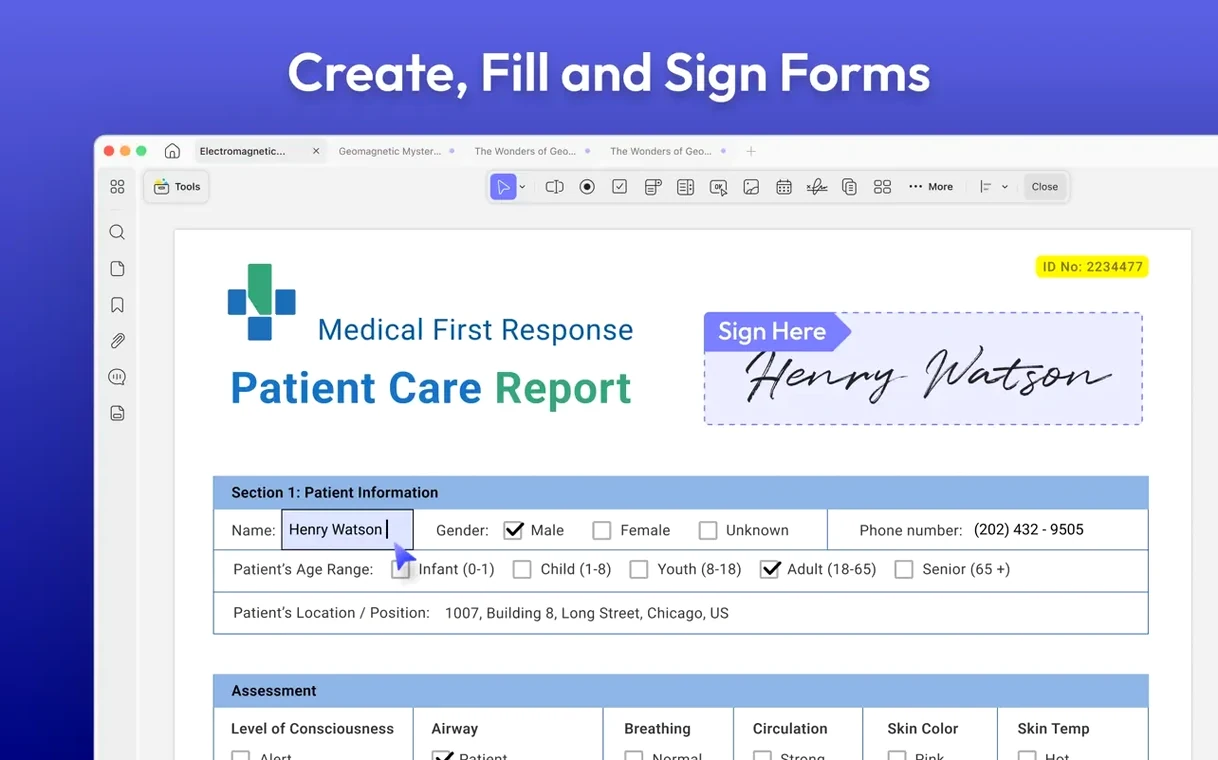
Batch printing double-sided PDFs now lets you split across documents. Create fillable forms with interactive fields. View PDFs in single-page or two-page mode. UPDF runs on macOS 11 and later, on both Intel and Apple Silicon Macs. Interface languages include English, German, Spanish, French, Italian, Portuguese, Russian, Japanese, Korean, and Chinese.
AI Chat Needs Internet Connection
After deploying UPDF 2 across a few clinic machines, a couple of patterns show up.
- AI chat doesn't respond. The feature needs an internet connection to reach the server. If you're offline or on a restricted network, the chat stays silent. Check your firewall or proxy settings.
- Font looks wrong after editing. UPDF uses the fonts embedded in the PDF. If the original font isn't available on your Mac, the replacement can look off. Stick to standard system fonts like Arial or Times New Roman for predictable results.
- Converted DOCX is misaligned. Complex layouts with tables or floating images sometimes shift during conversion. Export to RTF first if the DOCX output is messy; RTF preserves more positioning.
- Form fields don't work in other readers. Fillable forms created in UPDF 2 are compatible with most PDF viewers, but advanced JavaScript validation may not carry over. Test the form in Acrobat Reader before distributing.
A Typical Session: Processing a Vendor Contract
Let's walk through a real afternoon task — preparing a signed contract for the clinic's dental supply vendor.
- Open the scanned contract PDF in UPDF 2. The document is 12 pages, single-page view by default.
- Use the OCR batch tool to make the scanned text searchable. Takes a few seconds for a dozen pages.
- Highlight the payment terms with the highlighter tool, then add a sticky note next to the delivery date line with a reminder.
- Replace the vendor's outdated logo image on page 1 with a fresh PNG. Right-click the image, choose replace, and pick the new file.
- Add a fillable signature field at the bottom of page 12 for the dentist's signature.
- Export the finished contract to DOCX so the office manager can merge it into the contract management system.
- Password-protect the final PDF to restrict printing and copying before emailing it to the vendor.
No app switching, no re-saving to different formats mid-process.
- macOS 11 or later
- Intel or Apple Silicon Mac