Free download (31 MB) Previous versions
- Version
- 7.0.4
- Developer
- Surtees Studios Ltd
- Languages
- English
- License type
- Included
| macOS range | macOS 27 or later |
|---|---|
| Chip | Apple Silicon, Intel 64-bit |
| Download | 31 MB |
| Previous versions | 9 on file |
Screenshots
Scroll the row, it snaps to each screenshot. Click one to see it wider.
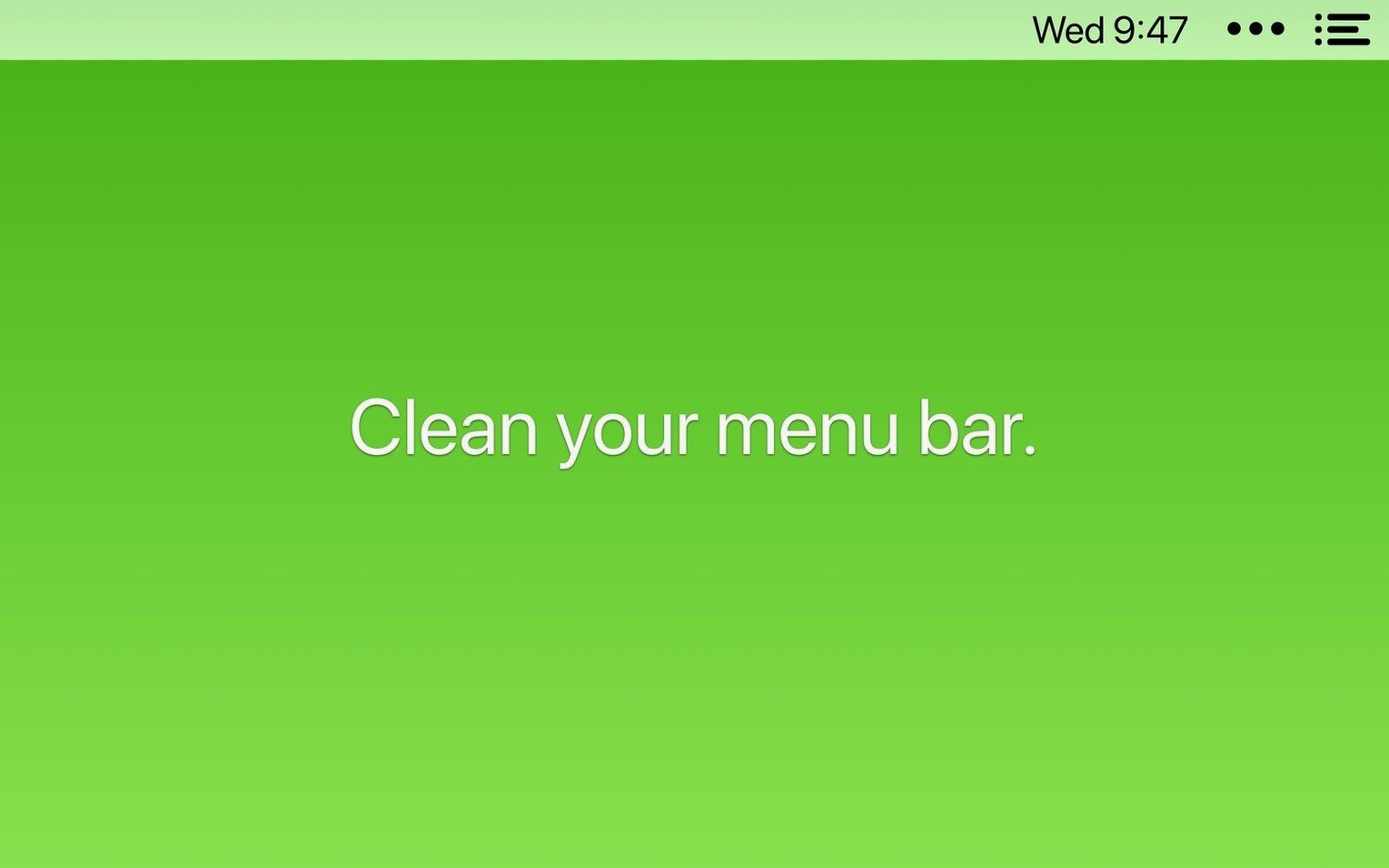
Bartender is a utility that takes control of the items in your Mac's menu bar, keeping it tidy and focused.
For a newcomer, here's a good first workflow:
- Launch Bartender and let it index your current menu bar items.
- Drag any icon you don't need visible all the time into the hidden area.
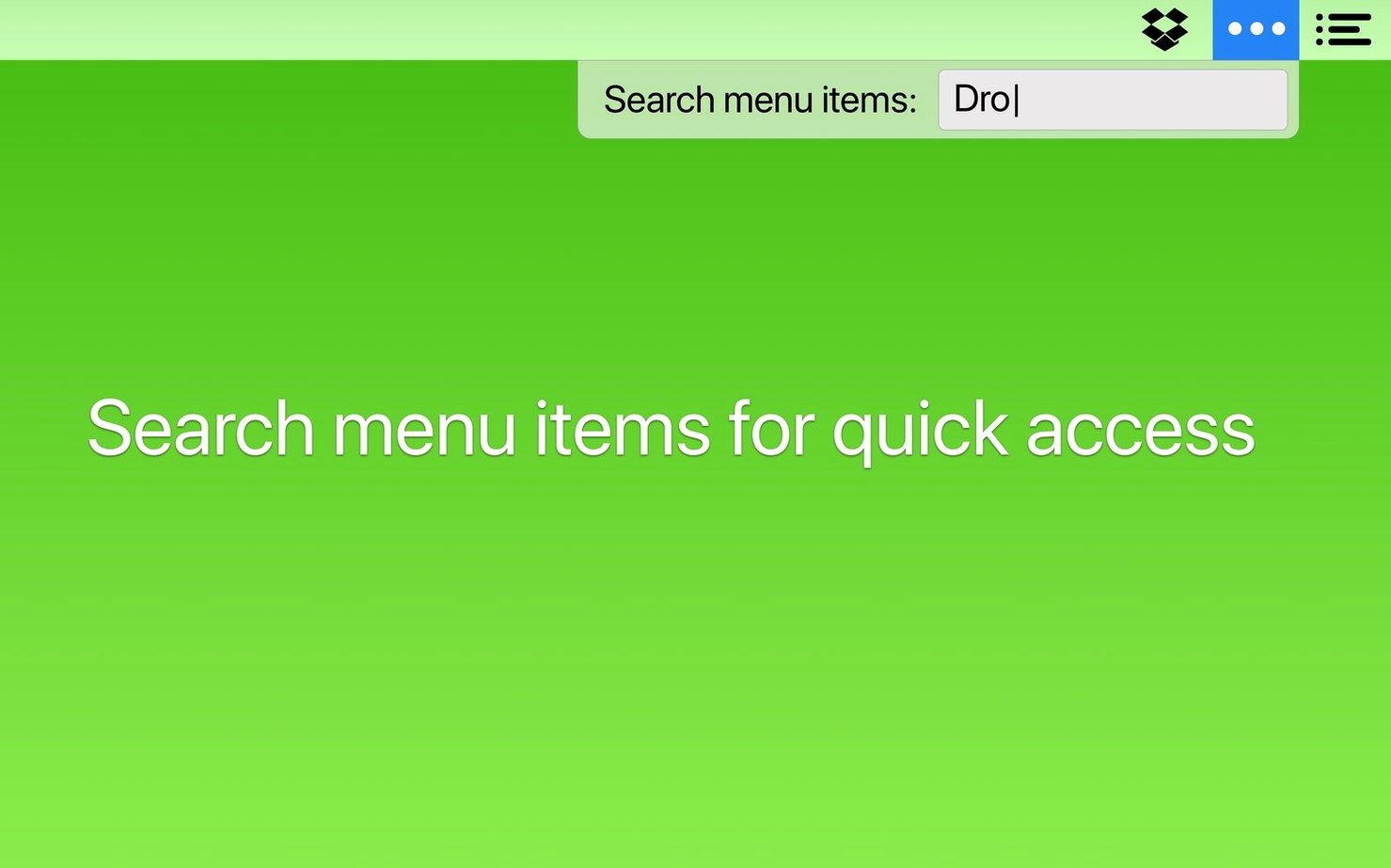
- Use the Command Bar (default hotkey) to quickly search and toggle items by name.
- Try arrow keys and Enter to move between items without touching the mouse.
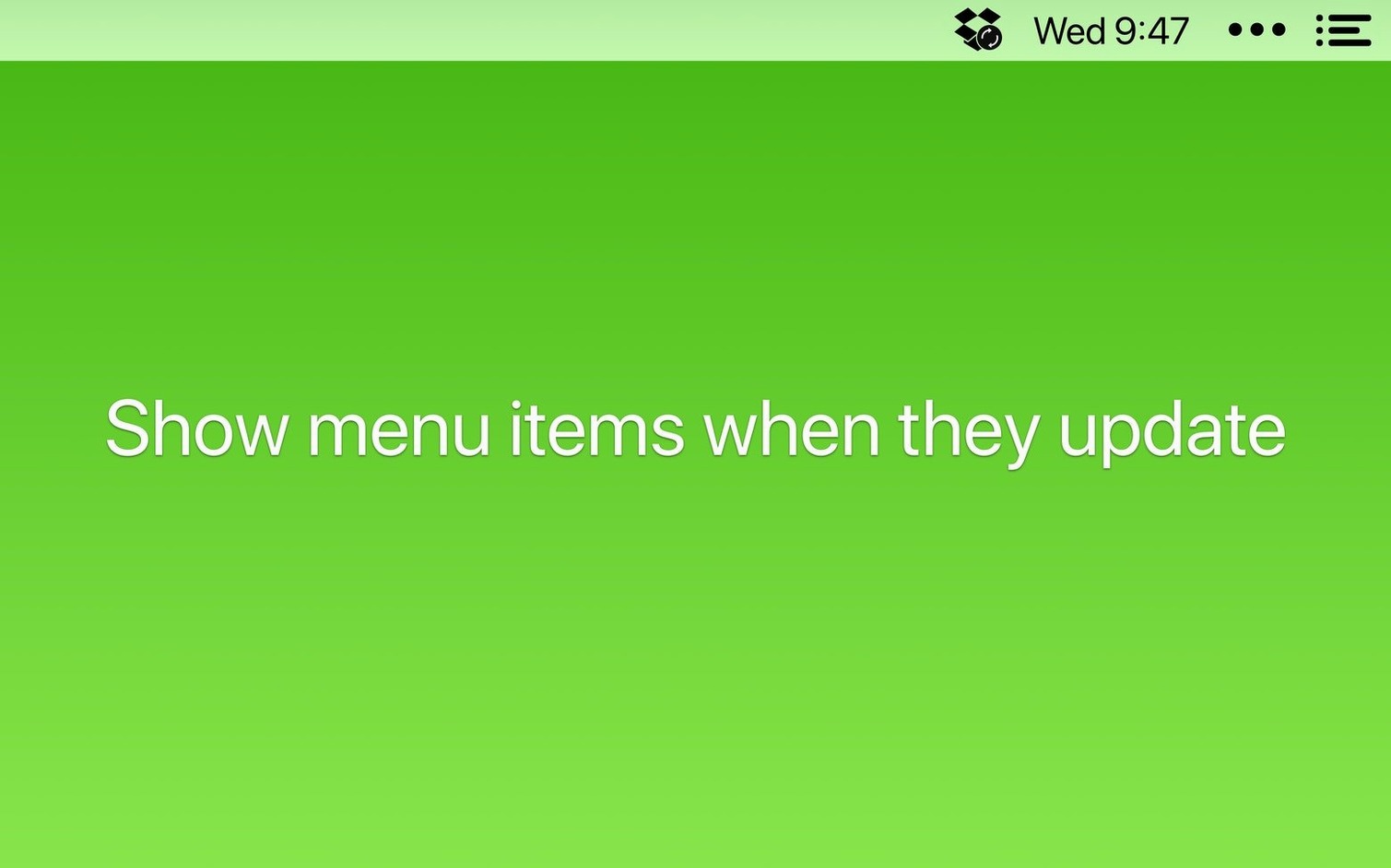
- Set app icons to show only during updates, syncs, or errors — that way you don't miss important activity.
Version 7.0.4 fixes items getting stuck while moving, items failing to appear, and spacers shifting after a restart. Bartender 7 runs on macOS 27 and doesn't require screen recording, which keeps setup simple.
For Users With a Dozen Menu Bar Apps
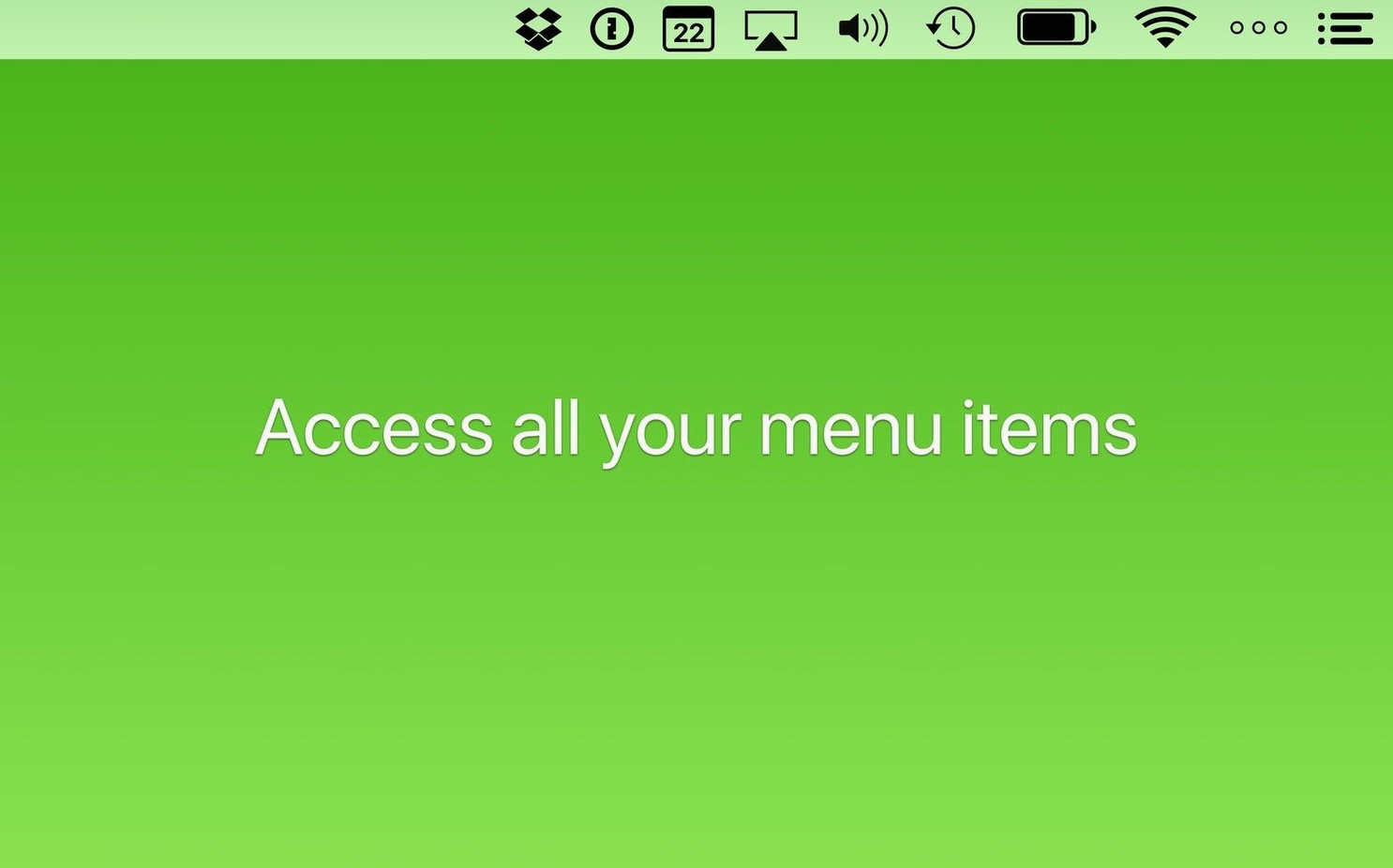
Three groups benefit most. First, anyone who runs a dozen or more apps that live in the menu bar — communication tools, cloud sync clients, hardware monitors, password managers. Without Bartender, that row fills up and spills into the overflow menu, where items are hard to reach and easy to ignore. Second, keyboard-driven users who prefer to keep hands on the home row and avoid aiming at tiny icons. Bartender's Command Bar and arrow-key navigation make it possible to open, toggle, or launch menu bar items without ever touching a trackpad. Third, people who customise their workspace for different contexts: work hours, deep-focus writing, presentation mode. Triggers and item visibility rules let you show only the tools you need for the task at hand.
Sample Workflow: Clean Up a Cluttered Menu Bar in Five Minutes
Here is a concrete task — taking a menu bar with fifteen random icons and turning it into a tidy, searchable set.
- Open Bartender for the first time. It scans all active menu bar items and lists them in its main window.
- Mark those to stay visible in the main menu bar.
- Move everything else into the Bartender Bar — the secondary area that keeps icons out of sight but still accessible.
- Open the Command Bar with its hotkey and type a few names to confirm you can find items quickly. Adjust the hotkey if the default conflicts with another app.
- For items that only matter during activity (syncing, uploading, errors), enable the conditional visibility setting so they appear only when an event happens. That keeps the bar quiet most of the time.
- Reorder the visible items so the most-used tools sit on the left, close to the Apple menu.
- Hide the Bartender icon itself from the menu bar — its job is done, and the bar stays clean.
After this pass, the menu bar holds maybe five icons, and everything else is one hotkey away.
Tuesday Morning: Icons Appear and Vanish
It is a Tuesday morning. The rest are tucked away. A cloud-sync app starts uploading a large file; its icon appears briefly in the bar, then disappears when the upload finishes. I do not need to check a dropdown to confirm the sync ran.
Mid-morning, I need to toggle a VPN that normally stays hidden. Instead of digging through the overflow menu, I press the Command Bar hotkey, type "VPN", press Enter, and the connection switches. I never lifted my fingers from the keyboard. Later, during a video call, I want to mute a chat app that keeps pinging. Same motion: hotkey, two letters, Enter. The app quiets without leaving the call window.
After lunch, I rearrange things. I drag a recently installed monitoring tool from the main bar into the Bartender Bar because I rarely look at it. I also set a trigger so a backup app shows its icon only when it is actively copying files — otherwise it stays hidden. By the end of the session, the menu bar has not changed, but the tools behind it have reorganized themselves to match how I actually worked that day. That is the point: the menu bar stays out of the way until I need it.
- Fixed items getting stuck while moving.
- Fixed items failing to appear.
- Fixed spacers shifting after restart.
- macOS 27
- Apple Silicon or Intel
Questions I get about this line
Yes, Bartender 7 works without required screen recording, so you can skip that permission during setup.
Yes, Bartender supports keyboard navigation with arrow keys and Enter, plus Shortcuts control through app intents.
The install order
- Open the downloaded disk image.
- Drag the app into your Applications folder.
- Launch Bartender from Launchpad after copying finishes.