
- Version
- 1.0
- Developer
- attn. Built for focus
- Languages
- English
- License type
- Included
| macOS range | macOS 12 or later |
|---|---|
| Chip | Apple Silicon, Intel 64-bit |
| Download | 5 MB |
Screenshots
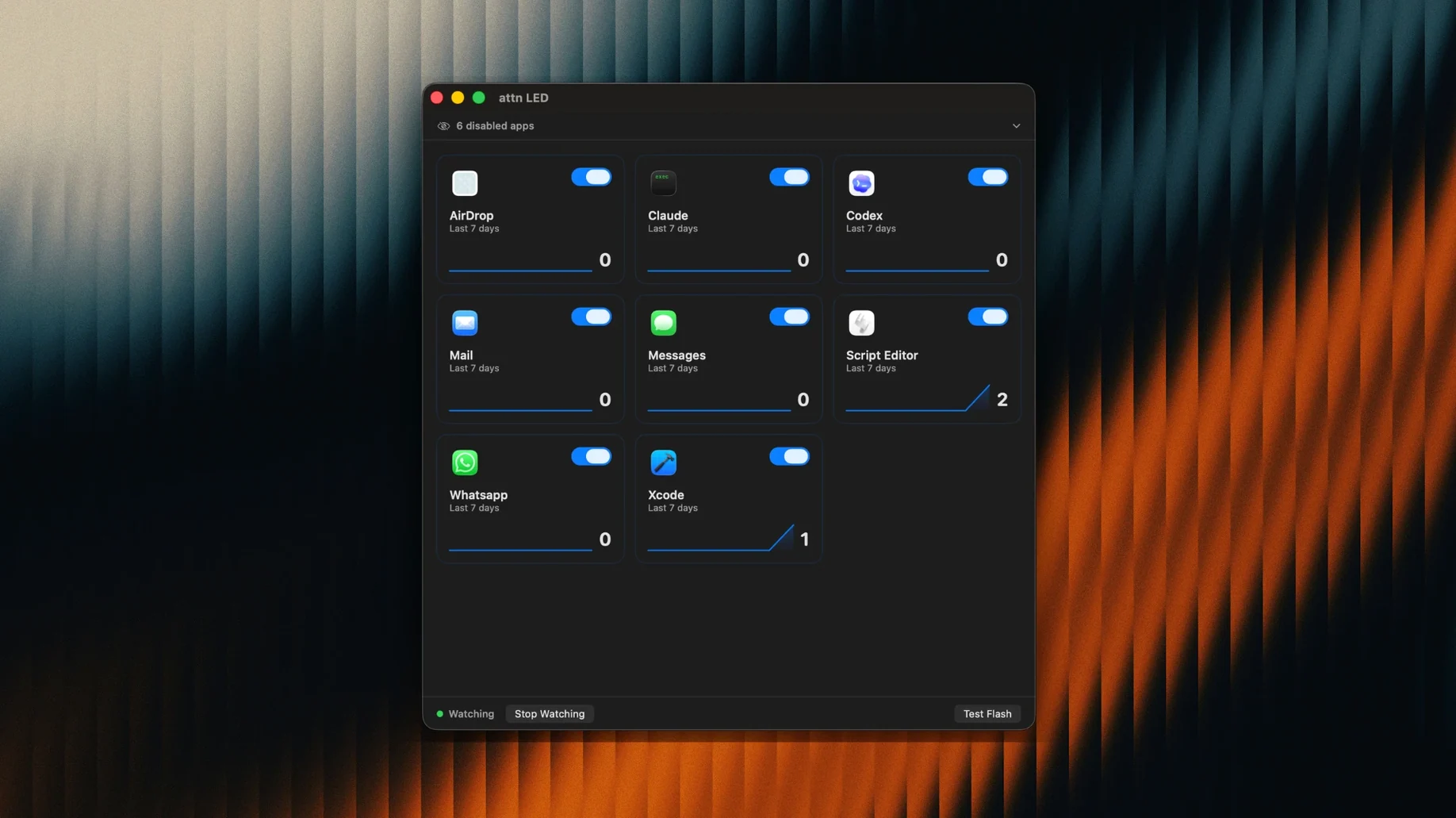
attn LED is a Mac utility that turns the built-in camera LED into a notification light for incoming messages. It monitors the macOS notifications database using FSEvents, so it works even when Focus Mode would normally block alerts. The LED blinks when a message arrives from selected apps like Slack, Mail, Messages, Discord, Teams, or Telegram. It automatically detects new apps with notifications and pauses blinking during FaceTime or other video calls. Designed for anyone who works in deep focus and wants a quiet visual cue instead of sound or pop-ups.
| Detail | Spec |
|---|---|
| Version | 1.0 |
| Developer | attn |
| Architecture | Apple Silicon / Intel |
| Interface Language | English |
The app keeps your focus intact by using a subtle hardware indicator instead of screen distractions. Set it for the apps that matter and ignore the rest.
Workflow: Get a Slack Message Without Breaking Focus
You are deep in a code review or a spreadsheet. Focus Mode is on. Notifications from Slack are silenced by macOS. You do not want to check your phone or glance at the menu bar every few minutes.
Open attn LED and let it run in the background. It watches the macOS notification database through FSEvents, so it sees new Slack messages even when Focus Mode blocks the normal pop-ups. The MacBook camera LED starts blinking.
You keep working. The LED blinks until you open Slack. When you switch to Slack and read the message, the LED stops. attn LED only alerts you to the arrival—it does not demand immediate action. You decide when to respond.
If a FaceTime call comes in while you are working, attn LED pauses blinking automatically so the call is not competing with a blinking light. After the call ends, it resumes watching for new notifications.
How attn LED Fits Into macOS and Other Apps
The app works alongside macOS Focus Mode and Do Not Disturb, not against them. It does not disable those modes. Instead, it gives you a secondary channel for important notifications that macOS would otherwise suppress entirely.
Because it uses FSEvents to monitor the macOS notifications database, attn LED runs independently from individual apps. You do not need to configure each messaging app separately for alerts. The app detects new apps as they generate notifications and adds them to its watch list automatically.
It also works with Apple's built-in camera LED behavior. The same LED that lights up during a video call or camera access now serves double duty as a notification indicator. attn LED respects the camera's existing uses—it stops blinking when the camera is active for FaceTime or other video conferences.
There are no sound alerts, no banner pop-ups, and no menu bar badges to fight with. The only output is the physical LED on the MacBook chassis, visible from across a room.
LED Attn Notifications Without Installation Hassle
Does attn LED work if I already use Do Not Disturb?
Yes. That is the main use case. The app reads notification data at the system level, so it sees what macOS suppresses. Focus Mode and Do Not Disturb do not block the FSEvents feed attn LED uses.
Will the LED stay on all the time?
No. The LED only blinks when attn LED detects a new notification from one of the watched apps. It stops blinking when you open that app. The light does not stay on permanently.
Can I use attn LED with only one messaging app?
Yes. The app lets you limit LED notifications to selected apps. If you only want alerts from Slack, you can set it that way. The automatic detection adds new apps, but you control which ones the app watches.
Does it interfere with using the camera for video calls?
No. attn LED pauses blinking automatically during FaceTime and other video conferences. The camera LED operates normally for those calls.
Is it hard to install?
No. Open the downloaded disk image, drag the app to the Applications folder, then launch it from Launchpad. That is it. No extra drivers or permissions to configure.
- macOS 12 or later
- Apple Silicon or Intel processor
Questions I get about this line
Yes. It pauses blinking during FaceTime and other video conferences so the LED doesn’t interfere with your call.
The install order
- Open the downloaded disk image.
- Drag the app to the Applications folder.
- Launch the app from Launchpad.