Free download (23 MB) Previous versions
- Version
- 5.5
- Developer
- 万林 彭
- Languages
- English, Chinese (Simplified)
- License type
- K'ed by TNT team
| macOS range | macOS 10.13 or later |
|---|---|
| Chip | Apple Silicon, Intel 64-bit |
| Download | 23 MB |
| Previous versions | 1 on file |
Screenshots
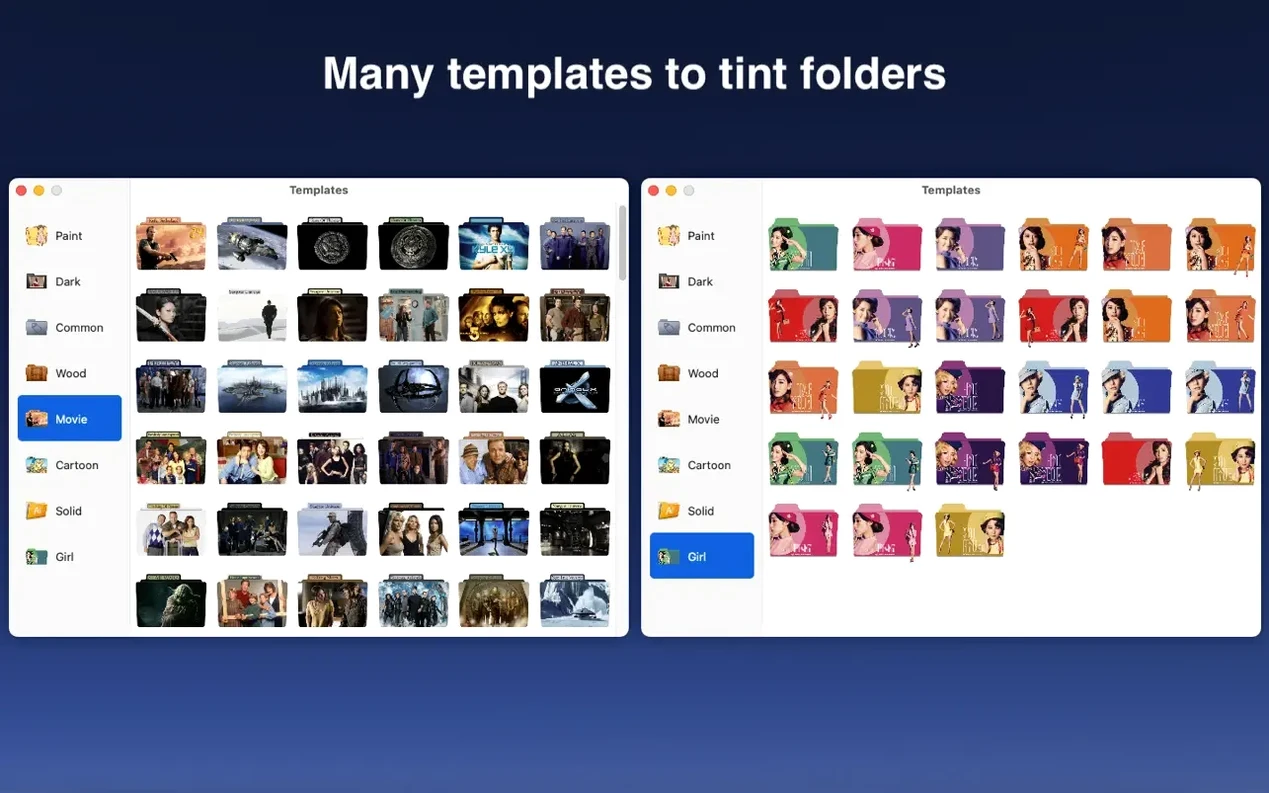
Click a screenshot to see it wider.
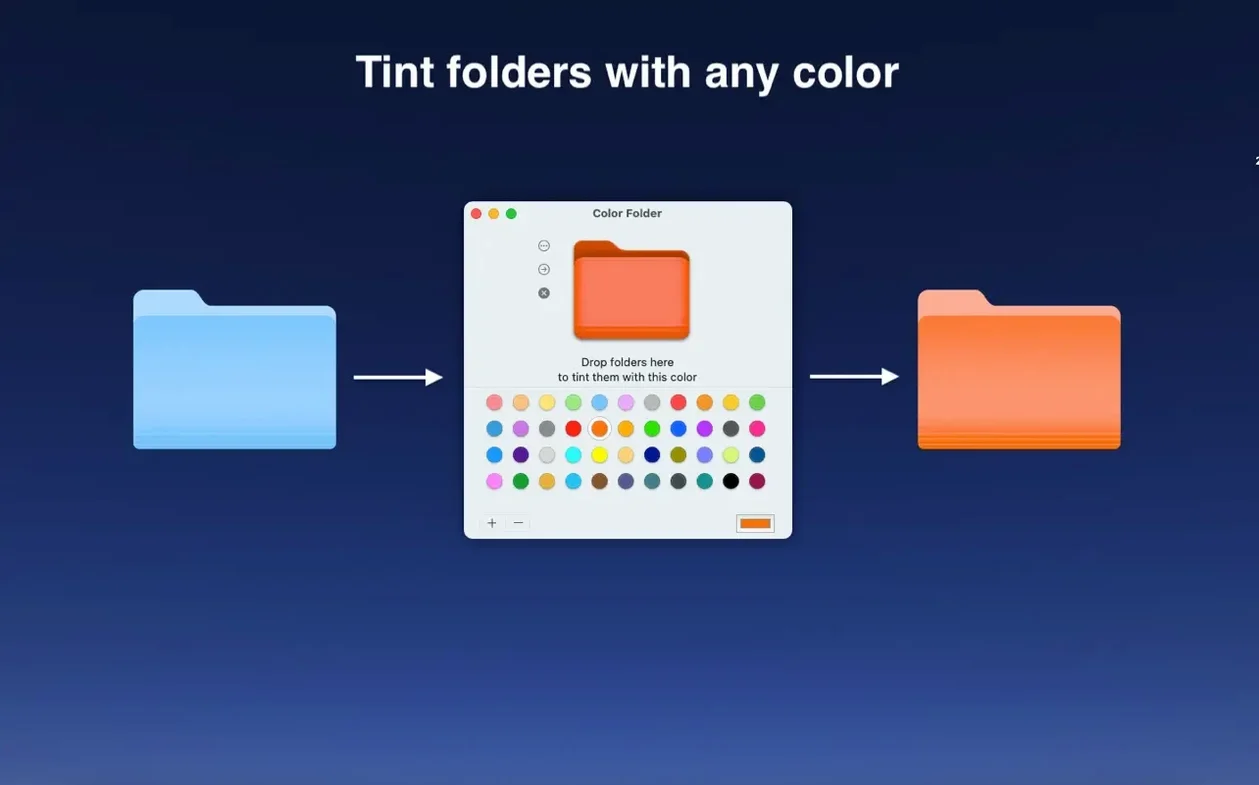
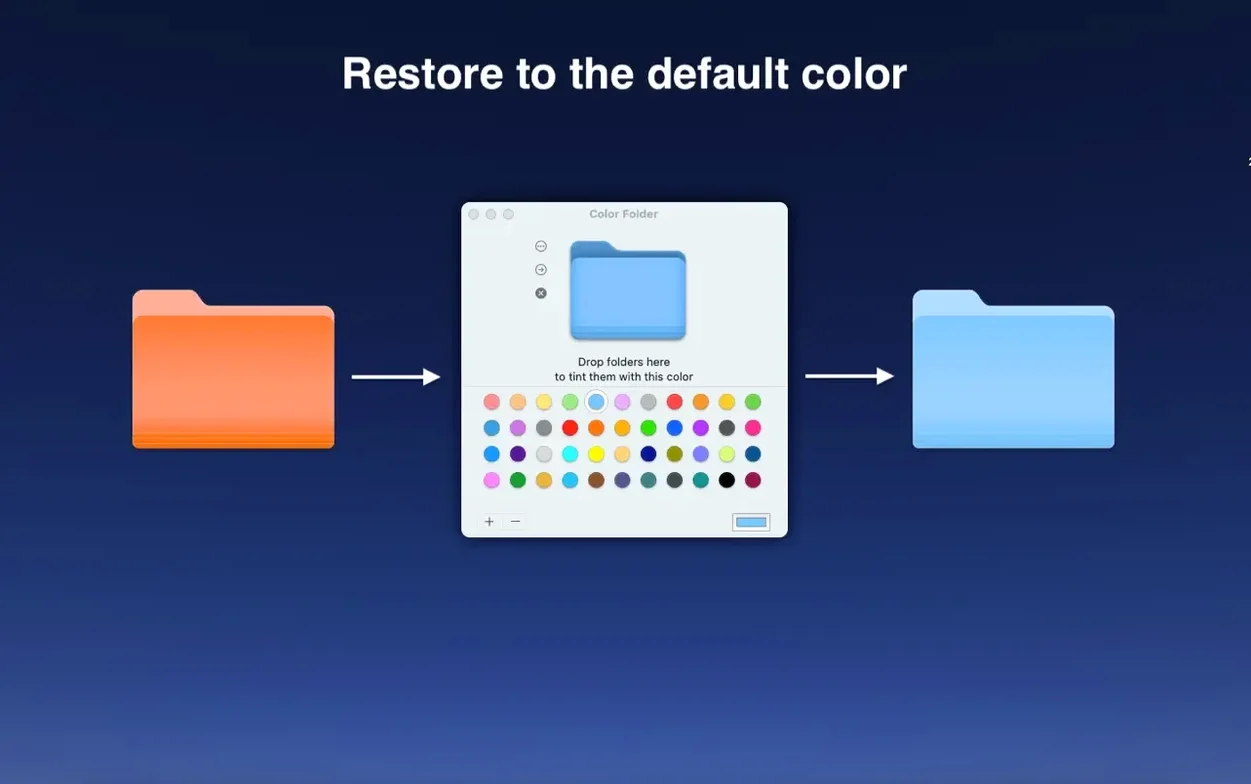
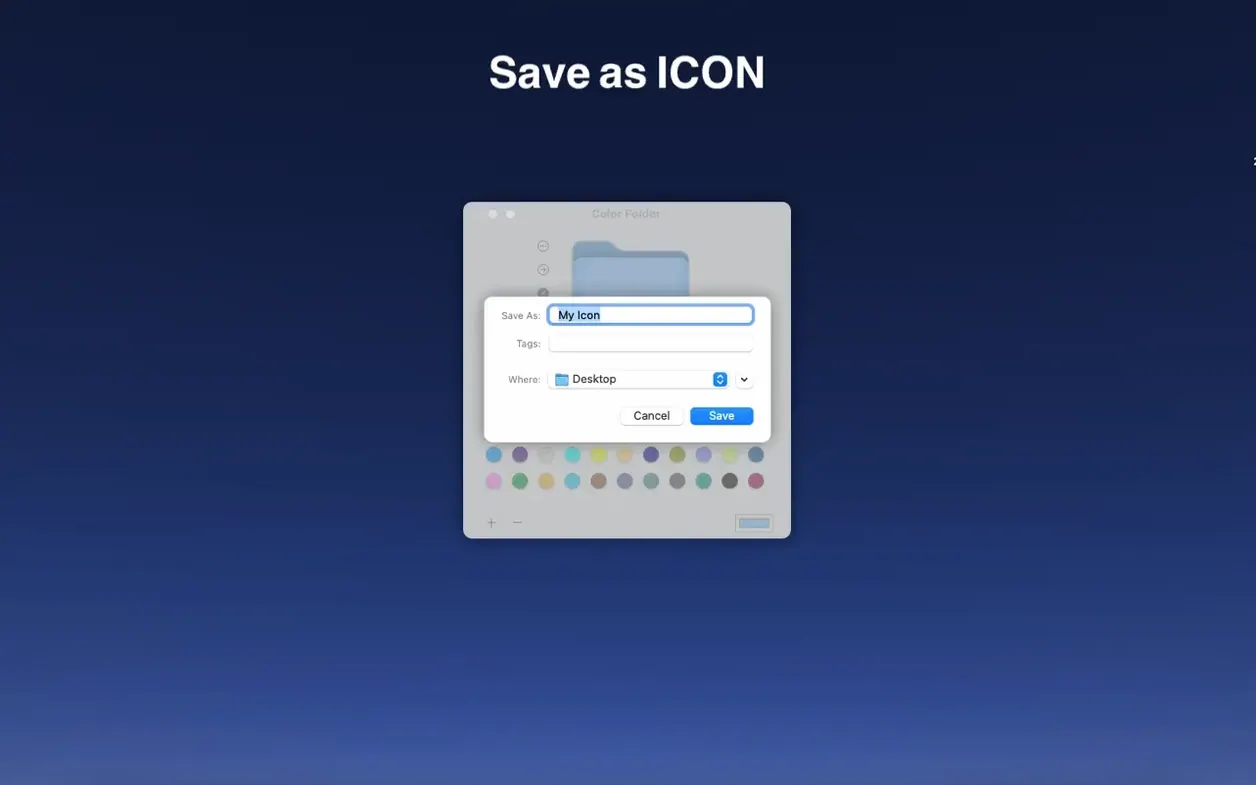
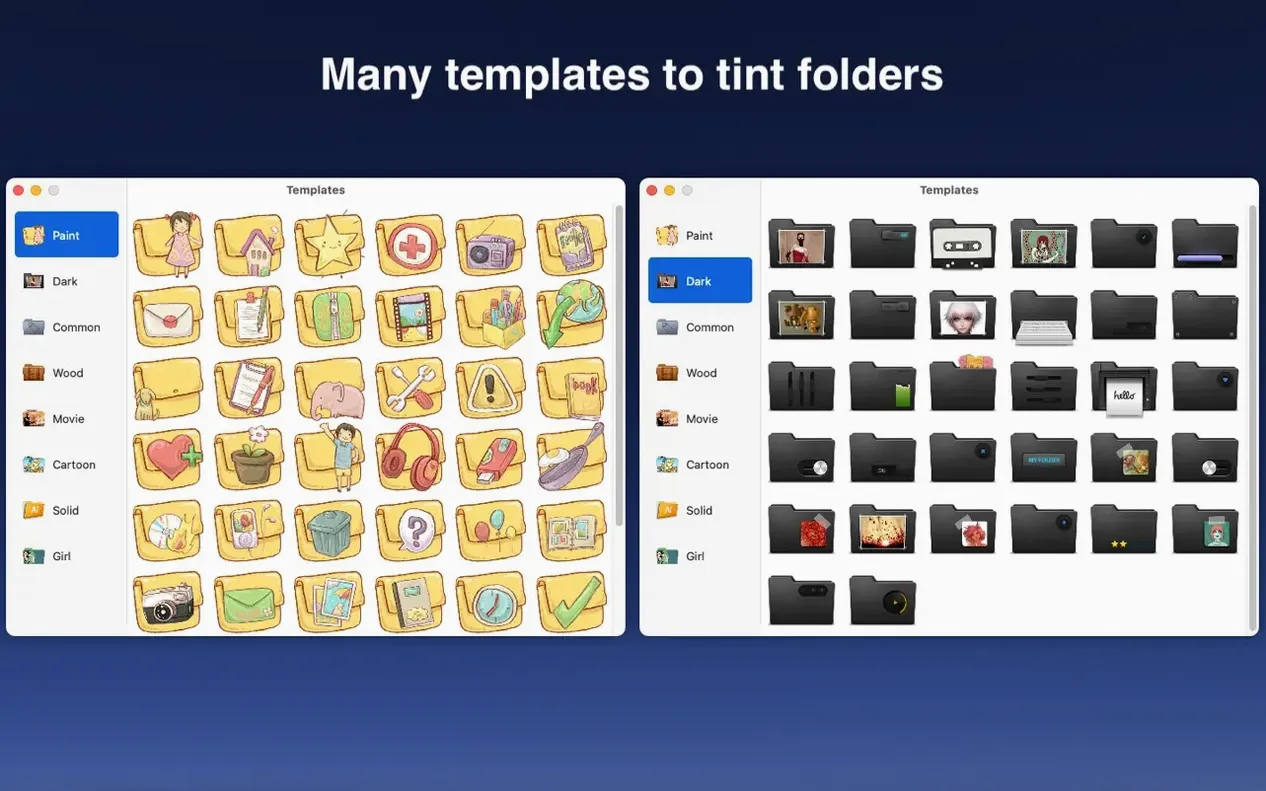
Color Folder Pro runs on any Mac with macOS 10.13 or later, including both Apple Silicon (ARM) and Intel (x86) models. That covers everything from a 2017 iMac to the latest M3 MacBook Air. Version 5.5 keeps the core feature set: you can set a folder icon to any color you pick, or use any image file as the icon. The interface is available in English and Simplified Chinese. No release notes were provided for this build, so expect the same workflow as the prior release with no new features or fixes listed.
Overthinking Image Selection Unnecessary
Most new users overthink the image selection step. You do not need a perfectly cropped square image. Color Folder Pro resizes and centers any PNG, JPEG, or GIF automatically. A messy snapshot works fine.
Another easy miss: applying a color without selecting a folder first. Click the folder in Finder, then open the app. If nothing changes, you likely started with the app and picked the color before choosing the folder. The order matters.
Some people drag the app onto their desktop and launch it from there. That works for a session, but the next time you restart, macOS may block it. Always place it in the Applications folder as the install steps say.
Frequent Snags and Fixes
If the app does not open after dragging it to Applications, you probably skipped the Gatekeeper bypass. Mount the disk image again, run Open Gatekeeper friendly, and press Enter in the Terminal window. The app needs that one-time permission lift.
Folder icons that revert after a restart are usually a permissions issue. Right-click the folder in Finder, choose Properties, and confirm your user account has Read & Write access under the Sharing & Permissions section. If it shows a lock icon, unlock it and set permissions to your username.
Occasionally, the app will show the new icon in its preview panel but Finder still shows the old one. That is a caching delay. Quit Color Folder Pro, open a new Finder window, or press Command+Option+Escape and relaunch Finder from the process list. The new icon appears after that refresh.
For the x86 version on an Intel Mac, the same disk image works. Just confirm you are running the x86 64-bit binary (check the app name in the mounted volume). The ARM build is labeled separately. Using the wrong one gives no error, it just does not apply changes.
Common Beginner Mistakes
The biggest mistake is trying to change the icon of a folder that is currently open. Close the folder first, then apply the new icon. An open folder ignores the change entirely.
Beginners also expect Color Folder Pro to work on system folders like Applications or Library. It does not. The app is designed for user-created folders only. System folders will not accept a custom icon regardless of what you try.
Another frequent error: selecting multiple folders and expecting one click to apply the same icon to all of them. The batch change feature works, but you must use the correct menu option. Highlighting a group in Finder and then picking a color in the app only changes the first folder in the selection. Use the batch icon tool inside the app instead.
Snags People Hit Regularly
Some users report that custom icons disappear after they run a disk utility like First Aid. That is normal. Disk utilities can rebuild the volume's icon cache. Reapply the icons after the utility finishes.
If you drag an image file onto a folder in Finder and nothing happens, you are likely using the wrong format. Color Folder Pro handles PNG, JPEG, and GIF. It does not support HEIC or WebP. Convert those first.
A less common but frustrating issue: the app crashes when you try to pick a color from the custom color picker. This is usually a display scaling conflict. Set your Mac's display to Default in System Settings > Displays, apply the color, then switch back to your preferred scaling.
One last snag people hit with color folder pro macos download builds from this site: they forget to check the app's code signing status. If macOS refuses to open it even after the Gatekeeper bypass, the TNT patch may need a re-apply. Re-run the bypass steps from the disk image to fix it.
- macOS 10.13 or later
- Apple Silicon or Intel processor
Questions I get about this line
It supports macOS 10.13 and later.
Yes, it supports both ARM (Apple Silicon) and x86 64-bit Intel Macs.
English and Simplified Chinese.
The install order
- Mount the disk image.
- Open a Terminal window and press Enter to bypass Gatekeeper.
- Drag the app to the Applications folder.
- Launch the app.