- Version
- 2.4 [MAS]
- Developer
- App ahead GmbH
- Languages
- English, German, Spanish, Italian, Chinese (Simplified), Korean, French, Japanese
- License type
- K'ed by TEAM HCiSO
| macOS range | macOS 11 or later |
|---|---|
| Chip | Apple Silicon, Intel 64-bit |
| Download | 30 MB |
Screenshots
Scroll the row, it snaps to each screenshot. Click one to see it wider.
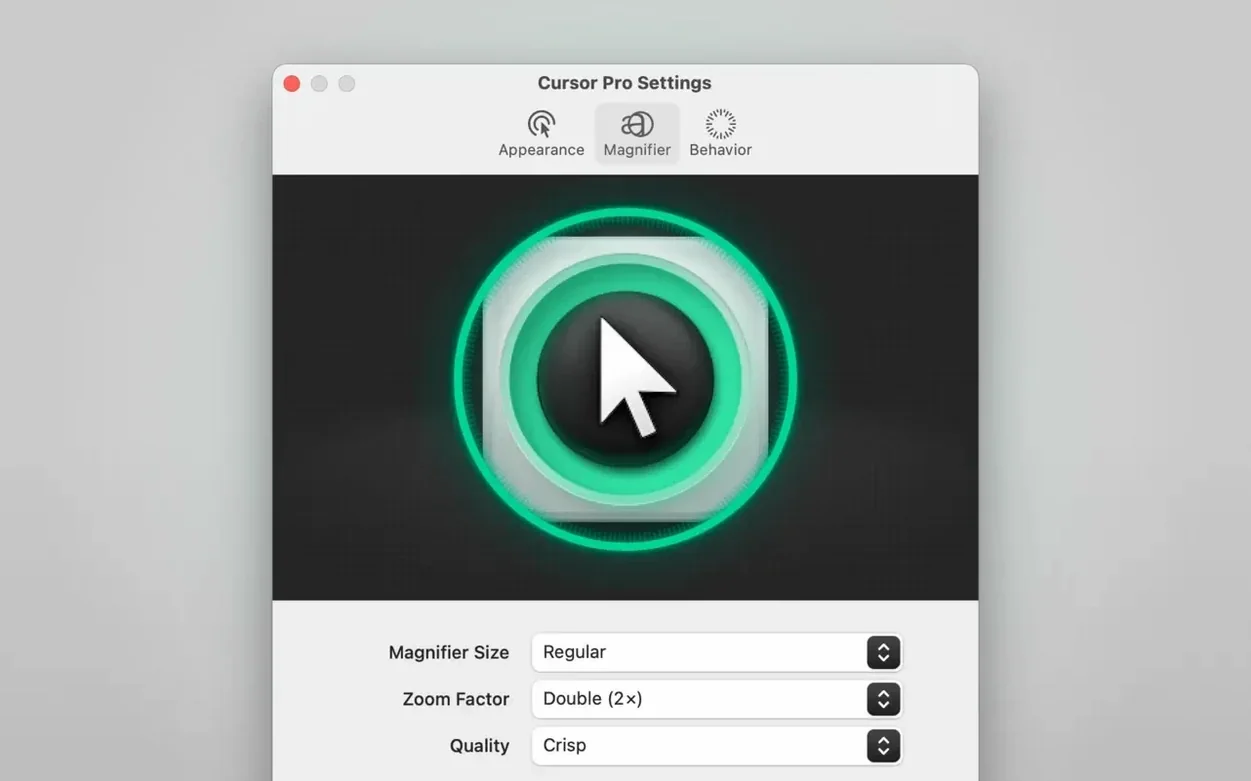
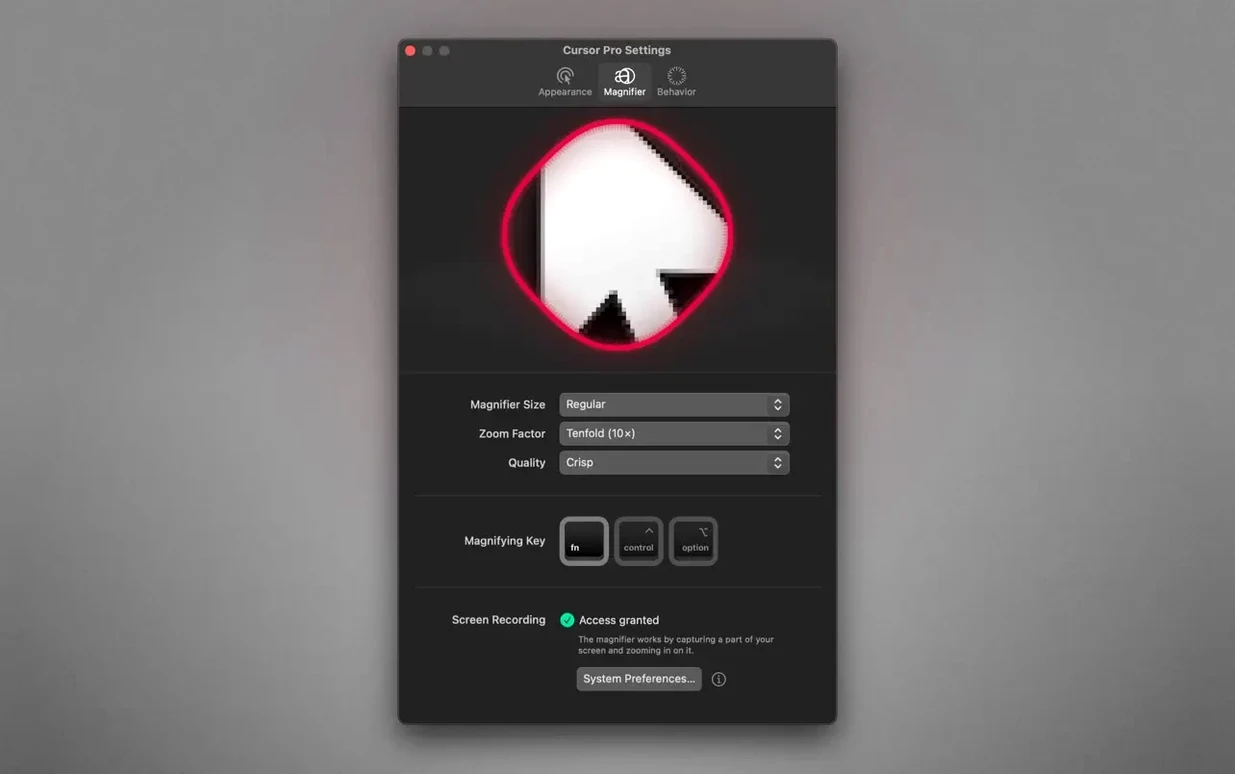
Teachers, presenters, and anyone who shares a screen regularly use Cursor Pro. It makes the mouse pointer visible by highlighting it with a customizable glow and an optional pulse. A built-in magnifier shows a close-up of the area around the cursor without switching to a full-screen capture tool.
Who It Helps
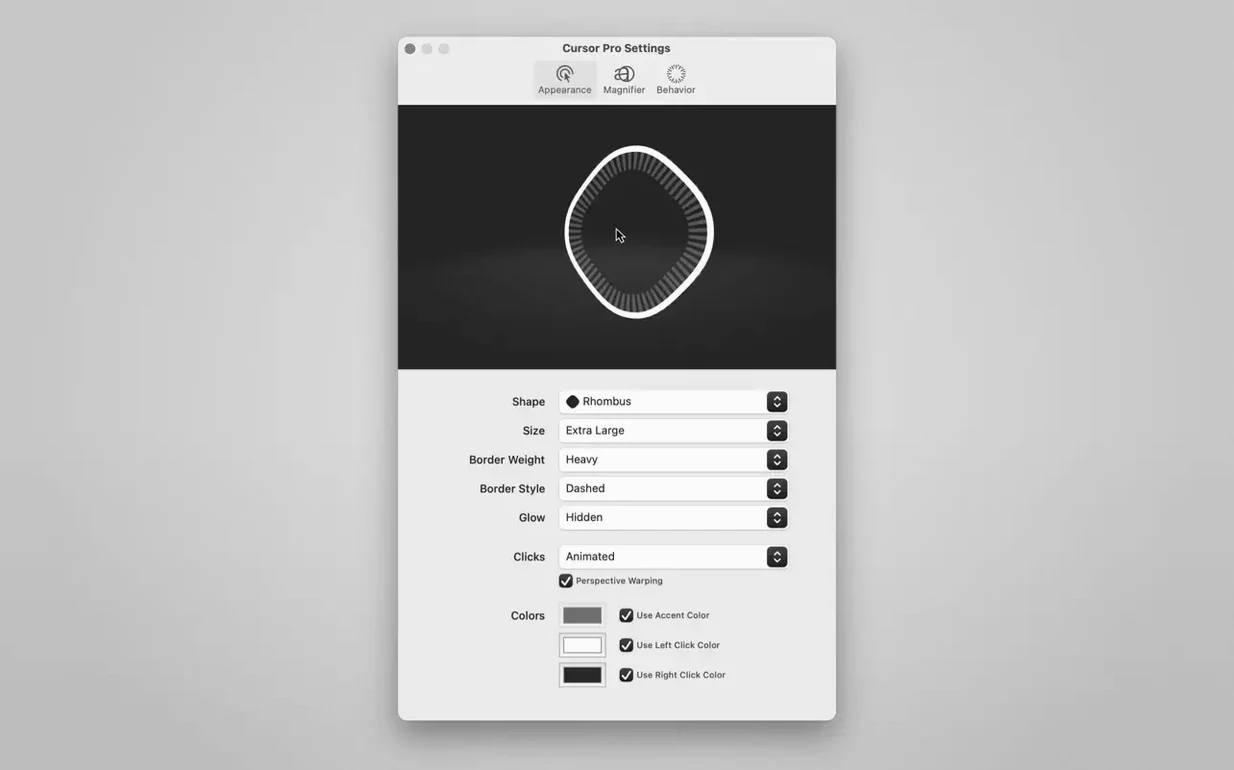
If you present slides, record tutorials, or work on a large display, this app keeps your audience from losing the pointer. The highlight shape and size are adjustable. The app lives in the menu bar by default, but you can also show it in the Dock or set it to launch automatically at login. It works with screen-sharing software when you share the whole screen.
Simple Setup
Cursor Pro runs on macOS 11 or later on both Apple Silicon and Intel Macs. Interface languages include English, German, Spanish, Italian, Simplified Chinese, Korean, French, and Japanese. Just download the disk image, drag the app to Applications, and open it from Launchpad.
Toggle Highlight Without the Mouse
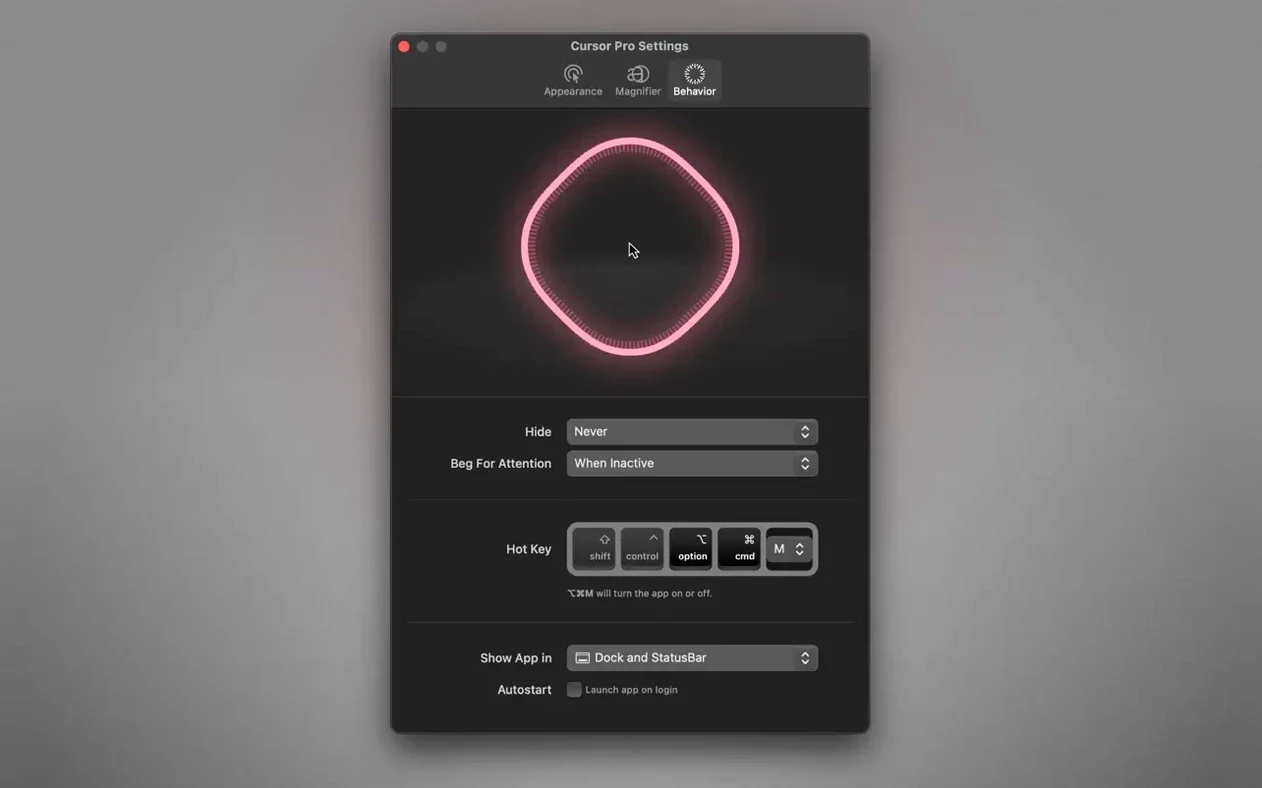
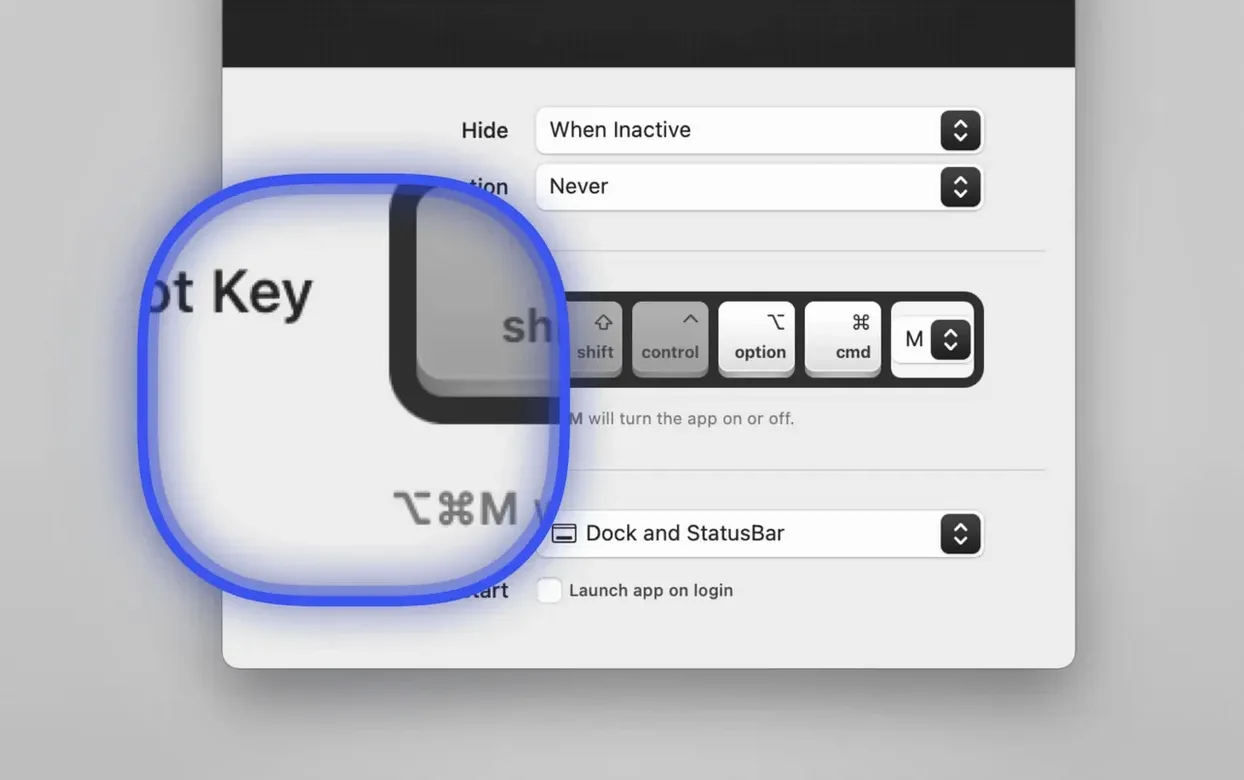
Cursor Pro stays out of the way during everyday use. The global hotkey lets you toggle the highlight or magnifier without reaching for the mouse. The app supports auto-hide behavior, so the highlight disappears after a few seconds of inactivity. Move the mouse again and it reappears. This keeps the screen clean during long presentations.
The magnifier works alongside the highlighter, not instead of it. Set a zoom factor that works for your display. When sharing a screen with a recording app, the magnified area stays contained to the cursor region. The rest of the screen shares normally. This avoids the disorienting jump of a full-screen zoom tool.
Circle or Diamond Shape and Adjustable Glow
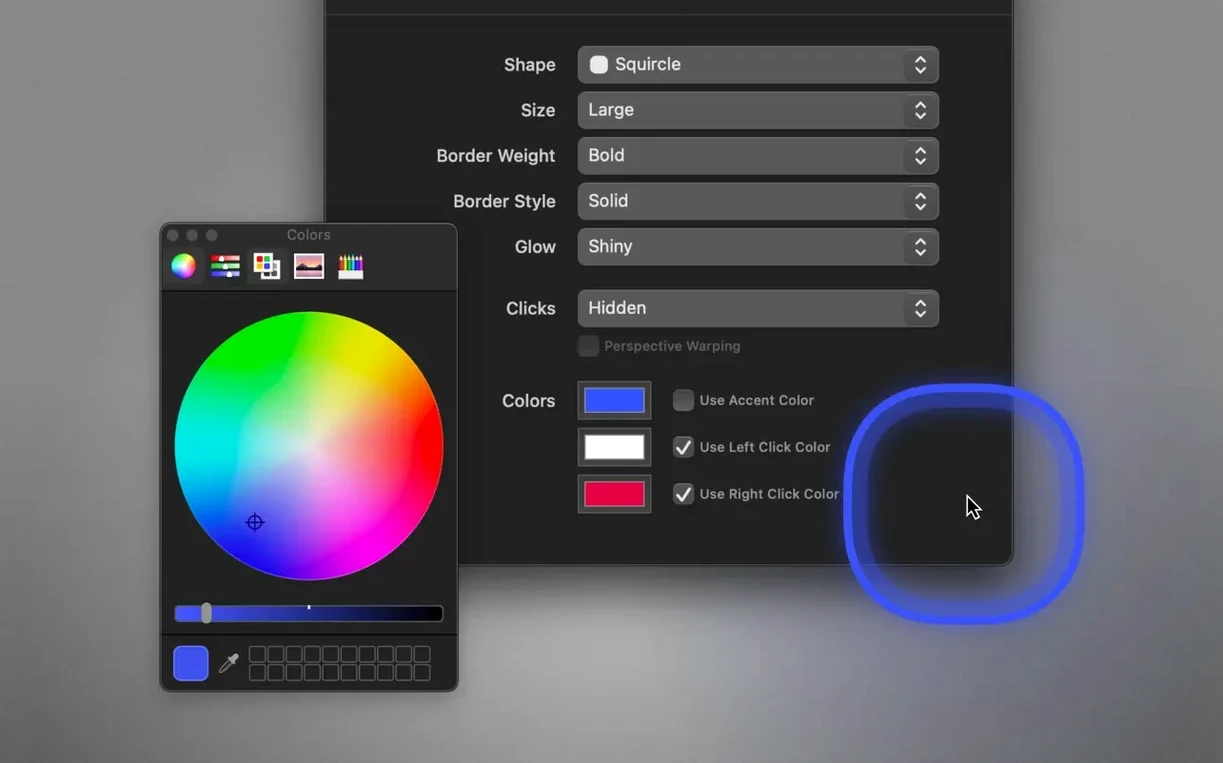
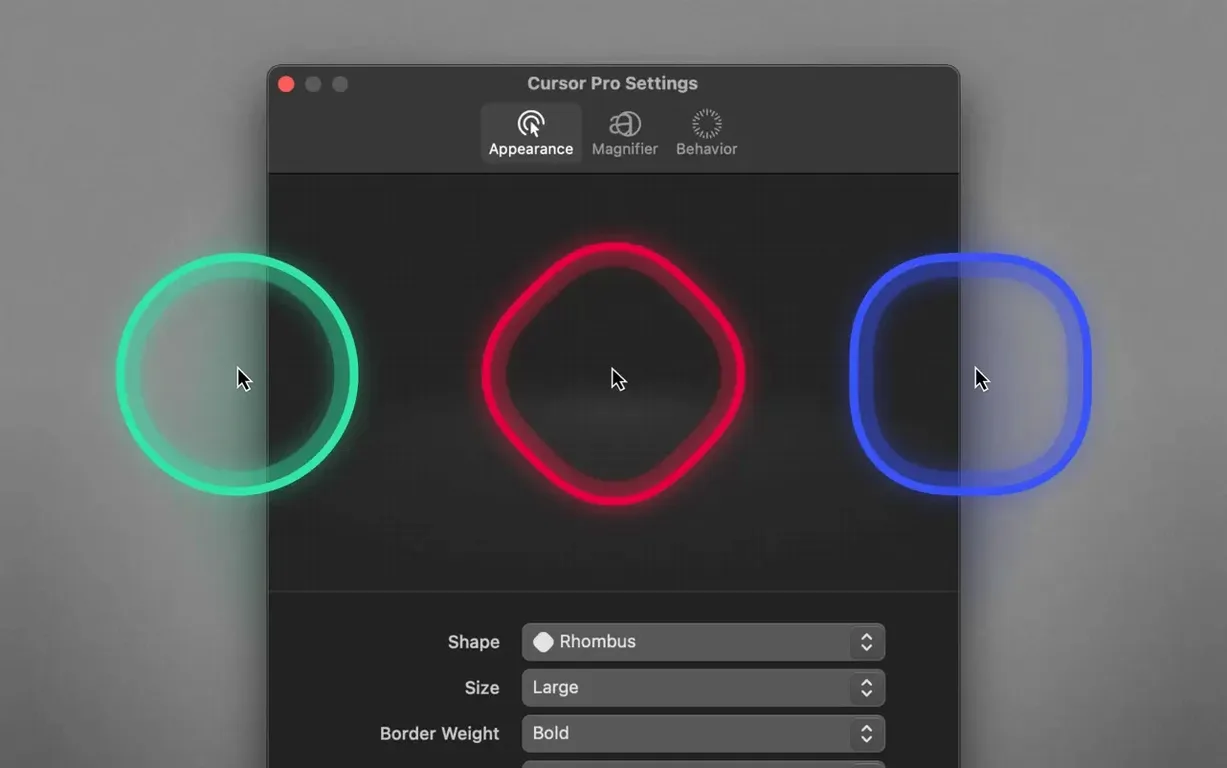
- Circle or diamond shape. The highlight can use either geometry. Switch depending on what shows up better on your background.
- Customizable glow. Adjust the glow effect independently of the color. A bright glow on a dark background works differently than a subtle one on light content.
- Cursor pulse. The pointer pulses periodically so a stationary cursor stays visible even when you aren't moving it.
- Dock or status bar placement. Keep the icon in the Dock, the menu bar, or both. Pick the placement that doesn't clutter your workspace.
These details matter when you're teaching a step-by-step process or walking through a file. The highlight follows the cursor naturally, and the magnifier tracks movement without lag. The whole setup is controlled from the menu bar. No separate config panel needed.
Cursor Pro does one thing and does it well. It makes the cursor visible and magnifies screen content. That's it. The app is tailored for professional screen presentations, and it fits into whatever workflow you already have.
How It Fits With Other Apps and macOS Features
Cursor Pro works alongside screen-sharing and recording apps without conflict. Share your full screen in Zoom, QuickTime Player, or OBS, and the highlight and magnifier show up for viewers. The app does not capture or record anything itself, so you keep using whatever screen-recording tool you already have.
The magnifier respects macOS display settings like scaled resolution and color profiles. If you use multiple monitors, the highlight follows the cursor across each display. The auto-hide behavior works with Stage Manager and full-screen apps, so the highlight only appears when the cursor moves. Launch at login integrates with macOS Login Items, so the app starts before you open presentation software.
Small Conveniences
- Status bar only. Hide the Dock icon and keep Cursor Pro in the menu bar. The app takes up less space on screen this way.
- Launch at login. Set it once. The app starts automatically before you open Keynote, PowerPoint, or a recording session.
- Auto-hide. The highlight fades after inactivity and returns when you move the mouse. No manual toggle needed during a long talk.
- Global hotkey. Turn the highlight or magnifier on and off without clicking the menu bar icon.
These features mean you set up Cursor Pro once and forget about it. The app handles the cursor highlight and magnifier in the background during presentations or screen shares. The cursor torrent is available if you want to try it before buying.
- macOS 11 or later
- Apple Silicon or 64-bit Intel processor
The install order
- Open the downloaded disk image.
- Drag Cursor Pro into the Applications folder alias.
- Once copying finishes, open the app from Launchpad.