Free download (31 MB) Previous versions
- Version
- 2026.09.13
- Developer
- dBpoweramp
- Languages
- English
- License type
- Not required
| macOS range | macOS 11 or later |
|---|---|
| Chip | Apple Silicon, Intel 64-bit |
| Download | 31 MB |
| Previous versions | 5 on file |
Screenshots
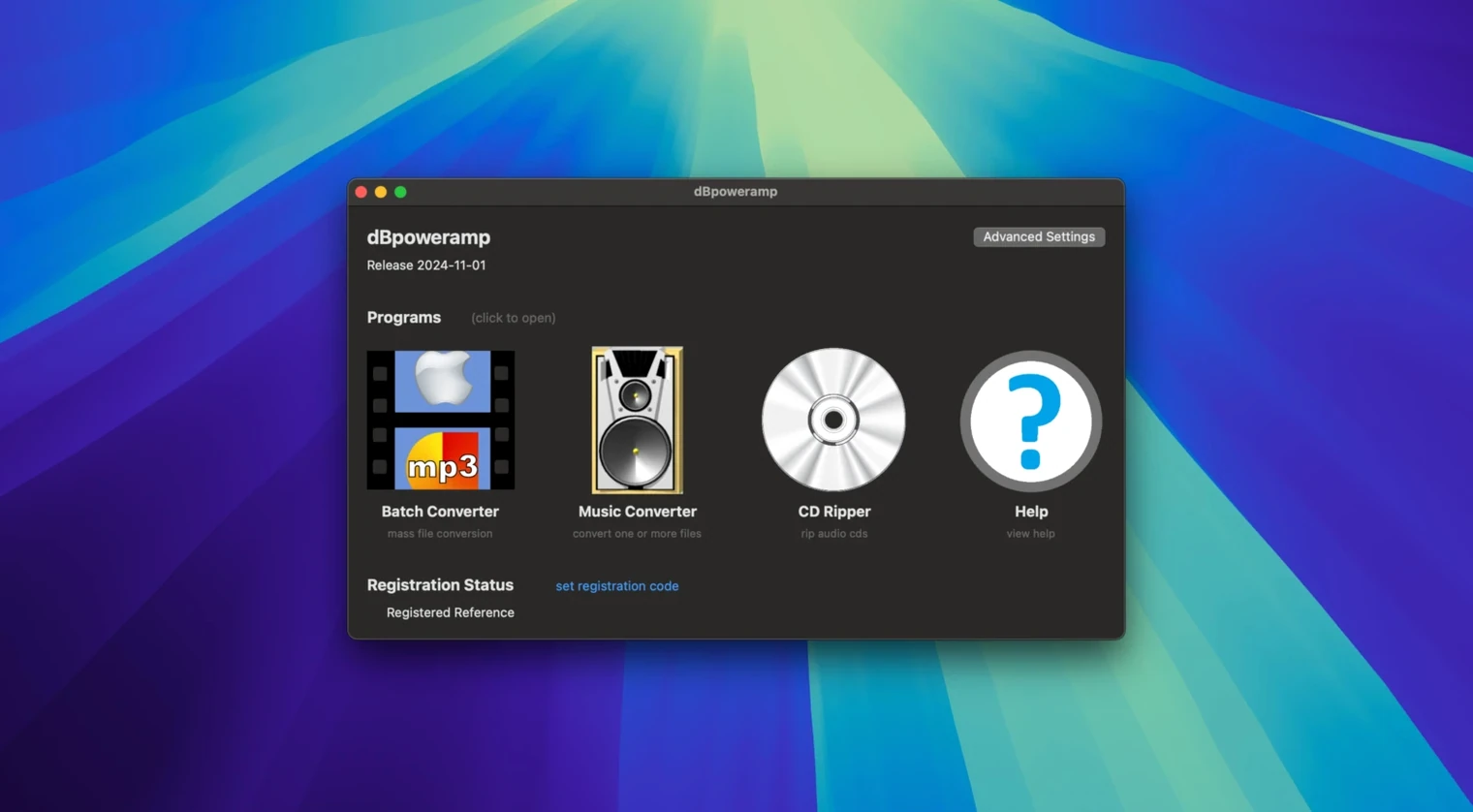
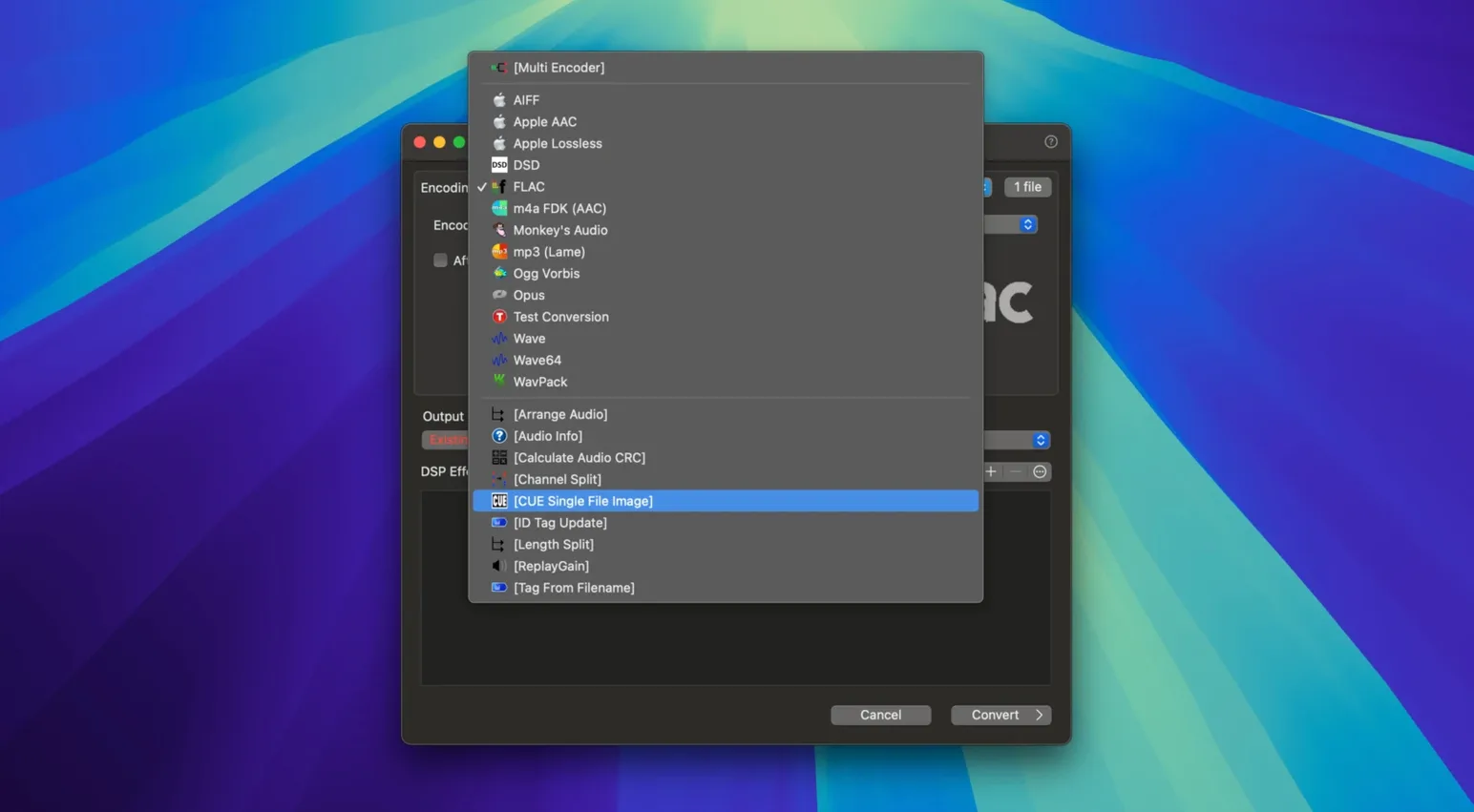
Scroll the row, it snaps to each screenshot. Click one to see it wider.
The current release, 2026.09.13, brings resampling improvements and fixes the Edit Tags Enter key when autocomplete is visible. The Intel-only warning on the latest macOS is also sorted. If you work with audio files daily, this update is worth a look.
Batch converts MP3, M4A, WAV, AIFF, FLAC, and Apple Lossless
- Batch converting between MP3, M4A, WMA, WAV, AIFF, AAC, FLAC, and Apple Lossless.
- Keeping ID tags and artwork intact through conversion.
- Editing tags directly, without a separate tool.
- Ripping CDs via the included CD Ripper.
- Quick access from Finder with the Convert with dBpoweramp action.
Requires macOS 11, English-only interface
- Runs on macOS 11 or later, both Apple Silicon and Intel 64-bit.
- Interface is English only.
- Finder integration is macOS-specific; Windows users get a similar shell extension.
Drag-and-drop install on Apple Silicon and Intel Macs
dBpoweramp Music Converter 2026.09.13 needs macOS 11 or later. It runs on Apple Silicon and Intel 64-bit Macs. The install is a drag-and-drop from a disk image. After copying, launch it from Launchpad.
The app adds four shortcuts to your system: Music Converter, Batch Converter, ID Tag Editor, and Finder Services. The Finder integration adds a Convert with dBpoweramp option to the right-click menu. This works with selected audio files. Multi-core encoding means the app uses available CPU cores during batch jobs. Expect it to finish large conversions without holding up other tasks.
CD Ripper is included for macOS. It handles disc extraction alongside the main converter. Resampling improvements in this version affect how sample rate and bit-depth conversions are handled. The fix for the Edit Tags Enter key means you can close tag dialogs without accidentally submitting an incomplete autocomplete suggestion.
Fix missing Finder integration by relaunching Finder
- Finder integration missing. If Convert with dBpoweramp does not appear in the right-click menu, restart Finder. Hold Option, right-click the Finder icon in the dock, and select Relaunch. If it still does not show, re-drag the app to Applications and relaunch.
- Intel-only component warning. On the latest macOS, a warning about an Intel-only component may appear. Version 2026.09.13 fixes that. Install the current build and the warning should stop.
- Tags not saving after edit. The ID Tag Editor uses the Enter key to confirm. With autocomplete visible in version 2026.09.13, Enter closes the dialog as expected. If you are on an older build, upgrade to the current one.
- Large batch conversion pauses. Multi-core encoding can cause a brief stall while the app splits the job across cores. Let it finish. If the app appears unresponsive, wait a few seconds before forcing a quit.
Workflow: Convert a batch of FLAC files to MP3 with volume normalization
- Open Music Converter from Launchpad or the Applications folder.
- Drag a folder of FLAC files into the Music Converter window. The app lists each file with its current format and bitrate.
- Click the output format dropdown and choose MP3. Adjust the bitrate or quality setting as needed.
- Enable DSP processing. Click the DSP button and add Volume Normalize. Optionally add Sample Rate or Bit-Depth conversion if the target device requires specific settings.
- Set the output folder. Click the folder icon and pick where the converted MP3 files should land.
- Click Convert. The multi-core encoder splits the work. A progress bar shows each file as it finishes.
- When conversion completes, open the output folder. ID tags and artwork from the original FLAC files carry over to the MP3s. Use the ID Tag Editor to make any final adjustments.
For an experienced user, the tag preservation and CD Ripper make it a solid utility, not just a converter.
- Resampling improvements added.
- Fixed Edit Tags Enter key behavior when autocomplete is visible.
- Fixed warning about an Intel-only component on the latest macOS.
- macOS 11 or later
- Apple Silicon or Intel 64-bit
- Interface: English
Questions I get about this line
Yes, it runs natively on both Apple Silicon and Intel 64-bit Macs, as long as you have macOS 11 or later.
The install order
- Open the downloaded disk image.
- Drag the app to the Applications folder alias.
- Launch the app from Launchpad after copying finishes.