- Version
- 2.6.1
- Developer
- Thomas Tempelmann
- Languages
- English
- License type
- K'ed by TNT team
| macOS range | OS X 10.11 or later |
|---|---|
| Chip | Apple Silicon, Intel 64-bit |
| Download | 14 MB |
Screenshots
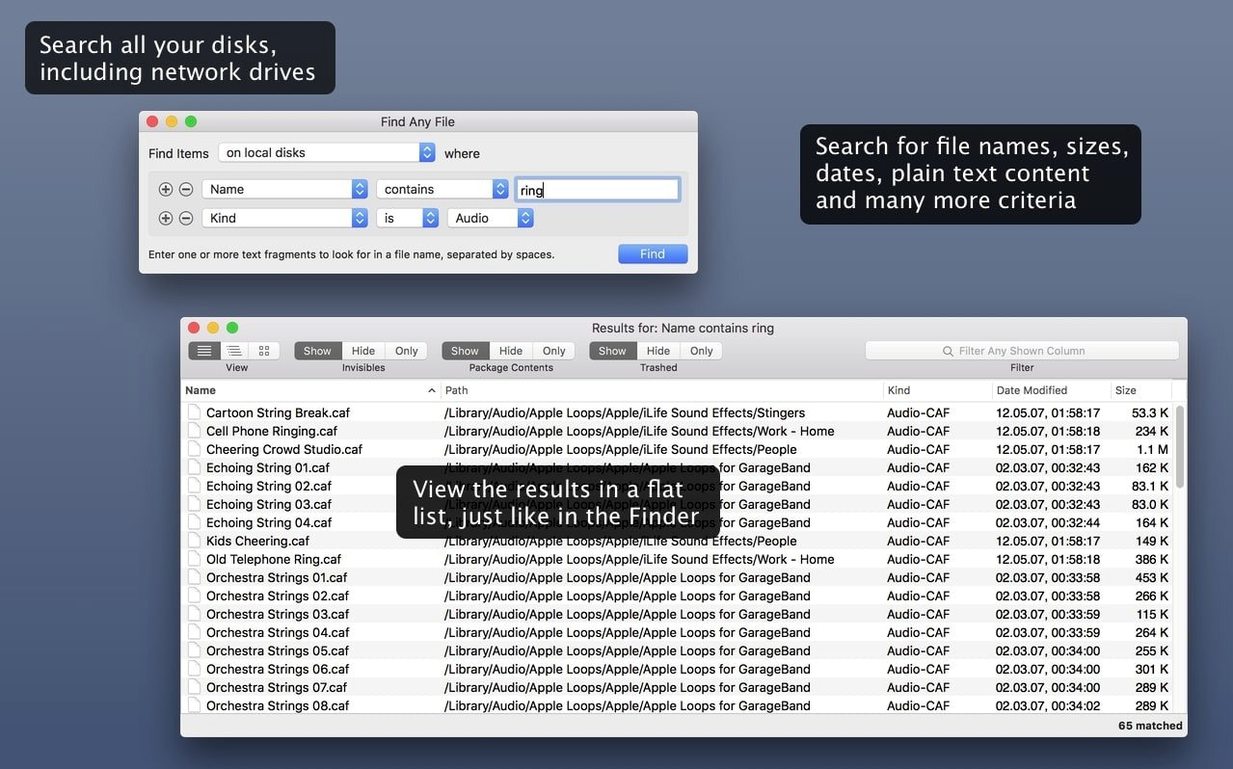
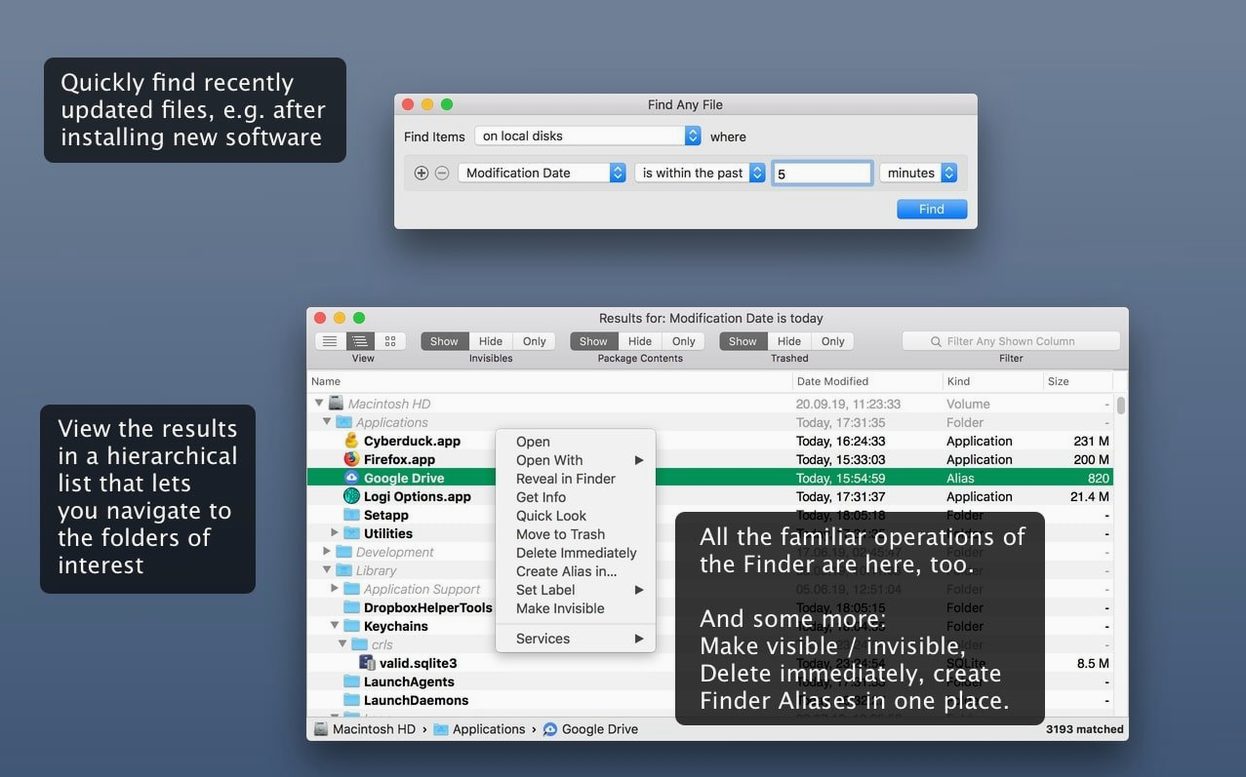
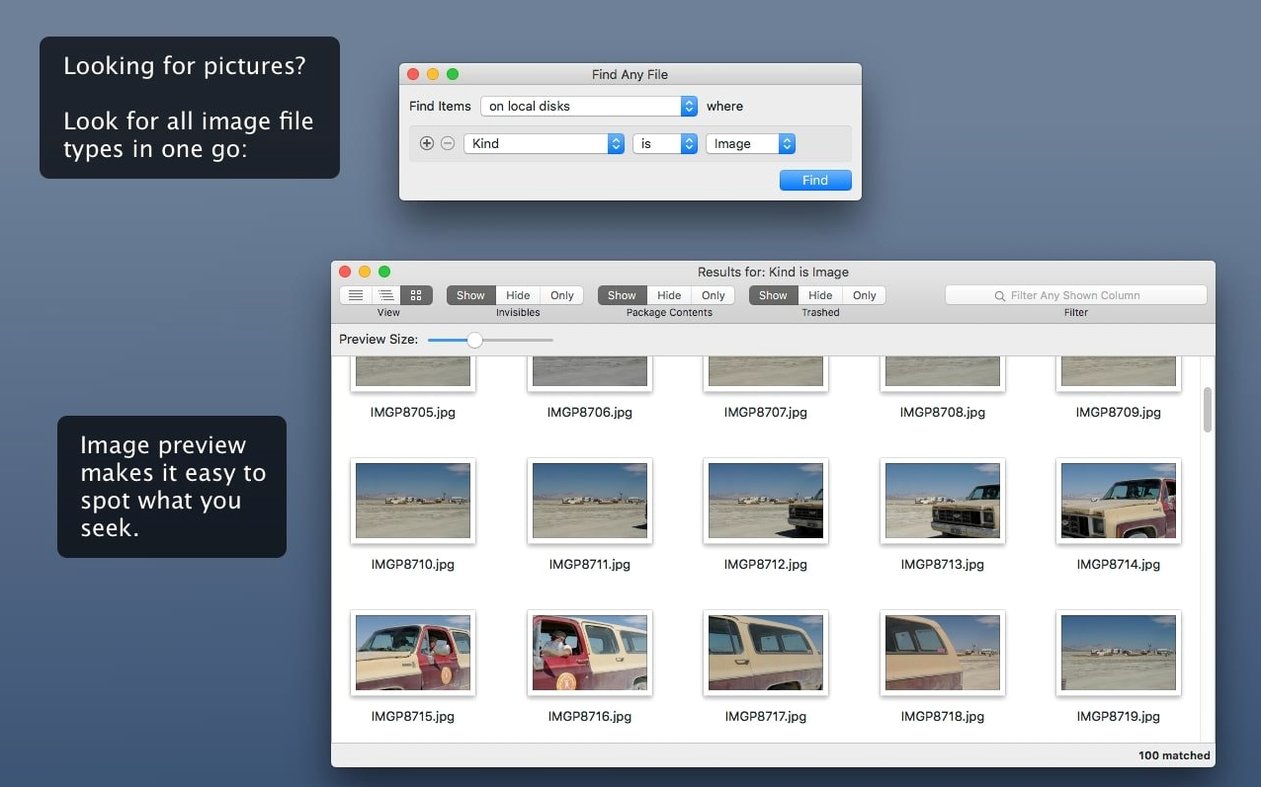
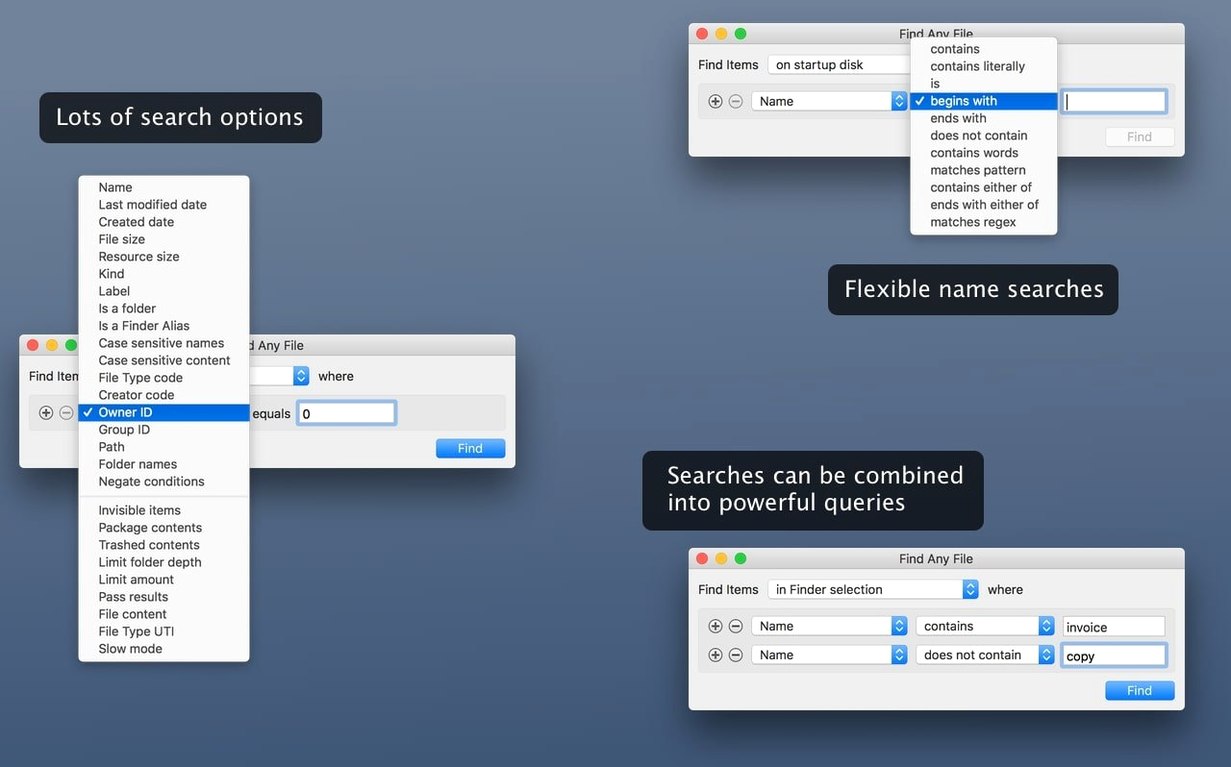
Scroll the row, it snaps to each screenshot. Click one to see it wider.
Find Any File 2.6.1 brings AppleScript support, so you can script searches. The 2.6 release also added columns for Comments, Trashed, and Hidden, and made comment finding more reliable. If you're new to the app, here's a quick workflow to get value fast.
- Launch Find Any File. It scans disks directly, no database to build.
- Type a filename fragment. Results appear in a hierarchical folder view.
- Switch to the date, size, or text tabs to narrow by those criteria.
- Look inside a bundle or package if your file hides there—Find Any File can search inside them.
- Check system folders that Spotlight skips. The app finds files there too.
Let First Searches Finish Before Changing Criteria
The most common mistake is expecting Spotlight-style speed. Find Any File reads disks directly, so first searches on large volumes take time. Let it finish before you change criteria.
Another one: typing too much. You don't need the full filename. A fragment works, and the hierarchical view shows matches in context. Beginners often clear the search field to start over instead of using the tabs to refine what's already found.
A third error is forgetting that Find Any File searches plain text only. It won't find text inside Word docs or PDFs. That's Spotlight's job. If you search for a phrase and get no hits, check whether the file format is unformatted text.
People also skip the bundle and package search. If you work with developer tools or system files, files can live inside .app bundles or .pkg packages. Find Any File can look inside those, but you have to enable the option in the search settings. Beginners miss that and wonder why files don't appear.
Direct Disk Scan Beats Spotlight's Database for System Folders
App Approach Best For Find Any File (FAF) Direct disk scan, no database Finding files Spotlight misses, searching system folders and network volumes Tembo Improves Spotlight's index Users who want better Spotlight results without learning a new interface Everything (via Bootcamp or third-party) Index-based, instant results Users who need near-instant search on local drives onlyFAF and Tembo serve different needs. Tembo enhances Spotlight's own index, so it's fine if Spotlight already covers your drives. FAF works where Spotlight doesn't—server volumes, system folders, and inside bundles. Everything is fast but Windows-only unless you run it in a VM. FAF runs natively on Mac and covers both Intel and Apple Silicon.
Use It as a Spotlight Companion, Not a Replacement
Will Find Any File replace Spotlight?
No, and it's not meant to. The developer presents it as a companion. Use Spotlight for email, Word docs, and PDFs. Use FAF when Spotlight comes up empty, or when you need to search a network drive or system folder.
Does it need a database to build?
No. It reads the disk directly each time. That means zero setup time and no background indexer consuming CPU, but it also means initial searches take longer than an indexed tool would.
Can I search by file content?
Yes, but only plain text. If your files are Markdown, log files, or source code, FAF finds text inside them. For formatted documents like Word or PDF, you need Spotlight or a dedicated document search tool.
Does it work on Apple Silicon Macs?
Yes. Version 2.6.1 runs on both ARM and x86 (64-bit) Macs, from OS X 10.11 up through macOS 27.
How do I get it running after download?
Mount the disk image, press Enter in the Terminal window to bypass Gatekeeper, then drag the app to your Applications folder. Launch when the copy finishes.
That covers the basics. For a next step, try searching by comments using the new column—it's handy for files you've annotated in Finder.
- AppleScript support added in version 2.6.
- New columns: Comments, Trashed, Hidden.
- Finding comments is now more reliable.
- macOS 10.11 or later
- Intel or Apple Silicon
The install order
- Mount the disk image and run Open Gatekeeper friendly.
- Press Enter in the Terminal window to bypass Gatekeeper.
- Drag the app to the Applications folder.
- Start the app once copying finishes.