
- Version
- 8.2.17 [MAS]
- Developer
- iwaxx Sarl
- Languages
- English
- License type
- Not required
| macOS range | macOS 11 or later |
|---|---|
| Chip | Apple Silicon, Intel 64-bit |
| Download | 17 MB |
Screenshots
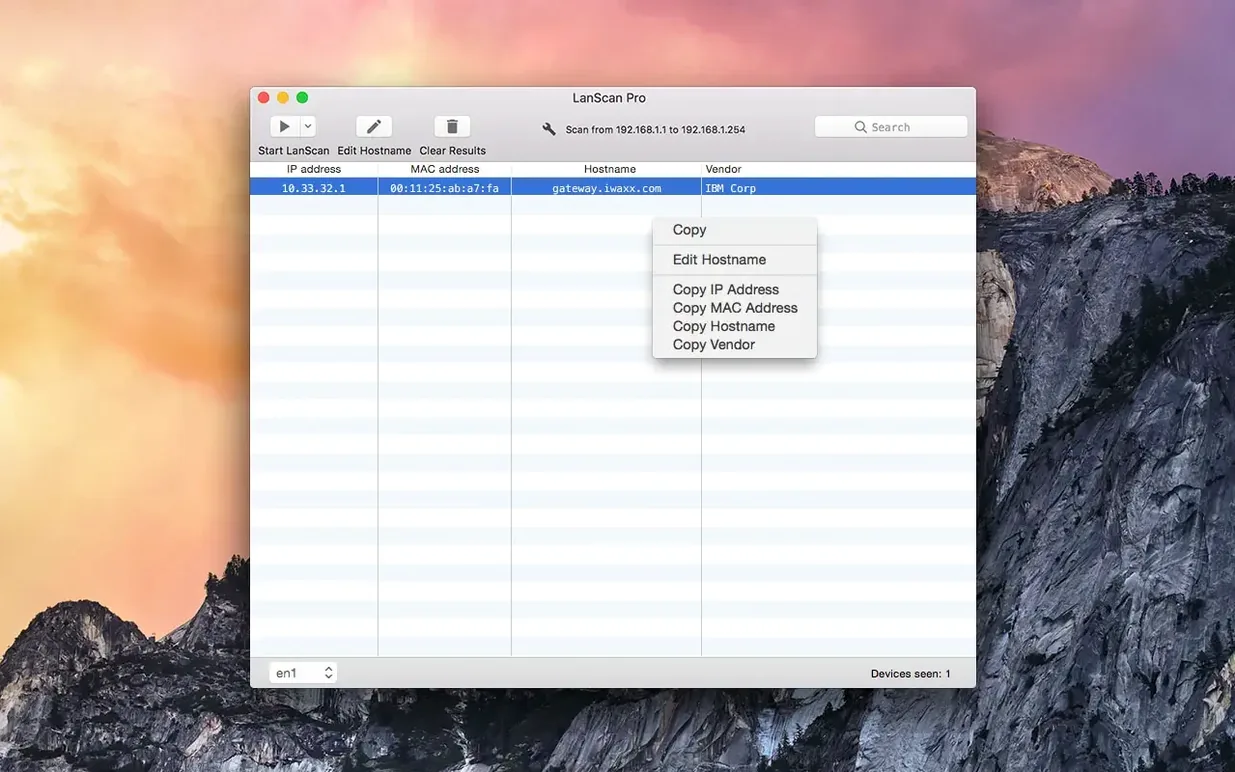
Scroll the row, it snaps to each screenshot. Click one to see it wider.
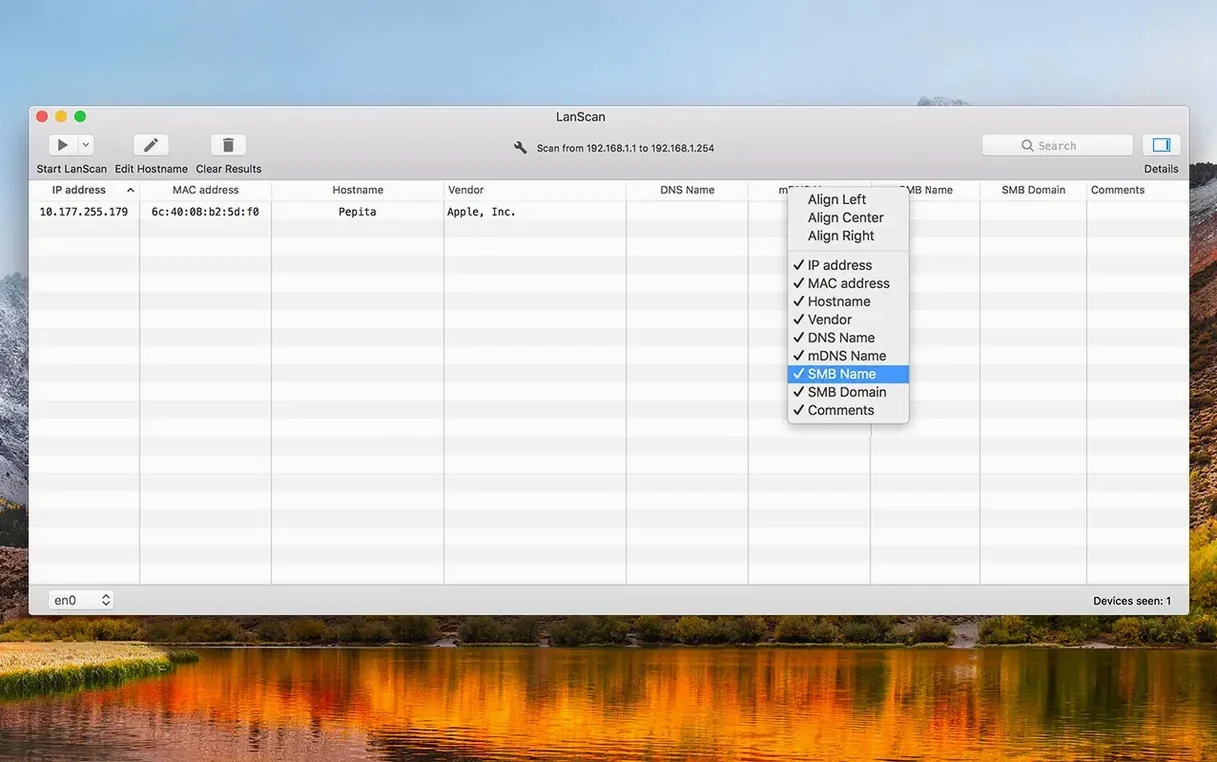
Column alignment per field is the sort of detail most scanners gloss over. LanScan lets you adjust each column independently, so a long host name doesn’t wreck the whole layout. That attention carries through the rest of the tool.
| Detail | Value |
|---|---|
| Version | 8.2.17 |
| Developer | iwaxx Sarl |
| Category | Utilities |
| macOS | 11 or later |
| Architecture | Apple Silicon / Intel |
| Languages | English |
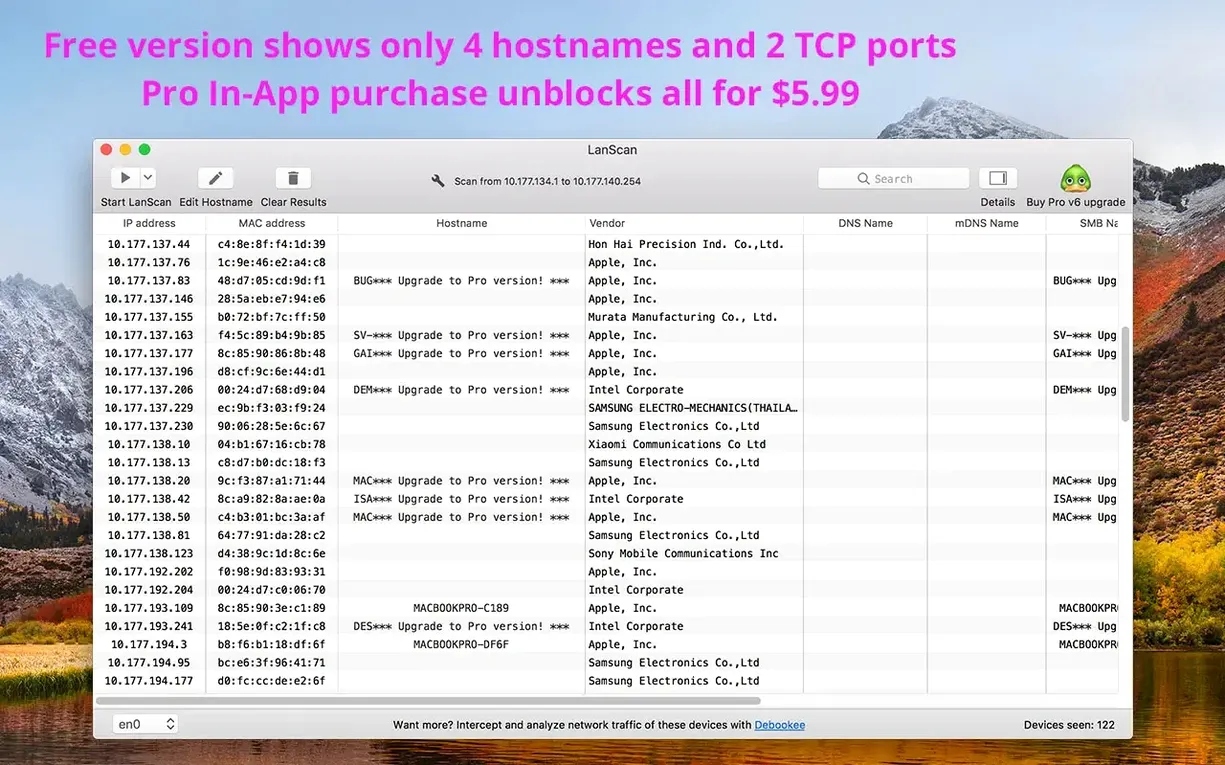
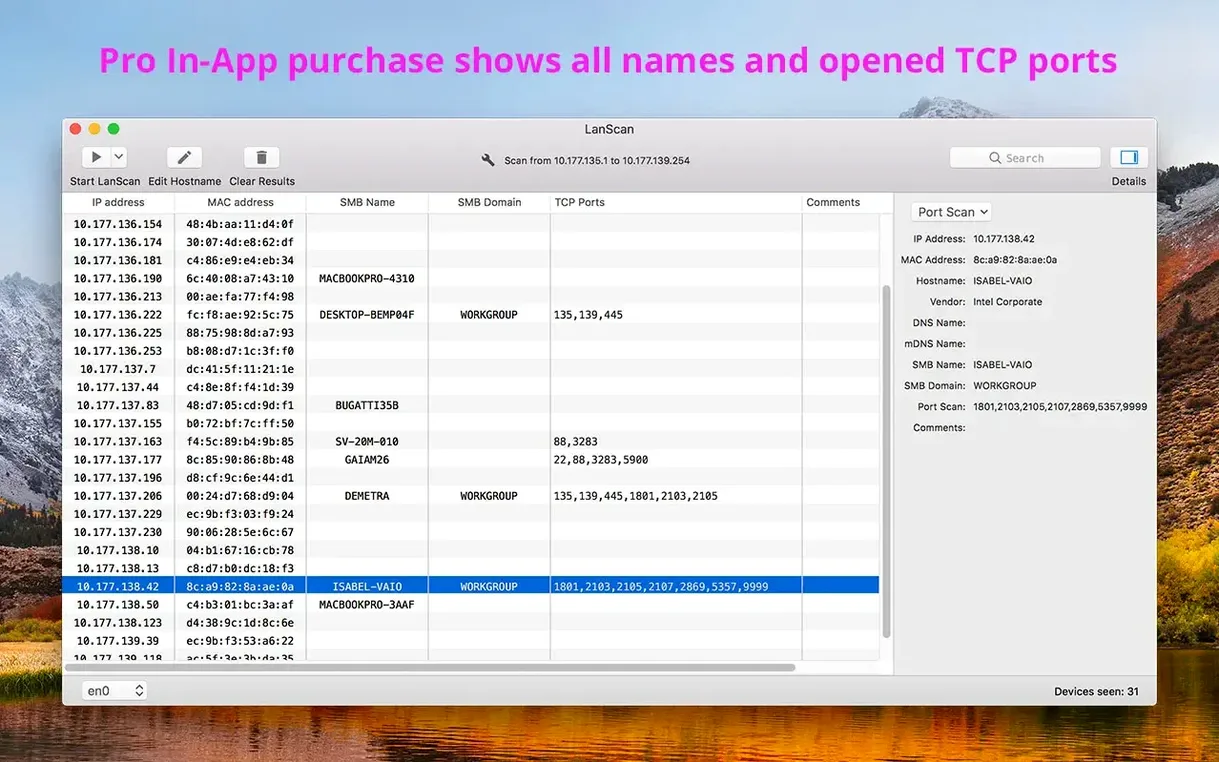
For experienced users, the deeper tools matter. LanScan resolves host names through DNS, mDNS, and SMB, and can display up to four names per device. It detects SMB domains when configured, auto-detects interfaces like AirPort, Ethernet, and virtual ones, and scans both IPv4 and IPv6 subnets—local or public. There’s no limit on the number of devices found. You can hide or show each column, and even open a custom URL in a browser directly from the device list. That’s the kind of control that saves time on a busy network.
Virtual Interfaces and mDNS Fixes for Apple Silicon
Version 8.2.17 is a maintenance release, so the core workflow stays the same. The changes are under the hood: improved handling of virtual interfaces on newer macOS builds, and better mDNS resolution for Apple Silicon machines. If you work on an M-series Mac with several Docker or VPN interfaces, you’ll notice fewer false positives in the device list. The export-to-CSV path also got a refresh — columns now map to the same order you see on screen, which saves a round of reordering in Numbers or Excel.
Scenario: A Sysadmin Checking a Dental Clinic’s After-Hours Network
Say you support a clinic with ten exam-room Macs, a central patient-records server, and a handful of Wi‑Fi printers. A hygienist reports that one workstation can’t reach the server. You’re at home, so you open LanScan, pick the office’s public subnet, and scan. The device list shows nine Macs, the server, and three printers. The tenth workstation is missing — its IP is unresponsive. You note the MAC address from the clinic’s asset log, add a comment in LanScan (“Room 4 iMac – needs cable check”), and export the CSV for the next on-site visit. Without a scanner, you’d be guessing.
One Session in Story Form
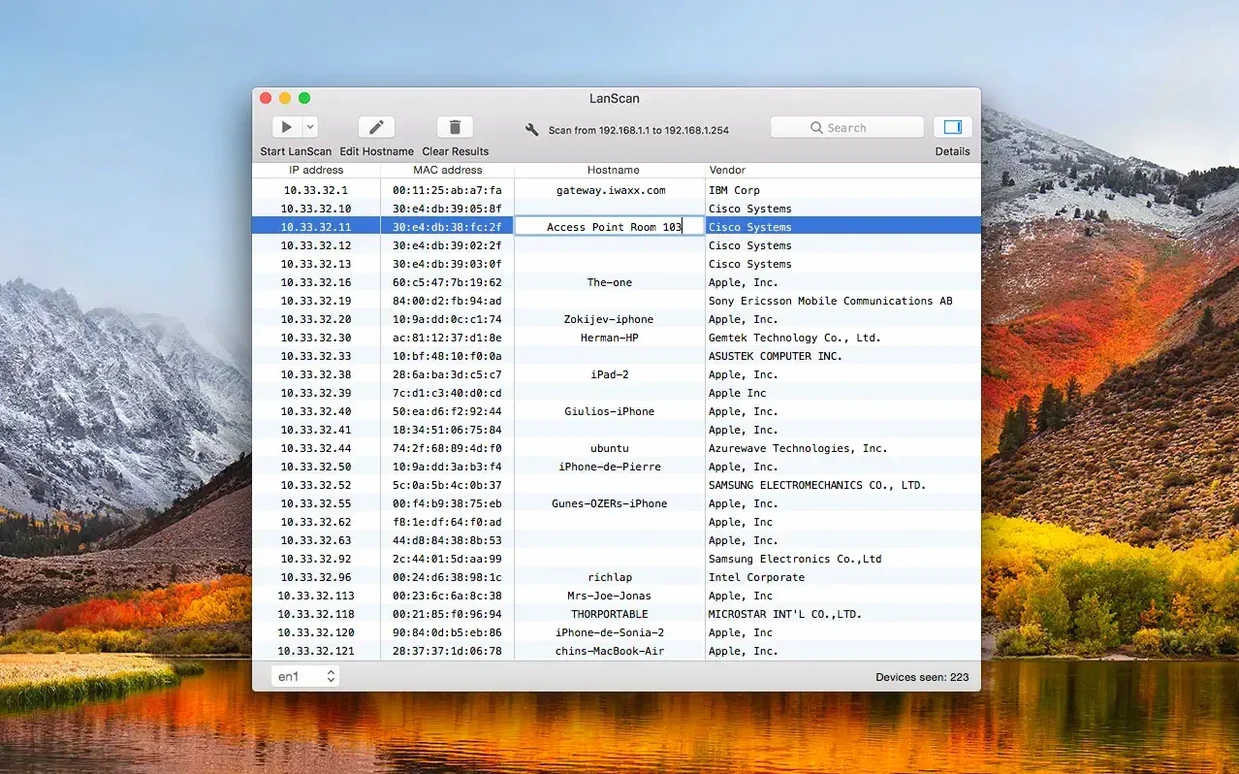
You open LanScan from Launchpad. The main window shows your active interfaces — AirPort and a VMware virtual adapter. You click the scan button. Within a few seconds, the table fills: IP, MAC, vendor, and host names. One entry shows “Apple” as the vendor, but the host name is blank. You right-click, edit the name to “Reception-iMac”, and add a comment: “last known IP 192.168.1.22”. The next step is checking for SMB domains. LanScan finds “CLINIC-SERVER” under the domain column — exactly what you expected. You then hide the vendor column to make the list tighter, align the IP column left and the host name center, and take a screenshot for the ticket. The whole session takes under two minutes. No terminal commands, no configuration files.
- macOS 11 or later
- Apple Silicon or Intel
Questions I get about this line
No. LanScan places no limit on the number of devices it can find on a subnet.
It resolves host names through DNS, mDNS, and SMB, and can show up to four host names per device.
Yes. It can find active devices on a local or configured public subnet, covering both IPv4 and IPv6.
The install order
- Open the downloaded disk image.
- Drag the app to the Applications folder alias.
- Launch the app from Launchpad once the copy finishes.