
Free download (18 MB) Previous versions
- Version
- 1.7.2 fix
- Developer
- Henrik Ruscon
- Languages
- English
- License type
- Included
| macOS range | macOS 13.1 or later |
|---|---|
| Chip | Apple Silicon, Intel 64-bit |
| Download | 18 MB |
| Previous versions | 2 on file |
Screenshots
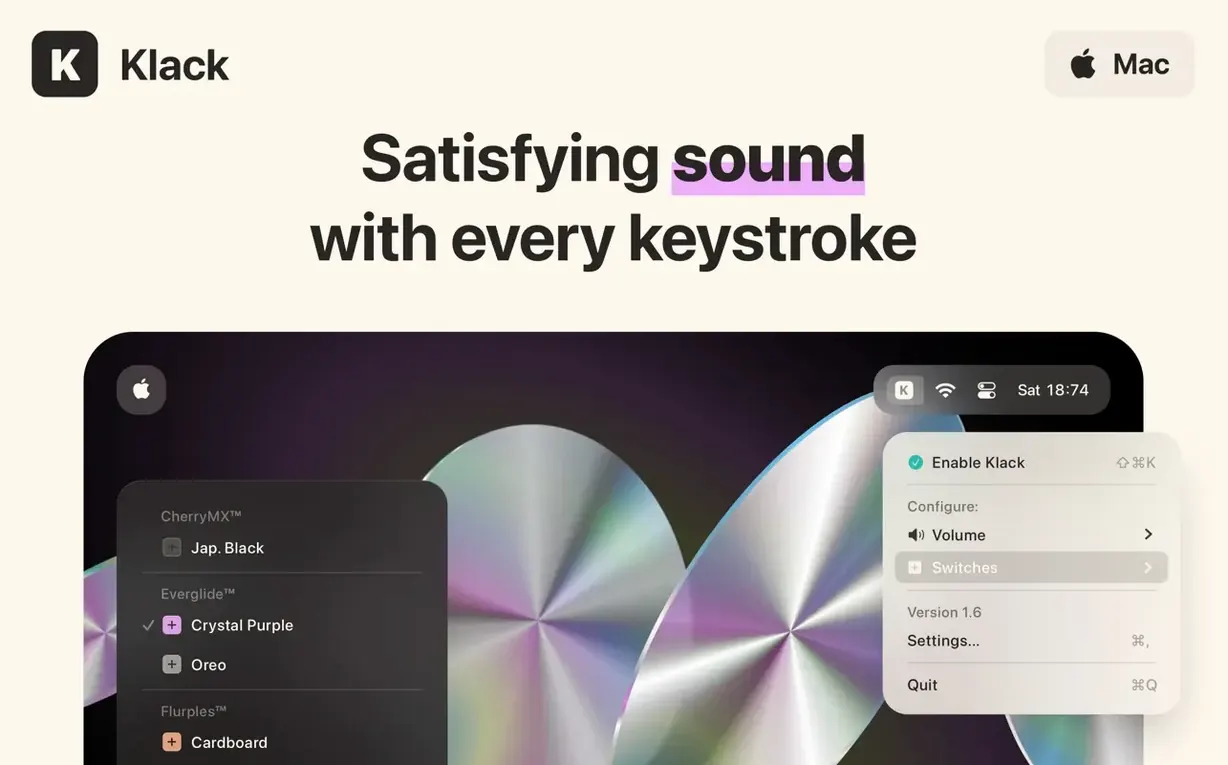
Click a screenshot to see it wider.
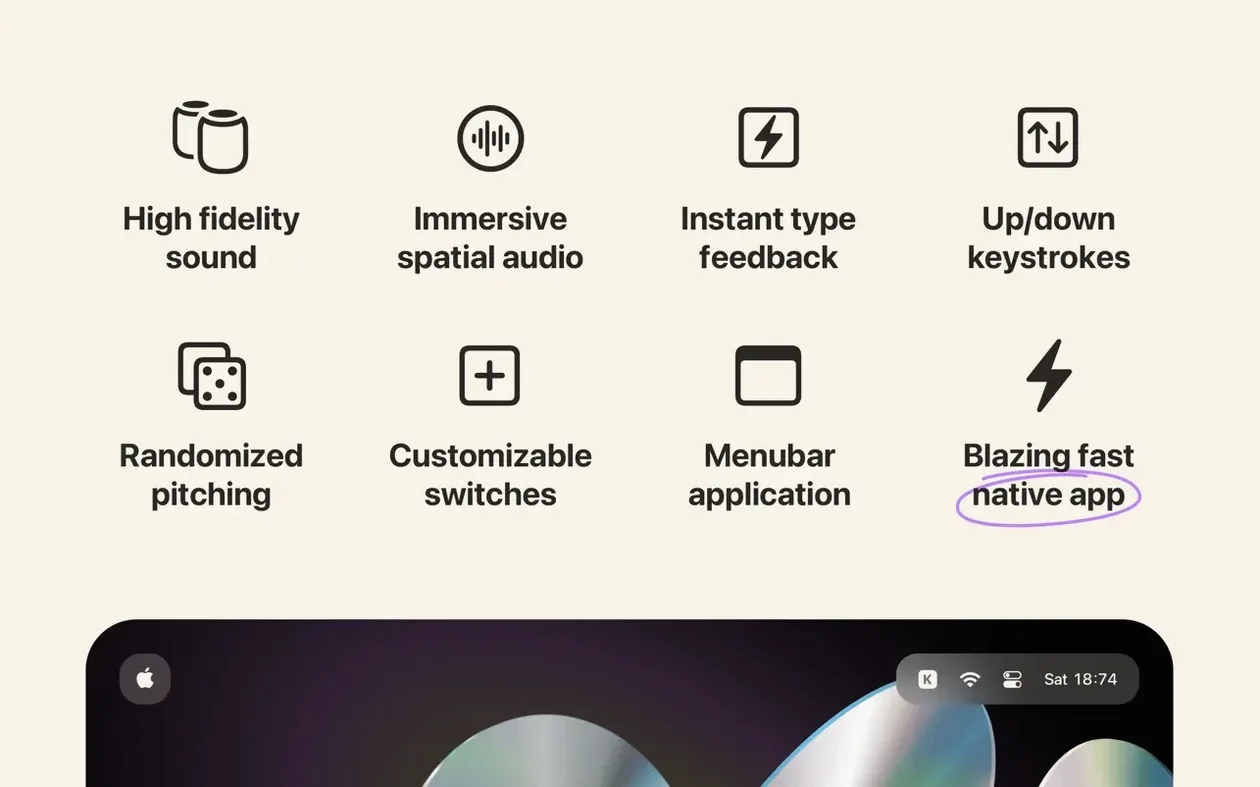
Spatial audio is the feature that separates Klack from the rest. It doesn't just click; it places the sound in space around you, so typing feels like you're at a real mechanical board. For an experienced user, that's the detail that keeps it from getting old.
What you'll want to know
- Key down and key up sounds are separate, so the thock and the release both land.
- Instant feedback while you type — no perceptible lag.
- Native Swift app. Light on resources, no Electron weight.
- Menu bar utility. Lives quietly, toggles fast.
- No data collection. The developer states it plainly.
Why it works
Klack is a menu bar utility that generates mechanical keyboard sounds during text entry. It's immersive spatial audio, not a flat sample loop. You adjust the volume and pick your switch style, and it responds to your actual typing rhythm. That's the deeper tool: it feels like an instrument, not a noise maker.
First days with Klack
After you download Klack for Mac and get it running, spend a few minutes with the switch selection. The default sound won't be everyone's preference. Cycle through the options while typing a paragraph of real text, not just random keys. The character you type matters — vowels, consonants and punctuation all land differently with each switch profile.
Set the volume lower than you think you need. Spatial audio works best when the sound sits in the room, not on top of your fingers. A quieter setting lets the spatial placement register without competing with your actual keyboard noise.
Leave the menu bar icon visible for the first week. It makes toggling quick when you switch from a quiet call to a solo work session. Once you know the keyboard shortcut, you can hide it.
Maintains typing rhythm during long edits
Writers and editors who spend hours in text input benefit most. The sound provides a rhythm that helps maintain typing pace, especially during long editing passes where visual fatigue sets in. Developers who work in a terminal or editor all day also find the audio feedback useful for catching missed keystrokes.
People who miss a mechanical keyboard but work in shared spaces — open offices, coffee shops — can use Klack with a laptop's built-in keyboard or a low-profile external board. It fills the tactile gap without carrying a second keyboard. Mac users on the latest macOS 13.1 or later on either Apple Silicon or Intel hardware can run it without compatibility issues.
Users who prefer quiet environments should still consider it. The spatial audio engine lets you keep the volume low and still get clear feedback. It's not meant to fill a room.
Select a switch profile for your typing task
- Open Klack from the menu bar and select a switch profile that matches the kind of typing you plan to do. Crisper switches for fast drafting, deeper ones for editing.
- Adjust the volume to a level where you can hear each keystroke clearly but not distract yourself. Check it by typing a full sentence.
- Close other audio apps or lower their volume. Klack's spatial audio works with system sound, but competing audio sources muddy the effect.
- Open your writing or coding application. Start typing at your normal pace. Pay attention to the key-up sound — it tells you when your fingers lift, which helps avoid accidental double-strikes.
- Keep the menu bar toggle handy for quick changes.
This routine takes about two minutes to set up and works for any extended text entry task. A free download of Klack for Mac from the catalog gives you the same v1.7.2 build with spatial audio and switch customization built in.
- macOS 13.1 or later
- Intel or Apple Silicon
Questions I get about this line
Yes. The app runs on both Intel and Apple Silicon, so it works on any Mac with macOS 13.1 or later.
No. The developer's website states the app collects no data or personal information.
It plays mechanical keyboard sounds, including separate key down and key up clicks, with spatial audio for immersion.
The install order
- Open the downloaded disk image.
- Drag the app to the Applications folder alias.
- After copying finishes, launch the app from Launchpad.