
Free download (79 MB) Previous versions
- Version
- 22.5.0
- Developer
- Movavi
- Languages
- English, German, Spanish, Italian, Chinese (Traditional), Chinese (Simplified), Korean, Dutch, Polish, Portuguese, Turkish, French, Japanese
- License type
- K'ed by TNT team
| macOS range | macOS 10.13 or later |
|---|---|
| Chip | Intel 64-bit |
| Download | 79 MB |
| Previous versions | 1 on file |
Screenshots
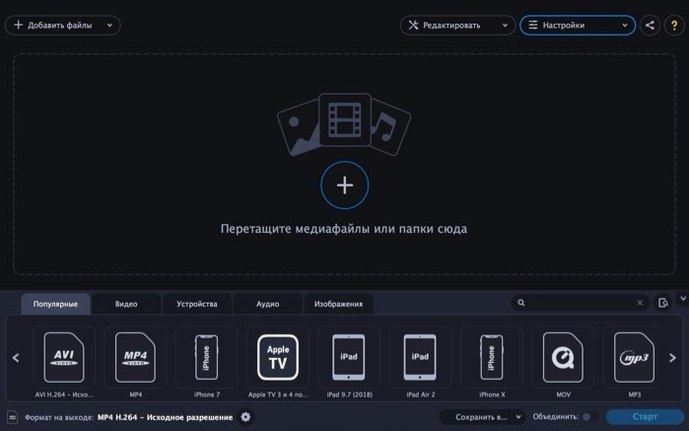
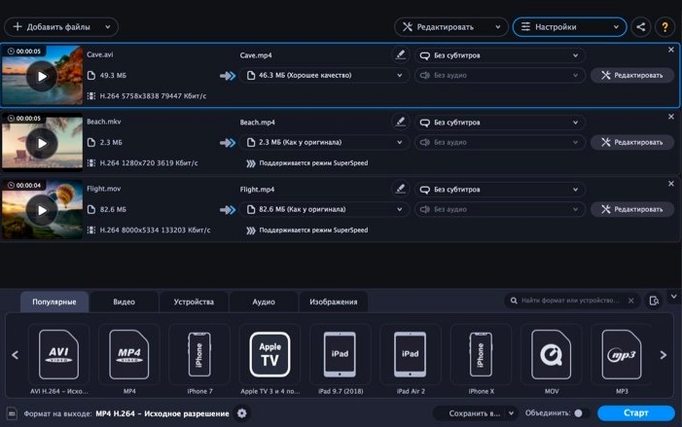
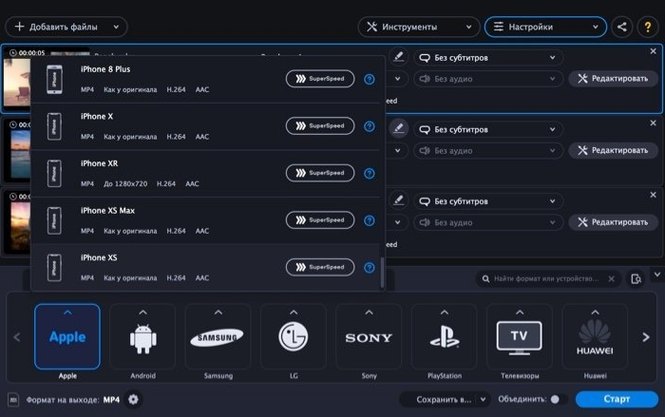
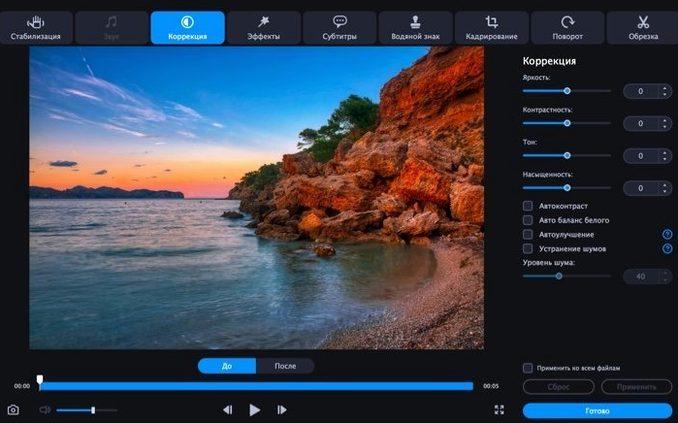
Click a screenshot to see it wider.
Over 20 input video formats — AVI, MKV, MOV, MP4, MPEG, WebM, WMV — plus a similar range of audio and image outputs. Movavi Video Converter for macOS is a straightforward tool for anyone who needs to change a file's format without digging through settings.
It suits IT folks preparing clips for different devices: ready-made profiles for Apple, Samsung, Nokia, and Sony handle the guesswork. You can also pull audio tracks from videos, convert still images, or turn clips into GIFs.
Basic editing covers volume, noise reduction, stabilization, color correction, subtitles, text, watermarks, crop, trim, and rotation. Enough for quick fixes before conversion.
Runs on macOS 10.13 and later, Intel. Interface in English, German, Spanish, and more. If you need a dependable format switcher with light editing, this is it.
Batch Conversion from a Folder
Will it handle a folder full of mixed files? Yes. Movavi Video Converter supports batch conversion from a selected folder. You point it at the directory, pick an output format, and it works through everything that matches. Good for clearing out a backlog of unsorted clips.
Does it re-encode everything, even when the format is already compatible? That depends on the settings. The app includes a SuperSpeed conversion mode, which prioritizes speed over re-processing. For simple container changes, that mode can avoid a full re-encode. Quality preservation is stated as lossless for certain workflows, but experiment with a short file first to confirm it behaves as you expect with your source material.
Can I use it as a quick audio extractor? Yes. Drop a video in, select an audio output format like MP3 or FLAC, and the extraction is part of the same conversion step. No separate tool needed.
Does it accept HEVC or H.265 files? The listed input formats cover AVI, MKV, MOV, MP4, MPEG, WebM, and WMV. If your source is an HEVC-encoded MP4, it will likely open, but the app's primary format support is container-based. For unusual codecs, test a sample before committing a large batch.
What about subtitles? The editing tools include subtitle handling. You can add or burn in subtitle files during conversion. The exact subtitle formats supported aren't listed in the spec sheet, but common ones like SRT usually work.
Set a Dedicated Output Folder
Before converting your first file, check a few preferences to avoid surprises.
- Set the output folder. The default saves converted files next to the originals. If you process many files, choose a dedicated output directory to keep things sorted.
- Adjust the SuperSpeed toggle. SuperSpeed is on by default. For maximum compatibility or if you notice artifacts, switch to Standard mode. The difference is noticeable on older hardware.
- Pick a device profile first. The ready-made profiles for Apple, Samsung, Nokia, and Sony adjust resolution and bitrate automatically. If you know the target device, start there instead of guessing manual settings.
- Configure audio extraction if that is your goal. The audio tab lets you choose a format and bitrate before conversion. Doing this upfront saves an extra pass.
One more tip: test a short clip before committing a large batch. A 30-second sample reveals any format or codec issues without wasting time.
IT Generalists and Small-Office Staff
IT generalists and small-office support staff are the obvious fit. If you maintain a fleet of Macs for a clinic, school, or small business, you regularly get files in the wrong format. Movavi Video Converter handles those one-off requests without needing a full video suite. You can convert a training video to a device-friendly profile, pull audio for a presentation, or trim a clip for a quick internal update.
Content creators who prep rough cuts for review also benefit. The basic editing tools — crop, trim, color correction, watermark — are enough to clean up a draft before sending it to a client or colleague. You don't open a heavyweight editor for a simple format change.
Anyone archiving personal media will find batch conversion useful. Moving a folder of home videos from AVI to a modern format like MP4 or MKV is a set-and-forget job. The same goes for extracting audio from a collection of concert clips.
Movavi Video Converter fits that need: one conversion app, no ongoing payments. Movavi Video Converter quickly changes video formats for Mac users who need reliable file conversion.
Finally, anyone who regularly moves files between Apple, Samsung, and Sony devices gets direct value from the preset profiles. No second-guessing resolution or codec. Select the device, convert, move the file. Done.
- macOS 10.13 or later
- Intel processor
Questions I get about this line
Yes, it can extract audio tracks from video files and save them in formats like MP3, AAC, FLAC, or WAV.
The install order
- Mount the disk image and run Open Gatekeeper friendly.
- Press Enter in Terminal to bypass Gatekeeper.
- Drag the app to the Applications folder.
- Open the app after copying is complete.