
- Version
- 1.13.3
- Developer
- highlyopinionated
- Languages
- English
- License type
- Not required
| macOS range | macOS 12 or later |
|---|---|
| Chip | Apple Silicon, Intel 64-bit |
| Download | 10 MB |
Screenshots
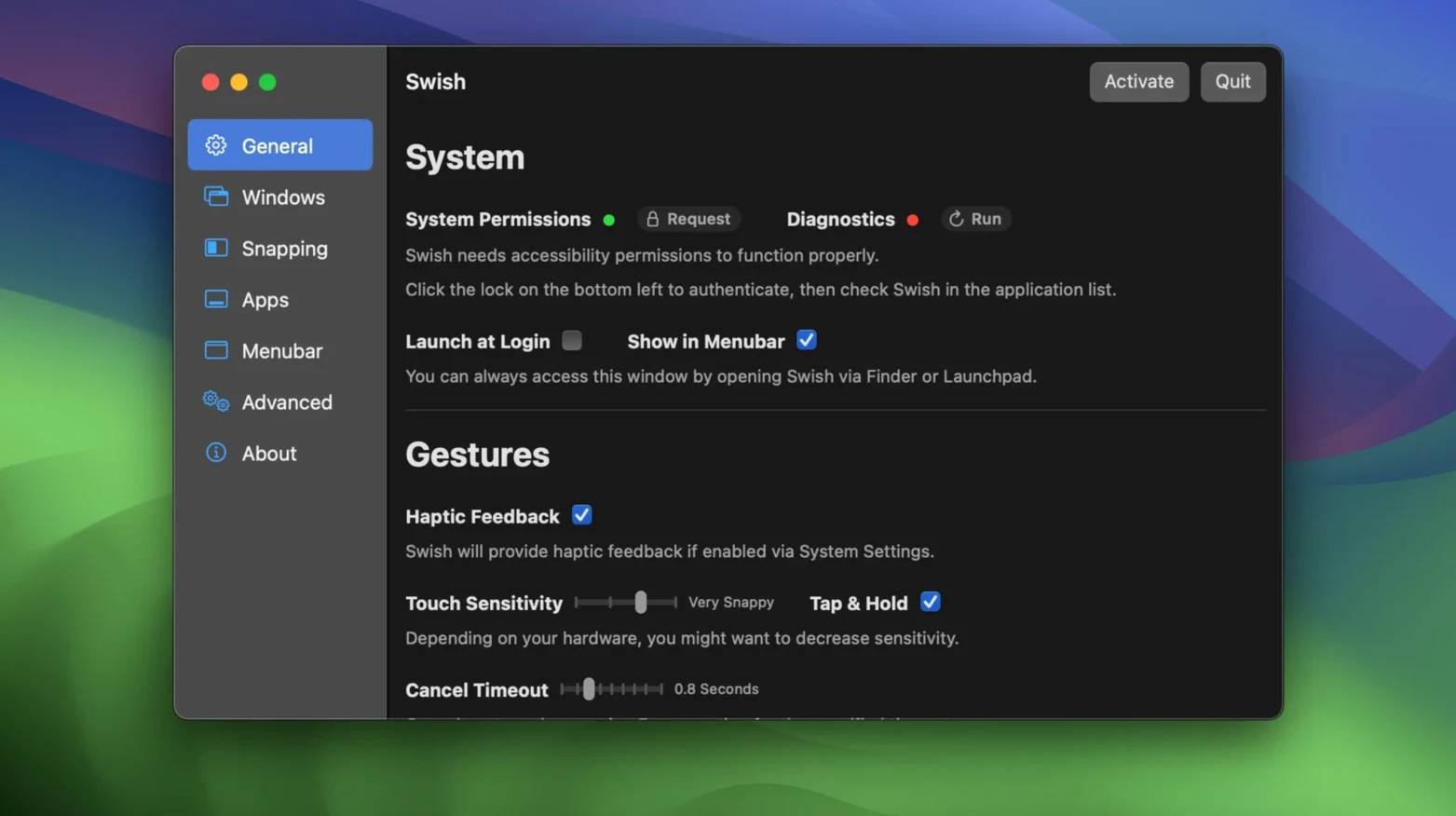
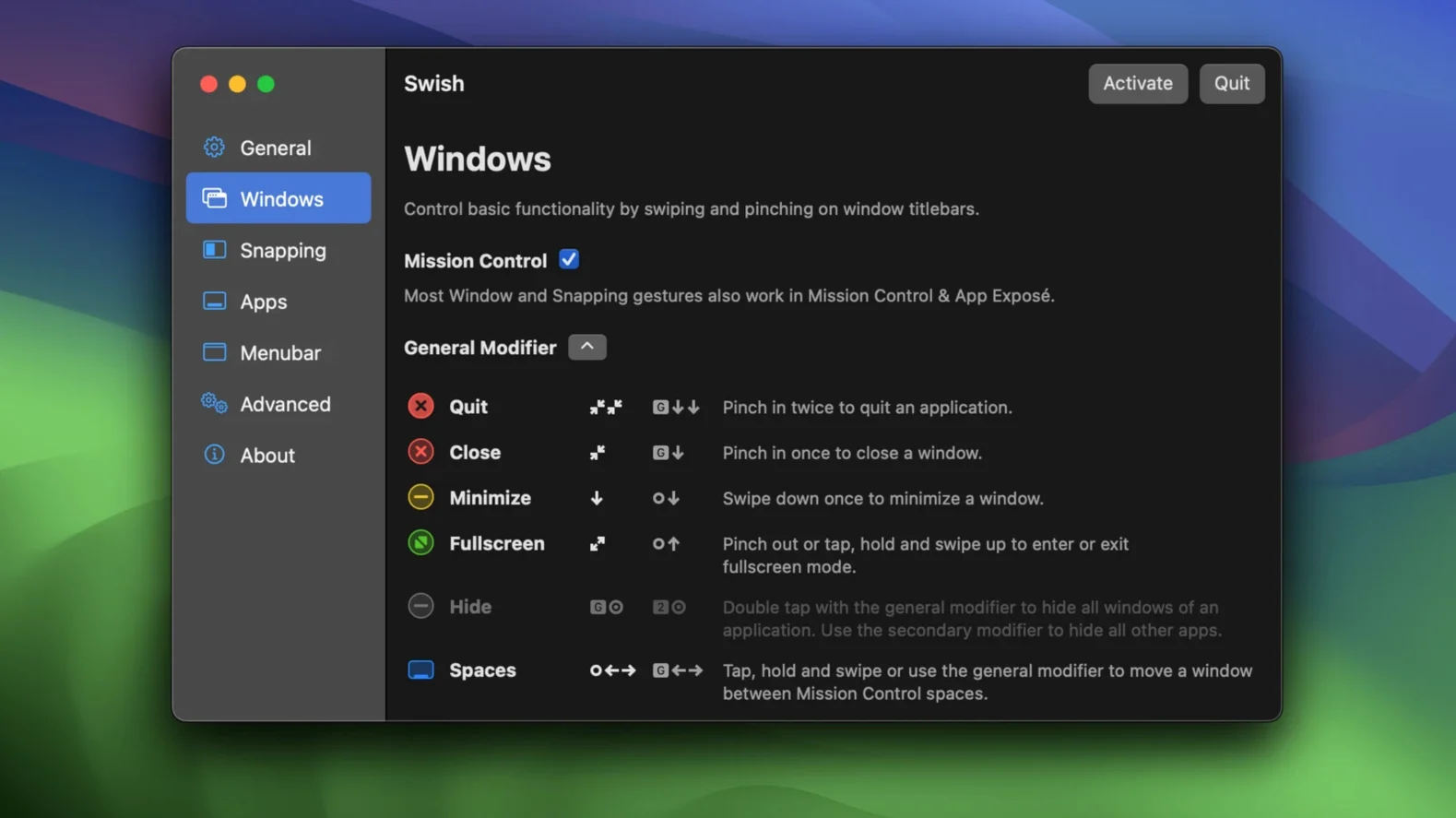
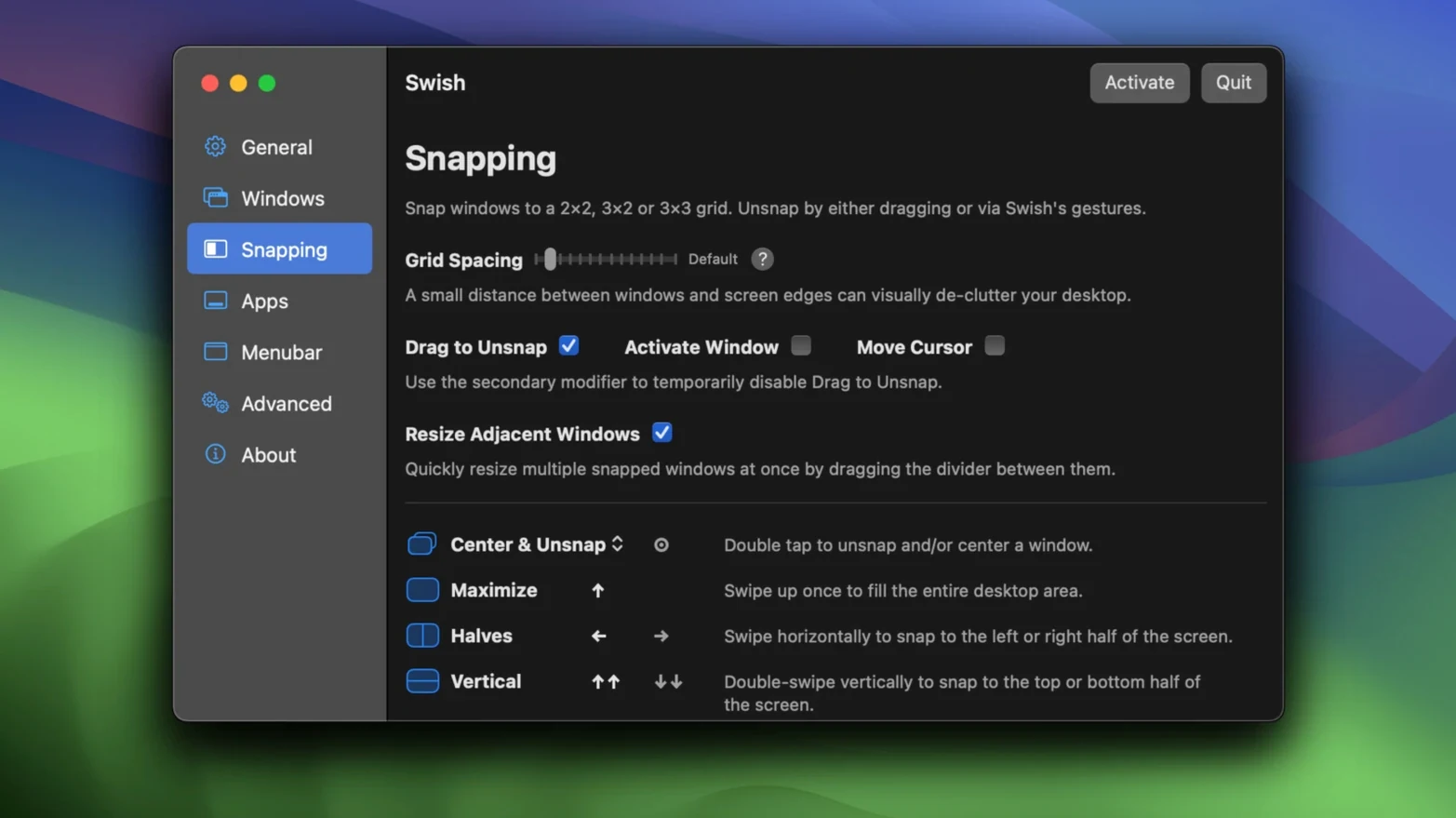
Click a screenshot to see it wider.
Swish solves the problem of reaching for the mouse or keyboard every time you need to move, resize, or switch windows. It turns trackpad gestures into window and app commands.
Swipe — move or snap windows, switch spaces.
Pinch — zoom or minimize windows.
Tap — activate controls in the dock or menu bar.
Hold — access additional options or trigger a 2×3 grid with a modifier key.
Each of the 30 gestures can be enabled or disabled individually, so you keep only what you use. Swish handles spaces management and includes a quick start guide to get you going.
Three Monitors, One Two-Finger Swipe
Morning starts with three monitors and a dozen windows spread across them. Instead of dragging each window to position, a two-finger swipe on the trackpad sends the browser to the left screen. A pinch gesture minimizes the email client. A tap on the dock opens the terminal. It takes about ten seconds to arrange the workspace that used to take a minute of clicking and dragging.
During a remote support call, a colleague shares their screen on the middle monitor. A hold gesture with a modifier key triggers the 2×3 grid, and the shared screen snaps into one of the six slots. The other slots hold the ticketing system, the chat app, and the monitoring dashboard. No resizing, no aligning edges. Swish keeps them in place.
When the call ends, a swipe gesture moves the shared screen back to its original monitor. Another swipe switches to a different space for a code review. The gestures become automatic after a few sessions.
The afternoon involves switching between four spaces. A swipe left goes to space two. A swipe right returns. No trackpad button presses, no clicking the spaces icon. It just happens.
End of day: a double-tap on the dock closes the apps that are done. The machine is ready for the morning with only the essential windows open.
Disable Conflicting Gestures First
Open Swish and go straight to the gesture list. Disable anything that conflicts with your existing trackpad habits. For example, if you use three-finger swipe for browser tabs, turn off the three-finger gestures in Swish. Enable only the gestures you will actually use.
The snapping grid defaults to 2×2. If you work with four or more windows side by side, assign the modifier key to unlock the 2×3 grid. It is worth testing early.
Multi-monitor users should verify that screen switching gestures are enabled. The default setup usually works, but check that each monitor responds to the swipe direction you expect.
Spaces management is on by default. If you do not use spaces, disable it to avoid accidental switches.
How Swish Stacks Up
Swish vs. Better Touch Tool. Better Touch Tool offers more gesture customization but lacks the unified window management that Swish provides. Swish is leaner, focusing on window control rather than general trackpad trickery.
Swish vs. Moom. Moom provides window snapping and keyboard shortcuts but does not use trackpad gestures. Swish adds the gesture layer on top of snapping, which suits trackpad users better.
Swish vs. Rectangle. Rectangle is keyboard-driven with preset grid layouts. Swish is gesture-driven. If you prefer keeping hands on the keyboard, Rectangle works. If you prefer the trackpad, Swish is the natural fit.
- macOS 12 or later
- Intel or Apple Silicon
Questions I get about this line
Swish requires macOS 12 or later and works on both Intel and Apple Silicon Macs.
Swish supports 30 gestures for window, dock, and menu bar control, including swipe, pinch, tap, and hold.
Yes, each gesture can be enabled or disabled individually in the settings.
The install order
- Mount the downloaded disk image.
- Drag the app into the Applications folder alias.
- Open the app from Launchpad after copying finishes.