Free download (15 MB) Previous versions
- Version
- 2.105
- Developer
- Tunabelly Software
- Languages
- English
- License type
- K'ed by TNT team
| macOS range | macOS 10.13 or later |
|---|---|
| Chip | Intel 64-bit |
| Download | 15 MB |
| Previous versions | 2 on file |
Screenshots
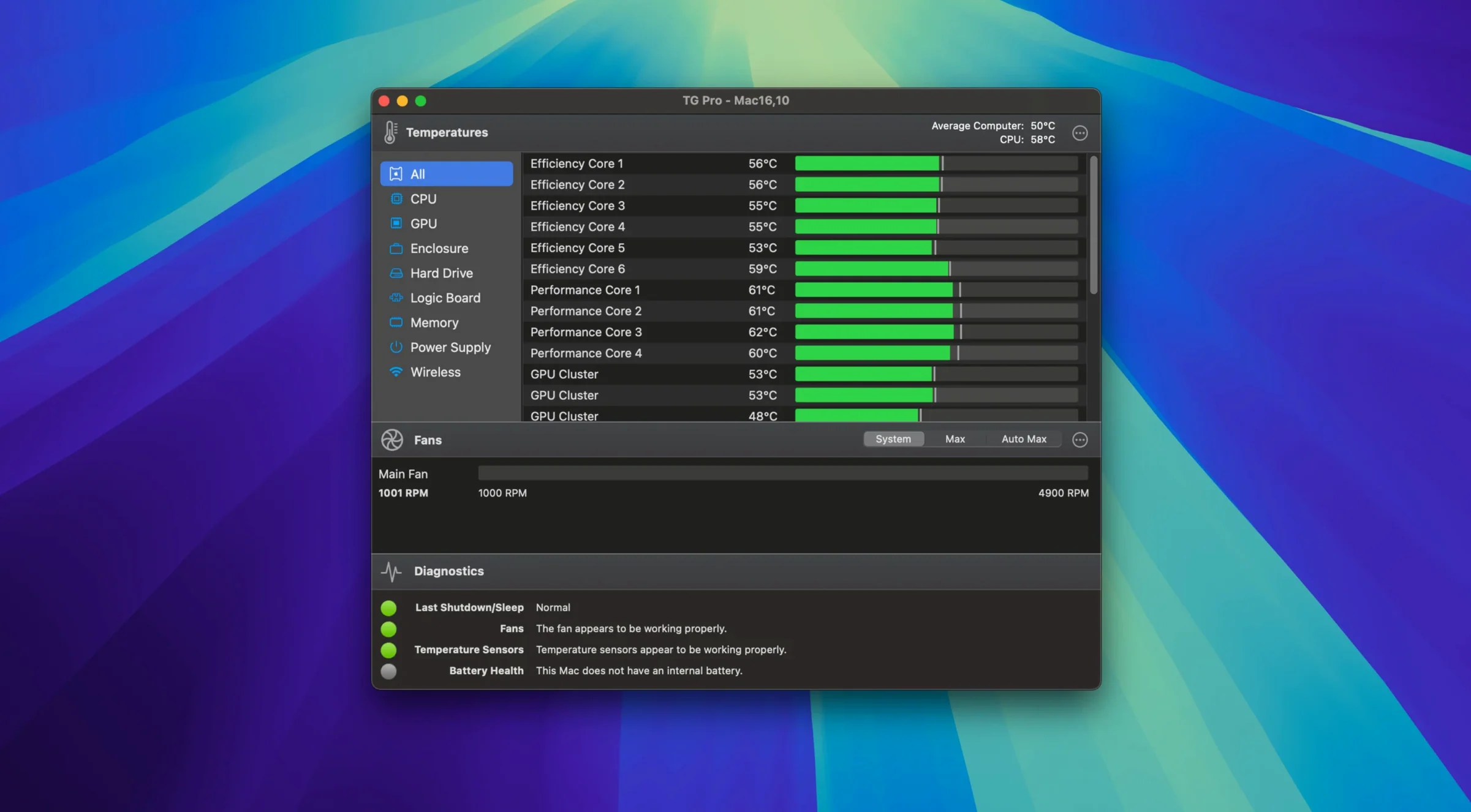
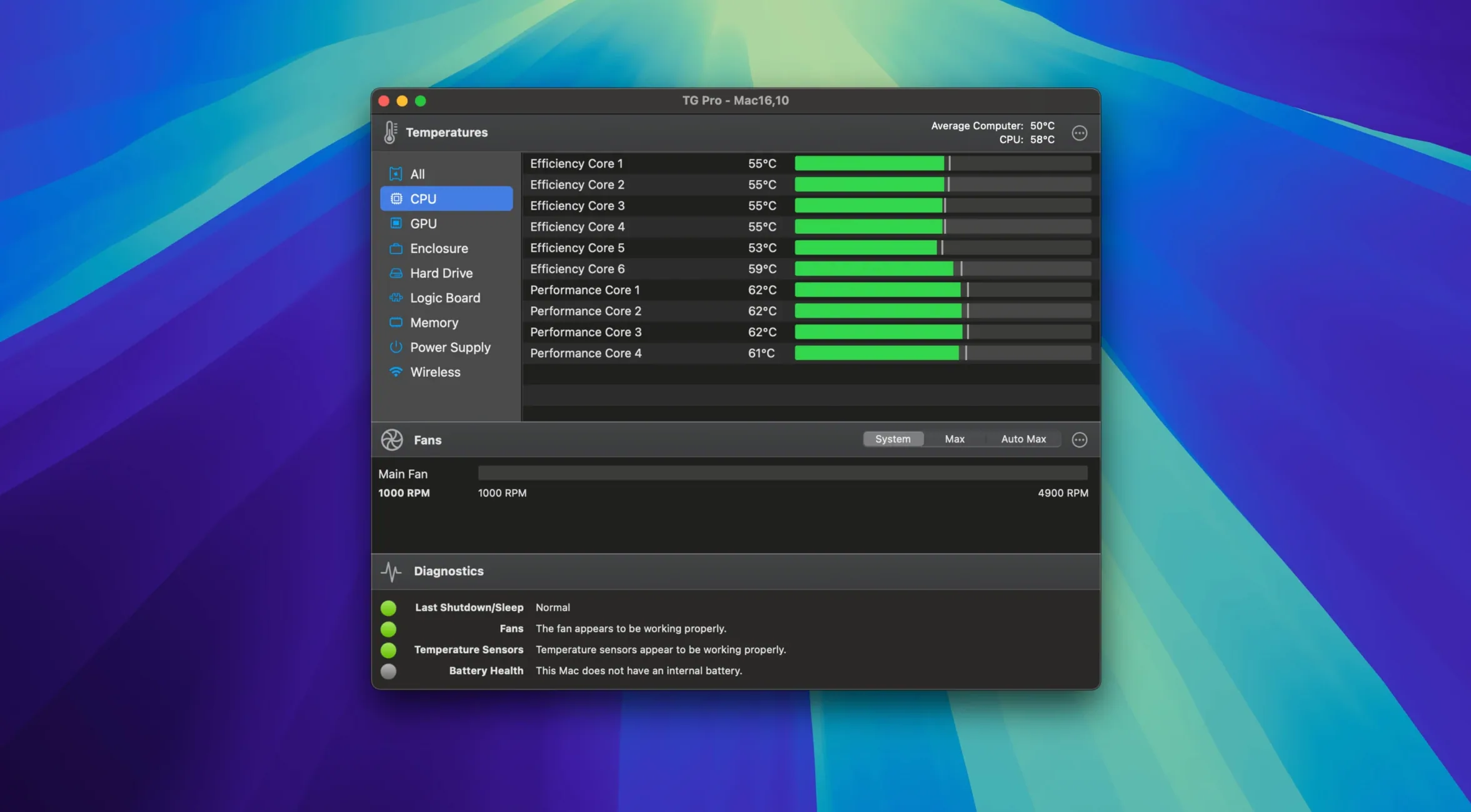
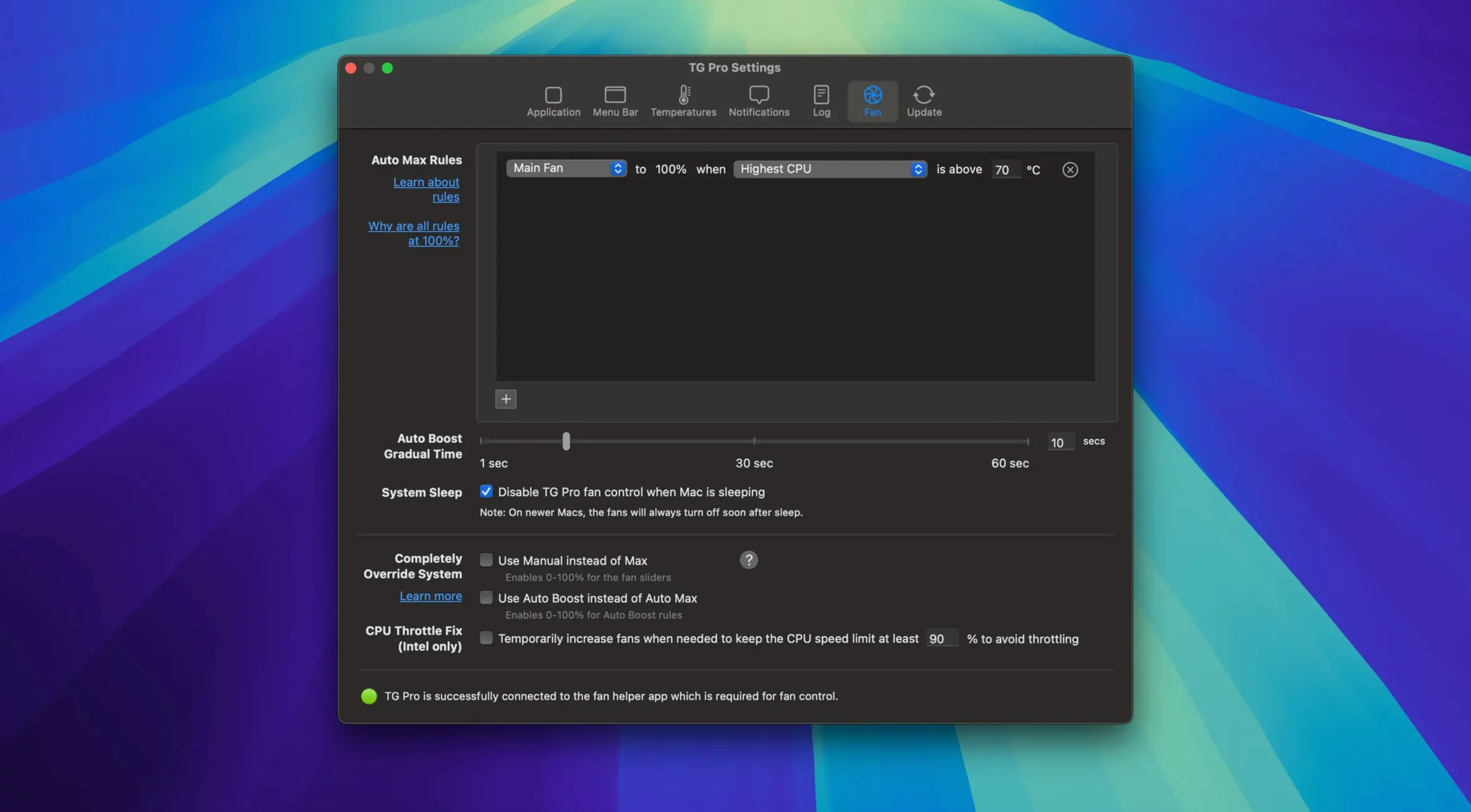
Click a screenshot to see it wider.
TG Pro is a Mac utility for temperature monitoring, fan control, and hardware diagnostics. New to it? Here’s a quick first-run workflow.
First Steps
- Launch TG Pro — it appears in the menu bar with current CPU, GPU, and disk temps.
- Open the main window — click the menu bar icon.
- Test fan control — drag the fan slider up and down. On M4, M4 Pro, and M4 Max Macs, you get full control.
- Run a diagnostic — use the built-in tests to check sensor health and fan response.
- Set alerts — enable temperature logging and notifications so you know if things get hot.
Auto Boost Rules for Temperature Thresholds
Default settings work, but a few tweaks make TG Pro more useful day-to-day.
- Auto Boost rules — open Preferences and set a temperature threshold for automatic fan speed increase. Version 2.103 fixed a bug where these rules could fail on power-source switches, so they’re reliable now.
- Start on login — enable it in Preferences so TG Pro runs from boot. No need to launch manually after restart.
- Temperature scale — switch to Fahrenheit if that’s your preference. It’s in the same Preferences panel.
- Hackintosh toggle — if you run a Hackintosh, turn on the compatibility toggle in Preferences. TG Pro handles sensor detection differently on non-standard hardware.
- Alert thresholds — set a CPU or GPU temp that triggers a notification. Adjust based on your Mac’s normal load.
How TG Pro Compares With Similar Mac Apps
There are a few other temperature and fan utilities for macOS. Here’s how TG Pro stacks up against three common ones.
Macs Fan Control
Macs Fan Control focuses on fan speed adjustment and little else. It lets you set manual RPM curves and save profiles. If you only need fan tweaks, Macs Fan Control is lighter. For monitoring plus control, TG Pro covers more ground.
Core Temp
Core Temp is a lightweight sensor reader for CPU and GPU temps. No fan control, no diagnostics. It sits in the menu bar and logs temperatures. TG Pro gives you that same reading plus the ability to change fan behavior. If you want to do something about heat instead of just watching it, TG Pro is the better fit.
iStatistica
iStatistica shows system stats including temps, disk usage, and network activity. It’s more of a dashboard. TG Pro is narrower — focused on temperature and fans — but goes deeper. With fan rules, diagnostic tests, and alert logging, it’s built for active hardware management, not just display.
Baseline Temperature Tracking Before Tuning
- Let TG Pro run in the background for a day — don’t change anything yet. Watch how your Mac’s temps behave under normal load. That baseline helps you set smart thresholds later.
- Test fan control gently — drag the slider slowly. On some Macs, sudden full-speed fan commands can sound alarming. Make sure the fan responds and returns to auto mode without issues. If you use Siri or voice dictation, version 2.103 now restores fan control afterward — check that it does.
- Create a simple rule first — try a single Auto Boost rule tied to CPU temp. Test it by running something heavy (handbrake, a game, or a benchmark). Watch the log to see if the rule triggers correctly. Once it works, add more rules based on other sensors.
- Enable logging — turn on temperature logging in Preferences. After two or three days, check the log. That data helps refine your fan rules.
- Keep the menu bar visible — TG Pro shows current CPU, GPU, and disk temps in the menu bar. If you have a crowded menu bar, drag it near the clock. One glance tells you if something’s off before your Mac throttles.
- Use the diagnostic test after any hardware change — if you replace a fan, clean vents, or open your Mac for any reason, run the diagnostic test. It checks sensor health and fan response. A quick pass confirms everything works before you go back to work.
That’s it.
TG Pro 2.105 ships a maintenance update with under-the-hood fixes that keep fan control and temperature monitoring steady across supported Intel Macs.
- macOS 10.13 (High Sierra) or later
- Intel 64-bit processor
The install order
- Open the downloaded disk image.
- Drag the app into the Applications folder alias.
- After copying finishes, launch the app from Launchpad.