Free download (324 MB) Previous versions
- Version
- 15.7.3.564
- Developer
- Wondershare Technology
- Languages
- Russian, English, German, Arabic, Greek, Spanish, Italian, Catalan, Chinese (Simplified), Korean, Dutch, Polish, Slovak, Thai, French, Hindi, Czech, Swedish, Japanese
- License type
- K'ed by TNT team
| macOS range | OS X 10.11 or later |
|---|---|
| Chip | Apple Silicon, Intel 64-bit |
| Download | 324 MB |
| Previous versions | 2 on file |
Screenshots
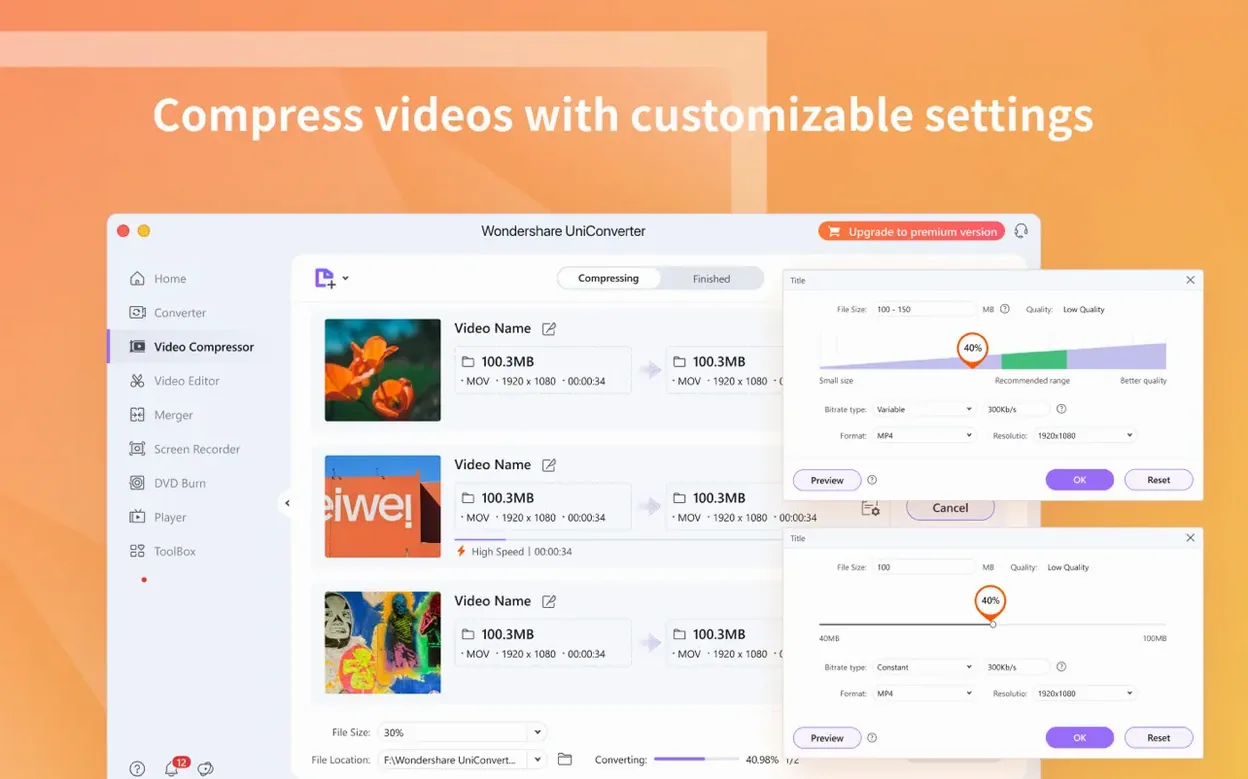
Scroll the row, it snaps to each screenshot. Click one to see it wider.
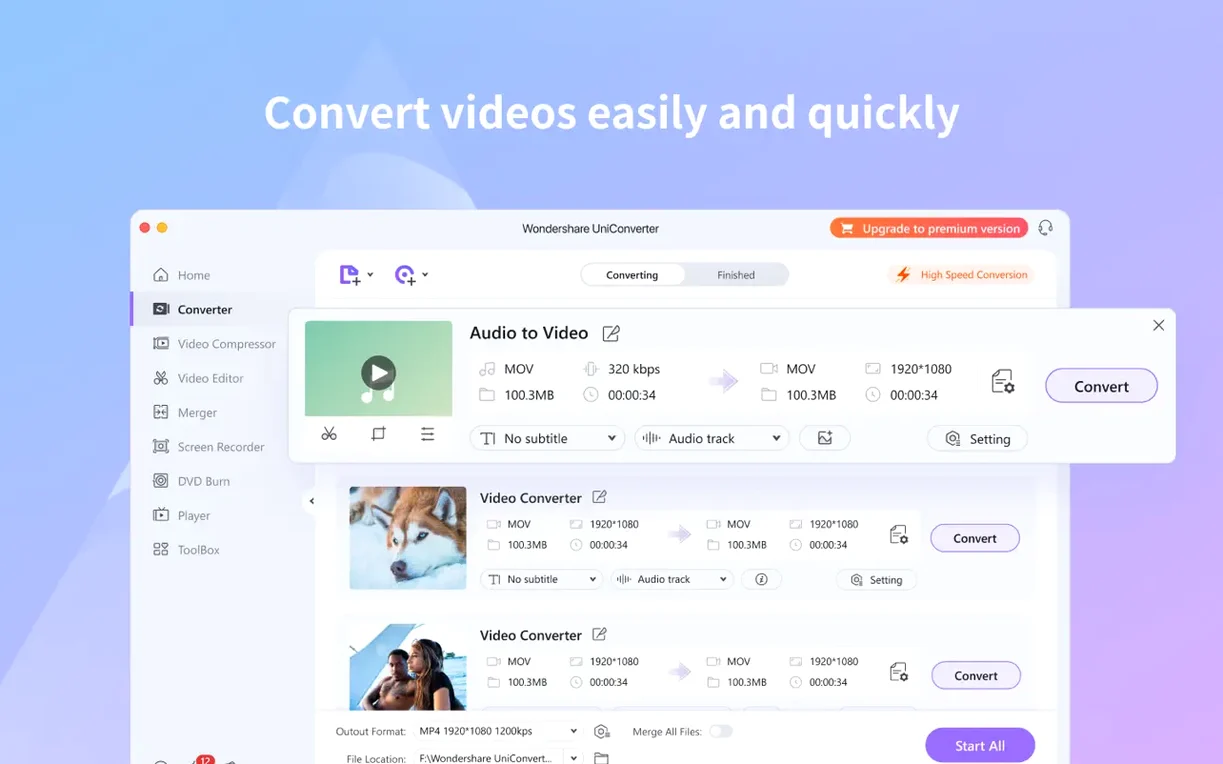
Wondershare UniConverter 15 for Mac is a video converter and media toolkit that goes beyond simple format changes. For experienced users, the deeper tools matter: burning video to DVD, extracting audio tracks from DVDs or files, cropping to remove black bars, and even converting 2D footage to 3D. It supports over 159 formats and can handle DRM-protected content, making it a practical addition to any workflow.
The Mac version runs natively on both Apple Silicon and Intel machines, with official support starting at macOS 10.13. The current build adds compatibility with OS X 10.11 and later, plus ARM and 64-bit Intel support. That flexibility means older hardware stays useful.
You can preview video before converting, pull metadata, and update your iTunes library when transferring files. DVD conversion to common video and audio formats is direct, no intermediate steps. This is the kind of toolkit that earns its place on a drive.
Common Workflow: Converting and Trimming a Clip for Social
Here is a typical start-to-finish task that covers several tools at once.
- Open UniConverter and click the Converter panel. Drag a large MP4 file into the window. The app reads the file and shows duration, resolution and codec.
- Set the output format. For a quick Instagram-friendly clip, choose MP4 with the H.265 encoder if both source and destination support it. The preview window updates to show the new estimated size.
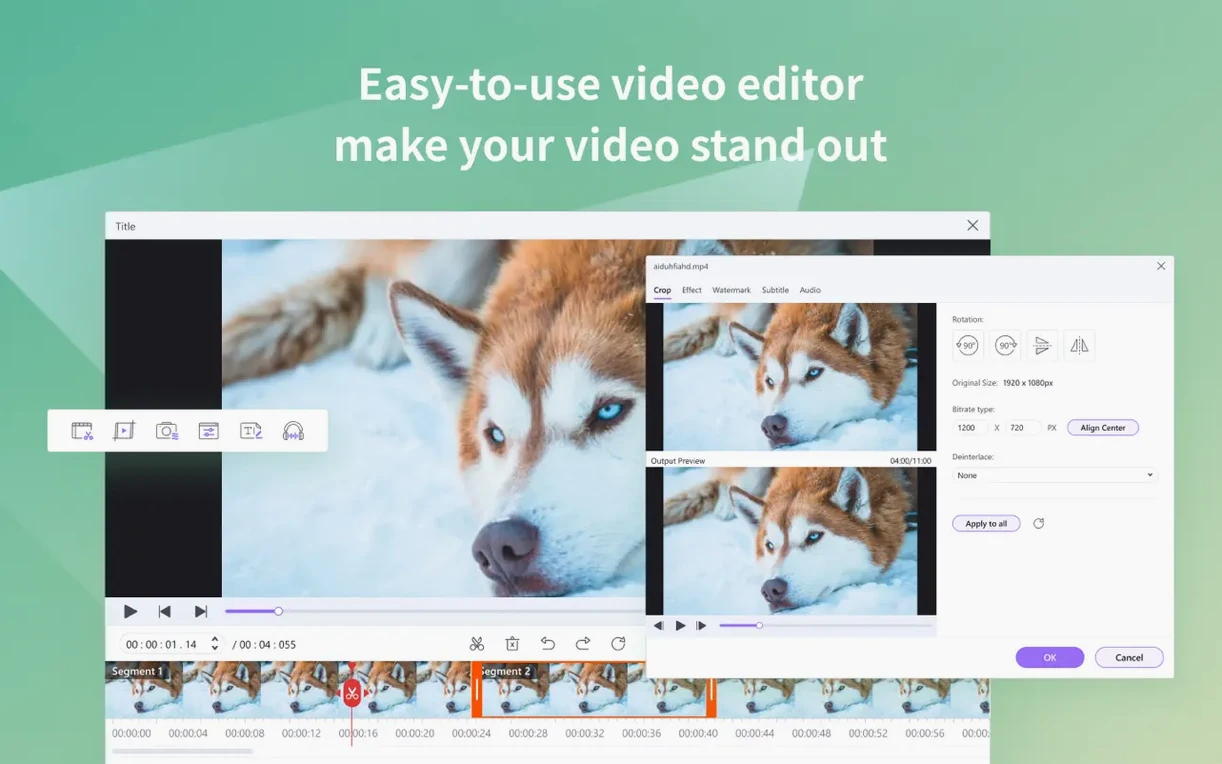
- Trim the clip. Click the Edit icon next to the file, then the Trim tab. Drag the start and end handles to isolate the 30-second section you need. You can preview the trimmed section before committing.
- Crop if needed. Switch to the Crop tab in the same window and remove black bars at the top and bottom. A live preview shows the new framing.
- Apply the changes. Click OK to return to the main converter window. The file now shows a small edit badge.
- Add to the batch. Repeat for any other files, then click Convert All. UniConverter queues the jobs and processes each one.
- Let it finish. The app shows progress per file. Once done, the output folder opens automatically so you can grab the clip.
Three Hours of Meeting Recordings, One Click
Monday morning. You have three hours of meeting recordings from a clinic training day, plus a YouTube video the lead dentist wants shown at the next staff meeting.
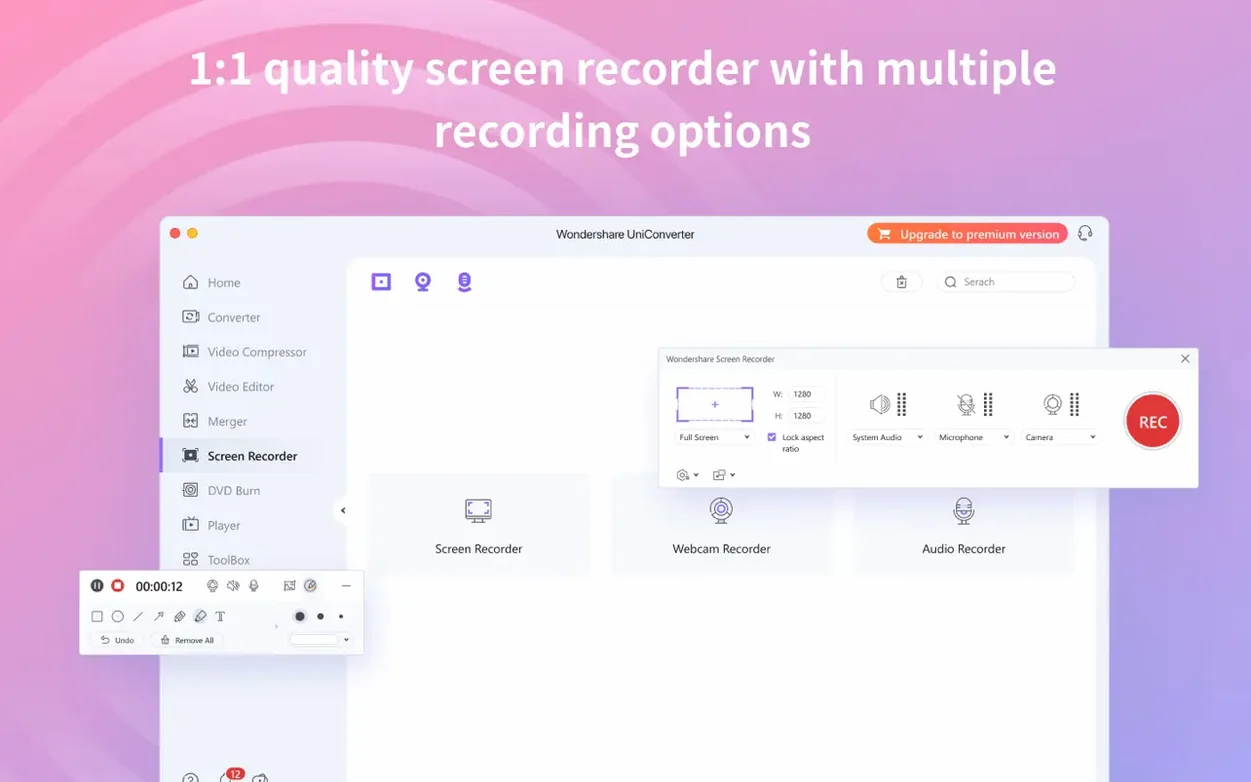
You start UniConverter. The dashboard shows the five main sections: Converter, Downloader, Video Recorder, Burn and Play. You go straight to Downloader first. Paste the YouTube link. UniConverter resolves the available formats. You pick 720p MP4 — enough for a conference room TV — and let it download in the background.
While that runs, you switch to Converter. Drag all three recording files in. They are mixed codecs: two MOV, one AVI. The app reads each one without complaint. You want a single merged file for the presentation, so you select all three, right-click and choose Merge. The files stack into one entry. You set the output to H.264 MP4 and start the batch.
You drag the YouTube clip into the same convert queue — UniConverter adds it to the batch without restarting. By the time you pour coffee, all four clips are sitting in the output folder, ready to drag into Keynote. No re-encoding errors, no format mismatches.
Set a Custom Output Folder First
A few tweaks make the app feel less like a one-off tool and more like a daily driver.
- Output folder. Default is usually the Videos folder. Under Preferences > Convert, set a custom folder. I use
~/Desktop/Convertedso I never hunt for finished files. - Hardware acceleration. If your Mac has an Intel GPU or an Apple M-series chip, enable hardware encoding under Preferences > Performance. It cuts conversion time noticeably.
- Auto-add to iTunes. If you manage a media library, turn on Transfer to iTunes in the same preferences panel. UniConverter will tag files and push them to the iTunes library after each conversion.
- Default video codec. Under Converter > Output Settings, set your preferred codec. I keep H.265 as the default for 4K material and H.264 for anything going to older devices.
- Batch mode. Leave Batch Conversion on by default. It is enabled out of the box, but worth checking if you ever see the option to convert one at a time.
These settings take about two minutes to configure and remove friction from every session after.
- Compatible with OS X 10.11 and later.
- Supports ARM and 64-bit Intel Macs.
- macOS OS X 10.11 or later
- Apple Silicon or Intel
Questions I get about this line
Yes, it can burn DVD video or common video files directly to disc.
Yes, the current version supports both Apple Silicon and 64-bit Intel Macs.
The install order
- Mount the disk image and launch Open Gatekeeper friendly.
- Press Enter in Terminal to bypass Gatekeeper.
- Drag the app into the Applications folder.
- The app is ready to use.