

- Version
- 5.1.20
- Developer
- Softorino
- Languages
- English
- License type
- K'ed by TNT team
| macOS range | macOS 10.15 or later |
|---|---|
| Chip | Intel 64-bit |
| Download | 21 MB |
Screenshots
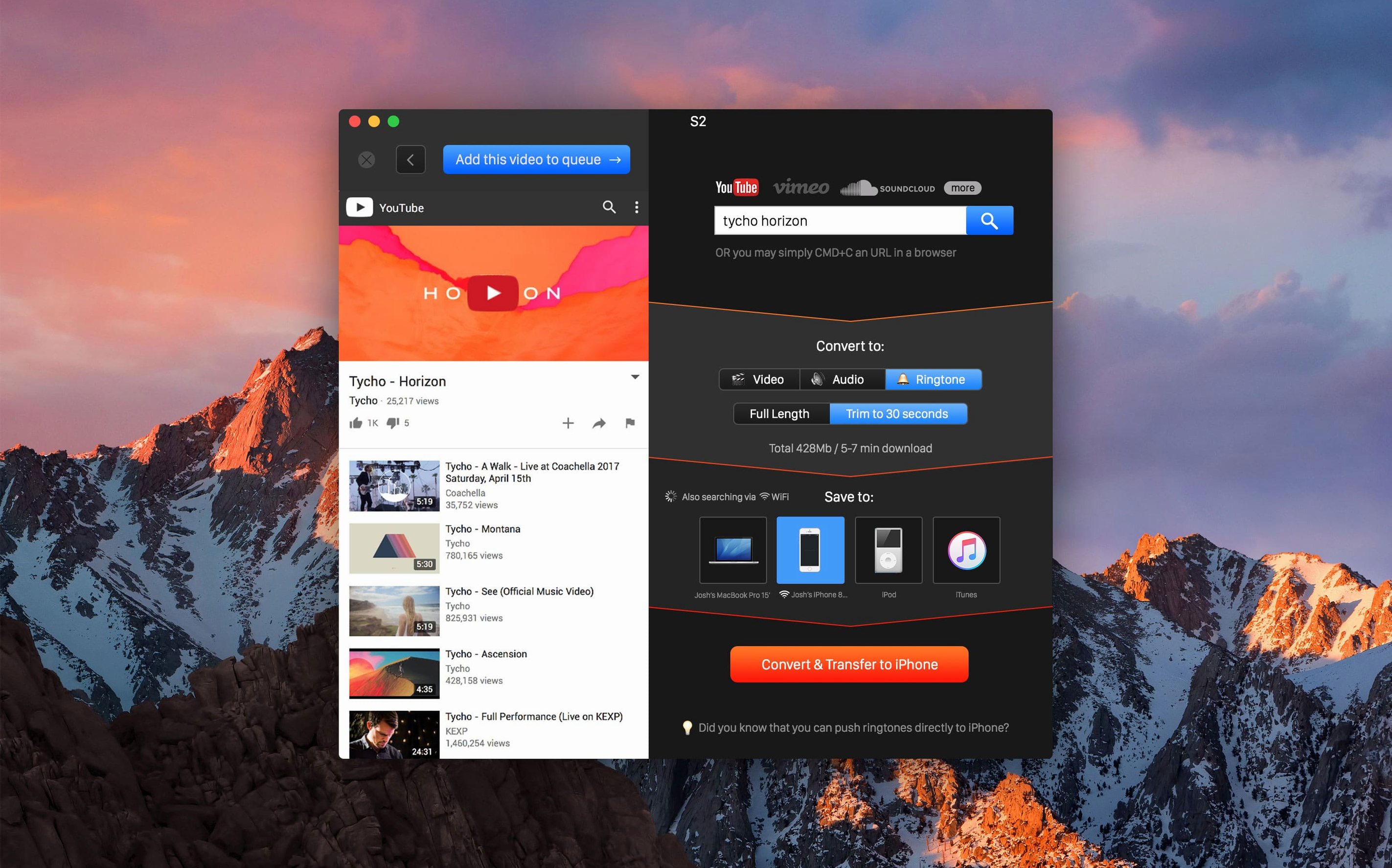
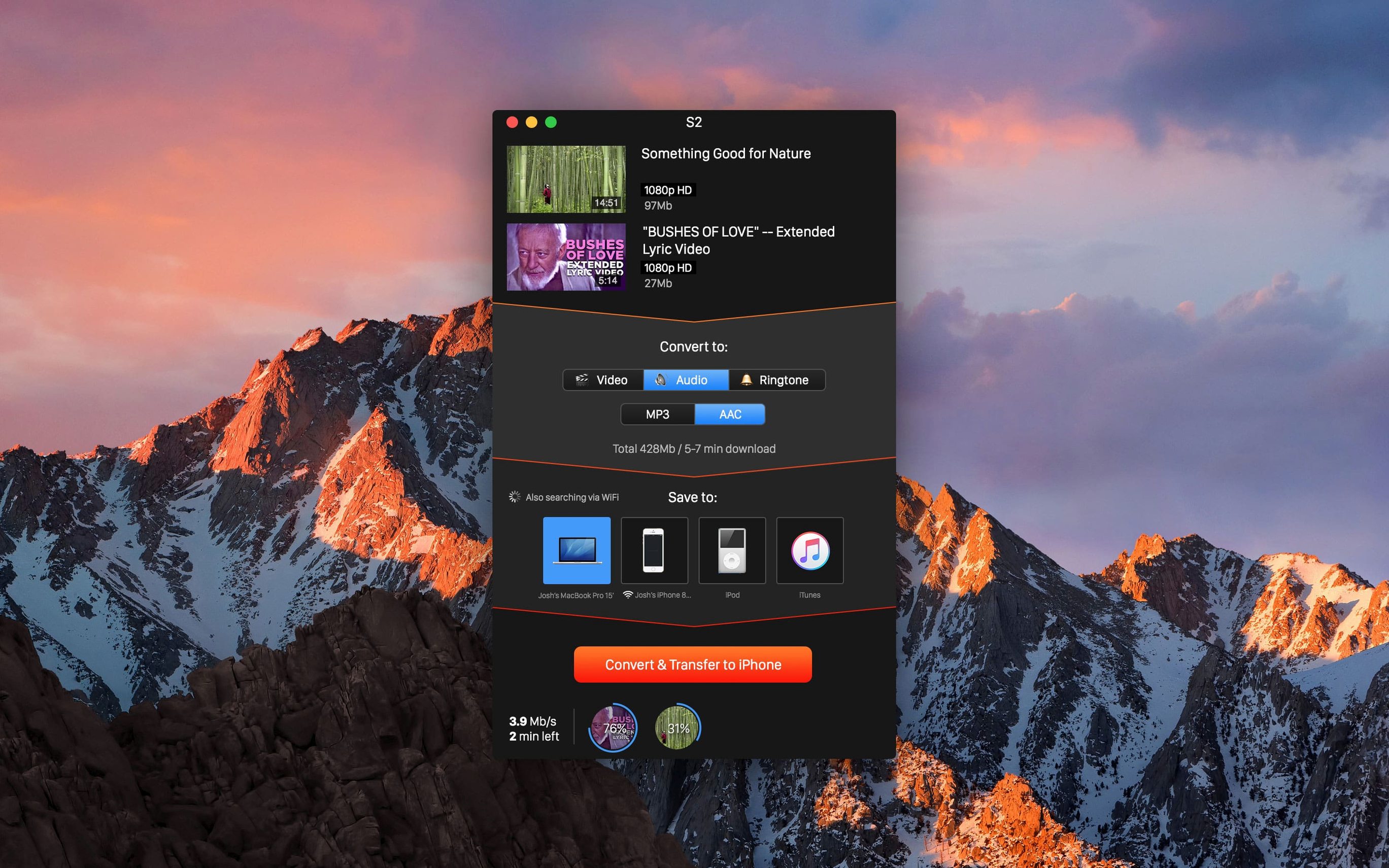
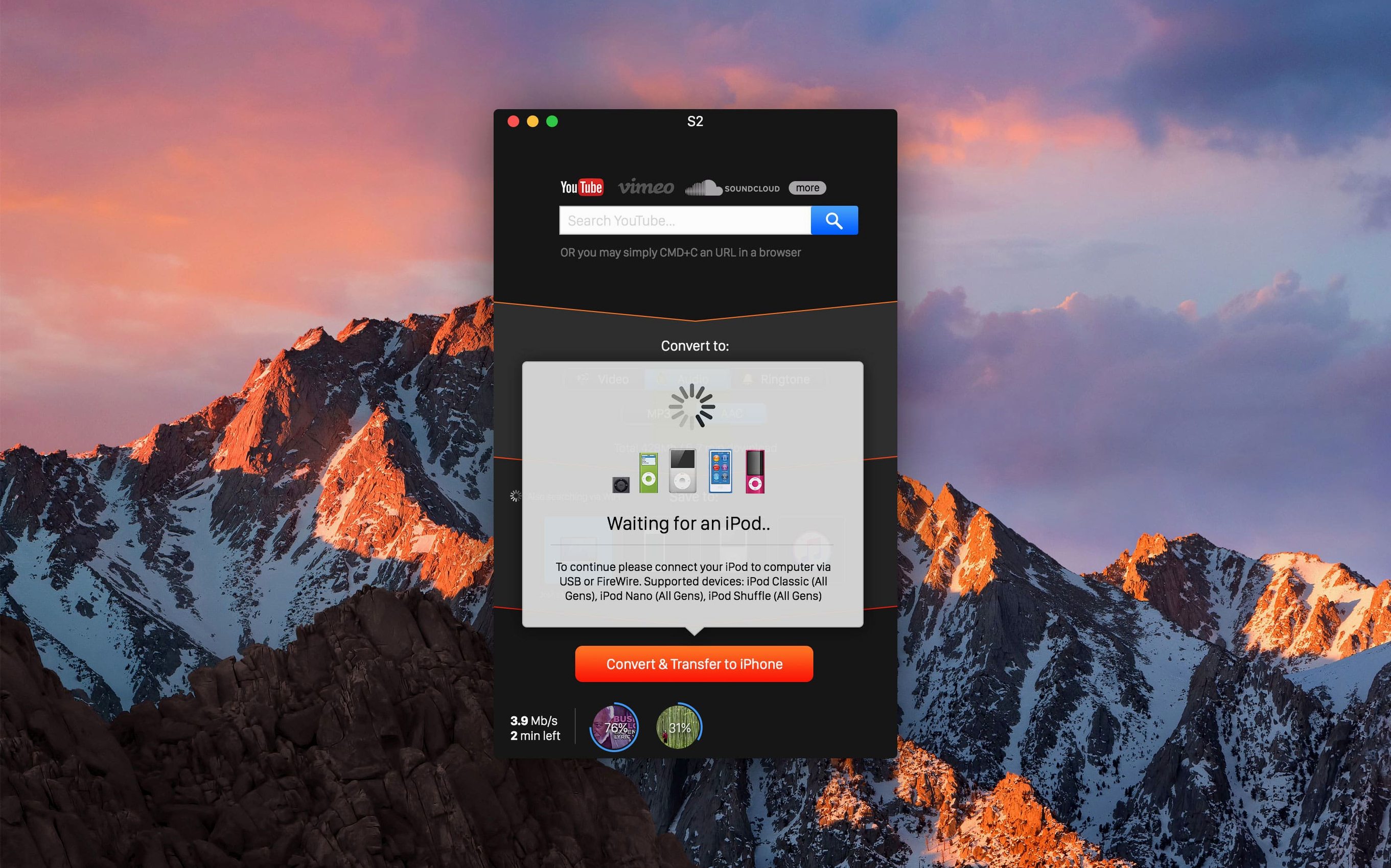
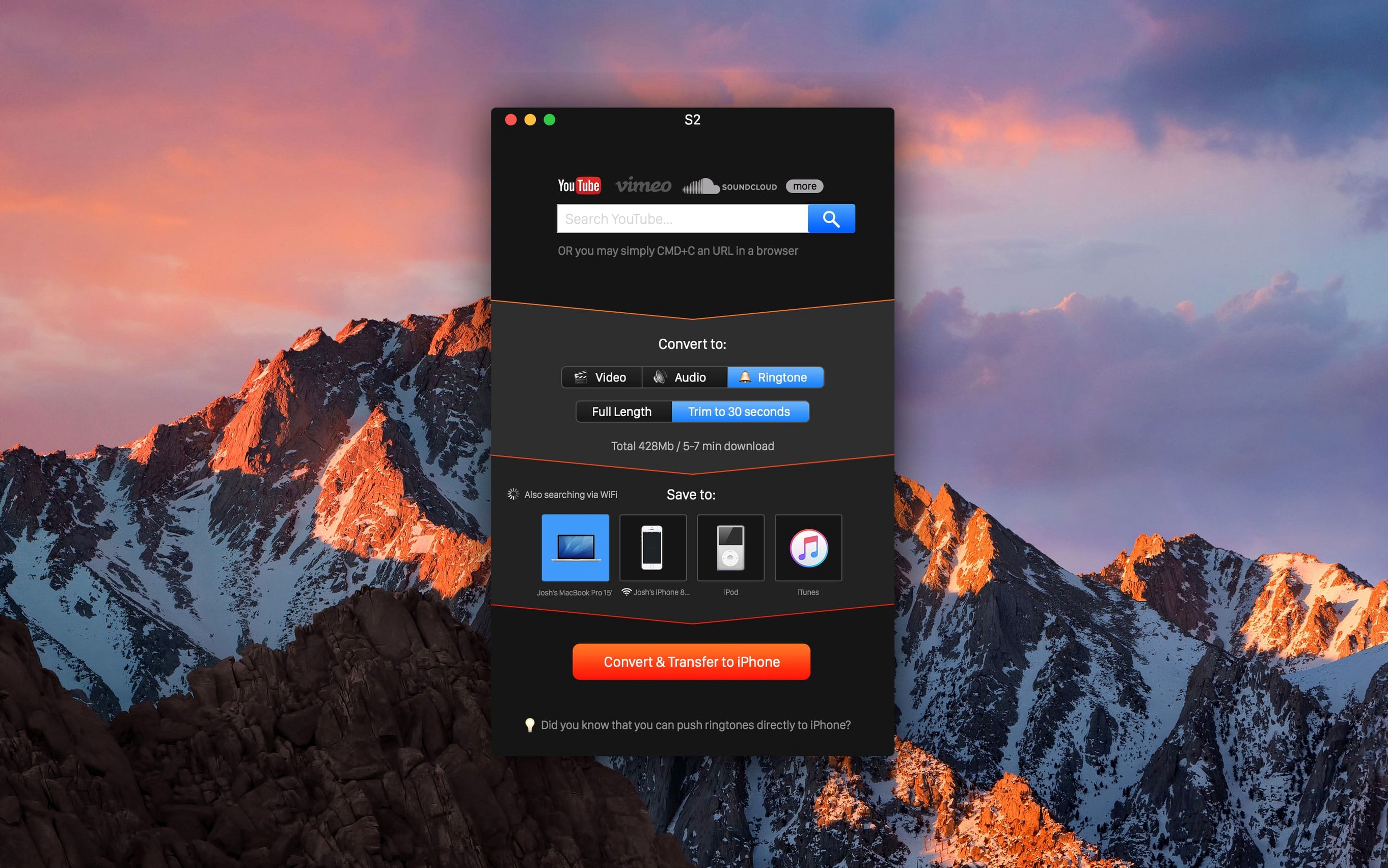
Click a screenshot to see it wider.
YouTube Converter PRO is a Mac utility for pulling online videos and audio into local files you control.
Downloads and converts to MP4, MP3, or AAC
It downloads media from the web and converts it to MP4 video or MP3/AAC audio. You pick the output quality before saving, then choose where the file lands — a folder on your Mac, or directly to an iPhone, iPad, or iPod.
Offline copies for personal use and IT workflows
Anyone who needs offline copies of tutorials, music, or clips without juggling browser extensions. IT folks managing Macs will appreciate the straightforward save-to-location flow and the lack of extra moving parts.
What are the basics?
It’s from Softorino, runs on macOS 10.15 or later, and the interface is English. The current build is 5.1.20, part of Softorino’s Mac and Windows product line.
Set output folder and default format first
Open the app once after installation. The defaults work, but a few tweaks save time later.
- Output folder – Set a single download folder you can find fast. The app remembers it.
- Default format – Pick MP4 for video or MP3 for audio. You can still change this per download, but it cuts one click each time.
- Wireless iTunes sync – If you transfer files to an iPhone or iPad regularly, enable this before the first download. It avoids the cable step later.
- Quality presets – 1080p is a good balance for most clips. Switch to 4K only when the source actually supports it.
These stay set across sessions. No need to reconfigure each launch.
Fix unread links by pasting full URL
- Link not picked up – The app watches the clipboard, but some sites need the full URL. Copy the address bar link, not a shortened share link. If it still misses, paste the link manually into the app — the field is there.
- Download stalls or fails – Usually a network issue or a temporary site block. Restart the app, copy the link again, and retry. If the same link fails repeatedly, the video may be private or region-locked.
- Gatekeeper block on first run – The install steps mention bypassing Gatekeeper. If you skipped that, the app may not open. Run the Terminal command from the install instructions again, then relaunch.
- Transfer to Apple device not showing – Check that wireless sync is on and that the iPhone or iPad is on the same Wi-Fi network. The device must be unlocked and on the home screen. No cable needed.
- Wrong audio format after conversion – For music, select MP3 or AAC in the output picker before you hit Convert & Transfer. MP4 is the default video format, not always the right choice for audio-only.
Workflow: save a YouTube playlist as MP3 files
- Open YouTube Converter PRO and confirm the output format is set to MP3.
- Copy the first video link from the playlist to the clipboard. The app detects it and shows the title.
- Choose 192 kbps or 320 kbps quality if the option appears. Higher bitrate means larger files but better sound.
- Click Convert & Transfer. The app downloads and converts in one step.
- Repeat for each track in the playlist. Or queue multiple links by copying them one after another — the app stacks them.
- When done, open the output folder. Files are named by video title. Rename in bulk if needed.
For an entire album, this takes about as long as the playlist runtime. No browser tabs open, no ad blocks needed.
- macOS 10.15 or later
- Intel architecture
- Interface: English
The install order
- Mount the disk image and run Open Gatekeeper friendly.
- Press Enter in Terminal to bypass Gatekeeper.
- Drag the app to the Applications folder.
- Open the app when installation is complete.