
Free download (13 MB) Previous versions
- Version
- 1.10.1
- Developer
- 5KM Tech
- Languages
- English, Chinese (Traditional), Chinese (Simplified)
- License type
- Included
| macOS range | macOS 13 or later |
|---|---|
| Chip | Apple Silicon, Intel 64-bit |
| Download | 13 MB |
| Previous versions | 1 on file |
Screenshots
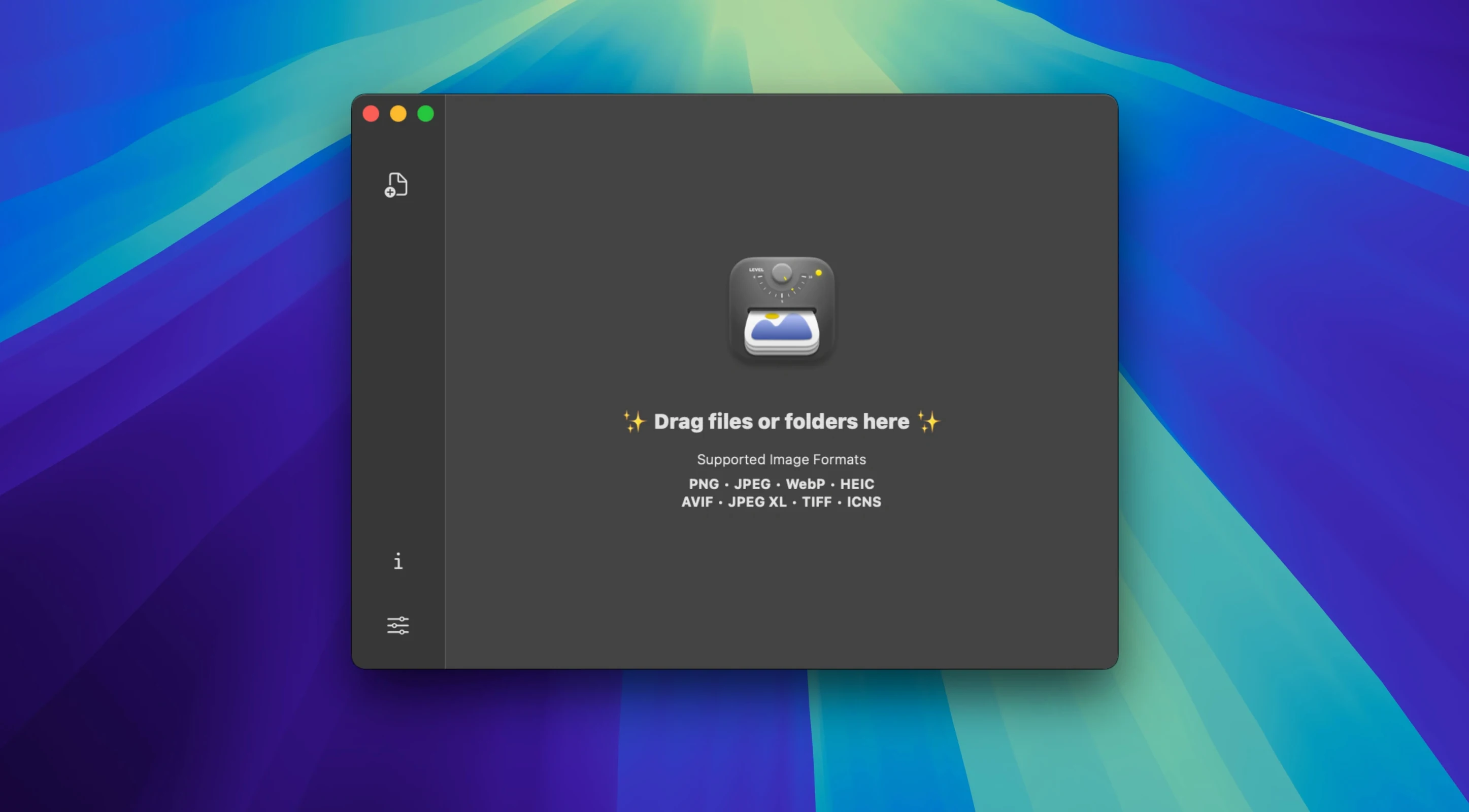
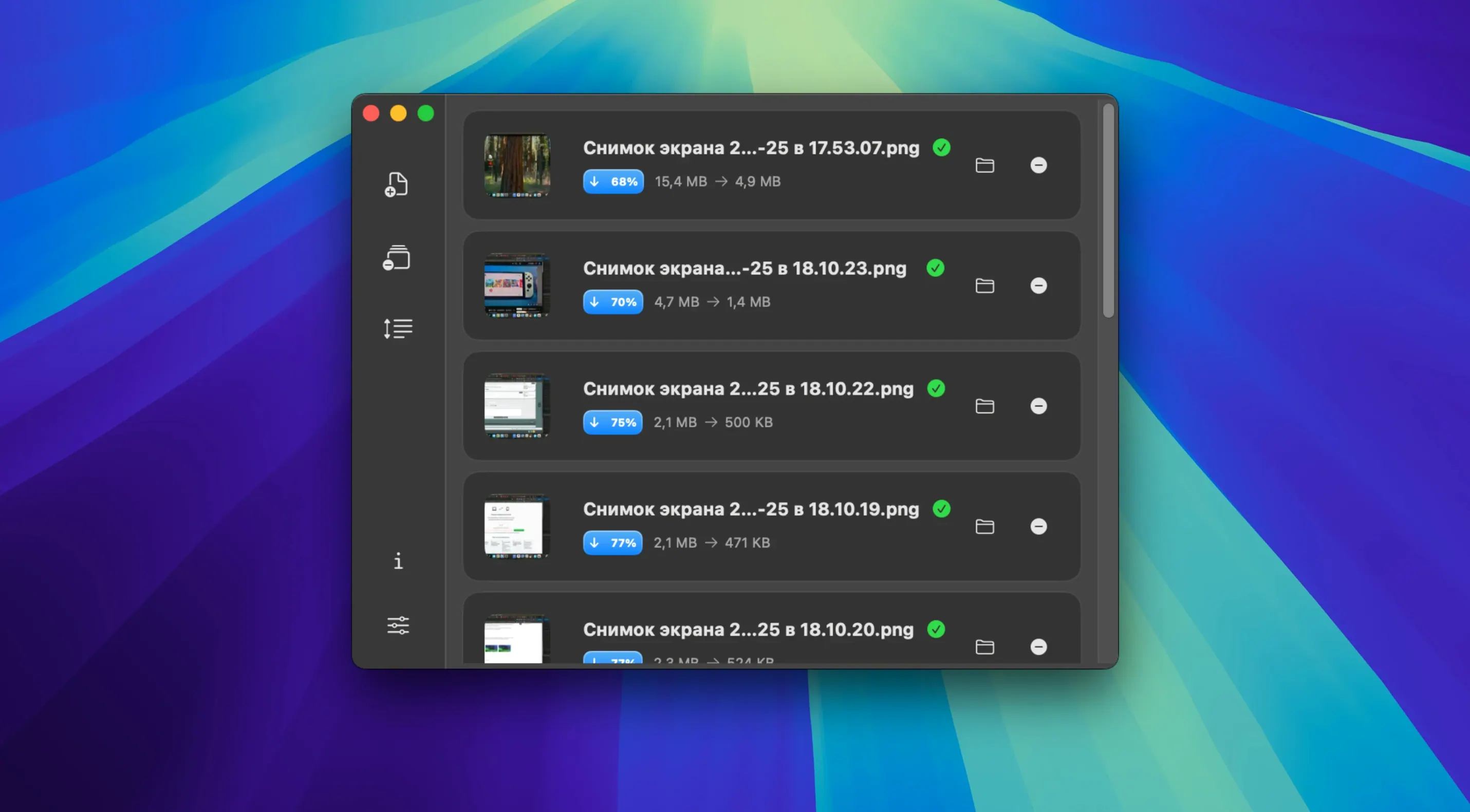
Click a screenshot to see it wider.
JPEG, PNG, HEIC, WebP, and SVG — Zipic handles them all, and it does the work right on your Mac.
Compression — reduces file size without visible quality loss, ideal for email or web uploads.
Resizing — change dimensions in pixels or percentage, with presets for common social media sizes.
Finder Quick Actions — right-click any image in Finder and compress it in place.
Apple Shortcuts — build automated workflows that compress images as part of a larger task.
Raycast integration — call Zipic from Raycast for quick access.
Local processing — files never leave your machine.
If you manage images for a small team or just want to shrink a batch of photos, Zipic keeps it simple. Download Zipic for Mac and get back to your actual work.
Original File Safety Default
Does Zipic change the original file?
No. The app creates a compressed copy alongside the original by default. You can adjust this in preferences if you want to replace files, but the default is safe for first-time users.
Can I undo a batch conversion?
Since Zipic works locally and doesn't overwrite originals by default, you always have the unmodified files. If you do choose to replace, the originals are gone — so start with the safe default until you're confident.
Does it work with folders inside folders?
Yes. Drag a folder onto Zipic and it processes all supported images in that folder and any subfolders. You can also set up a Watched Folder in the automation panel, and any new image dropped into that folder gets processed automatically.
Will it slow down my machine during batch jobs?
Zipic uses local resources, so a large batch on an older machine will take longer. The app shows a progress bar, and you can pause or cancel a running job. For most day-to-day batches of a few dozen images, the impact is minimal.
Drag-and-Drop Batch Preview for Thirty Photos
You just shot thirty product photos for a client's website.
Open Zipic. Drag the entire product folder into the app window. A list populates with all thirty images, showing each file's current size and format.
The preview panel updates to show estimated output size and a side-by-side comparison of the original and compressed image.
Select all files. Choose "Resize to 1920 px wide" from the preset dropdown. Good enough.
Click "Start." The progress bar moves through each file. In under a minute, thirty compressed, resized JPEGs land in a new subfolder named "Zipic_Export," ready to upload.
Setting Up Finder Quick Actions
Before you start batch processing, open Zipic's preferences and enable "Compress with Zipic" in the Extensions tab. This adds a right-click option in Finder for any supported image or folder. No need to open the app first — just right-click and choose the action from the Quick Actions menu.
The same preference panel lets you turn on Apple Shortcuts actions. Once enabled, you can build a Shortcut that takes a screenshot, runs Zipic compression on the image, and saves the result to a specific folder. Handy for daily screen grabs that need to stay small.
Setting Up a Watched Folder for Incoming Assets
Your design team drops reference images into a shared "Incoming" folder. Open Zipic, go to the automation panel, and point it at that folder. Set the output to a "Compressed" subfolder. Now any JPEG or PNG that lands in "Incoming" gets compressed automatically and lands in "Compressed" within seconds.
This works for format conversion too. Set the watched folder to convert all HEIC files to JPEG, and you never have to explain to a client why their iPhone photos won't open on a Windows machine.
To download Zipic for Mac, grab the disk image from the catalog, drag the app to Applications, and you're set. It runs on any Mac with macOS 13 Ventura or later, Intel or Apple Silicon.
Next week, you update the same product images to WebP format for a faster page load. Zipic handles the conversion in one pass.
- Installer size reduced from about 103 MB to about 59 MB in the Windows beta.
- JPEG compression no longer fails on non-ASCII paths in the Windows beta.
- macOS 13 Ventura or later
- Intel or Apple Silicon
Questions I get about this line
Yes, Zipic supports both Intel and Apple Silicon Macs running macOS 13 Ventura or later.
Yes, Zipic adds Finder Quick Actions so you can compress images without opening the app.
It supports JPEG, PNG, HEIC, WebP, and SVG.
The install order
- Open the downloaded disk image.
- Drag the Zipic app into the Applications folder.
- Launch Zipic from Launchpad once the copy completes.