
- Version
- 3.8.86
- Developer
- smallblueprinter
- Languages
- English
- License type
- Included
| macOS range | OS X 10.7 or later |
|---|---|
| Chip | Apple Silicon, Intel 64-bit |
| Download | 225 MB |
Screenshots
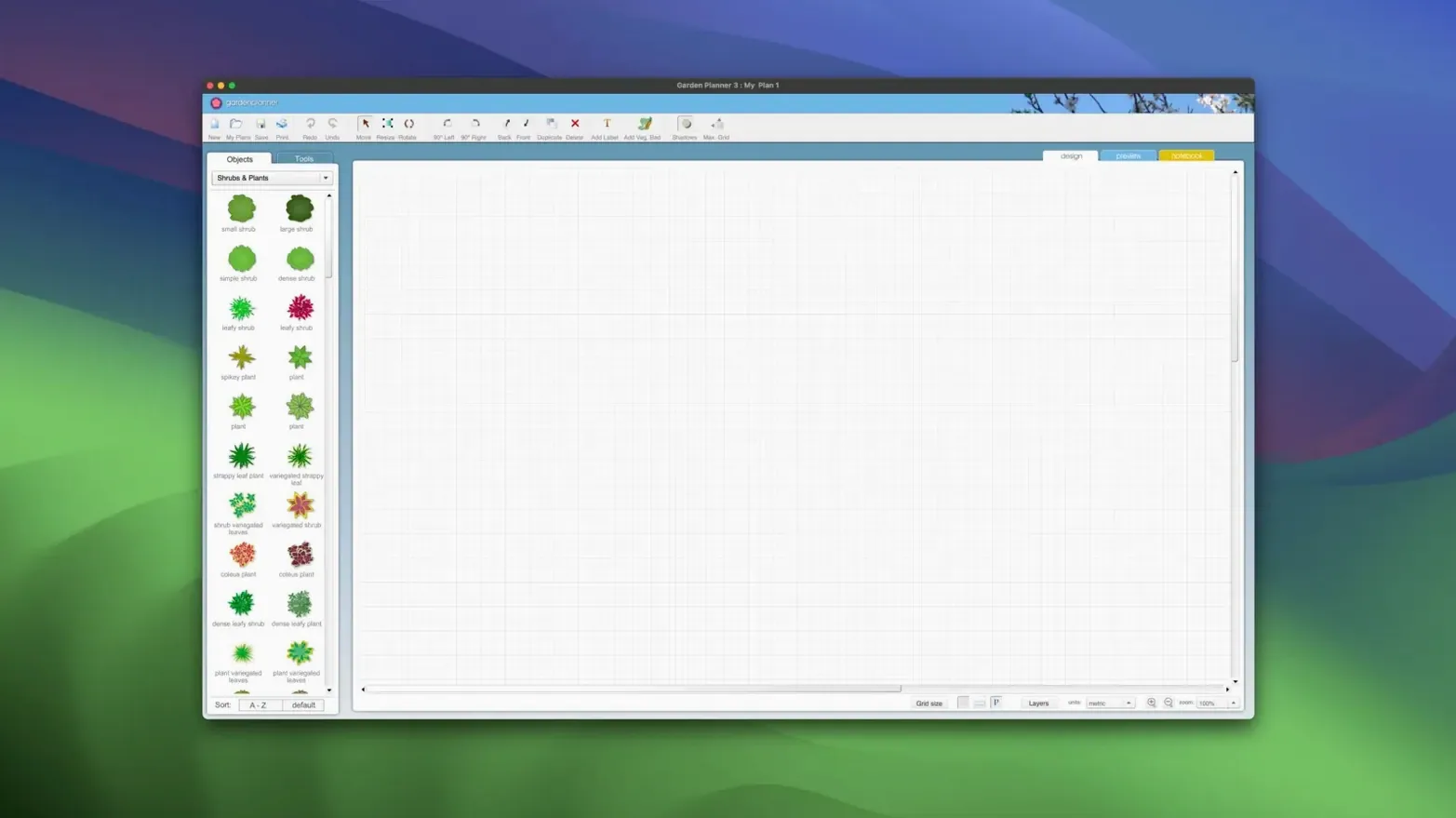
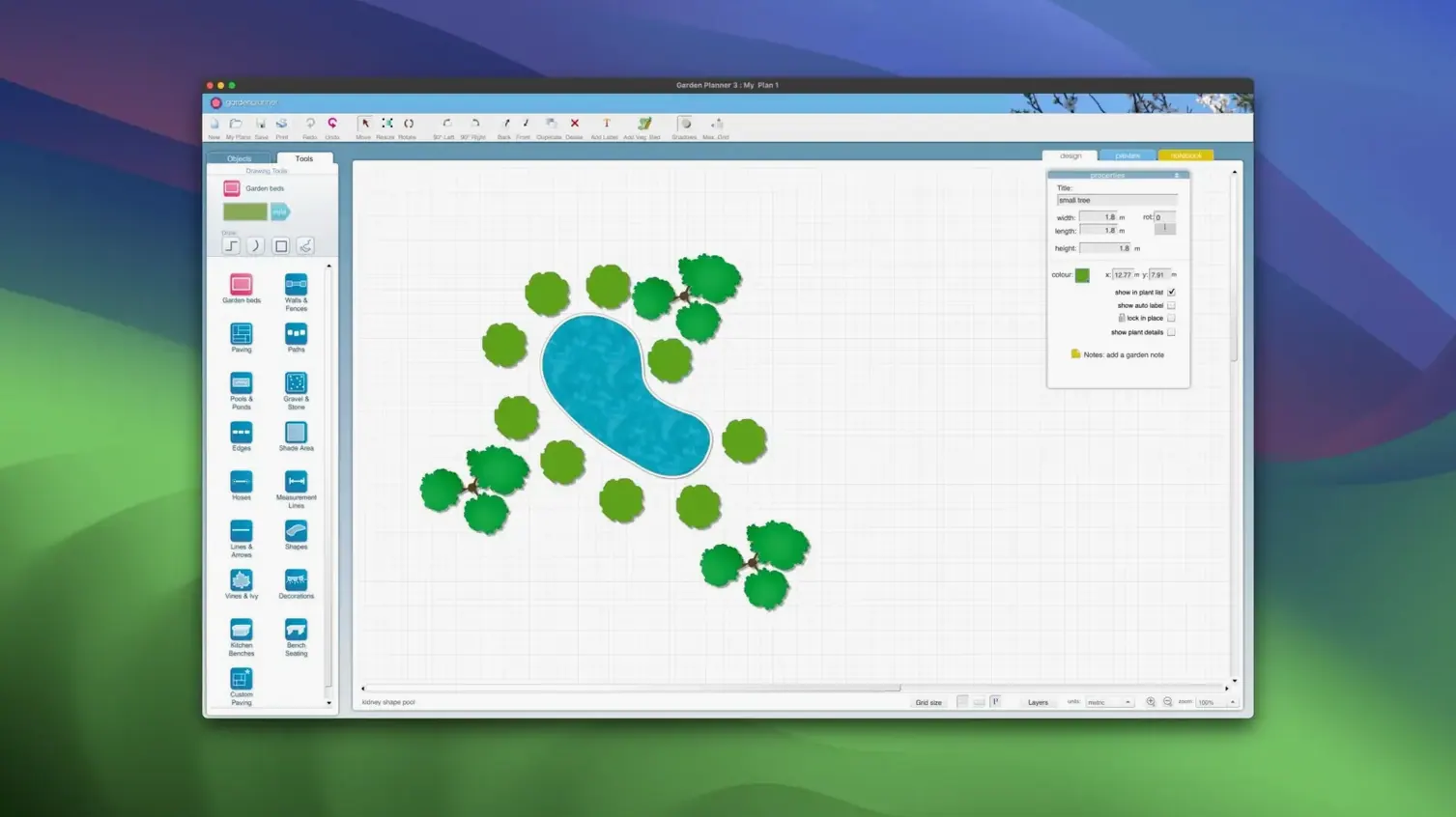
Scroll the row, it snaps to each screenshot. Click one to see it wider.
Gardeners, landscapers, and anyone mapping out a backyard use Garden Planner to sketch beds, paths, and structures before breaking ground. It is an easy-to-use design tool that runs on Mac and Windows, so it fits both home and small business workflows.
- Start by placing plants, fences, and sheds from the built-in library. Each object can be rotated, duplicated, scaled, or reshaped to match your site.
- Add text labels or longer descriptions to mark planting dates, care notes, or material specs.
- Use the preview screen to see the finished project on screen, then print a high-quality copy for reference.
- Export the plan as a JPEG or PNG image to share with clients or email to yourself.
- Run the object report to list every element; save it as CSV or TXT for budgets or inventory.
That report alone saves time when you need a plant count or a materials list. The 3.8.86 update adds new path styles plus general improvements and bug fixes, keeping the tool stable on both Apple Silicon and Intel Macs.
First Days with Garden Planner
Start by walking through the library. The built-in collection has over 1,200 plants and objects. Do not try to learn them all at once. Drag a few trees and a fence onto the canvas. Rotate them. Scale them up and down. Get a feel for the snap and alignment behavior.
Set up one user-defined setting for a plant you use often. Maybe a dwarf apple tree or a specific hedging shrub. This lets you save size and color preferences so the next project does not start from scratch.
Print a test page. Check that your printer handles the high-quality output before a real client presentation. Export one plan as JPEG and one as PNG. Compare the file sizes and see which meets your need.
A Working Session
You open Garden Planner and see last week's draft of the Johnson property. The client wanted a vegetable bed surrounded by a low fence. The existing path is a straight gravel strip that cuts through the middle. They want it curved.
You select the path drawing tool. Click and drag a curve from the patio to the gate. The new path style from the 3.8 update gives you options. You pick a flagstone pattern. The path reshapes in a few seconds.
Next, you need to add the vegetable bed. You pull a raised bed object from the library, drop it to the left of the new path. Duplicate it twice. Arrange the three beds in a row. Scale the middle one down because the site has a utility box there.
You add a text description to each bed: "tomatoes," "peppers," "herbs." The client wanted care notes visible on the plan. You type a short note under each label.
Switch to the 3D view. Walk through the garden. The curved path and raised beds look right. You rotate the view to check sightlines from the house. The client wanted no visual blockage. The beds sit low enough.
Run the object report. It lists every plant, bed, and path segment. Save it as CSV for the client's spreadsheet. Export the 3D view as a PNG for the proposal email. Print a paper copy for the site visit tomorrow.
No Layers, Just Drag Objects
Garden Planner sits between simple sketching apps and full BIM-level landscape software. It does not have the learning curve of dedicated CAD tools like SketchUp for landscaping. You open it and drag objects. No layers to manage. No complex toolbars.
Compared to Live Home 3D's garden mode, Garden Planner focuses on the planting side. Live Home 3D handles whole house interiors and exteriors. Garden Planner stays in the yard. The library of 1,200 plants and objects is deeper than what you get in a general home design app.
SmartDraw includes garden templates but feels like a business diagram tool adapted for landscaping. Garden Planner was built from the ground up for gardens. The drag-and-drop workflow and the 2D/3D toggle are natural for this use case. The object report is something the others do not offer in the same way.
- New path styles added.
- Improvements and bug fixes.
- macOS 10.7 or later
- Apple Silicon or Intel x86 64-bit
- Interface language: English
Questions I get about this line
Yes, the app supports high-quality printing and includes a preview screen so you can check the layout before printing.
You can export projects as JPEG or PNG image files, and the object report can be saved as CSV or TXT.
The install order
- Mount the downloaded disk image.
- Run the standard installation procedure.
- Use the included activation code to activate the app.