Free download (641 MB) Previous versions
- Version
- 4.3
- Developer
- Apple
- Languages
- Russian, English, German, Spanish, Italian, Chinese (Traditional), Chinese (Simplified), Korean, Portuguese, French, Japanese
- License type
- K'ed by Antibiotics x TEAM EDiSO
| macOS range | macOS 26 or later |
|---|---|
| Chip | Apple Silicon, Intel 64-bit |
| Download | 641 MB |
| Previous versions | 7 on file |
Screenshots
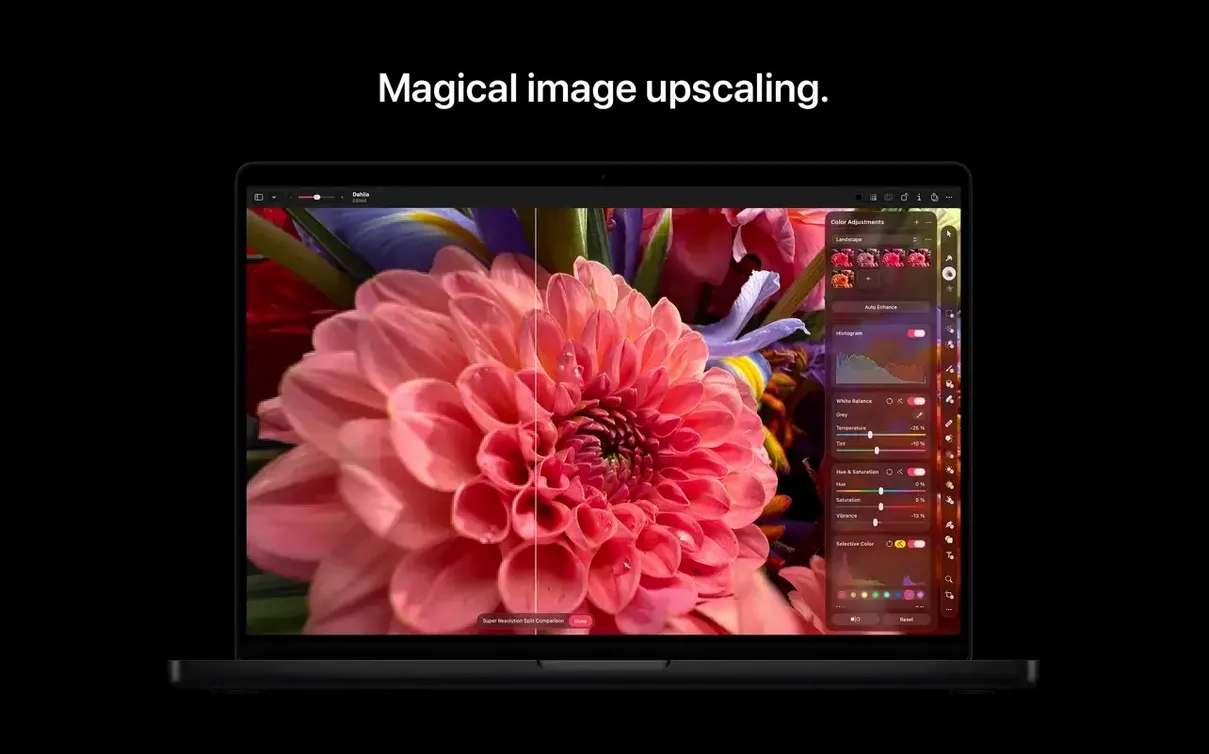
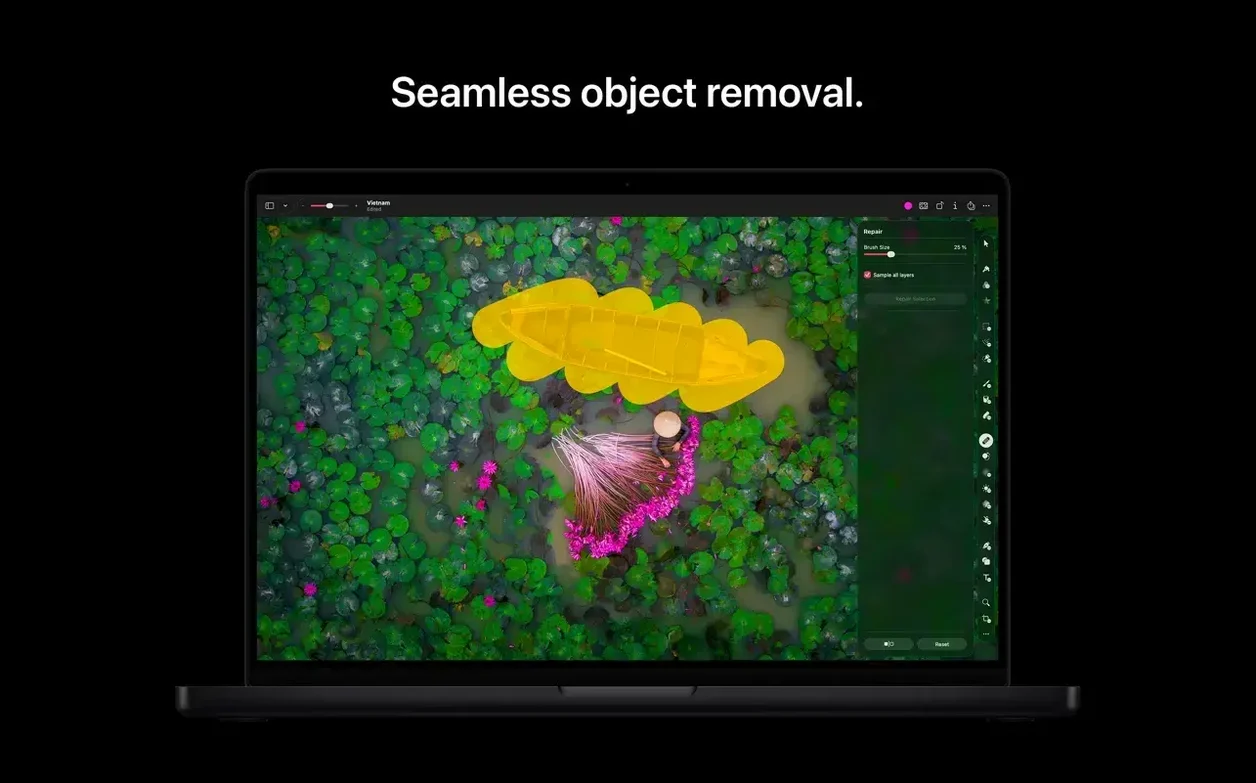
Scroll the row, it snaps to each screenshot. Click one to see it wider.
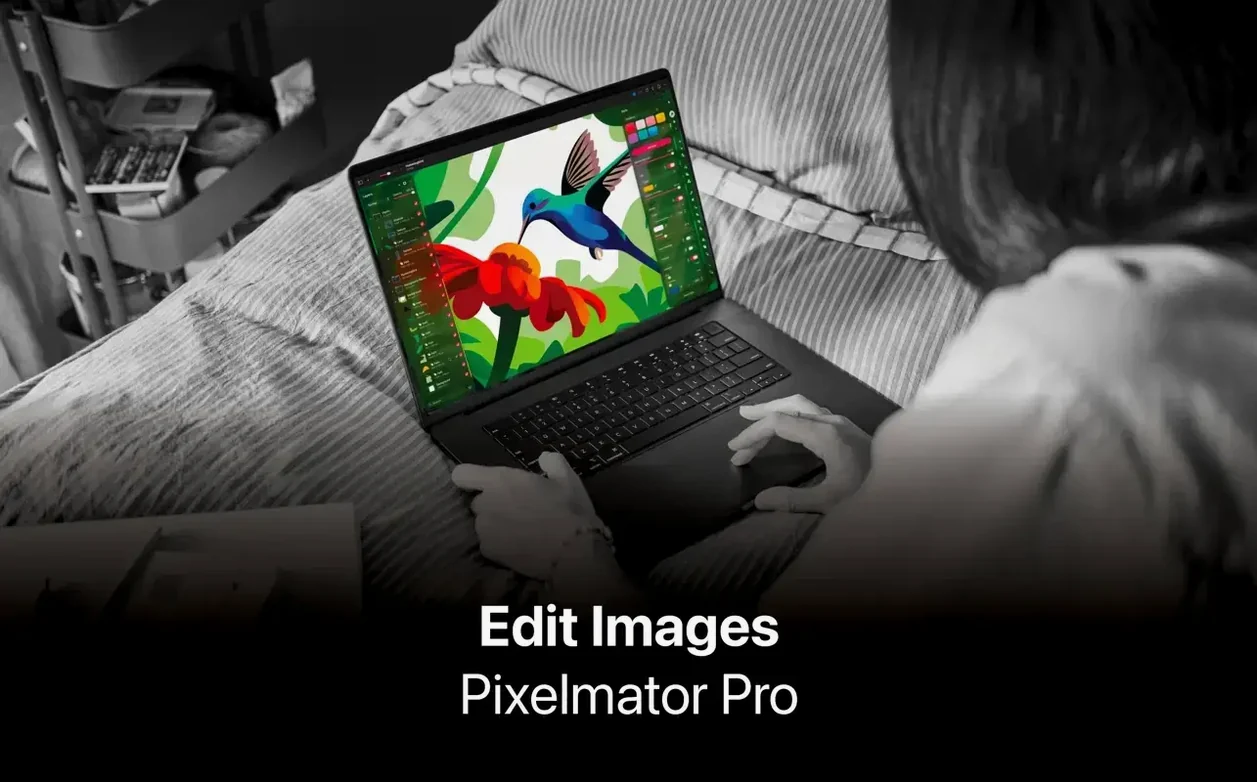
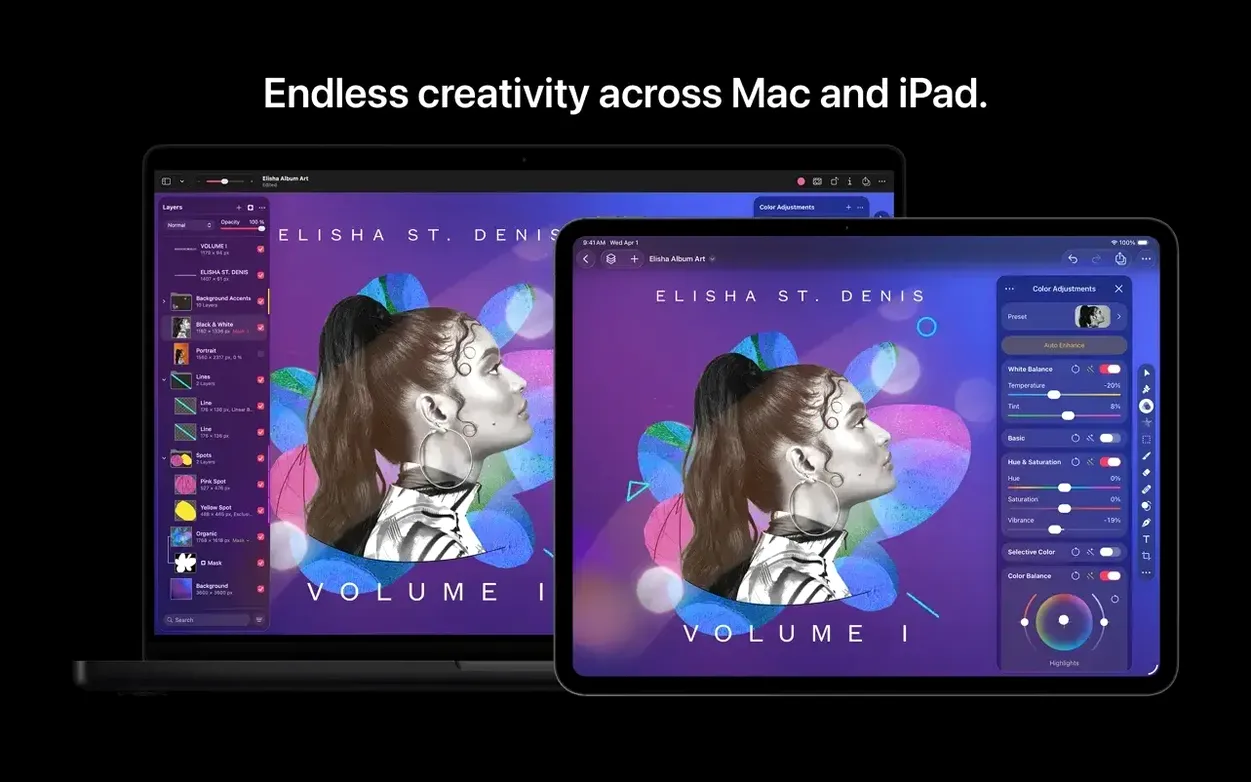
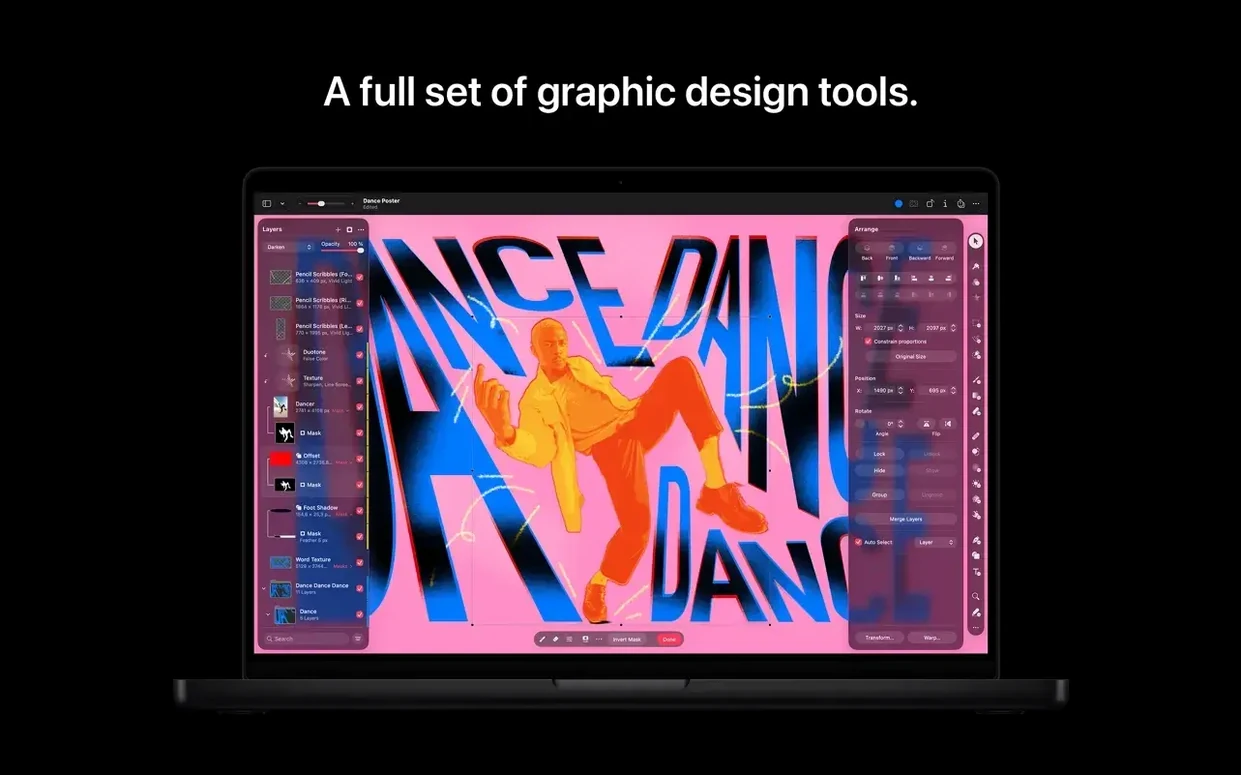
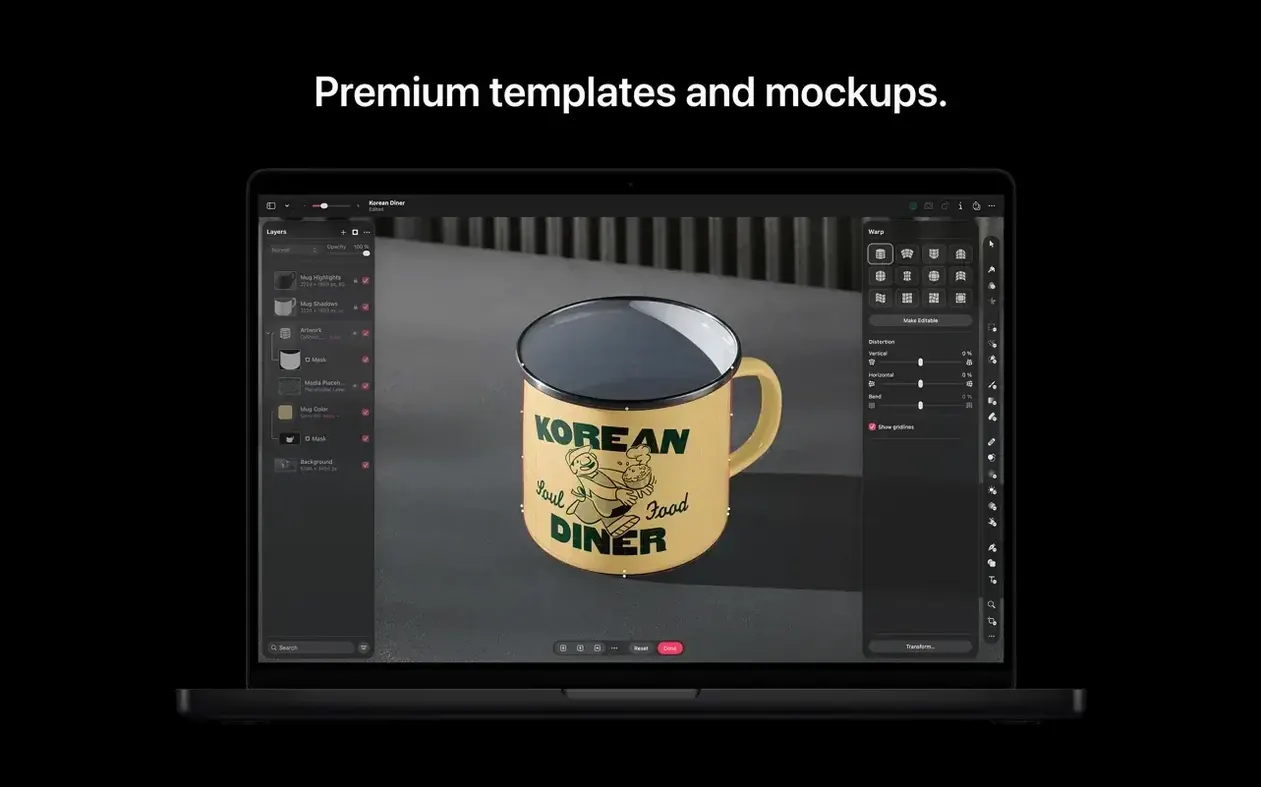
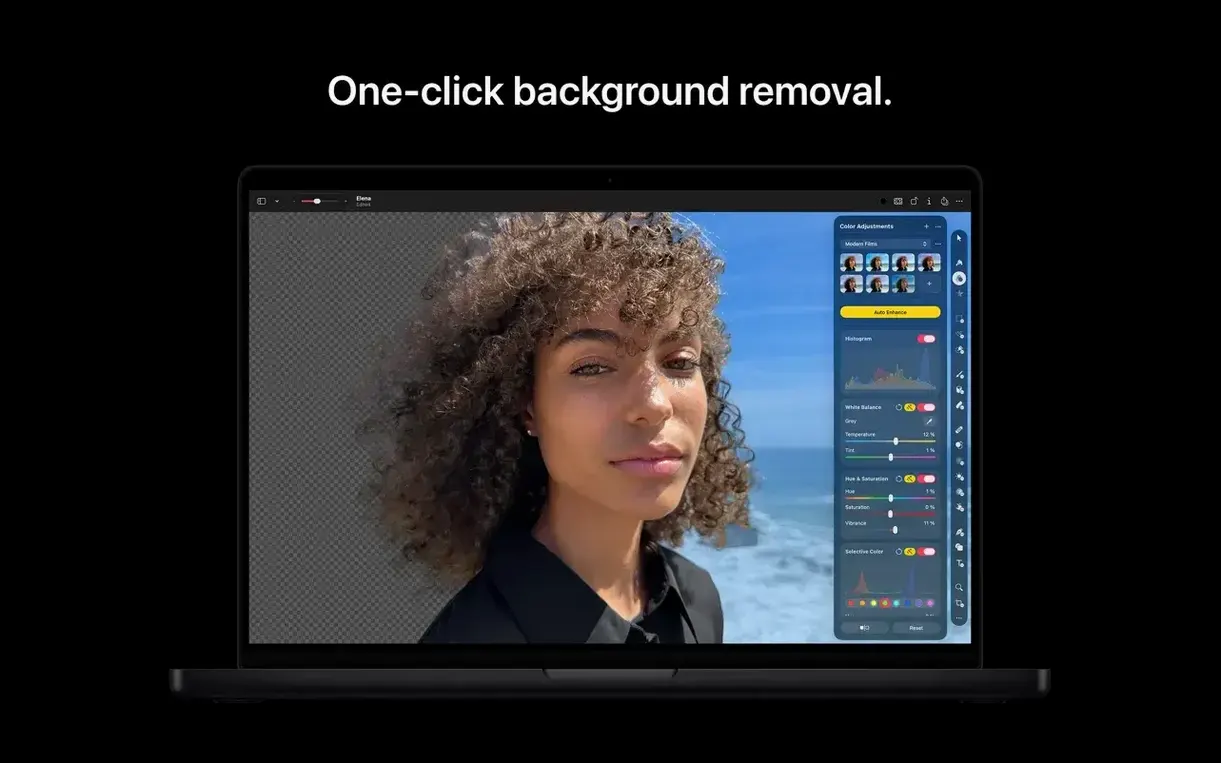
If you already use the Photos app for everyday snapshots, Pixelmator Pro fits right in. Launch it from Photos, edit, and save the changes back to the library — no export dance. The single-window interface keeps tools close, so you can move from a quick crop to a multi-layer composite without hunting through panels.
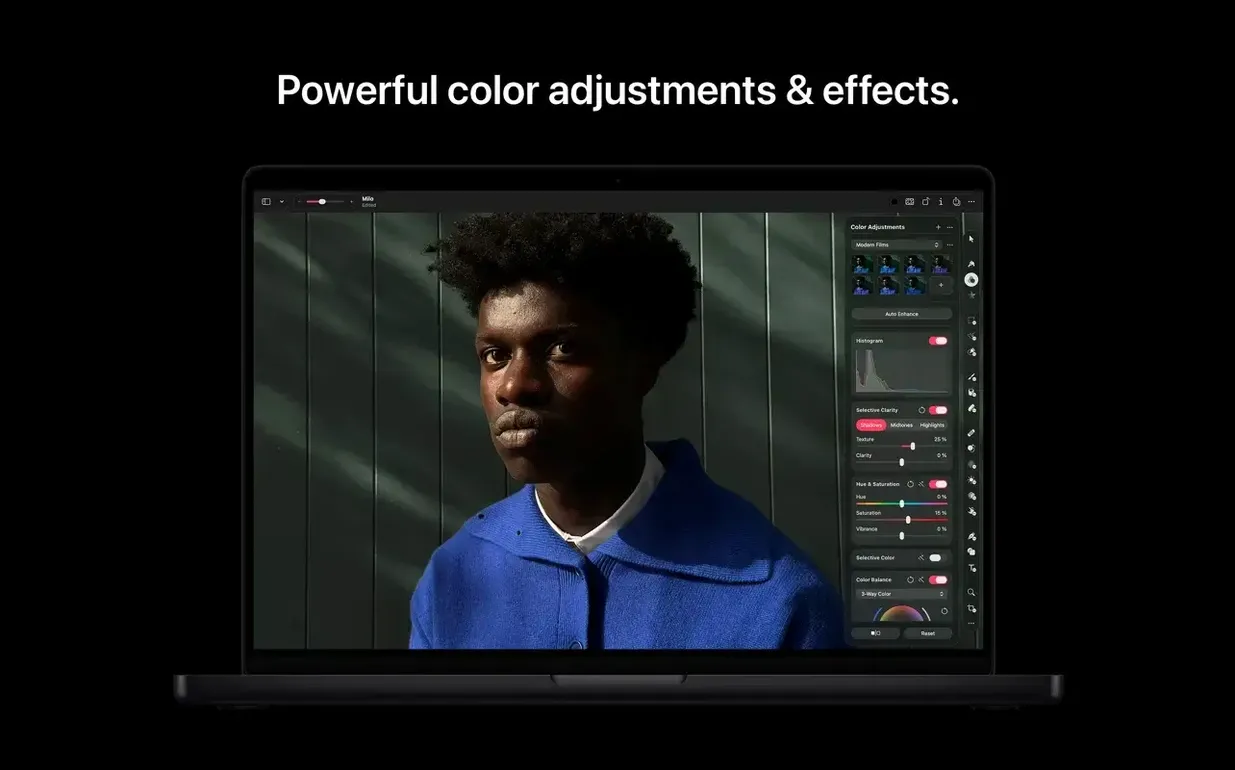
Version 4.3 adds Generate Image and Generate from Image, which create or edit pictures from text descriptions. There’s also Content Hub for dropping in photos, graphics, and shapes, plus a Core ML enhancement that fixes tone and color in one click. For accessibility, Switch Control and VoiceOver support got a boost — useful in a mixed clinic or home office.
Batch work is covered too. Automator actions let you process a folder of images without opening them one by one. Sharing to Mail, AirDrop, or Photos is a single button away. It runs natively on Apple silicon Macs and is part of Apple Creator Studio.
Whether you’re a designer or someone who just wants better edits than the default tools, Pixelmator Pro sits well next to the apps you already use.
Content Hub Replaces Finder for Assets
The new Content Hub changes how you find assets. Instead of digging through Finder for a stock photo or a shape you saved last month, you open Content Hub inside the app and browse. It lists photos, graphics, shapes, and illustrations in one place. Drag what you need into your composition. No Finder tabs, no file conflicts.
Generate Image and Generate from Image are the two features people ask about most. Generate Image builds a new picture from a text description. Type what you want, and Pixelmator Pro creates it. Generate from Image works the other way — you give it an existing photo and a text prompt, and it edits or transforms that photo based on your words. Neither replaces manual retouching. They give you a starting point or a quick alternative when you don’t have source material.
Custom vector shape generation also runs from a text description. Type “rounded arrow” or “leaf outline,” and the app produces a vector shape you can resize, recolor, and reuse. It’s not a replacement for building precise vectors by hand, but it saves time when you need a generic shape fast.
Switch Control and VoiceOver improvements matter if you navigate the app with assistive tech or use a switch setup. Buttons and sliders now announce themselves reliably. The interface responds the same whether you click, tab, or speak.
Fix Prompts That Produce Wrong Images
Snag one: Generate Image produces something that doesn’t match your prompt. The app works best with short, specific descriptions. Try “red apple on wooden table” instead of “a nice piece of fruit.” Keep the subject, background, and lighting clear.
Snag two: Content Hub doesn’t show your custom collections. Content Hub displays Apple’s library and anything you saved to the Pixelmator Pro folder inside the app. Files you dropped into a random Finder folder won’t appear. Move them into the Content Hub folder structure from the app’s preferences, or drag them in directly from Content Hub’s import option.
Snag three: The app won’t open a RAW file from an older camera. Pixelmator Pro relies on macOS 26’s RAW engine. If your camera isn’t supported there, the app can’t read it either. Convert to DNG or a supported format first.
Snag four: A layered PSD file opens flat. Pixelmator Pro opens layered PSD files, but only if the PSD was saved with compatibility mode on in Photoshop. Re-save the PSD with “Maximize Compatibility” checked, then reopen it here.
Generate Image Does Not Replace Stock Photos
Does Generate Image replace stock photos? No. It creates new images, but the output depends on your prompt and the app’s current model. You’ll still want stock libraries for specific products, logos, or recognizable locations.
Can I use it alongside Apple Photos? Yes. The integration works both ways. Open a photo from Photos, edit in Pixelmator Pro, and save back to the Photos library. The changes stay inside the Photos app without creating duplicate files.
Will my old brushes and presets transfer? If you have custom brushes from earlier versions, they should carry over when you install 4.3 over an existing installation. If you’re starting clean, you’ll re-create or import them manually. There’s no automatic sync for third-party resources.
Does it support batch processing? Yes. Automator actions let you record a series of steps (resize, sharpen, convert) and run them across a folder of images. The action plays back on every file in the folder. It works for JPEG, TIFF, PNG, and other supported formats.
Don't Flatten Layers or Lose Originals
Mistake one: Editing on a flattened layer and losing the original. Pixelmator Pro is non-destructive, but only if you work with layers. Beginners sometimes paint, clone, or adjust directly on the background layer. When they save and reopen, the original data is gone. Add a duplicate layer before any retouching. That way you can always step back.
Mistake two: Ignoring the adjustment layers panel. Instead of applying brightness or color balance to the whole image, use adjustment layers. They sit on top of your photo and apply the effect without changing the pixels. You can turn them off, adjust them, or delete them at any point.
Mistake three: Over-relying on Core ML enhancement. The one-click enhancement fixes exposure and color in many shots, but it can flatten contrast or oversaturate a specific tone. Use it as a starting point, then fine-tune with manual sliders.
Mistake four: Not naming layers in a complex composite. When you have fifteen layers of shapes, text, and photos, unnamed layers become a guessing game. Double-click a layer’s name in the Layers panel and give it something you’ll recognize tomorrow. It takes two seconds and saves minutes of hunting.
Mistake five: Forgetting to check the architecture requirement. Pixelmator Pro 4.3 runs natively on Apple silicon Macs and also on Intel models. But it requires macOS 26 or later. If you’re on an older OS version, the app won’t install. Confirm your macOS version in About This Mac before you download.
- Adds Content Hub for inserting photos, graphics, shapes, and illustrations.
- Adds Generate Image for creating images from text descriptions.
- Adds Generate from Image for text-based edits and transformations.
- Adds custom vector shape generation from text descriptions.
- Adds improved support for Switch Control and VoiceOver.
- macOS 26
- Apple silicon Mac
- Interface languages: English, Russian, German, Spanish, Italian, Traditional Chinese, Simplified Chinese, Korean, Portuguese, French, Japanese
Questions I get about this line
Yes. You can open images from Photos, edit them, and save the changes back to your library.
It includes Automator actions that let you process multiple images at once.
The install order
- Mount the downloaded disk image.
- Drag the app into the Applications folder alias.
- Launch the app from Launchpad after copying finishes.