Free download (40 MB) Previous versions
- Version
- 3.4.8
- Developer
- Fat Cat Software
- Languages
- English
- License type
- K'ed by TNT team
| macOS range | macOS 14 or later |
|---|---|
| Chip | Apple Silicon, Intel 64-bit |
| Download | 40 MB |
| Previous versions | 4 on file |
Screenshots
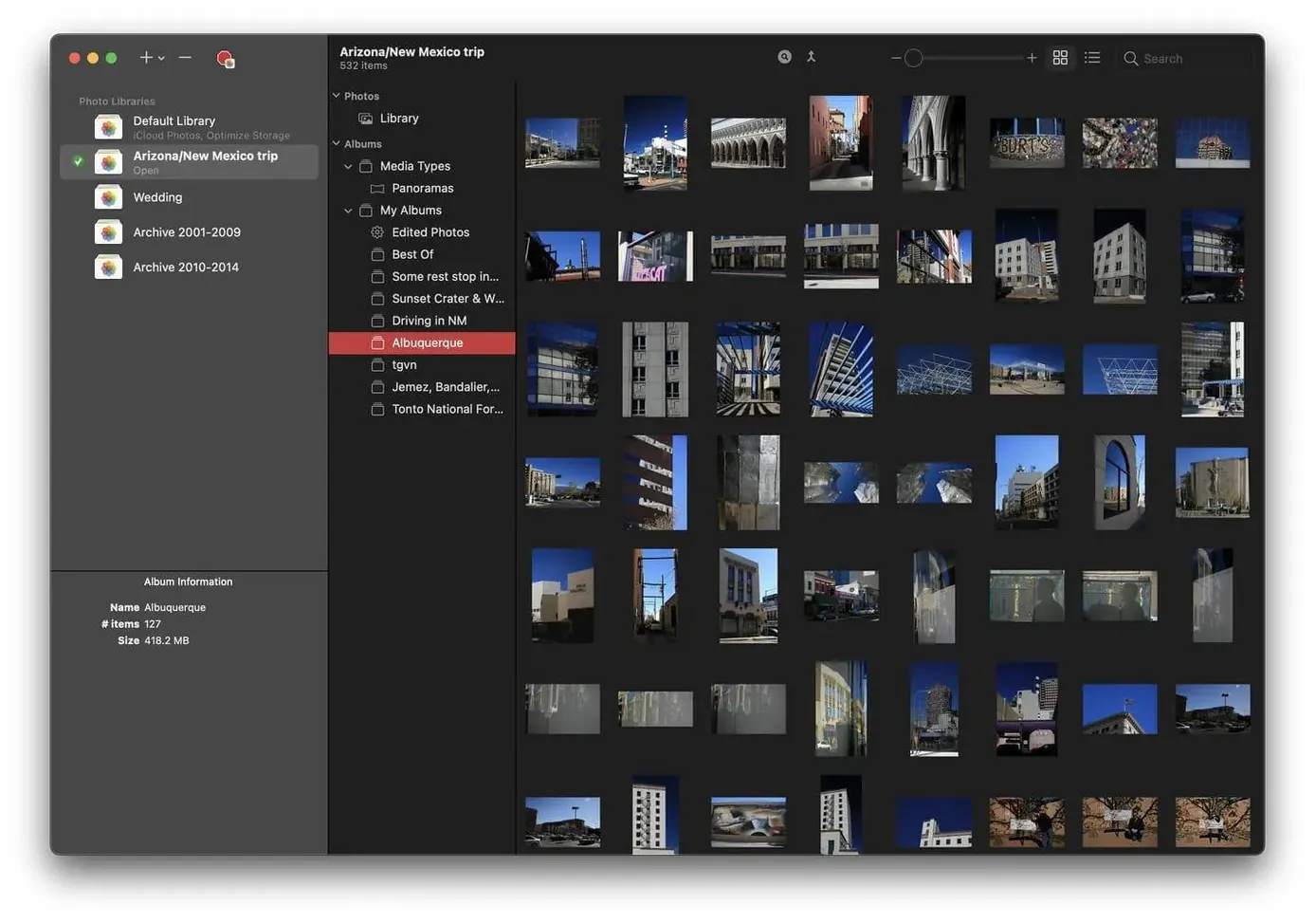
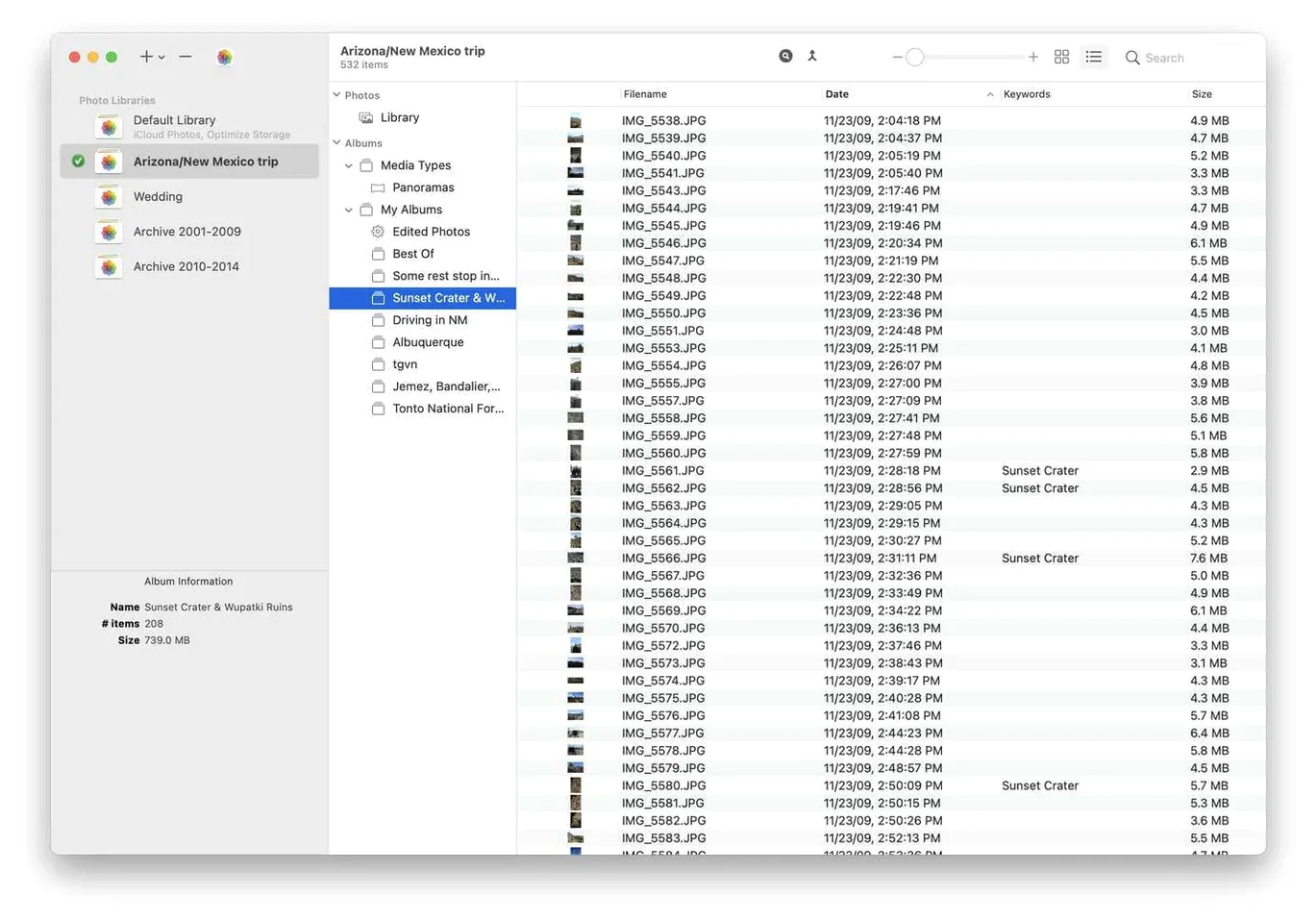
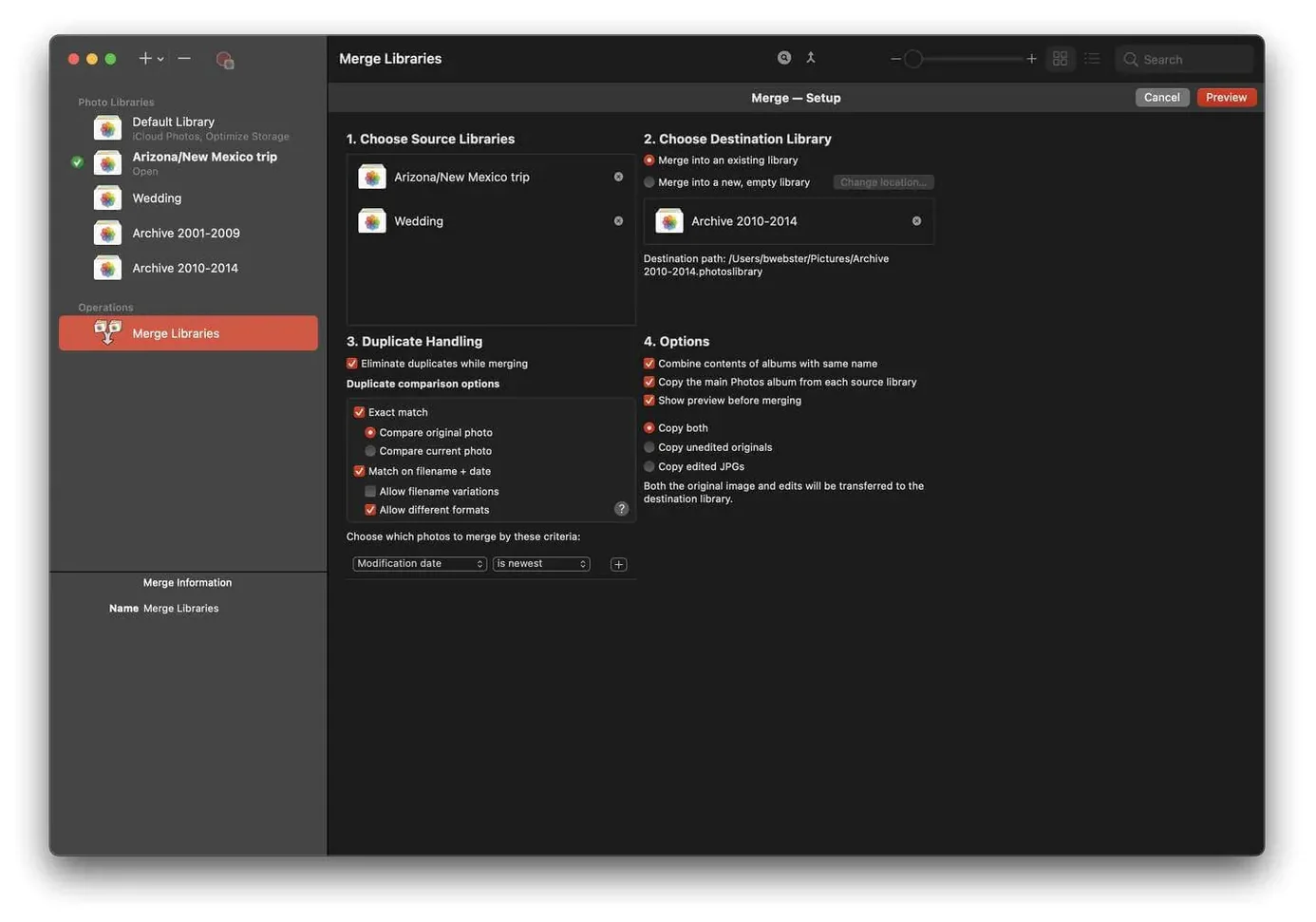
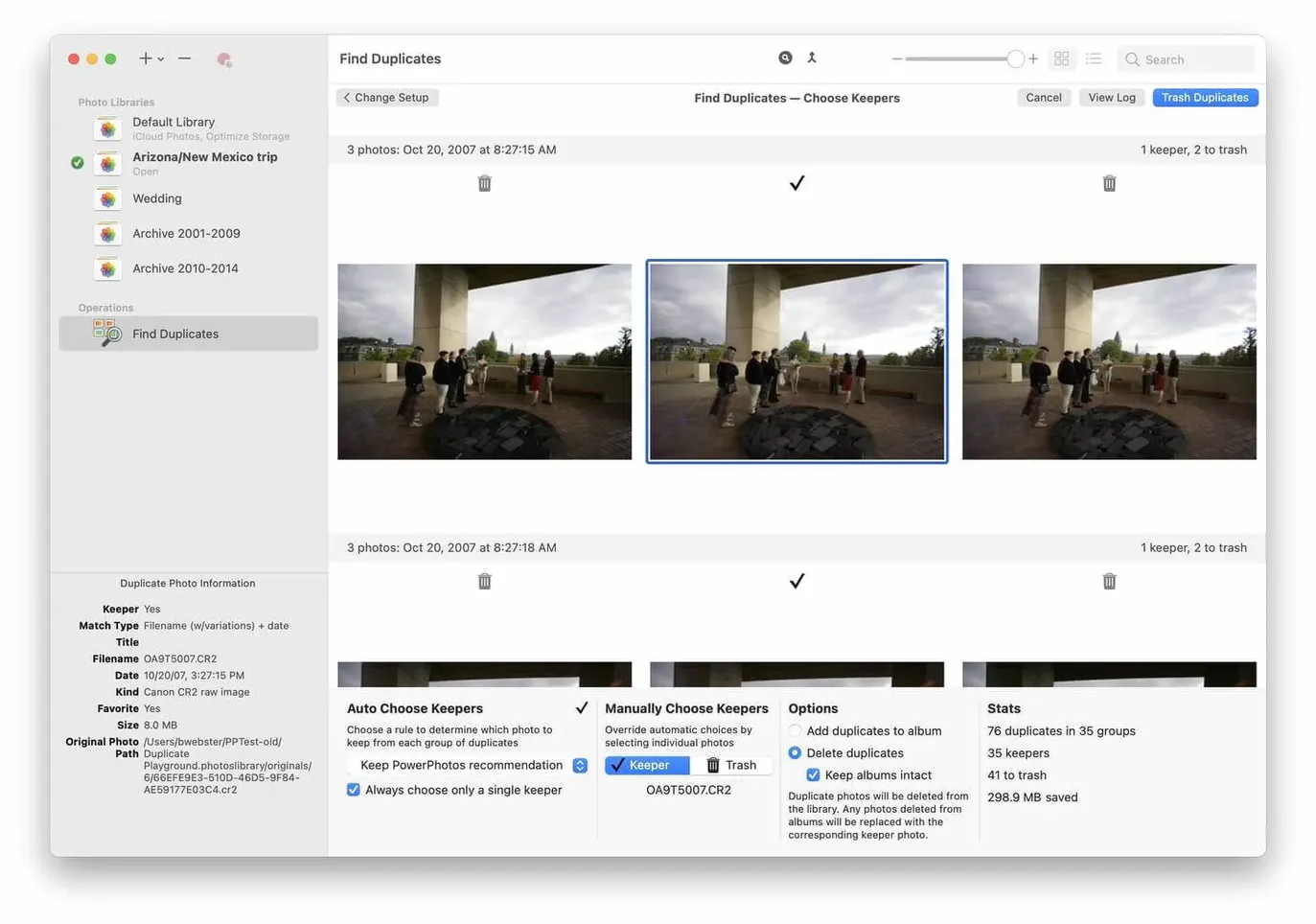
Scroll the row, it snaps to each screenshot. Click one to see it wider.
If you already use Apple’s Photos app, you know how fast a single library can balloon. PowerPhotos gives you the tools to split that library into separate ones, switch between them easily, and search across all your libraries at once. It also finds duplicate photos and shows them side by side so you can decide what to keep. Reducing iCloud storage use is a practical side effect — fewer duplicates and separate libraries mean less synced data.
| Detail | Info |
|---|---|
| Version | 3.4.8 |
| Developer | Fat Cat Software |
| Architecture | Apple Silicon + Intel 64-bit |
| macOS | 14 or later |
| Language | English |
PowerPhotos fits naturally alongside Photos.app — it doesn’t replace it, it extends it. You can keep your main library clean and stash older photos in secondary libraries without losing access. The side-by-side duplicate viewer is straightforward: pick duplicates, delete or merge. For anyone managing family archives or multiple Macs, it’s a practical addition to the toolkit.
Reads Photos Library Files Directly
PowerPhotos works with Photos.app without changing how the built-in app works. You don't migrate away from Photos — you just manage what Photos sees. The app reads Photos library files directly, so you can open a secondary library, browse it, and move photos between libraries without importing or exporting. Drag a folder of photos into a new library, and PowerPhotos keeps the file links intact. Photos.app still syncs what it's told to sync.
The app also interacts well with macOS Finder. You can locate any photo's file on disk from within PowerPhotos, which is useful when you need to edit a file in another app or check where it lives. For people who use external drives for archive libraries, PowerPhotos remembers which drive each library is on and shows a warning if the drive isn't connected.
Library Sizes in the Switching Menu
Version 3.4.8 brought a few everyday improvements. The library switching menu now shows library sizes, so you can see at a glance which libraries are taking up space. Duplicate scanning runs faster on larger libraries — useful if you have tens of thousands of photos spread across several libraries. The search function across all libraries also got a responsiveness boost: results appear as you type rather than after you hit Enter.
On macOS 14, PowerPhotos now uses the system's native file picker for importing folders, which means you get the same folder selection interface you see in other Mac apps. A minor but welcome change: the app remembers your window position and size between sessions, so you don't have to resize it every time you open it.
Scan Your Library and Create a Test Library
Start by letting PowerPhotos scan your current Photos library. That gives you a baseline of what's in it. Then create a test library with a few hundred photos — drag them from Finder or import from a folder. Switch back and forth between libraries to get comfortable with the library switcher.
Run a duplicate scan on your main library next. The side-by-side view makes it easy to compare photos taken at the same event. Delete obvious duplicates first; you can always come back for a second pass. If you use iCloud Photos, separate your oldest photos into a secondary library that doesn't sync. That alone can shrink your iCloud storage.
Keep PowerPhotos open while you use Photos.app for a day or two. You'll get a feel for when to reach for PowerPhotos — merging libraries after a trip, checking for duplicates after an import, or just browsing an archive without opening it in Photos.
- macOS 14 or later
- Apple Silicon or Intel 64-bit
Questions I get about this line
It works with Apple’s Photos app, so if your libraries are synced to iCloud, PowerPhotos can help you separate them and reduce what gets stored in iCloud.
Yes, PowerPhotos lets you search across all your libraries simultaneously, saving time when you need to find a specific image.
The install order
- Mount the disk image and run the installer. If Gatekeeper blocks it, open it anyway.
- Open Terminal, press Enter to bypass Gatekeeper if needed.
- Drag the app to the Applications folder.
- Open the app once the copy finishes.