Free download (6.5 GB) Previous versions
- Version
- R2025b (25.2.0.2998904) ARM only
- Developer
- MathWorks
- Languages
- English
- License type
- K'ed by shinigami210
| macOS range | macOS 12.6 or later |
|---|---|
| Chip | Apple Silicon, Intel 64-bit |
| Download | 6.5 GB |
| Previous versions | 6 on file |
Screenshots
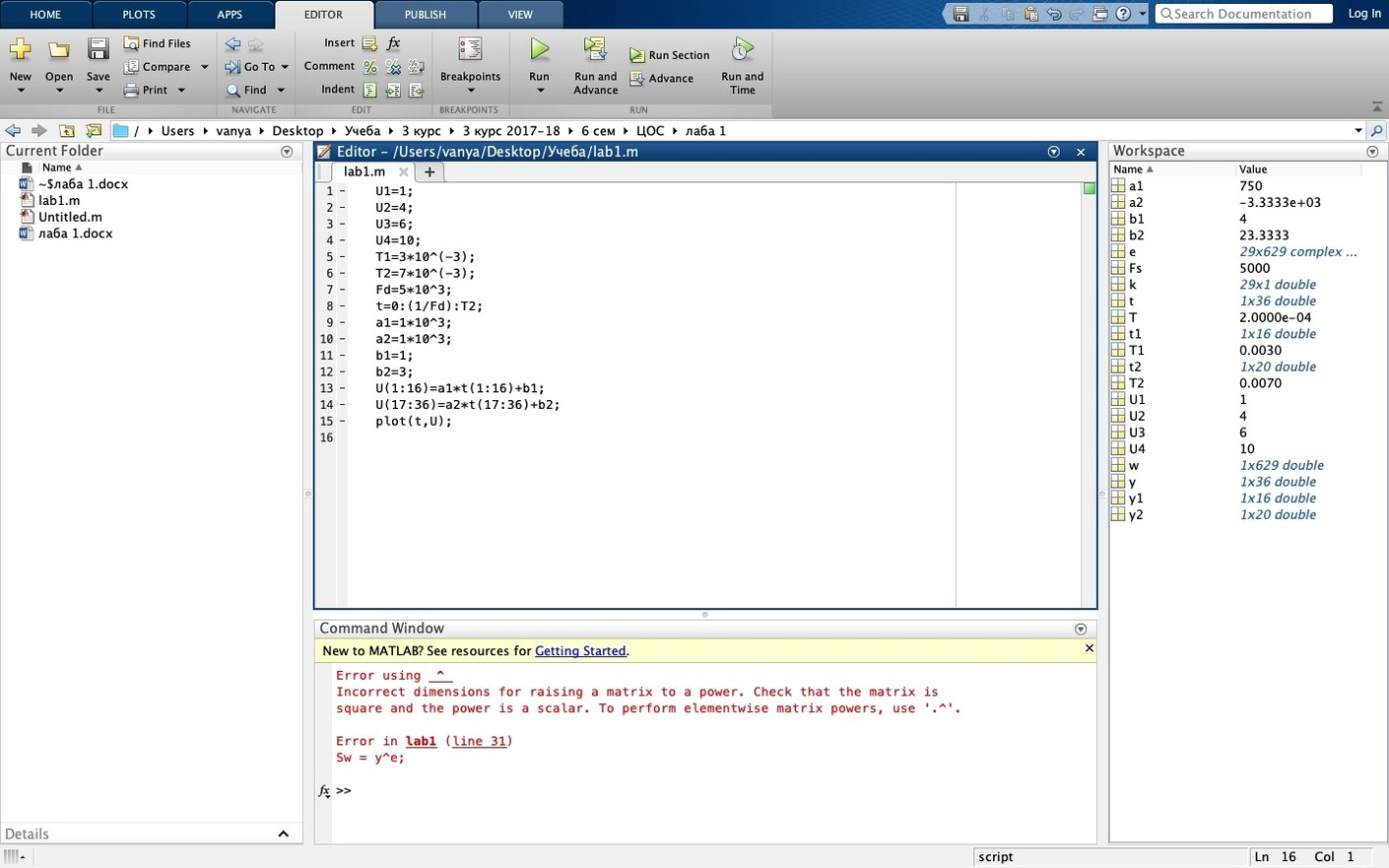
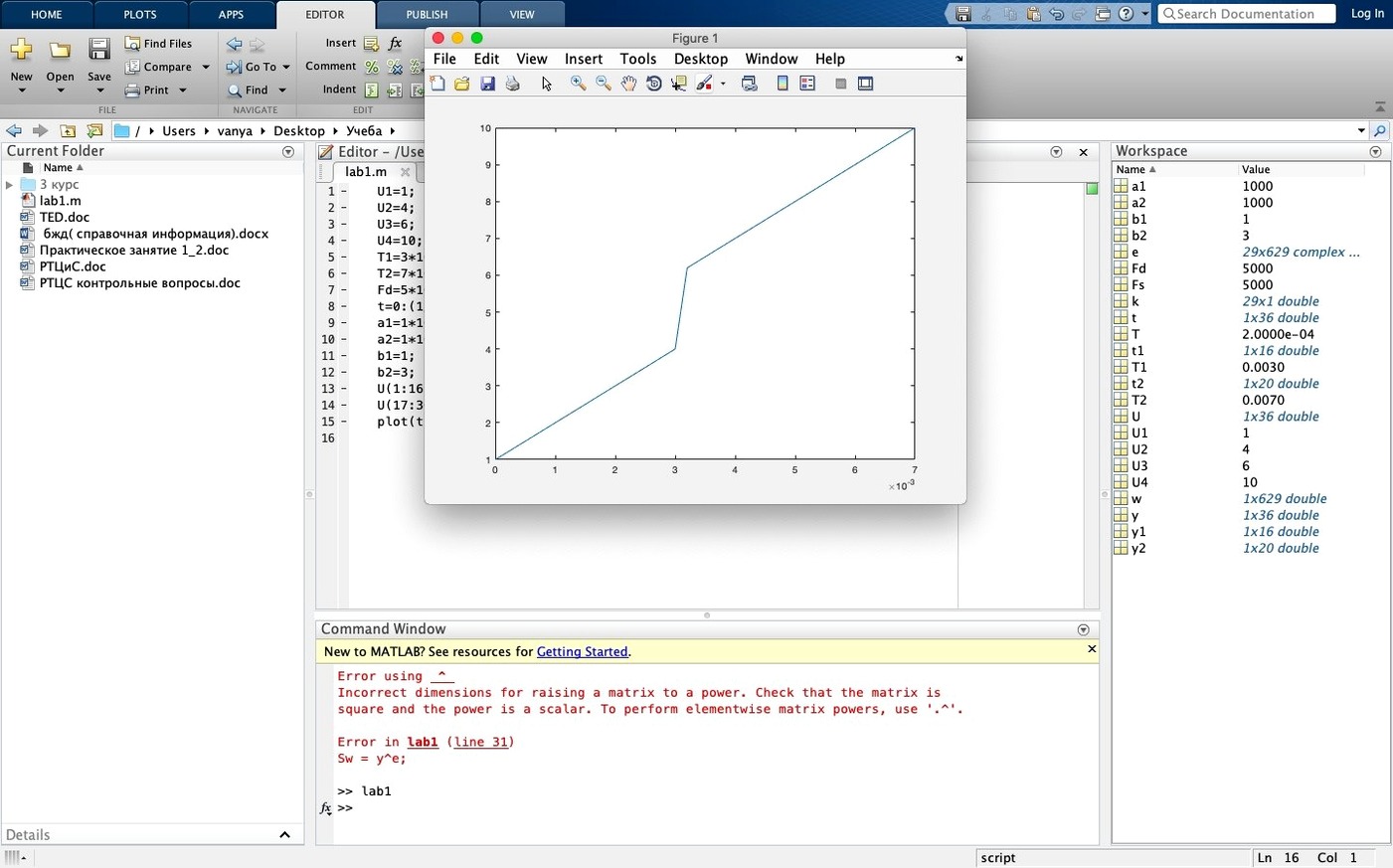
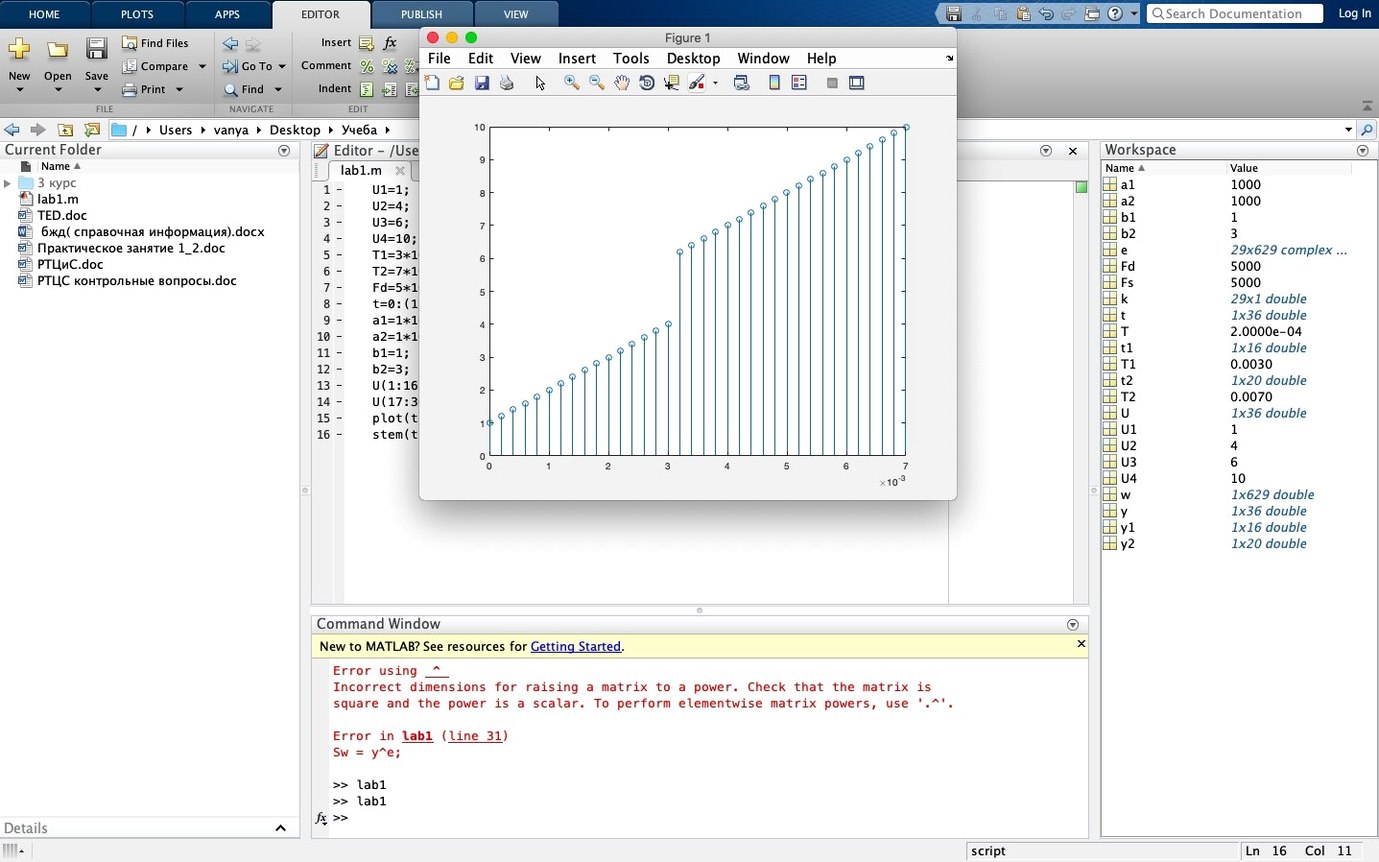
Click a screenshot to see it wider.
MATLAB R2025b for Mac is the high-level language and interactive environment for numerical computing, visualization, and algorithm development. If you work in control systems, test and measurement automation, or computational biology, this is the tool that turns raw data into working models and applications.
Quick Check Before Installing
Make sure your Mac runs macOS 12.6 or later. The release supports both Apple Silicon and Intel Macs natively, so no translation layer is needed.
Install or Update Without Losing Setup
Run the installer and point it at your existing application folder. Reinstalling keeps your settings intact. You can add toolboxes later by rerunning the installer and selecting extra components — no need to install everything at once.
What Changed in R2025b for Everyday Use
The core language and computation engine work the same, but the desktop itself feels different. Sidebars now live on the edges of the main window, giving you one-click access to the Debugger, Source Control, Test Browser, Code Issues, and Code Outline panels. These used to be separate floating windows or buried in menus; now they are task panels that slide out when you need them and stay out of the way when you don't.
The new figure container groups all your plots, images, and visualization tools into a single container. Instead of hunting across multiple windows, you manage figures and their related controls in one place. For anyone running signal processing or image analysis workflows side by side, this cuts down on window clutter.
Light and dark themes now apply to the desktop, all figures, and every app panel. The change is system-wide inside MATLAB: switching to dark mode at night is a single toggle, not a per-panel adjustment.
Fewer Crashes on Large Matrices
The quality and stability improvements in R2025b don't make the changelog exciting, but they reduce the kind of small crashes and UI hangs that interrupt flow. If you work with large matrices or long-running simulations, these fixes add up to fewer restarts.
Because the installer lets you add components later, you can start with the core MATLAB language and basic toolboxes, then add specialized libraries for control systems, communications, or computational biology only when a project demands them. This keeps the initial install smaller and the launch time faster.
Dark Theme Matches macOS Dark Mode
MATLAB R2025b respects macOS system appearance settings for accent colors and window controls. The dark theme matches macOS dark mode, so the transition between the operating system and MATLAB is visually consistent. File dialogs use the standard macOS file picker, making it easy to pull data from Finder or drag CSV files directly into the workspace.
For automation workflows, MATLAB can call macOS command-line tools through the system() function or import data from standard formats like Excel, CSV, JSON, and HDF5 without extra libraries. If your pipeline involves Apple's iWork formats or QuickTime video, the import tool handles those conversions natively on macOS.
If you look for matlab r2025b for mac torrent, the ARM-native build means the software runs directly on Apple Silicon without Rosetta overhead. Intel Macs get a separate x86 build that stays compatible with older hardware.
Sometimes a partial install causes issues. Adjust the component set and reinstall the product to get a clean configuration.
- Quality and stability improvements.
- New desktop sidebars and task panels.
- Light and dark themes for the desktop, figures, and apps.
- macOS 12.6 or later
- Apple Silicon or Intel
- English language
Questions I get about this line
Yes, MATLAB R2025b supports Apple Silicon natively, and Intel Macs are also supported.
No, reinstalling does not remove your settings.
The install order
- Install MATLAB into your existing application folder to keep the current installation.
- Reinstalling keeps your settings intact.
- To add toolboxes or blocksets later, rerun the installer and pick additional components.
- You don't need to install the maximum component set.
- If problems arise after an update, adjust the component set and reinstall the product.