- Version
- 5.0
- Developer
- 翔何
- Languages
- Russian, English, German, Arabic, Vietnamese, Spanish, Italian, Chinese (Traditional), Chinese (Simplified), Korean, Persian, Polish, Portuguese, Slovak, Turkish, Ukrainian, French, Hindi
- License type
- Included
| macOS range | macOS 11 or later |
|---|---|
| Chip | Apple Silicon, Intel 64-bit |
| Download | 17 MB |
Screenshots
Click a screenshot to see it wider.
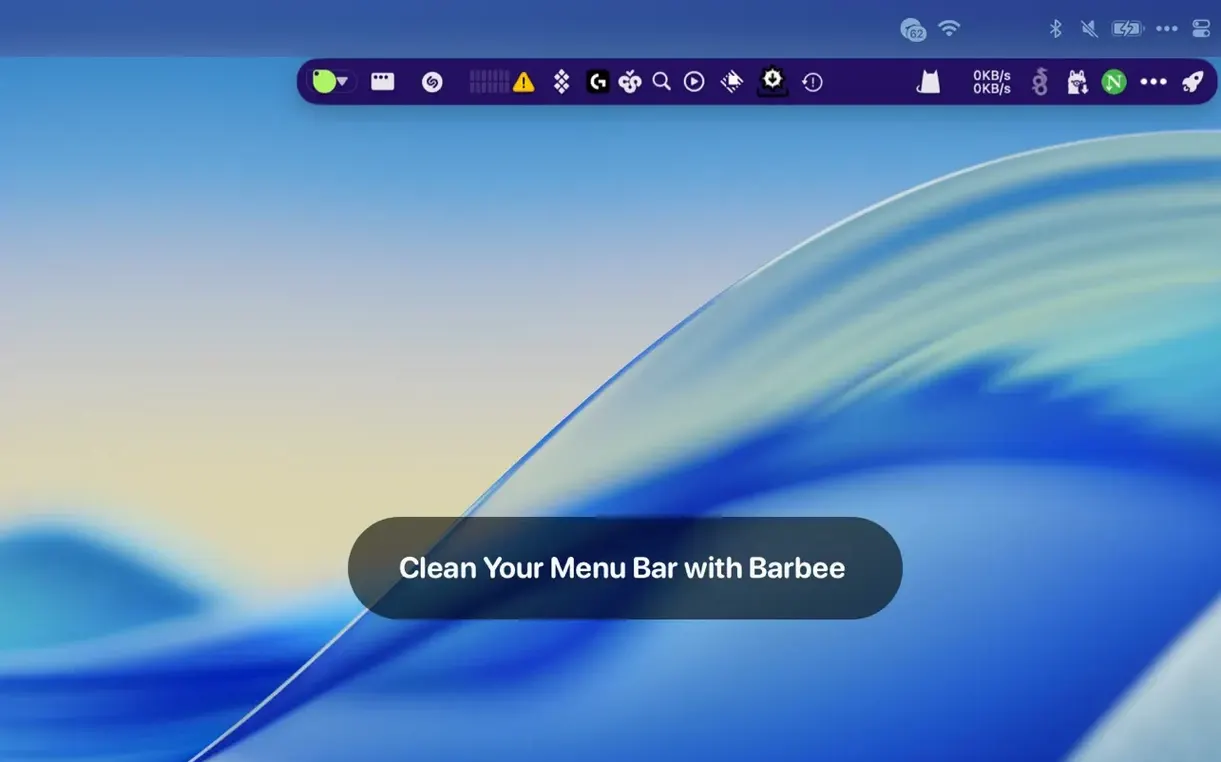
You have a row of menu bar icons that you only need once a week. Barbee lets you hide them with one click and bring them back when you need them.
Requires macOS 11 or Later
macOS version — 11.0 or later.
Architecture — works on both Intel (64-bit) and Apple Silicon Macs.
Notch support — works with MacBooks that have a notch.
Languages — 18 languages including English, Russian, German, Spanish, French, Chinese, Korean, and Arabic.
One-Click Hide or Show Any Icon
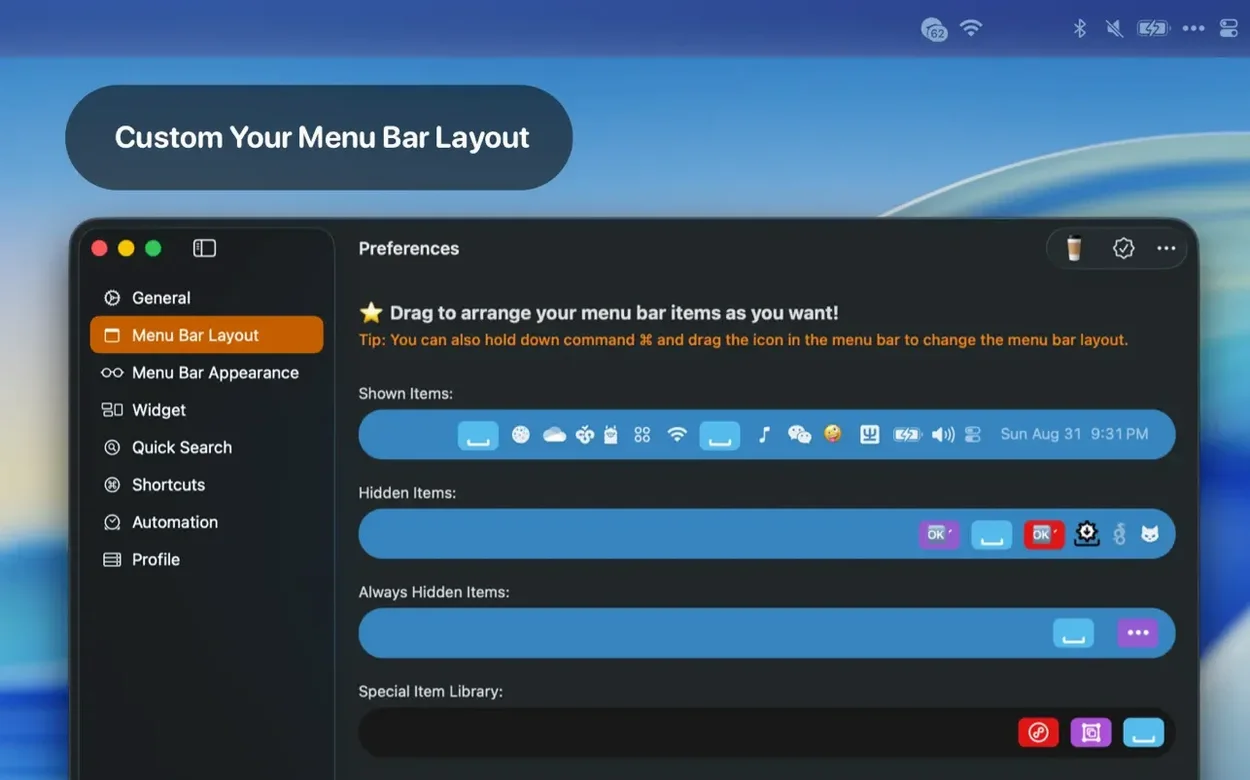
One-click hide/show — click a button to hide or show any menu bar icon.
Always hidden — set items to never appear in the menu bar temporarily.
Enhanced mode — hidden icons appear in a separate floating menu.
Desktop widgets — widgets for quick access to hidden app functions.
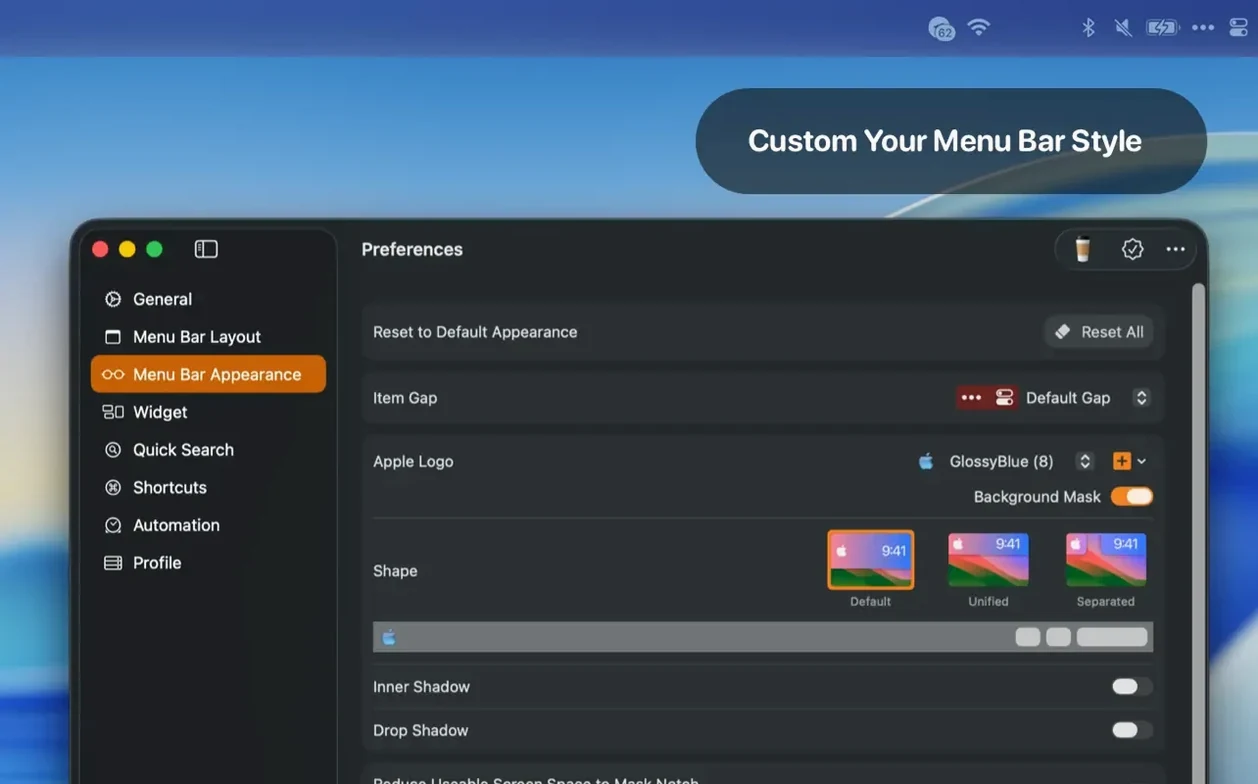
Menu bar shape — change rounded corners and shadows on the bar.
Barbee has been a solid alternative to Bartender for managing menu bar items in macOS. The 5.0 update focused on codebase refactoring and stability improvements.
Under-the-Hood Rewrite for Stability
Version 5.0 rewrote the underlying code for better macOS compatibility. Nothing changed in how you use Barbee day-to-day. The interface, the hide/show buttons, and the enhanced mode work the same way. The refactoring just means fewer odd behaviors when macOS updates break third-party menu bar managers.
Settings Worth Checking First
After you launch Barbee, open its preferences and adjust these two things before doing anything else:
- Enhanced mode — turn this on if you have more than five hidden icons. The separate floating menu keeps your menu bar clean and gives you a single place to find everything you hid.
- Global hotkeys — set a keyboard shortcut for toggling hidden icons. This is faster than clicking the Barbee icon every time you need to check a hidden item.
If you use a notched MacBook, Barbee works with the notch out of the box. You can also change the menu bar color or swap the Apple logo for a classic rainbow logo if that is your preference.
What Changed in Everyday Use With Version 5.0
The 5.0 refactoring did not add new buttons or menus. What changed is how the app handles the menu bar itself. If you previously saw menu bar icons flicker or shift position when Barbee hid or showed items, that behavior is reduced. The code now interacts with macOS more directly, which means fewer delays when you toggle a hidden icon back into view.
Triggers for automatic show/hide also respond faster. If you set a trigger to show your calendar icon during meetings, that icon appears without the half-second lag that earlier builds sometimes had. The desktop widgets feel more responsive for the same reason.
Nothing in the setup process changed. You still drag the app into Applications and launch it from Launchpad. The preferences window layout is identical to version 4.x. If you are updating from an older build, your existing settings carry over without needing to reconfigure anything.
Settings Worth Changing After the Basics
Once you have enhanced mode and global hotkeys set, look at two more preferences:
- Always hidden list — open the list of menu bar items and mark the ones you never need to see by default. This is different from the normal hide function. Items in this list stay hidden until you explicitly show them, even if you toggle the main hide/show button. Good for things like printer utilities or hardware monitors you only check during troubleshooting.
- Menu bar shape — if you prefer a cleaner look, adjust the rounded corners and shadow. This is cosmetic, but it helps if your wallpaper has bright colors that clash with the standard menu bar shape.
Barbee also supports 18 interface languages, so if English is not your primary language, check the language setting in preferences before you start hiding icons.
- Refactored the codebase for better compatibility with the latest macOS.
- Improved overall stability and reliability.
- macOS 11.0 or later
- Intel (64-bit) or Apple Silicon
Questions I get about this line
Yes. Barbee supports MacBooks that have a notch.
The install order
- Open the downloaded disk image.
- Drag the app into the Applications folder alias.
- After copying finishes, launch the app from Launchpad.