- Version
- 2.3.3
- Developer
- Rony Fadel
- Languages
- Russian, English, Italian, Chinese (Simplified)
- License type
- K'ed by TNT team
| macOS range | macOS 10.15 or later |
|---|---|
| Chip | Apple Silicon, Intel 64-bit |
| Download | 6 MB |
Screenshots
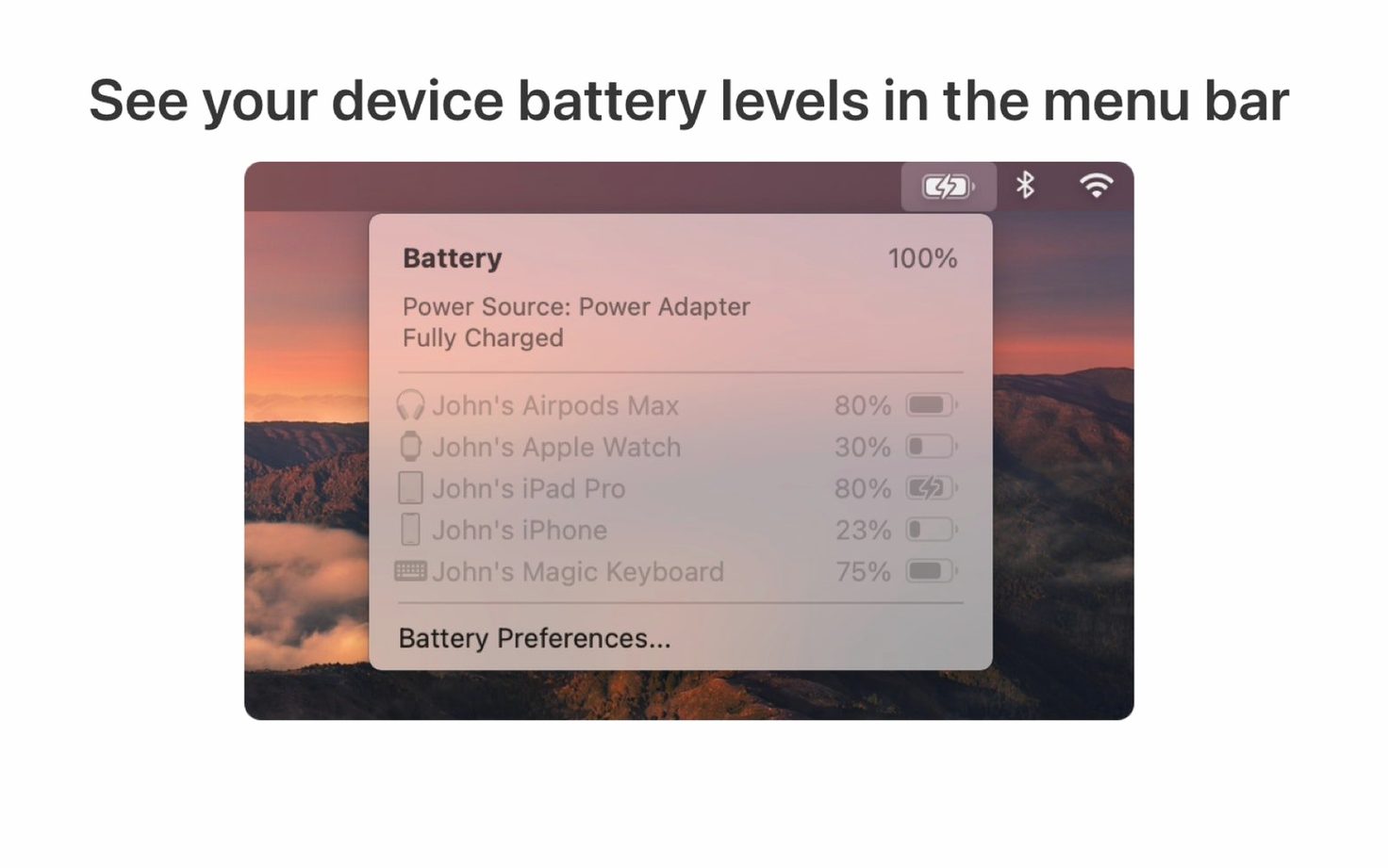
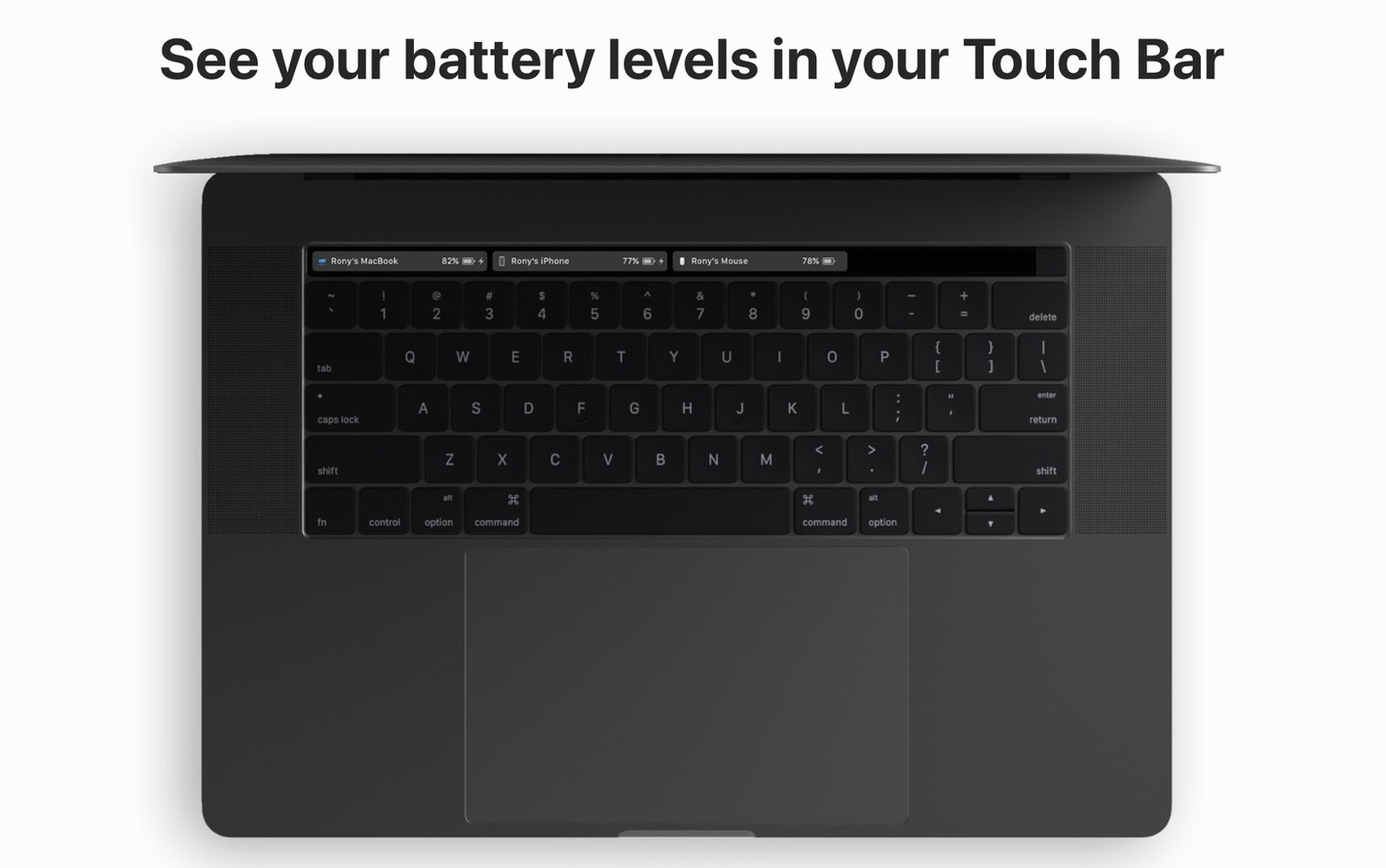
Click a screenshot to see it wider.
No clutter, no extra panels — just the numbers you need, placed where you can see them without stopping what you’re doing.
Check Levels at a Glance
Pick the spot that suits your workflow, and glance at it whenever you want.
Get Alerts Before They Die
When a connected device drops low, Batteries sends a notification. You’ll know it needs charging before it shuts down, even if you’re in another app.
Run It and Forget It
Installation is straightforward, and the app is ready to use immediately. It works on Apple Silicon and Intel Macs, and the interface is available in Russian, English, Italian, and Simplified Chinese.
Works Across Your Mac Setup
Batteries runs on macOS 10.15 or later. That covers both Intel and Apple Silicon hardware. You do not need to check compatibility if your Mac is on Catalina or newer. The app sits in the background and uses the network to find devices. On Catalina and later, visible iPhones and iPads show up in Finder over Wi-Fi. On Mojave, it relies on iTunes Wi-Fi sync instead.
Install in a Few Steps
Mount the disk image and run Open Gatekeeper friendly. When Terminal appears, press Enter to bypass Gatekeeper. Copy the app to your Applications folder. Launch it, and you are done. No extra permissions or services to configure.
Faster Device Spotting and More Locations
This release focused on the basics: spotting devices faster and showing their levels in more places. Pick whichever location stays visible during your work.
What to Expect on Your Mac
Batteries is a background utility, not a heavy app. It does not run its own windows or panels. You set the display location — menu bar, Today widget, or Touch Bar — and the app does the rest. It polls devices over the local network, so your Mac and the device need to be on the same Wi-Fi. No cables, no pairing steps beyond what you already set up for Finder or iTunes sync.
On Catalina and later, iPhones and iPads appear in Finder automatically when Wi-Fi visibility is enabled. AirPods and Bluetooth headphones show up once paired to the Mac. The app does not interfere with other Bluetooth connections or slow down file transfers. It runs quietly and only draws attention when a notification fires.
Language support covers Russian, English, Italian, and Simplified Chinese. The interface adapts to your system language if one of those is set. Otherwise, it defaults to English.
What the Latest Versions Changed in Everyday Use
Version 2.3.3 tightened device detection. Devices that used to take a few seconds to appear now show up faster after the Mac wakes from sleep. That matters if you walk away and come back — you see the current charge levels sooner, not a stale reading from before you left.
The menu bar and widget update more consistently. That gap is smaller now. You get the real level, not the one from five minutes ago.
Touch Bar users get the same data as the menu bar without extra clicks. The readout updates in real time, same as the other locations.
Mistakes Beginners Make
The most common slip is skipping the Finder or iTunes sync step. Batteries needs Wi-Fi visibility enabled on the iPhone or iPad before it can see the device. If you open the app and nothing shows up, check that setting first. On Catalina or later, open Finder, select the device, and check "Show this iPhone when on Wi-Fi." On Mojave, do the same in iTunes.
Another one: expecting AirPods to appear when they are in the case with the lid closed. Keep the lid open for a moment while the app polls. The reading appears after a few seconds.
Some users forget to pick a display location. Batteries does not show a floating window by default. If you do not check the menu bar, widget, or Touch Bar setting, you will not see any levels. Open the app preferences and choose where you want the data.
Finally, do not close the app after installation. It is meant to run in the background. If you quit it, monitoring stops. Leave it running and let it do its job.
Language support now includes Russian, English, Italian, and Simplified Chinese. That makes it useful across different teams or home setups without switching the interface.
- macOS 10.15 or later
- Apple Silicon or Intel 64-bit
Questions I get about this line
Yes. Batteries supports both Apple Silicon and Intel 64-bit Macs, and it requires macOS 10.15 or later.
The install order
- Mount the disk image and run Open Gatekeeper friendly.
- Press Enter in Terminal to bypass Gatekeeper.
- Drag the app to the Applications folder.
- Launch the app when installation is complete.