
- Version
- 1.1.10
- Developer
- Friendly Ventures
- Languages
- English
- License type
- Not required
| macOS range | macOS 10.13 or later |
|---|---|
| Chip | Apple Silicon, Intel 64-bit |
| Download | 8 MB |
Screenshots
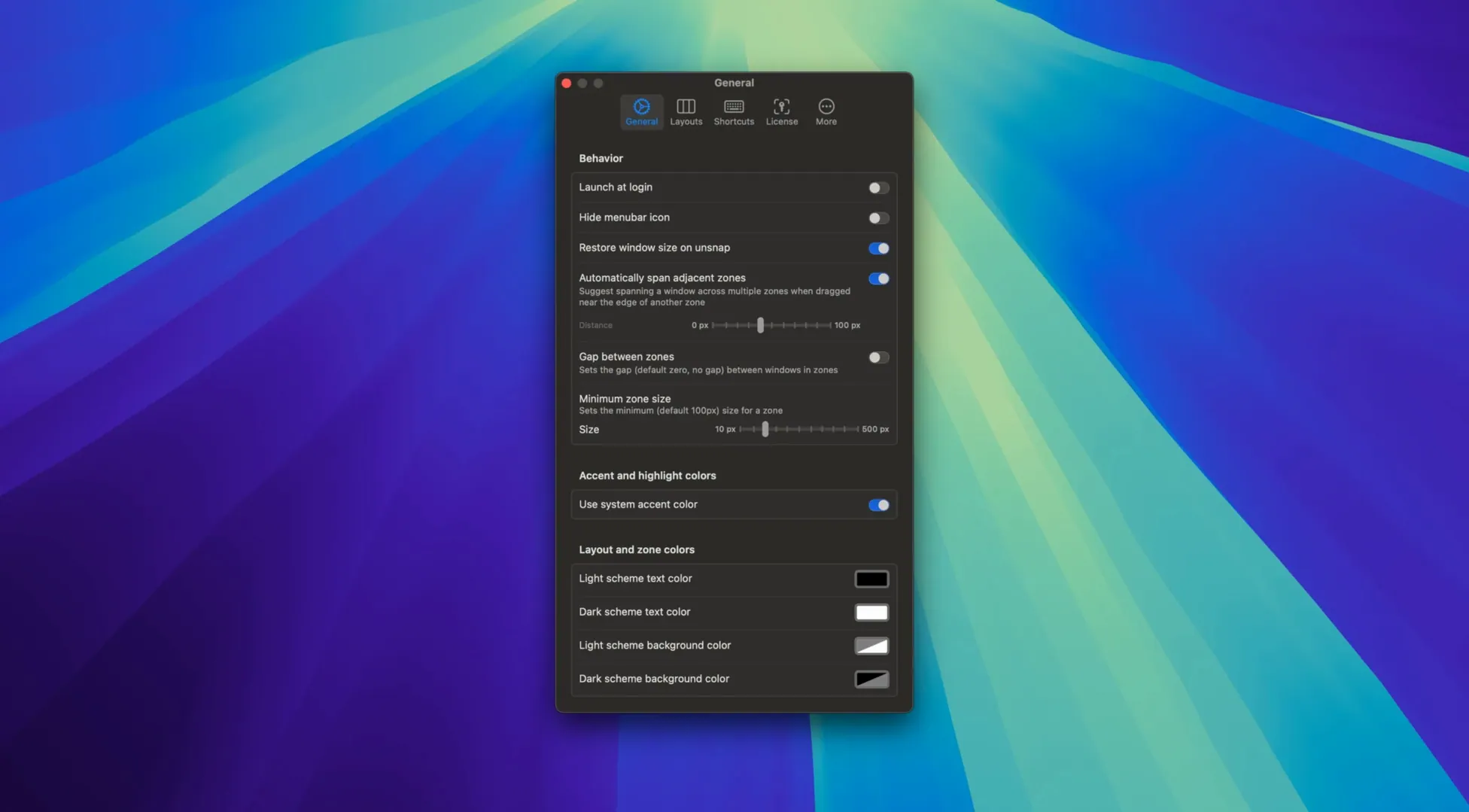
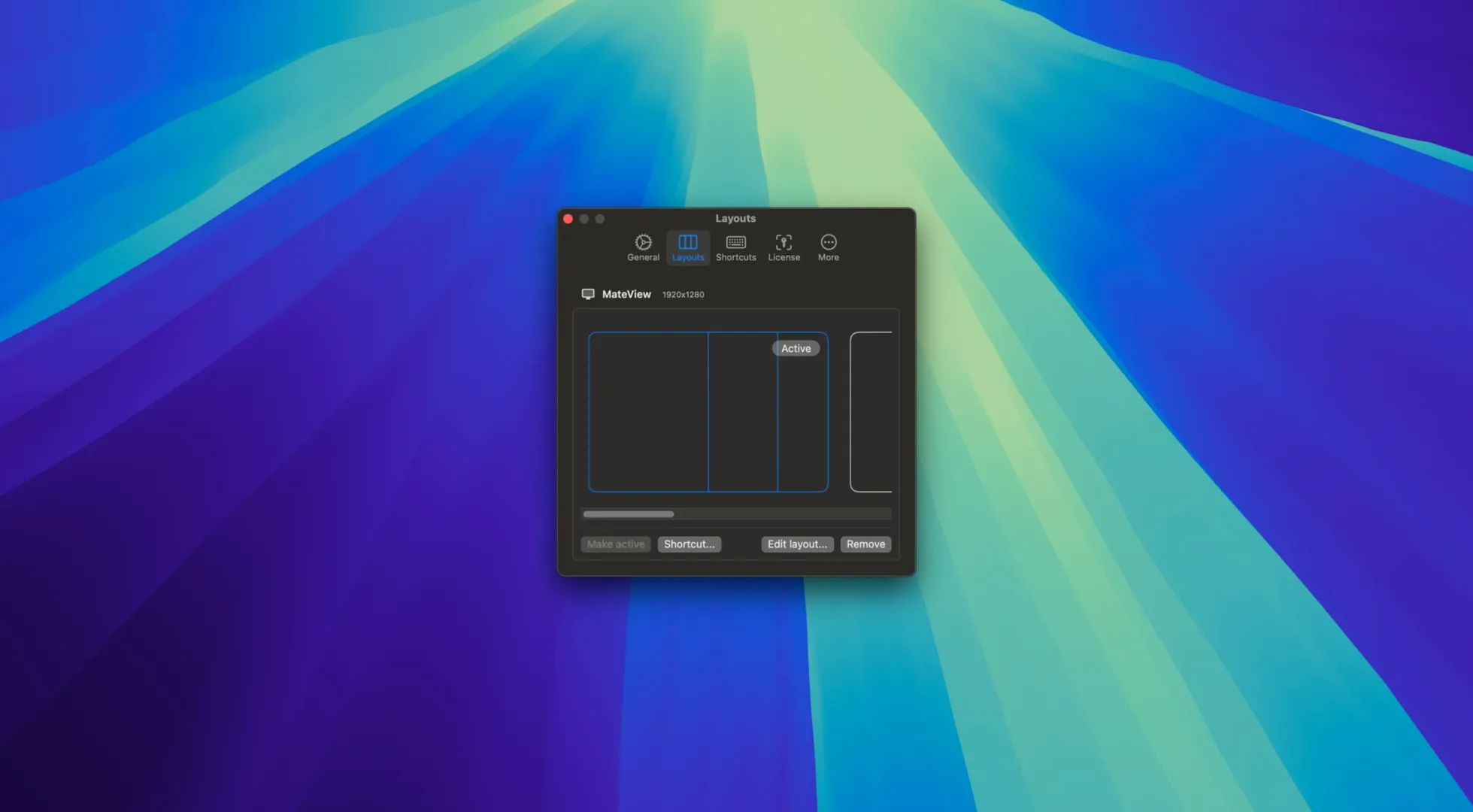
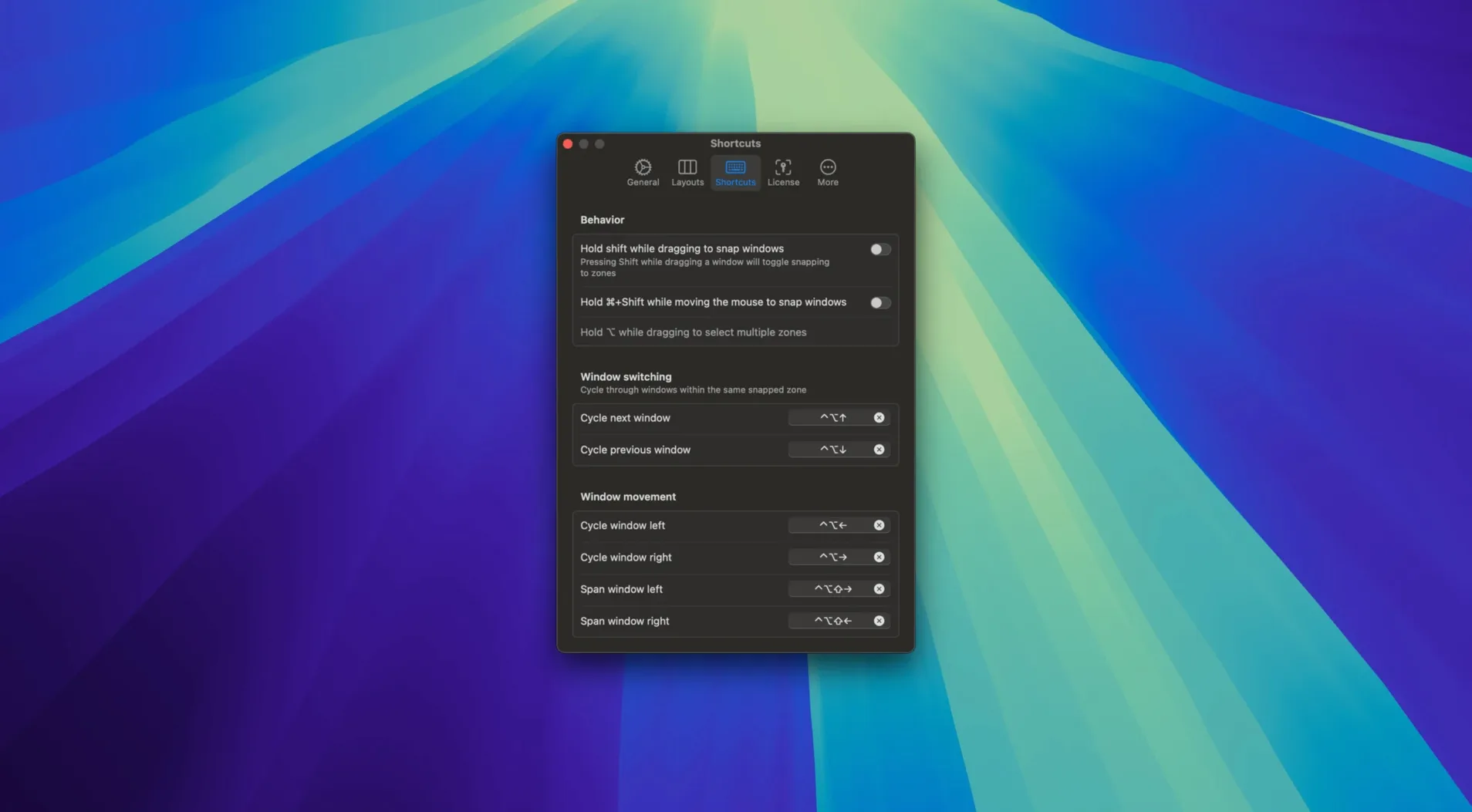
Click a screenshot to see it wider.
IT pros, developers, and anyone who runs a dozen windows on two monitors will get the most out of BentoBox. It is a macOS window manager built around custom snap zones, modeled after Microsoft's FancyZones. You define the grid, drop a window in, and it locks into place — no resizing by hand.
Multi-Monitor Zone Management
BentoBox handles layouts across multiple displays. When macOS cannot reliably identify a connected monitor — a common issue with docks and adapters — version 1.1.10 keeps the saved layouts available anyway. If more than one layout set could match a display, a guided recovery screen in Layout Settings lets you pick the right one. Zones also work across monitors: drag a window from one screen to another, or spread it across multiple zones on the same display.
Snapping That Does Not Break Focus
The 1.1.10 update preserves window focus while snapping. That means you assign a shortcut, the window moves, and you keep typing — no extra click to regain focus. The app supports both ARM and 64-bit Intel Macs, and layout shortcuts are reused for displays with identical workspace sizes when the display ID is unreliable.
Real-World Use: Multi-Monitor Analyst Setup
A financial analyst at a small firm runs two external monitors from a single USB-C dock. After unplugging and reconnecting the dock at the end of the day, macOS sometimes swaps the display IDs. Before BentoBox 1.1.10, the analyst had to rebuild window layouts each morning. Now the saved layouts stay available even when the monitors report inconsistently. The guided recovery screen in Layout Settings resolves any layout conflicts, so the analyst picks the correct saved set once and is back to work.
No Restart Required After Install
Drag and Launch from Disk Image
No restart is required. Mount the downloaded disk image, drag the app to the Applications folder alias, and launch it from Launchpad.
Will BentoBox work with my existing keyboard shortcuts?
BentoBox uses its own set of keyboard shortcuts for placing windows into zones. You define the shortcuts for each layout. They do not interfere with system-wide shortcuts, but check for conflicts if you use the same key combos in other apps.
Can I use BentoBox on a laptop without external monitors?
Yes. The zone system works on the built-in display. Multi-monitor support is a feature, not a requirement. You can create a single-monitor layout and switch to a multi-monitor layout when you dock.
Real-World Scenario: Software Developer on a Single Display
A web developer at a dental clinic chain (like the IT team I work with) keeps a browser, code editor, terminal, and Slack open on one 27-inch monitor. Without BentoBox, they spend a minute every morning dragging windows into position. With a custom four-zone layout — code editor takes the left half, browser gets the top-right quarter, terminal the bottom-right quarter, and Slack stays a narrow strip on the far right — each window snaps into place with one shortcut. No manual resizing. When they switch to a second monitor for a meeting, the layout set changes automatically.
Questions People Ask Before Installing
Does BentoBox change how my existing windows behave?
No. Windows you do not snap stay exactly where they are. BentoBox only moves windows when you tell it to — by shortcut, mouse gesture, or trackpad action. It does not rearrange your desktop on launch or force any zone system on you. You create layouts only if you want them.
What happens when I disconnect a monitor?
Windows on the disconnected monitor return to the primary display as loose windows. Your saved layout for that monitor stays stored. When you reconnect, BentoBox 1.1.10 reapplies the layout if the display is recognized, or shows the guided recovery screen if macOS cannot identify the monitor. No layout is lost.
Can I use BentoBox with full-screen apps?
BentoBox zones work with standard windowed apps. Full-screen and split-view modes in macOS are separate — BentoBox does not interact with them. If you run an app full-screen, the zone system is not active for that space.
Will this conflict with other window managers?
Running two window managers at once can cause unpredictable snapping behavior. Friendly Ventures recommends using BentoBox alone for zone-based window management. If you use another tool for keyboard shortcuts or trackpad gestures, test for conflicts before relying on both.
- More reliable display reconnects, updates, and snapping.
- Reused layouts and shortcuts for displays with the same workspace size when macOS cannot identify a monitor consistently.
- Added guided recovery in Layout Settings for matching layouts.
- Brought manual update checks and the update window to the foreground.
- Preserved focus while snapping windows.
- macOS 10.13 or later
- Apple Silicon or 64-bit Intel processor
- English interface
Questions I get about this line
Yes. BentoBox handles layouts across multiple displays, and version 1.1.10 improves reliability when macOS cannot consistently identify a connected monitor.
Yes. BentoBox supports both Apple Silicon (ARM) and 64-bit Intel Macs.
The install order
- Mount the downloaded disk image.
- Drag the app to the Applications folder alias.
- Launch the app from Launchpad.