
- Version
- 1.5
- Developer
- App ahead GmbH
- Languages
- English, German, Spanish, Italian, Chinese (Simplified), Portuguese, French, Hindi, Japanese
- License type
- Not required
| macOS range | macOS 15.6 or later |
|---|---|
| Chip | Apple Silicon, Intel 64-bit |
| Download | 15 MB |
Screenshots
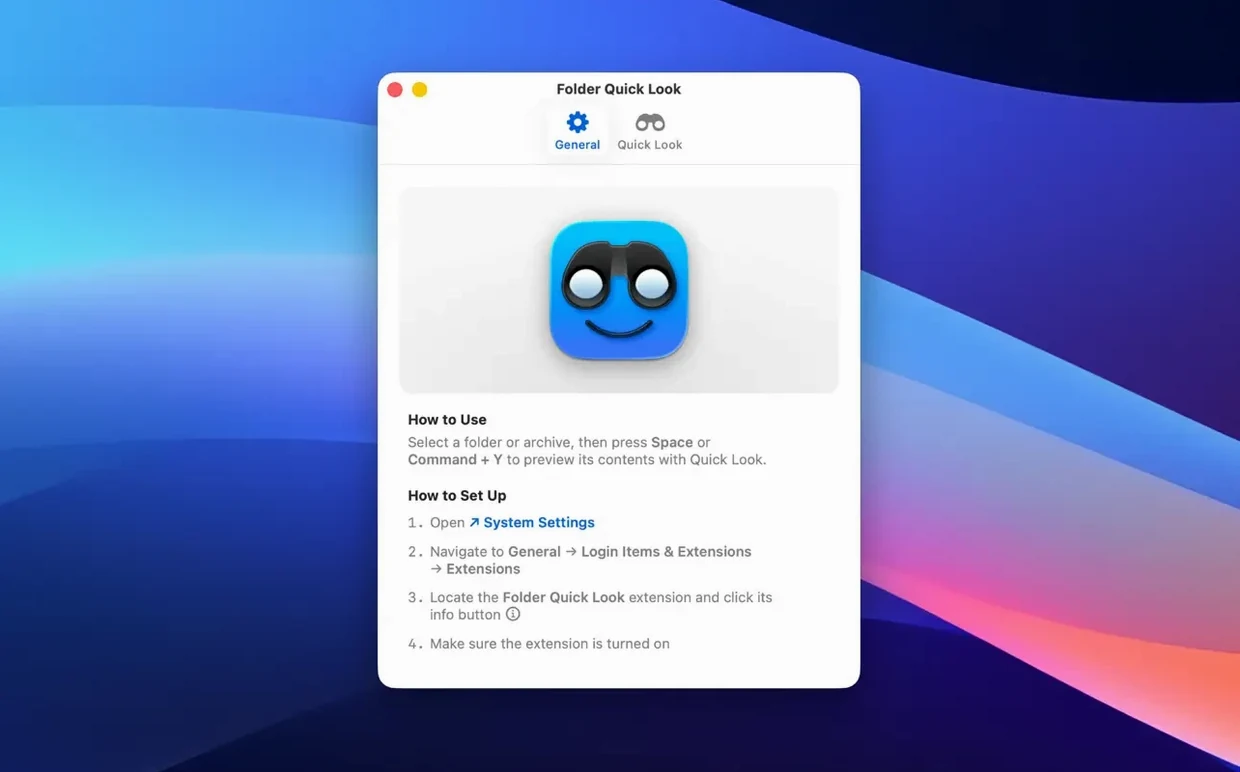
Click a screenshot to see it wider.
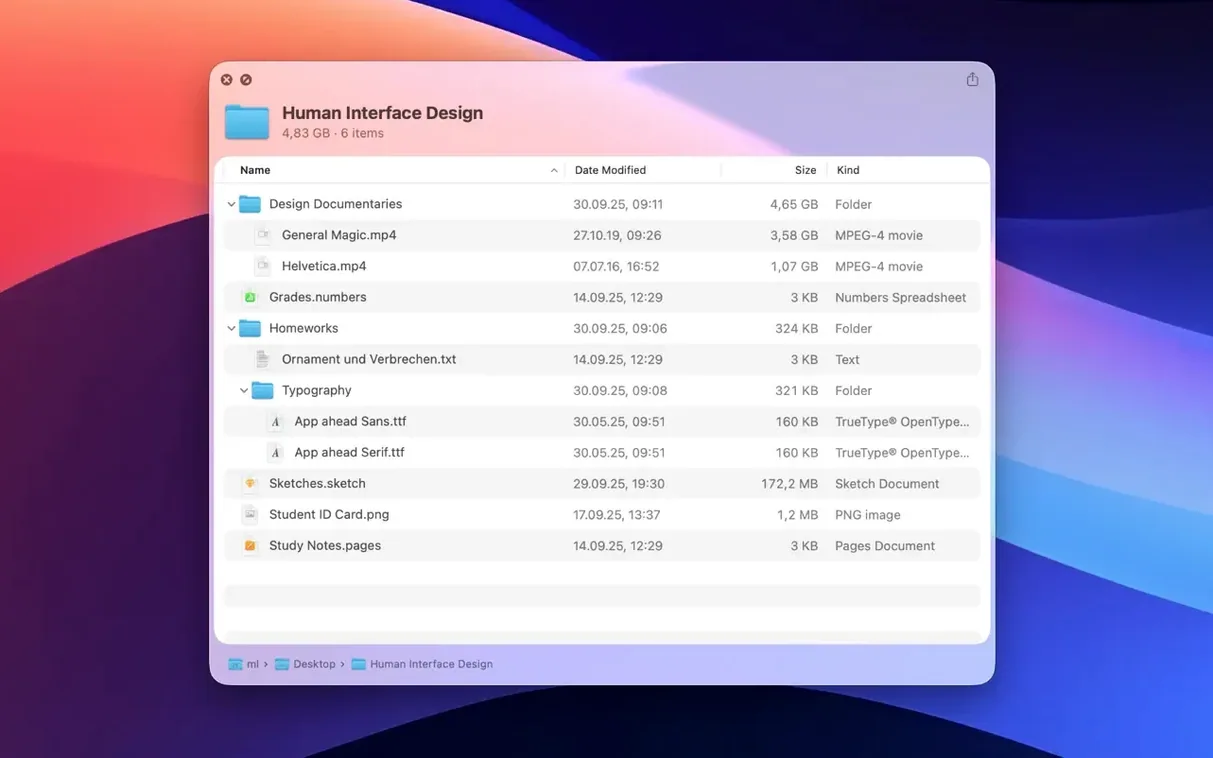
Folder Quick Look adds folder and archive preview to macOS Quick Look. Version 1.5 introduces a grid view for previews, making browsing archives easier.
Check macOS Version
Folder Quick Look requires macOS 15.6 or later. It runs on both Apple Silicon and Intel 64-bit Macs. No activation is needed.
What It Previews
With Folder Quick Look, you can preview folders and archives directly in Quick Look. Use the space bar on any folder or supported archive file.
Test It with a Few Folders First
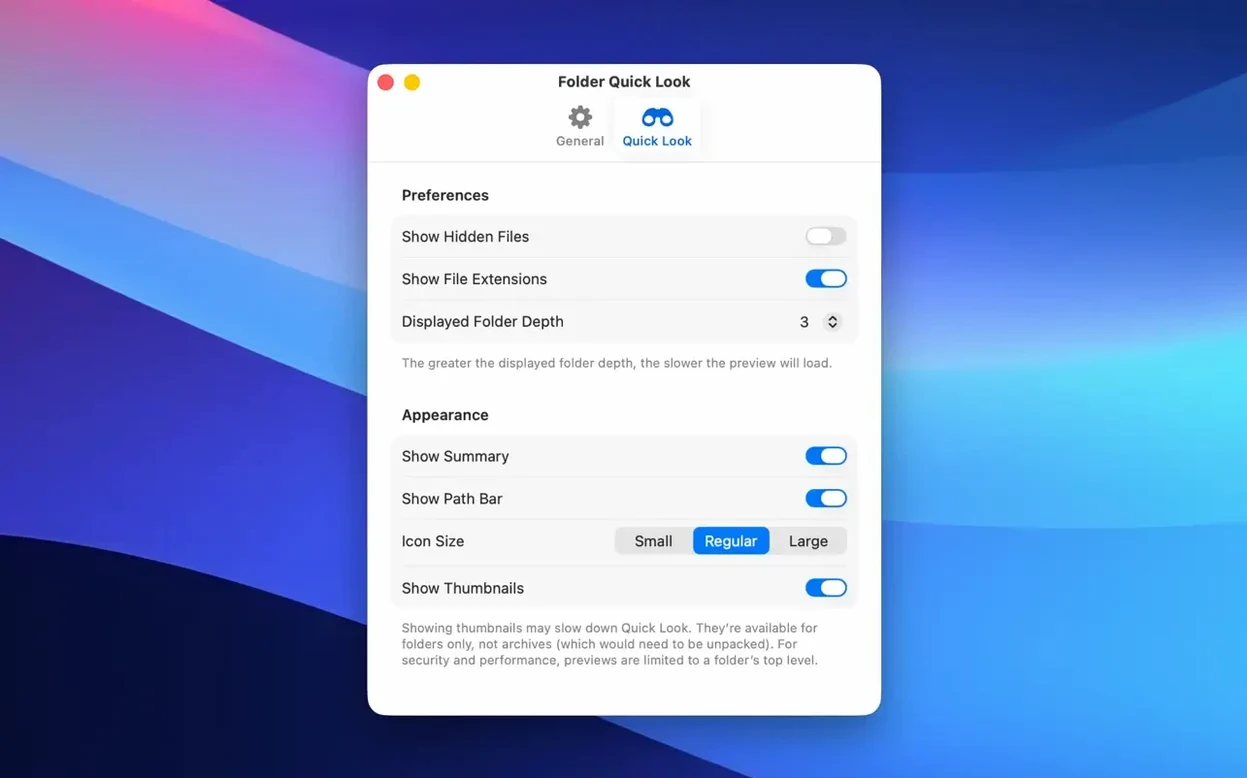
Folder Quick Look works quietly in the background. There is no interface to configure, no settings panel to open. The utility registers itself with macOS Quick Look after launch.
Test it with a few folders first. Pick a folder with a mix of file types and press Space. You should see file names, sizes, and modification dates in Quick Look. Folders inside the parent folder also appear in the preview.
Try the new grid view introduced in version 1.5. Press Space on a folder or archive, then look for the grid view option in the preview window. Grid view can help when scanning image-heavy folders or archives with many small files.
Test archive previews with a ZIP and a RAR file. Folder Quick Look handles both formats. Use the same Space bar workflow — no extra steps.
If the preview does not show content, relaunch the app from Launchpad. The utility needs to register with Quick Look once per session. A relaunch fixes the connection.
No Menu Bar Icons or Preference Panes
Folder Quick Look runs on macOS 15.6 and later. It supports both Apple Silicon and Intel 64-bit Macs.
The app does not add menu bar icons, preference panes, or login items. When you launch it from Launchpad, it registers the folder and archive preview handlers with Quick Look and stays available. You can close the window after launch — the preview service continues running.
Languages supported include English, German, Spanish, Italian, Simplified Chinese, Portuguese, French, Hindi, and Japanese. The interface follows your macOS language setting.
Must Launch After Each Login
Does Folder Quick Look work with any file format?
The utility previews folders and archives. Supported archive formats include ZIP and RAR. Files inside those archives appear in the Quick Look preview. For individual files, macOS Quick Look handles previews natively — Folder Quick Look fills the gap for folders and compressed files.
Will it affect Spotlight or Finder performance?
Folder Quick Look only activates when you press Space on a folder or archive. It does not index, scan, or modify files. Quick Look is a read-only preview system, and this utility works within that framework.
Add to Login Items for Automatic Start
Yes. The app must be launched after each login to register the preview handlers. It runs in the background with no visible window after the initial launch. You can add it to your login items in System Settings if you want it available automatically.
Can I preview nested folders inside an archive?
Yes. When you preview a ZIP or RAR file, the Quick Look window shows the archive's internal folder structure. You can navigate into subfolders using the same Space bar workflow or by clicking folder names in the preview.
Mount the downloaded disk image. Drag the app into the Applications folder alias. Launch the app from Launchpad after copying finishes.
- Quick Look previews can be shown in a grid view.
- macOS 15.6 or later
- Apple Silicon or Intel 64-bit Mac
- No activation required
The install order
- Mount the downloaded disk image.
- Drag the app into the Applications folder alias.
- Launch the app from Launchpad after copying finishes.